How to Compress PDFs for LMS Upload (Moodle, Canvas, Blackboard)
LMS rejecting your file? Moodle defaults to 16 MB, Canvas caps at 500 MB, and email maxes at 10-25 MB. Here's how to compress PDFs without losing readability.
It is Sunday night. You have spent two hours assembling a 48-page course packet - lecture slides, reading excerpts, diagram-heavy handouts, and a scanned journal article. You click "Upload" in Moodle and get the message: "The file you are trying to upload is too large."
Your PDF is 42 MB. The upload limit is 16 MB. You have 150 students expecting this material by 8 AM.
This happens constantly in education. Learning management systems enforce file size limits that were set years ago, and course materials - especially anything with images, diagrams, or scanned pages - routinely blow past those limits. The result is a frustrating scramble at the worst possible time: the night before class.
This guide covers exactly why educational PDFs get so large, what each major LMS allows, how to compress PDFs without destroying readability, and what to do when compression alone is not enough.
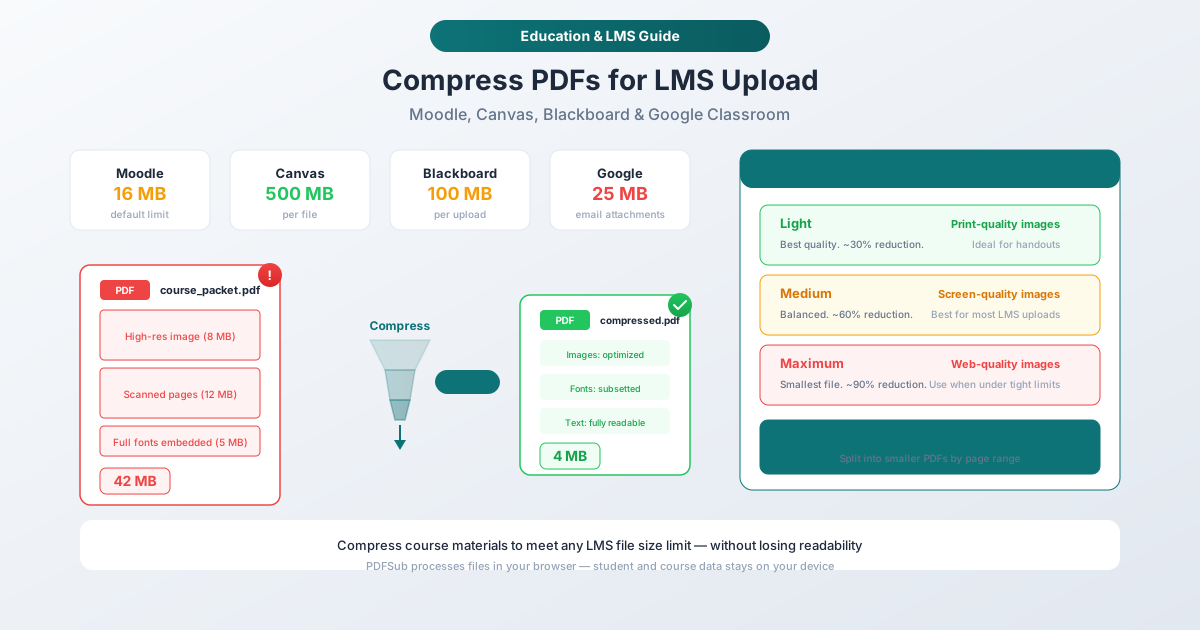
LMS File Size Limits: What You Are Working With
Every LMS enforces file size limits, but they vary widely. The limit that actually applies to you depends on your institution's configuration, since most LMS platforms allow administrators to adjust the defaults.
| LMS | Default / Typical Limit | Notes |
|---|---|---|
| Moodle | 16 MB (default) | Configurable per course; some institutions set it higher (50 MB, 100 MB) |
| Canvas | 500 MB per file | Generous per-file limit, but course storage quotas are typically 500 MB to 1.5 GB total |
| Blackboard | 100 MB per upload | Reduced from 250 MB at many institutions starting Fall 2025 |
| Google Classroom | 25 MB (email attachments) | Files shared via Google Drive have higher limits, but direct attachments are email-bound |
| D2L Brightspace | Varies by institution | Typically 100-500 MB per file |
| Schoology | 512 MB | Relatively generous, but large files slow download for students on slow connections |
The practical limit is often lower than the technical limit. Even if Canvas allows 500 MB per file, uploading a 200 MB course packet means 150 students each downloading 200 MB - that is 30 GB of bandwidth for a single document. Students on mobile data plans or slow connections will struggle.
A good target for most course materials is under 10 MB per document. That keeps uploads fast, downloads quick on any connection, and leaves room within storage quotas.
Why Course Materials Get So Large
PDF file size is driven by three things: images, fonts, and how the document was created. Understanding what is making your file large helps you choose the right compression strategy.
High-Resolution Images
This is the number one cause of oversized educational PDFs. A single high-resolution photograph embedded in a lecture slide can be 5 to 15 MB. A document with 10 such images can easily exceed 100 MB.
The issue is resolution mismatch. Images captured at 300 DPI (dots per inch) - which is standard for print - are far more detailed than what a screen can display. A typical laptop screen shows content at 72 to 144 DPI. All that extra resolution is invisible to students reading on screen, but it inflates the file size dramatically.
Common culprits:
- Lecture slides exported from PowerPoint with embedded photos
- Diagrams and charts copied from other documents at full resolution
- Screenshots taken at retina resolution (2x or 3x the pixels needed)
- Stock images inserted at their original multi-megabyte resolution
Scanned Pages
When you scan a physical page, the scanner captures a photograph of the entire page - every pixel of every line of text is stored as image data. A single page scanned at 300 DPI in color produces a 25 to 35 MB uncompressed image. Even with JPEG compression, scanned pages typically run 1 to 5 MB each.
A 20-page scanned journal article can easily be 40 to 80 MB - far larger than the same article in native digital PDF format (which would be 200 KB to 2 MB using actual text characters instead of images).
Common sources of scanned content in course materials:
- Journal articles from older print-only publications
- Textbook chapters scanned for fair-use distribution
- Handwritten notes or diagrams scanned for student reference
- Historical documents and primary sources
Embedded Fonts
When a PDF embeds a full font family (rather than just the characters actually used in the document), it stores thousands of unused glyphs. A single font can add 200 KB to 2 MB to the file. A document using 5 to 10 fonts with full embedding can carry 5 to 15 MB of font data alone.
Font subsetting - embedding only the specific characters used in the document - solves this. If your document only uses 80 characters from a font that contains 2,000 glyphs, subsetting stores only those 80, reducing font overhead by 95% or more.
Layers and Metadata
PDFs exported from design tools (Adobe InDesign, Illustrator, Canva) sometimes include hidden layers, editing metadata, thumbnail previews, and other embedded data that inflates file size without contributing to the visible content.
Compression Levels: What Gets Reduced and When to Use Each
Not all compression is equal. Different levels trade off file size reduction against visual quality. Here is what each level actually does and when to use it.
Light Compression (30-40% Reduction)
What happens: Images are recompressed at high quality (minimal visible degradation). Fonts are subsetted. Redundant metadata is stripped. The document structure is optimized.
Visual impact: Virtually indistinguishable from the original. Print-quality images remain print-quality. Text is identical.
Best for:
- Materials that students will print (handouts, worksheets, study guides)
- Documents with detailed diagrams where fine lines and small text matter
- Materials you want to maintain at near-original quality
Example: A 25 MB course packet with high-res photos compresses to approximately 15 to 17 MB.
Medium Compression (50-70% Reduction)
What happens: Images are recompressed at screen-optimized quality (150 DPI equivalent). Fonts are subsetted aggressively. All unnecessary metadata is removed. Color profiles may be simplified.
Visual impact: Images look great on screen but may show slight softness if printed at high magnification. Text remains crisp and fully readable. Diagrams and charts are clear.
Best for:
- Most LMS uploads (this is the sweet spot for screen-viewed materials)
- Lecture slides and presentations
- Reading packets and course handouts
- Any document primarily viewed on screen
Example: A 42 MB course packet compresses to approximately 12 to 20 MB.
Maximum Compression (80-95% Reduction)
What happens: Images are recompressed aggressively (72-100 DPI equivalent). Color images may be converted to lower color depth. Font subsetting removes everything non-essential. The file is stripped to the minimum viable representation.
Visual impact: Images are noticeably lower quality - adequate for reading on screen but not suitable for printing. Text remains readable. Fine details in diagrams may be lost.
Best for:
- Meeting tight file size limits (Moodle's 16 MB default)
- Documents where text is the primary content and images are supplementary
- Quick reference materials that do not need high-fidelity graphics
- Temporary distributions where quality is secondary to accessibility
Example: A 42 MB course packet compresses to approximately 3 to 8 MB.
How to Compress a PDF for Your LMS
Method: PDFSub Compress PDF
Using PDFSub's Compress PDF tool:
- Open the tool - Navigate to the Compress PDF tool. No account required.
- Upload your PDF - Drag and drop or select the file. The document is processed entirely in your browser - it never gets uploaded to a server.
- Select compression level - Choose light, medium, or maximum based on your needs.
- Download the compressed file - The tool shows you the original size, compressed size, and percentage reduction. Download and upload to your LMS.
Processing time: Most documents compress in seconds. Very large files (100+ MB) may take up to a minute.
Choosing the Right Level for Your LMS
| Your LMS Limit | Recommended Compression | Why |
|---|---|---|
| Moodle (16 MB default) | Medium or Maximum | Tight limit requires significant reduction; maximum if your file is over 40 MB |
| Canvas (500 MB) | Light or Medium | Generous limit, but consider student download times; medium is usually sufficient |
| Blackboard (100 MB) | Light or Medium | Room to work with; light is often enough |
| Google Classroom (25 MB email) | Medium | Email attachment limits are tight; share via Drive for larger files |
| Email to students (25 MB) | Medium or Maximum | Gmail, Outlook, and most providers cap at 25 MB |
What to Do When Compression Is Not Enough
Sometimes a PDF is so large - a 200-page scanned textbook chapter, a presentation with 80 high-resolution photographs - that even maximum compression does not get it under the LMS limit. Here are your options.
Split the PDF by Page Range
If a 48-page course packet compresses to 20 MB but your Moodle limit is 16 MB, split it into two files:
Using PDFSub's Split PDF tool:
- Upload the compressed PDF
- Split by page range: pages 1-24 in Part 1, pages 25-48 in Part 2
- Upload both parts to your LMS
Label them clearly: "Week 3 Reading - Part 1 of 2 (pages 1-24)" and "Week 3 Reading - Part 2 of 2 (pages 25-48)."
Replace Scanned Pages with Searchable Text
If your PDF contains scanned pages (images of text rather than actual text), converting them to searchable text with OCR dramatically reduces file size. A scanned page that stores text as a multi-megabyte image can be replaced with actual text characters that take up a few kilobytes.
PDFSub's OCR PDF tool converts scanned pages into searchable, selectable text. This not only reduces file size but also makes the document more accessible - students can search for terms, copy text for notes, and use screen readers.
Reduce Image Resolution Before Creating the PDF
If you are assembling course materials from scratch (building a lecture in PowerPoint, compiling images in a document), reduce image resolution before exporting to PDF:
- For screen viewing: 150 DPI is more than sufficient. Most screens display at 72-144 DPI.
- For printing: 300 DPI is the standard. Only use this if students will print the material.
- For photos in slides: Resize to the display dimensions before inserting. A full-screen photo on a 1920x1080 presentation does not need to be 4000x3000 pixels.
Link Instead of Embed
For very large supplementary materials (textbook chapters, long journal articles, video transcripts), consider linking to the file hosted on a file-sharing service rather than embedding it in the LMS. Upload to Google Drive, OneDrive, or your institution's file server and share the link in your LMS.
This avoids the upload limit entirely and reduces your course's storage quota usage.
Special Case: Scanned Documents
Scanned PDFs deserve special attention because they are by far the largest files most educators deal with - and they are the most compressible.
Why Scanned PDFs Are So Large
A digital-native PDF stores text as character codes and formatting instructions. The entire text content of a 20-page document might be 50 to 100 KB. A scanned PDF stores the same text as pixel images. Each page is a photograph: millions of pixels, each with color information. Even with JPEG compression, a single scanned page is 1 to 5 MB - 100 to 1,000 times larger than the equivalent text.
The Scan Resolution Trap
Most scanners default to 300 DPI in color. This is appropriate for archival scanning but massive overkill for documents that students will read on screen.
The math: a letter-size page scanned at 300 DPI in color produces an image of 2,550 x 3,300 pixels at 24 bits per pixel = approximately 25 MB uncompressed. With JPEG compression, that becomes 2 to 5 MB per page. Multiply by 20 pages and you have a 40 to 100 MB PDF.
Better Scanning Settings for Education
| Use Case | DPI | Color Mode | Approximate Size Per Page |
|---|---|---|---|
| Text-only documents | 150 DPI | Black and white (1-bit) | 30-80 KB |
| Text with some diagrams | 200 DPI | Grayscale | 150-400 KB |
| Full-color pages | 200 DPI | Color | 400 KB - 1 MB |
| Archival quality | 300 DPI | Color | 2-5 MB |
If you are scanning specifically for LMS distribution, 200 DPI in grayscale is the sweet spot for most educational content. Text is fully readable, file sizes stay manageable, and the quality difference on screen is imperceptible compared to 300 DPI.
Quality Tradeoffs: What You Are Actually Losing
Compression is not magic - it works by reducing data. Understanding what gets reduced helps you make informed decisions.
Text
Text in a PDF is stored as character codes and positioning instructions. It is already extremely compact. Compression does not meaningfully affect text content or readability. Even at maximum compression, text remains crisp and fully readable.
Vector Graphics (Diagrams, Charts)
Diagrams created in tools like Excel, Google Sheets, or PowerPoint as vector graphics are stored as mathematical descriptions of lines, curves, and shapes. Like text, they are already compact and compress well without quality loss. Your bar charts, line graphs, and flowcharts will look identical after compression.
Raster Images (Photos, Scanned Pages)
This is where the tradeoff happens. Raster images - photographs, scanned documents, screenshots - are compressed by reducing resolution, increasing JPEG compression, or both.
At light compression, the quality loss is invisible to the human eye. At medium, you might notice slight softness in high-detail photographs if you zoom in closely. At maximum, images are noticeably lower resolution - fine for reading text in a scan or understanding a diagram, but not suitable for printing a high-quality photograph.
The practical question: Will your students zoom in to examine fine details in photographs? If yes, use light compression. If they are reading text, viewing charts, or glancing at illustrative images, medium or maximum compression preserves everything they need.
Fonts
Font subsetting removes unused character glyphs. If your document uses only standard English characters, subsetting might remove thousands of unused glyphs from a font that supports Chinese, Arabic, and mathematical symbols. This has zero impact on the appearance of your document - it only removes data for characters that never appear on any page.
Batch Compressing Multiple Course Materials
If you are preparing materials for an entire semester - 15 weeks of readings, slide decks, and handouts - compressing files one at a time is tedious. Here is a batch approach:
- Organize by week or module - Group all materials for each class session together
- Merge related documents first - Use PDFSub's Merge PDFs to combine the 3 to 5 documents per class session into a single file. A single 15 MB file is easier for students than five 3 MB files.
- Compress each merged file - Apply medium compression to bring each file under your LMS limit
- Upload all at once - Most LMS platforms let you upload multiple files to a module simultaneously
Naming convention tip: Use a consistent format like Week01_Introduction_Reading.pdf, Week02_Chapter3_Slides.pdf. This makes navigation obvious for students and keeps your file manager organized.
Accessibility Considerations
Compression should never come at the cost of accessibility. Keep these principles in mind:
Maintain text readability. Even at maximum compression, text in a well-formed PDF remains fully readable. If your compressed document has blurry text, the issue is likely that the source was a low-quality scan, not the compression itself.
Keep the text layer intact. For students using screen readers, the text layer in a PDF is essential. Compression preserves the text layer. However, if your source document is a scanned image without OCR, it has no text layer to begin with - run OCR before compressing to make it accessible.
Preserve structural elements. Headings, lists, tables, and reading order help assistive technology navigate the document. Standard compression does not affect these structural elements.
Provide alternative formats when possible. For students with accessibility needs, offering the source file (Word, PowerPoint) in addition to the PDF gives them more flexibility. The PDF is for general distribution; the source file accommodates individual needs.
Frequently Asked Questions
Will compressing a PDF make the text blurry or unreadable?
No. Text in a PDF is stored as character data and positioning instructions, not as images. Compression does not affect text quality at any compression level. If text appears blurry after compression, the source document likely contained scanned images of text (not actual text characters). In that case, running OCR before compression will produce a smaller, sharper, and more accessible result.
What is the best compression level for course materials?
Medium compression is the best default for most educational materials. It typically reduces file size by 50 to 70% while maintaining screen-quality images and crisp text. Use light compression when students will print the materials, and maximum when you need to meet a tight file size limit like Moodle's 16 MB default.
My Moodle has a 16 MB limit. Can I ask IT to increase it?
Yes. Moodle's file upload limit is configurable at the course, site, and PHP level. Your institution's IT department can increase it for specific courses or site-wide. The request is usually straightforward, but it may take time to process. In the meantime, compressing and splitting your files gets the material to students immediately.
Should I compress before or after merging multiple documents?
Merge first, then compress. Merging multiple files and then compressing the result in a single pass typically produces a smaller final file than compressing each file individually and then merging, because the compressor can optimize across the entire document (shared fonts, similar images, consistent color profiles).
Can I compress a password-protected PDF?
You will need to remove the password first, compress the file, and then re-apply password protection. Most compression tools cannot process encrypted files because the content is inaccessible without the password. Use PDFSub's Unlock PDF tool if you have the password, then compress, then re-protect with Password Protect.
Is there a point where compression makes the file too small to be useful?
In practice, no. Even at maximum compression, the text content and document structure remain intact. The only quality loss is in raster images (photographs and scanned pages), and even those remain readable at maximum compression. The smallest useful PDF is one that contains only text with no images - these can be just a few kilobytes and are perfectly functional.
Wrapping Up
The LMS file size wall is one of those problems that feels urgent at 11 PM on a Sunday but has a straightforward solution. Identify what is making your PDF large (usually images or scanned pages), pick the right compression level for your LMS, and compress. For most course materials, medium compression on PDFSub's Compress PDF tool gets you under the limit in seconds, with no visible quality loss for on-screen reading.
When compression alone is not enough, split the document, convert scanned pages with OCR, or reduce source image resolution before creating the PDF. And for a full tour of how PDF tools fit into the teaching workflow - from merging worksheets to converting slide decks - see the PDF Tools for Teachers guide.