How to Extract Tables from PDF to Excel: 5 Methods Compared
PDFs store tables as scattered text fragments at x,y coordinates - no rows, no columns, no cells. Here's how to actually get that data into a spreadsheet, from free browser-based tools to Python scripting.
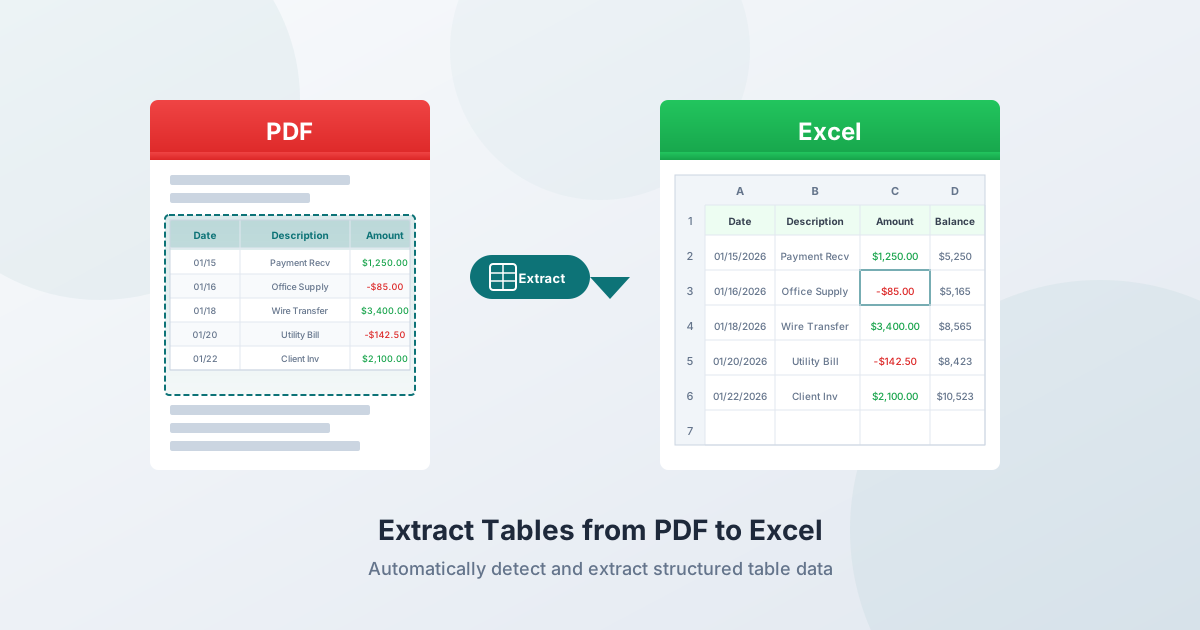
You have a PDF with a table you need in Excel. Maybe it's a financial report, a bank statement, an invoice, or a research paper. The data is right there - neatly organized in rows and columns on the screen. But when you try to get it out, everything falls apart.
This happens because PDF isn't a data format. It's a display format. There's no concept of a "table," "row," or "column" in the PDF specification. What looks like a structured table is actually dozens of text fragments placed at specific x,y coordinates on a canvas. Extracting that structure back into a spreadsheet is a reverse-engineering problem - and different tools handle it with varying degrees of success.
This guide covers 5 methods for extracting tables from PDFs, when each one works best, and what to do when things go wrong.
Why Table Extraction from PDFs Is Hard
The PDF Format Has No Tables
The PDF specification (ISO 32000-2:2020) defines a content stream - a sequence of operators that position individual characters at precise coordinates. A simple table row like "Date | Description | Amount" might be stored as:
BT /F1 10 Tf 72 650 Td (01/15/2026) Tj 200 0 Td (Office Supplies) Tj 180 0 Td (125.00) Tj ETThere are no <table>, <tr>, or <td> tags. No row identifiers. No column boundaries. The visual lines you see around cells are separate drawing operations completely disconnected from the text. An extraction tool must infer the entire structure from spatial relationships.
Three Types of Table Borders
Bordered (Lattice) tables have visible lines around every cell. These are the easiest to extract because the lines explicitly define cell boundaries. Common in formal financial statements, government forms, and standardized reports.
Borderless (Stream) tables have no lines at all. Structure is defined entirely by whitespace alignment - text items sharing consistent x-coordinates across rows form implied columns. Common in research papers, invoices, and product catalogs.
Semi-bordered tables have only partial borders - typically horizontal rules between sections but no vertical dividers. Extremely common in bank statements, brokerage reports, and utility bills. These are the hardest to extract because partial borders mislead lattice-mode parsers while missing borders reduce stream-mode confidence.
Tagged vs. Untagged PDFs
Tagged PDFs include structural metadata that identifies headings, paragraphs, and table cells. Untagged PDFs have none of this - the extraction tool gets only raw coordinates. The vast majority of PDFs are untagged, including virtually all bank statements, invoices, and financial reports.
Method 1: PDFSub Extract Tables (Free + AI Fallback)
PDFSub's Extract Tables tool uses a three-tier approach that maximizes accuracy while minimizing cost:
Tier 1: Coordinate-Based Detection (Browser, Free)
The tool first attempts extraction entirely in your browser:
- Parses the PDF content stream to extract every text item with its x,y coordinates
- Groups text items into lines based on y-coordinate proximity
- Analyzes x-coordinate alignment patterns across lines to detect column boundaries
- Requires minimum 3 rows, 2 columns, and 70%+ confidence
If good tables are found, you get structured data immediately - no server upload, no AI credits consumed, and your file never leaves your device.
Tier 2: Server-Side Extraction (pdfplumber, Free)
If coordinate-based detection finds no tables, the tool uses pdfplumber (MIT license) on the server. This detects both explicit lines (drawn borders) and implied lines (word alignment patterns), finds intersections, identifies rectangles, and maps text to cells.
Tier 3: AI Extraction (Uses Credits)
For scanned PDFs, complex layouts, or tables that rule-based methods can't parse, the tool falls back to AI-powered vision extraction. You can also toggle "Force AI extraction" to skip directly to this tier when you know the table is complex.
Output formats: Excel (.xlsx), CSV, JSON.
Best for: Quick extraction without installing software. Digital PDFs are processed entirely in your browser for maximum privacy.
Method 2: Power Query in Excel (Windows Only)
Available in Excel 2019+ and Microsoft 365 on Windows: Data → Get Data → From File → From PDF.
How It Works
- Click Data → Get Data → From File → From PDF
- Select your PDF file
- Power Query displays a Navigator panel listing detected tables per page
- Select the tables you want, click Transform Data to clean up, then Load
Strengths
- Built into Excel - no additional cost for Microsoft 365 subscribers
- Power Query's transformation engine handles post-processing well (fill down, pivot, merge columns)
- Can refresh data if the source PDF is updated
- Supports connecting multiple tables from the same PDF
Limitations
- Windows only - not available in Excel for Mac, Excel Online, or mobile
- Struggles with borderless tables - works best with clearly bordered tables
- No OCR - cannot extract from scanned/image PDFs
- Multi-page tables are problematic - each page often imports as a separate table, requiring manual stitching
- Multi-line rows - wrapped text within cells often splits into multiple rows, requiring cleanup
Best for: Windows users with Microsoft 365 who have simple, bordered tables.
Method 3: Adobe Acrobat (Paid)
File → Export a PDF → Spreadsheet → Microsoft Excel Workbook
Pricing (2026)
- Acrobat Standard: $12.99/month (annual plan)
- Acrobat Pro: $19.99/month (annual plan)
- Export PDF (standalone): lower-tier conversion-only plan
Strengths
- Built-in OCR for scanned documents
- Generally preserves formatting for simple bordered tables
- Batch processing available in Pro
Limitations
- Expensive for table extraction alone - $156–$240/year
- Complex tables with merged cells and multi-page spans still produce misaligned output
- Files may be uploaded to Adobe's cloud for processing - problematic for sensitive financial data
- Requires desktop installation
Best for: Users who already pay for Acrobat Pro and need occasional table exports with OCR.
Method 4: Copy-Paste (Manual)
The most intuitive approach - and the one that fails most often for tables.
Common Problems
- All data in one column - the entire table pastes with no column breaks
- Numbers become text - currency symbols, parentheses, and separators break numeric formatting
- Multi-line cell content creates phantom rows - a description that wraps across two lines in the cell becomes two separate rows
- Headers separated from data - the header row gets disconnected
- Columns misaligned - data shifts because character spacing doesn't translate to tabs
Partial Workaround
Paste into Excel, then use Data → Text to Columns with space or fixed-width delimiters. Enable "Treat consecutive delimiters as one." This works for very simple, well-spaced tables but fails for anything with multi-word cell content.
Best for: Extracting a single small, simple table as a last resort.
Method 5: Python Libraries (For Developers)
Three MIT-licensed libraries handle PDF table extraction programmatically:
Tabula-py
Python wrapper around Tabula (Java). Requires Java runtime.
- Lattice mode for bordered tables (finds lines and intersections)
- Stream mode for borderless tables (uses text alignment)
- Good for batch processing in scripts
- No OCR support
Camelot
Also offers lattice and stream modes.
- Generally outperforms Tabula for bordered tables
- Stream mode has more configuration parameters for fine-tuning
- Provides accuracy reports with each extraction
- Requires Ghostscript dependency. No OCR support
pdfplumber
Coordinate-based approach: extracts every character with its exact position, then infers structure.
- Handles the widest range of table types
- Gives the most control but requires more configuration
- This is the library PDFSub uses server-side
- No OCR support
Best for: Developers automating recurring table extraction workflows, processing large batches of similar documents.
Common Problems and How to Solve Them
Merged Cells
When cells span multiple rows or columns, most tools either place content in the top-left cell and leave others empty, or misalign all subsequent columns. There's no universal solution - CSV format has no merge concept, so merge information is always lost.
Fix: Extract the table, then manually fix merge artifacts in Excel. For recurring tables with the same merge pattern, consider a post-processing script.
Multi-Line Content Within Cells
Long descriptions that wrap within a cell become multiple rows in the output, pushing all subsequent data out of alignment. This is the single most common extraction error for financial documents.
Fix: After extraction, look for rows that are missing dates and amounts - these are likely continuation lines that belong to the row above. In Excel, merge them manually or use a helper formula.
Tables Spanning Multiple Pages
Tools must determine where the table continues, whether to strip repeated headers, and how to filter page footers. Many tools treat each page independently.
Fix: If your tool gives per-page results, combine the sheets and remove repeated header rows. Check that the last row on page N connects correctly to the first row on page N+1.
Currency Formatting Issues
Negative numbers in parentheses ((1,234.56)) paste as text, not numbers. Currency symbols and thousand separators also break numeric formatting.
Fix: After extraction, select the amount column and use Find & Replace to remove $, (, ) characters. Then format the column as Number. For parenthesized negatives, replace ( with - and remove ), then convert to Number format.
Date Ambiguity
01/02/2026 - is that January 2 or February 1? The extraction tool preserves the string as-is, but Excel may reinterpret it based on your locale.
Fix: Check the source PDF for date format clues (look for dates with day values > 12). Set Excel's date format to match the source before importing.
Accuracy Comparison
| Method | Simple Bordered | Borderless | Semi-bordered | Scanned PDFs |
|---|---|---|---|---|
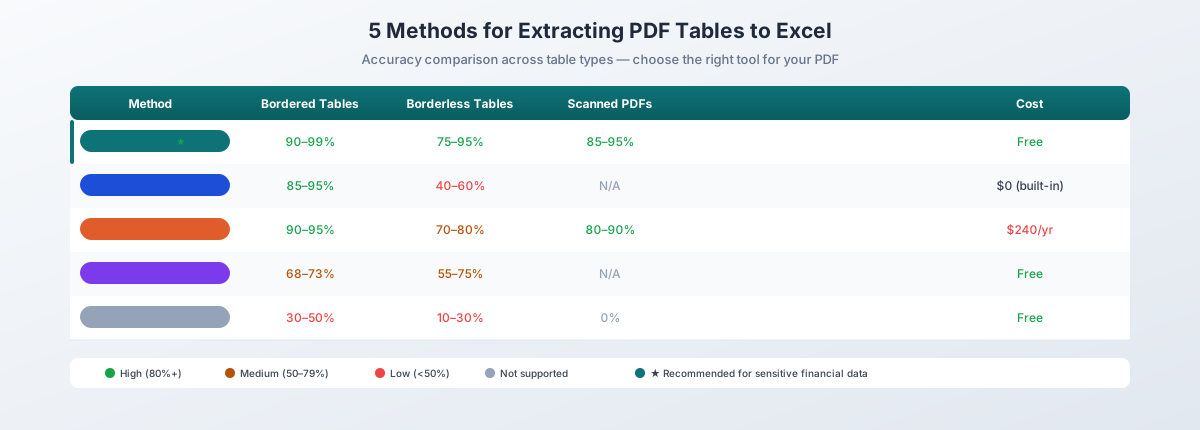
| PDFSub (coordinate + AI) | 90–99% | 75–95% | 70–95% | 85–95% (AI) |
| Power Query | 85–95% | 40–60% | 50–70% | Not supported |
| Adobe Acrobat | 90–95% | 70–80% | 70–85% | 80–90% |
| Tabula | ~68% | 55–70% | 50–65% | Not supported |
| Camelot | ~73% | 65–75% | 60–70% | Not supported |
| Copy-paste | 30–50% | 10–30% | 10–30% | Not possible |
Ranges reflect variation across document complexity. Benchmark data from Procycons 2025 PDF Extraction Benchmark and Camelot comparison studies.
Which Method Should You Use?
| Scenario | Best Method | Why |
|---|---|---|
| Quick one-off extraction | PDFSub | No install, browser-based, free coordinate extraction |
| Simple bordered table, Windows | Power Query | Built into Excel, no additional cost |
| Scanned PDF | PDFSub (AI) or Adobe Acrobat | Need OCR capability |
| Sensitive financial data | PDFSub | Browser-based processing, file never uploaded |
| Recurring batch processing | Python (pdfplumber) | Scriptable, automatable |
| Already have Acrobat Pro | Adobe Acrobat | Already paying, simple tables work well |
| Single small table, no tools | Copy-paste | Last resort, verify everything |
Tips for Best Results
Use native PDFs. Download documents from their source rather than scanning paper. Native PDFs have perfect text, making extraction dramatically more accurate.
Identify the table type first. Bordered tables work with almost any tool. Borderless tables need stream-mode or AI extraction. Knowing the type helps you choose the right method upfront.
Start with free, rule-based methods. Try coordinate-based extraction first. Only escalate to AI when rule-based methods produce poor results - this saves time and credits.
Always verify the output. Check row count, column alignment, numeric values, and totals. Never trust extraction output blindly.
Watch for number formatting. After extraction, verify numbers are actually numbers in Excel (right-aligned), not text strings (left-aligned). Currency symbols and parenthesized negatives are common culprits.
For sensitive data, prefer browser-based tools. Financial reports, bank statements, and tax documents contain sensitive information. Tools that process PDFs in your browser never upload your file, eliminating data exposure risk.
Try It Free
Ready to extract tables from your PDF? Upload a file now - PDFSub tries free coordinate-based extraction first, with AI fallback for complex tables. Digital PDFs are processed entirely in your browser. Start a 7-day free trial.