Convert Chase Bank Statements to Excel (2026)
Step-by-step guide to converting Chase checking, savings, and credit card statement PDFs into Excel, CSV, or QBO format.
You've got a Chase bank statement PDF and you need the data in a spreadsheet. Maybe you're tracking expenses, reconciling accounts, or prepping for tax season. Whatever the reason, Chase doesn't make this easy.
Chase provides statements as PDFs - period. No Excel option, no CSV option for full statements. And if you've tried copying and pasting from a Chase PDF into Excel, you already know how that goes: dates, descriptions, and amounts all mashed into one column.
Here's how to actually get your Chase statement data into Excel, with methods that work for checking, savings, and credit card accounts.
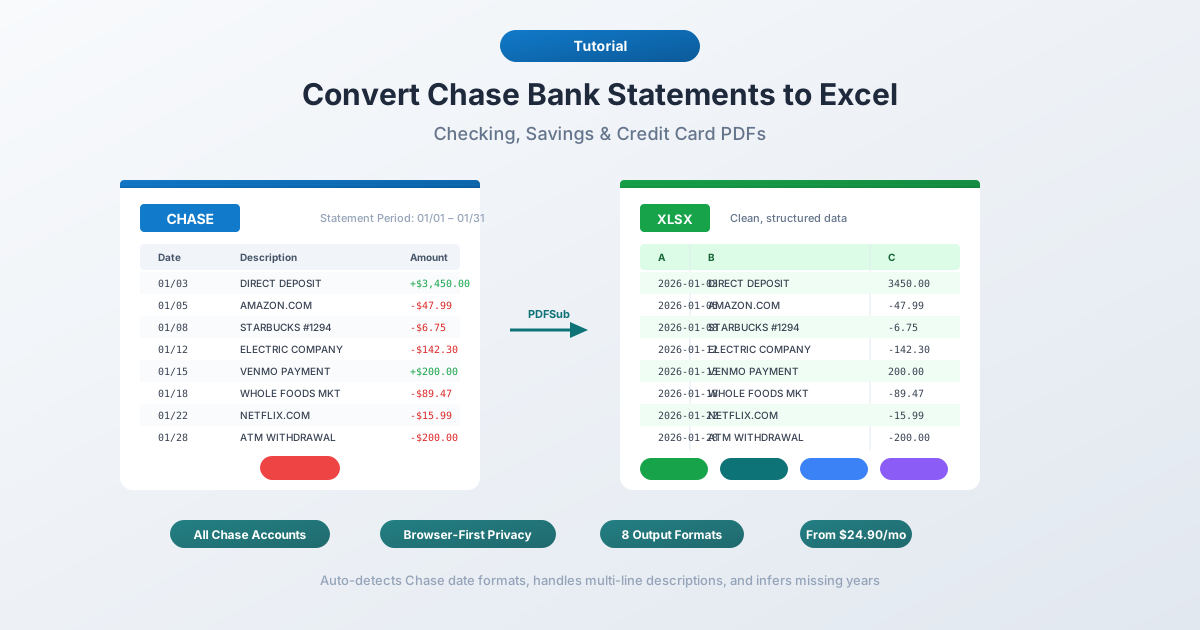
What Chase Gives You (And What It Doesn't)
Before converting anything, it helps to know what Chase actually offers.
PDF statements - available for up to 7 years through Chase Online Banking under Statements & Documents. These are the official statements matching what you'd get in the mail. PDF only, no other format.
Activity downloads - available through Account Activity → Download. Chase offers CSV, QFX (Quicken), and QBO (QuickBooks) exports here. Sounds perfect, right?
Not quite. The activity download has serious limitations:
- Only ~24 months of history (sometimes 90 days for credit cards)
- Hard cap of 1,000 transactions - Chase silently truncates the file with no warning if you exceed this
- Not official statements - just a transaction feed. Missing opening/closing balances, fee summaries, interest breakdowns, and daily balance tables
- No OFX format - Chase discontinued OFX Direct Connect in October 2022
So if you need data from more than two years ago, or you need the complete statement (not just transactions), the PDF is your only option.
Method 1: Use a Bank Statement Converter (Recommended)
The fastest and most accurate method is a specialized bank statement converter - a tool designed specifically to extract transaction data from bank statement PDFs.
Unlike generic PDF-to-Excel tools, bank statement converters understand the structure of financial documents. They know that Chase checking statements group transactions into "Deposits and Additions," "Electronic Withdrawals," and "ATM & Debit Card Withdrawals." They handle multi-line descriptions, running balances, and Chase's quirky date formatting.
Step-by-Step with PDFSub
- Download your Chase statement - Log into chase.com → Statements & Documents → select the statement → download PDF
- Go to PDFSub's Bank Statement Converter
- Upload the Chase PDF - drag and drop or click to browse
- Review the extracted data - PDFSub shows you the transactions before you download, so you can verify accuracy
- Choose your format - Excel (XLSX), CSV, QBO (QuickBooks), OFX (Xero), or any of 8 supported formats
- Download - click Download or use "Download All" for a ZIP with every format
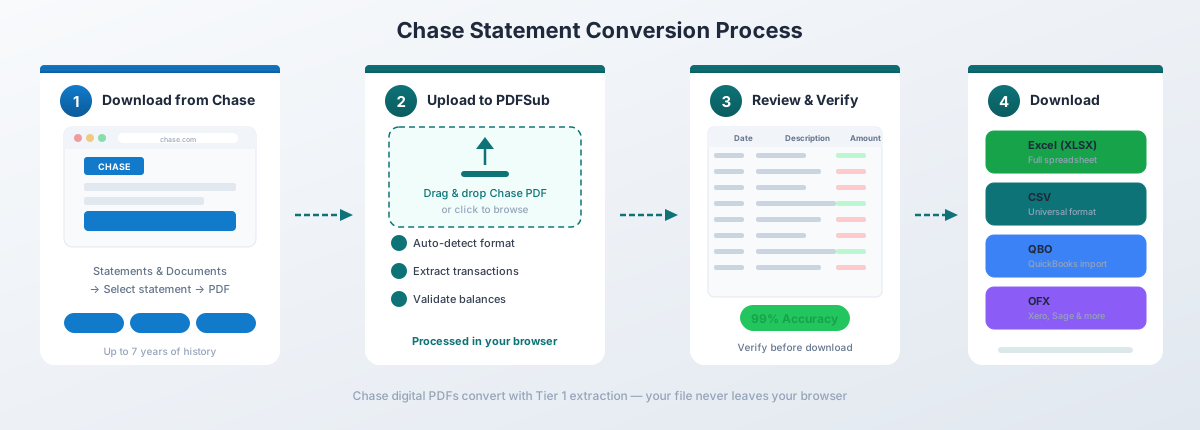
For Chase's digital PDFs, PDFSub's Tier 1 extraction handles the conversion entirely in your browser - the file never leaves your device. This matters when you're working with sensitive financial data.
Why this works well for Chase specifically:
- Auto-detects Chase's date format (MM/DD/YYYY for checking, MM/DD for credit cards) and infers the missing year from the statement period
- Handles Chase's multi-line transaction descriptions without creating duplicate rows
- Works with all Chase account types - checking, savings, credit card, and business
- Processes the non-standard page dimensions of Chase credit card statements (they use legal-size pages, not letter)
- Exports to QBO format for direct QuickBooks import with FITID duplicate detection
PDFSub's All-In-One plan is $20/user/mo (annual) or $25/user/mo (monthly), including 500 bank statement pages per user and a 7-day free trial.
Method 2: Chase's Built-In Activity Download
If you only need recent transactions (not the full statement), Chase's native CSV export is the quickest option.
How to Download
- Log into chase.com
- Navigate to your account
- Set the date range for the transactions you need
- Click the download icon (arrow pointing down)
- Select "Spreadsheet (Excel, CSV)"
- Open the downloaded file in Excel
What You Get
Chase's CSV includes these columns:
| Column | Description |
|---|---|
| Date | Transaction date |
| Description | Merchant or transaction detail |
| Amount | Signed amount (negative for debits) |
| Type | DEBIT, CREDIT, etc. |
| Balance | Running balance (sometimes omitted) |
Limitations to Watch For
The 1,000-row trap. Chase silently cuts off your download at 1,000 transactions. No error message, no warning - it just stops. If your account has more than 1,000 transactions in the date range, you'll get an incomplete file. Split your date range into smaller chunks to work around this.
~24-month history cap. You can't download activity beyond about two years. For older data, you need the PDF statements.
Not official statements. The CSV export doesn't include opening/closing balances, fee breakdowns, interest charges, or daily balance tables. If you need these for accounting or audit purposes, you need the PDF.
This method works fine for quick personal finance tracking of recent activity. For anything more comprehensive, you'll need to convert the PDF.
Method 3: Copy-Paste from PDF (Not Recommended)
You can try selecting text in a Chase PDF and pasting it into Excel. Here's what actually happens:
Everything lands in a single column. Dates, descriptions, amounts, and balances are all jumbled together. A transaction that looks clean in the PDF - 01/15 Amazon.com -$47.99 $1,234.56 - becomes four separate rows in Excel with no column separation.
You can use Excel's Text to Columns feature (Data tab → Text to Columns) to split it apart, but:
- Chase's multi-line descriptions break the row alignment
- Running balances don't line up with their transactions
- Section headers ("DEPOSITS AND ADDITIONS") get mixed in with transaction data
- You'll spend 30+ minutes cleaning up a single statement
For one or two simple statements, this is tedious but doable. For anything more, it's not worth the time.
Method 4: Adobe Acrobat Pro
Adobe Acrobat Pro has an "Export PDF → Spreadsheet → Microsoft Excel Workbook" feature. In theory, it should work perfectly. In practice, Chase statements are one of the worst-case scenarios for Acrobat's export engine.
Here's what typically happens:
- 20+ columns instead of 3–4. Acrobat creates far more columns than needed, with merged cells and misaligned data scattered across the sheet.
- Fragmented text. A date like "01/15/2025" may appear as "01" in one cell, "/15" in another, and "/2025" in a third.
- Section headers mixed with data. "DEPOSITS AND ADDITIONS" ends up as a row that breaks your table structure.
Adobe's own community forums are full of frustrated users trying to convert bank statements. The typical advice from Adobe moderators? "Try using 'Copy with Formatting' instead" or "get the data directly from the bank."
If you have Acrobat Pro, it's worth trying - some Chase statements convert better than others depending on the format version. But don't expect clean results without significant manual cleanup.
Chase-Specific Quirks You Should Know About
Chase PDFs have several peculiarities that trip up generic converters:
Password Protection
Chase statements downloaded through secure messaging are sometimes password-protected. The password is typically your full 9-digit SSN (no dashes). To remove the protection: open the PDF in Chrome, enter your SSN, then Print → Save as PDF. This creates an unlocked copy you can convert.
Credit Card Statements Use Legal-Size Pages
Chase credit card statement PDFs are 8.5" × 14" (legal size), not the standard 8.5" × 11". This causes printing issues and can confuse tools that expect letter-size pages. The first page also includes a payment coupon stub that should be excluded from transaction extraction.
Missing Year on Credit Card Dates
Chase credit card statements show dates as MM/DD without the year. A transaction dated "01/15" could be January 15th of any year. Good converters infer the year from the statement period header. If yours doesn't, you'll need to add the year manually.
Multiple Statement Format Versions
Chase has changed their PDF format at least three times since 2015. Versions 2 and 3 overlapped during 2024, meaning statements from the same year can have different layouts. This is why template-agnostic converters tend to handle Chase better than template-based ones.
Business Account Differences
Chase business checking statements may include embedded check images that interfere with text extraction. Ink Business credit card statements use separate debit and credit columns (instead of a single signed amount) and break transactions down by employee card.
Tips for Working with Converted Chase Data
Once you have your Chase transactions in Excel, here are some practical tips:
Verify with the opening and closing balance. Add up all transactions and check that they match the balance change shown on the statement header. This is the fastest accuracy check.
Remove duplicate entries. If you're combining multiple months, watch for transactions that appear on two consecutive statements (end of one month, beginning of the next).
Standardize the date column. Excel sometimes interprets dates as text rather than date values. Select the date column → Data → Text to Columns → select Date format (MDY) to ensure proper date handling.
Add a category column. Once your data is in Excel, add a column for transaction categories (groceries, utilities, subscriptions, etc.). You can use Excel's SEARCH function to auto-categorize based on merchant names:
=IF(SEARCH("AMAZON",B2)>0,"Shopping",IF(SEARCH("COMCAST",B2)>0,"Utilities","Other"))Convert monthly, not annually. Don't wait until tax season to convert 12 months of statements at once. Convert each month as it arrives and keep an organized folder structure.
Frequently Asked Questions
Can I download Chase statements as Excel files directly?
No. Chase only provides statements in PDF format. You can download recent transaction activity (up to ~24 months) as CSV through the Activity Download feature, but this is a transaction feed - not the official statement. For full statements with balances and fees, you must convert the PDF.
How far back can I get Chase statements?
Up to 7 years for PDF statements through Chase Online Banking (Statements & Documents). The Activity Download CSV export only covers approximately 24 months. For statements older than 7 years, you'll need to contact Chase customer service at (800) 935-9935.
Why does my Chase CSV download have missing transactions?
Chase silently truncates CSV downloads at 1,000 transactions. If your date range includes more than 1,000 transactions, the file will be incomplete with no warning. Shorten your date range and download in smaller batches.
Can I convert a password-protected Chase statement?
Yes. The password is typically your 9-digit SSN (no dashes). Open the PDF in Chrome, enter the password, then use Print → Save as PDF to create an unlocked copy. Then convert the unlocked version.
Which format should I choose for QuickBooks import?
Choose QBO format. It's designed for QuickBooks and includes transaction IDs (FITIDs) that prevent duplicate imports. CSV works too but requires manual column mapping and doesn't have built-in duplicate detection. See our guide to importing bank statements into QuickBooks for detailed steps.
Does this work for Chase business accounts?
Yes. Both personal and business Chase accounts produce digital PDFs that convert well. Business account statements may have different layouts (separate debit/credit columns, employee card breakdowns), but specialized converters handle these variations.
How accurate is the conversion?
For Chase's digital PDFs (downloaded directly from chase.com), specialized bank statement converters typically achieve 95–99% accuracy. Generic PDF-to-Excel tools average around 70% on Chase statements due to their non-standard formatting. Scanned or photographed Chase statements will have lower accuracy because they require OCR processing.