Bank Statement to QIF: Import Into Quicken
QIF is Quicken's native import format. Here's how to convert bank statement PDFs to QIF and import them into Quicken, GnuCash, and other personal finance software.
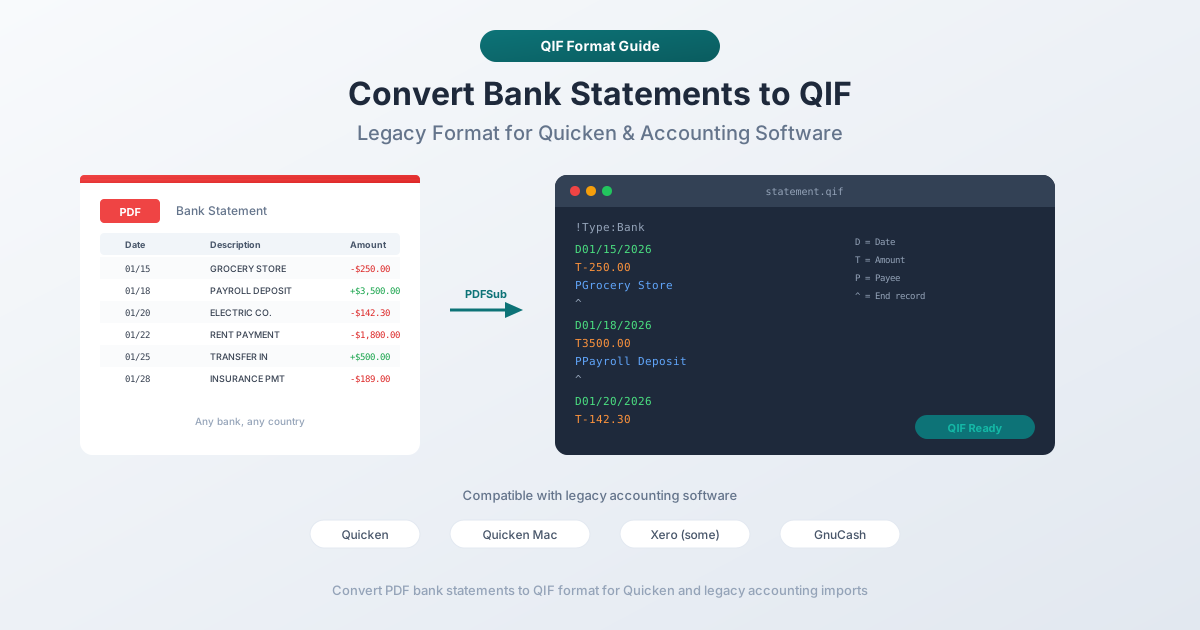
You use Quicken to track your personal finances. It works well enough - until your bank kills its Direct Connect support, or you switch banks, or you dig up a shoebox of old PDF statements from an account you closed two years ago. Suddenly you need a way to get those transactions into Quicken, and the bank isn't going to help you.
QIF - Quicken Interchange Format - is the classic answer. It's the original file format Intuit built for importing transactions into Quicken, and it's been around since the late 1980s. Every version of Quicken reads it. GnuCash reads it. Money Manager Ex reads it. KMyMoney reads it. It's the universal donor of personal finance file formats.
The problem is simple: nobody makes QIF files anymore. Banks don't export them. Your online banking portal offers PDFs and maybe CSV. So you're stuck with a pile of PDF statements and a format that Quicken has supported for almost four decades - with no bridge between the two. Until now.
What Is QIF Format?
QIF (Quicken Interchange Format) was developed by Intuit in the late 1980s as a way to move transaction data between Quicken and other financial software. It's one of the oldest financial data exchange formats still in active use.
The format is plain text - you can open a QIF file in any text editor and read it. Each line starts with a single letter that identifies what the line contains, followed by the value. Transactions are separated by a caret (^) character. The file extension is .qif.
Here's a quick reference for the line prefixes:
| Prefix | Meaning | Example |
|---|---|---|
!Type: |
Account type declaration | !Type:Bank |
D |
Date | D03/01/2026 |
T |
Total (amount) | T-85.50 |
P |
Payee | PElectric Company |
M |
Memo | MMonthly bill |
L |
Category | LUtilities:Electric |
N |
Check number | N1042 |
^ |
End of transaction | ^ |
Intuit officially deprecated QIF in 2005 in favor of QFX (their branded version of OFX). But "deprecated" is a strong word for a format that Quicken still imports without complaint two decades later. QIF remains the simplest, most portable way to get transactions into personal finance software.
QIF vs QFX vs OFX - What's the Difference?
These three formats are related but not identical.
| Feature | QIF | QFX | OFX |
|---|---|---|---|
| Format | Plain text, line-based | XML/SGML | XML/SGML |
| Developed by | Intuit (1988) | Intuit | Intuit, Microsoft, CheckFree (1997) |
| Transaction IDs (FITID) | No | Yes | Yes |
| Duplicate detection | No | Yes (via FITID) | Yes (via FITID) |
| Account metadata | No | Yes (routing/account numbers) | Yes |
| Balance information | No | Yes | Yes |
| Primary software | Quicken, GnuCash, others | Quicken | Xero, Wave, many apps |
| Ease of manual creation | Very easy | Difficult | Difficult |
| Still supported | Yes (widely) | Yes | Yes |
The key difference is FITID. QFX and OFX files include a unique Financial Institution Transaction ID for every transaction. This lets software detect duplicates - if you import the same file twice, the software silently skips transactions it has already seen. QIF has no equivalent. Import a QIF file twice and you get double entries.
QFX is essentially OFX with Intuit branding. The file structures are nearly identical. QFX adds Intuit-specific headers (INTU.BID for bank identification) that Quicken uses for routing.
QIF is the simplest to produce. It's just line-prefixed plain text - any text editor can create one. OFX and QFX require properly formed XML/SGML with headers, message sets, and nested tags.
For personal finance tracking in Quicken, QIF is often good enough. If duplicate detection matters (and it should for overlapping date ranges), QFX is better.
Understanding QIF File Structure
A QIF file is a sequence of transactions grouped under an account type header. Here's a complete example with three transactions:
!Type:Bank
D03/01/2026
T-1,250.00
PApartment Management LLC
MRent - March 2026
LHousing:Rent
^
D03/02/2026
T-85.50
PCity Electric
MMonthly electricity
LUtilities:Electric
^
D03/05/2026
T3,200.00
PEmployer Inc
MPayroll deposit
LIncome:Salary
^
!Type:Bank declares the account type. This must be the first line. Valid types include:
| Type Value | Account Type |
|---|---|
!Type:Bank |
Checking or savings account |
!Type:CCard |
Credit card |
!Type:Invst |
Investment account |
!Type:Oth A |
Other asset |
!Type:Oth L |
Other liability |
!Type:Cash |
Cash account |
D (Date) - Transaction date. QIF uses M/D/YY or M/D/YYYY by default. Interpretation depends on the importing software's locale.
T (Total) - Transaction amount. Negative for debits (money out), positive for credits (money in).
P (Payee) - The entity you paid or received money from.
M (Memo) - Additional description. Optional.
L (Category) - Quicken uses colon-separated hierarchies: Utilities:Electric, Housing:Rent. Categories that don't exist in Quicken are created on import.
N (Check number) - Optional.
^ (Caret) - End of transaction. Every transaction must end with this separator.
No headers, no XML, no closing tags. The simplicity is both QIF's strength and its weakness.
Method 1: Convert PDF to QIF with PDFSub
The fastest way to go from a PDF bank statement to a clean QIF file.
- Go to PDFSub's Bank Statement Converter
- Upload your PDF bank statement - drag and drop or click to browse
- PDFSub extracts the transactions automatically, detecting dates, amounts, and descriptions
- Review the extracted data in the preview table
- Select QIF as the output format
- Download the
.qiffile
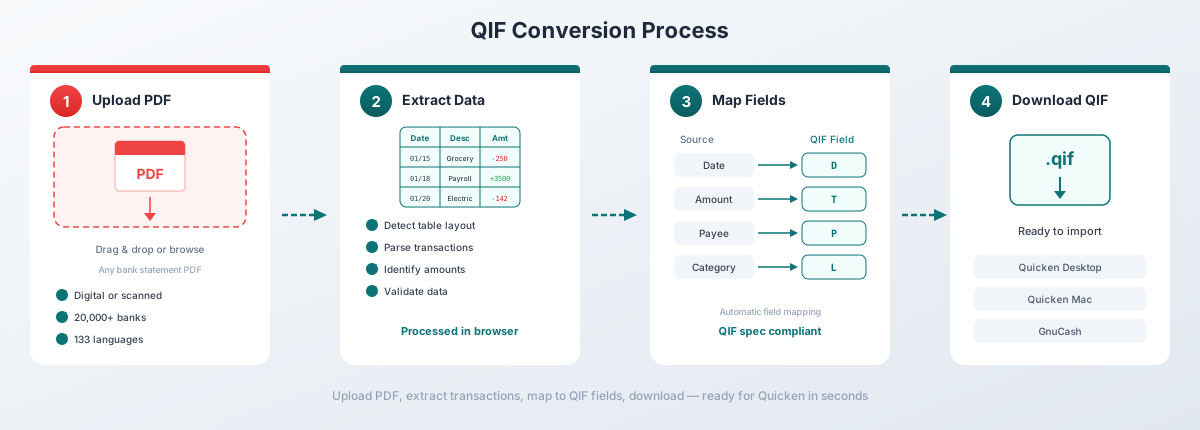
PDFSub generates valid QIF files with correct date formatting, proper debit/credit signs, and clean payee names extracted from your statement's transaction descriptions. It handles multi-page statements, running balances, and multi-line descriptions automatically.
The converter works with statements from 20,000+ banks in 130+ languages. For digital PDFs (text-based statements), extraction happens entirely in your browser - the file never leaves your computer. Scanned or image-heavy PDFs fall back to server-side AI processing.
The All-In-One plan is $20/user/mo (annual) or $25/user/mo (monthly), including 500 bank statement pages per user and a 7-day free trial. See current pricing for details.
Importing QIF into Quicken
Once you have a QIF file, getting it into Quicken is straightforward.
Quicken for Windows
- Open Quicken and go to File > Import > Quicken Interchange Format (.QIF) File
- Browse to your
.qiffile and select it - Quicken asks which account to import into - choose an existing account or create a new one
- Review the import summary showing the number of transactions found
- Click Import to confirm
Quicken for Mac
- Open Quicken and go to File > Import > Quicken Interchange Format (.QIF)
- Select your
.qiffile - Choose the destination account
- Confirm the import
Important Notes for Quicken QIF Import
Account matching. QIF files don't contain account identification. Quicken asks you to manually select which account the transactions belong to. Make sure you pick the right one.
Duplicate handling. QIF has no transaction IDs, so Quicken cannot detect duplicates automatically. Import the same file twice and you get double entries. Always check after importing.
Date interpretation. Quicken interprets QIF dates based on your system's regional settings. If your system uses MM/DD/YYYY, 03/01/2026 means March 1. If it uses DD/MM/YYYY, the same date becomes January 3. Make sure your locale matches the QIF file's date format.
Categories. Categories that don't exist in your Quicken file are created automatically during import.
Importing QIF into Other Software
QIF's long history means broad compatibility. Here's how to import into popular alternatives.
GnuCash
- Go to File > Import > Import QIF
- Select your
.qiffile - The QIF Import Assistant walks you through account mapping, currency selection, and category matching
- Review the transactions and confirm
GnuCash's QIF importer is mature and handles most files well. It matches QIF categories to your existing account tree and creates new accounts for unmatched categories.
Money Manager Ex
- Go to File > Import > QIF Files
- Select the file and the target account
- Review and confirm the import
Money Manager Ex supports the full QIF specification including investment transactions (!Type:Invst).
KMyMoney
- Go to File > Import > QIF
- Select the file, choose the account, and set the date format
- KMyMoney previews the transactions before finalizing
KMyMoney includes a QIF profile editor that lets you configure date formats and decimal separators before importing - useful for international statements.
Microsoft Money (Legacy)
Microsoft Money was discontinued in 2009, but many users still run it. Money imports QIF through File > Import > QIF File. The process is similar to Quicken: select the file, choose the account, and confirm.
QIF Date Format Considerations
Date formatting is the most common source of QIF import problems. The format seems simple - D03/01/2026 - but ambiguity lurks in every slash.
Is D01/02/2026 January 2nd or February 1st? The QIF specification doesn't mandate a format:
- US convention:
M/D/YYYY- month first - European convention:
D/M/YYYY- day first - Quicken's default:
M/D'YY(two-digit year with apostrophe) orM/D/YYYY
Most QIF tools use US format because Intuit is a US company. But non-US bank statements may follow a different convention.
How Importing Software Handles Dates
| Software | Date Interpretation |
|---|---|
| Quicken (Windows) | Follows Windows regional settings |
| Quicken (Mac) | Follows macOS Language & Region settings |
| GnuCash | Asks during import wizard |
| KMyMoney | Configurable via QIF profile |
| Money Manager Ex | Follows system locale |
Avoiding Date Issues
PDFSub detects the date format used in your bank statement (including international formats like DD/MM/YYYY, YYYY-MM-DD, and DD.MM.YYYY) and converts all dates to the standard US format (M/D/YYYY) in the QIF output. This ensures compatibility with Quicken and most other personal finance software regardless of the original statement's locale.
If dates still look wrong after import, check your operating system's regional settings. The importing software uses your system locale to interpret QIF dates - a mismatch between the file's format and your system's expectation will shift every date.
Limitations of QIF
QIF is simple, portable, and widely supported. But it has real shortcomings that you should understand before relying on it heavily.
No duplicate detection. QIF files contain no transaction identifiers. Every import is treated as new data. Reimport the same file and you get duplicates. QFX and OFX solve this with FITIDs.
No account identification. A QIF file says !Type:Bank but doesn't specify which bank, which account, or what currency. The importing software asks you every time. One mistake in the account selection dialog and transactions land in the wrong account.
No balance information. QIF carries transactions only - no opening balance, no closing balance, no running balance. You can't use the file to verify that all transactions were captured correctly.
Limited category support. QIF categories are simple text strings with colon-separated hierarchies. There's no standardized category list. Importing between different applications via QIF often creates duplicate or mismatched categories.
Encoding issues. QIF was designed in 1988 with no character encoding declaration. Payee names with accented characters, non-Latin scripts, or special symbols may display incorrectly depending on the software.
No multi-currency support. Each QIF file assumes a single currency but doesn't declare which one. The importing software applies whatever currency is configured for the destination account.
When to Use QIF vs Other Formats
Different software expects different formats. Here's a decision guide.
| Your Software | Recommended Format | Why |
|---|---|---|
| Quicken | QFX (preferred) or QIF | QFX has FITID duplicate detection; QIF works but no duplicate protection |
| QuickBooks Online | QBO | Native format with auto-mapping and FITID support |
| QuickBooks Desktop | QBO | CSV not supported for bank imports; QBO is the primary method |
| Xero | OFX or CSV | OFX for auto-mapping; CSV with Xero's column format |
| GnuCash | QIF or OFX | QIF has excellent import wizard; OFX also well supported |
| Wave | OFX or CSV | QIF not supported |
| KMyMoney | QIF or OFX | Strong support for both |
| Money Manager Ex | QIF | Native QIF support with investment transactions |
| FreshBooks | CSV | QIF not supported |
The rule of thumb: If your software supports OFX or a vendor-specific variant (QBO, QFX), prefer that over QIF. The duplicate detection alone is worth it. Use QIF when it's the only option your software accepts, when you're working with legacy software, or when you need maximum portability across multiple applications.
PDFSub outputs all eight formats - Excel, CSV, TSV, JSON, OFX, QBO, QFX, and QIF - from the same bank statement upload. Choose the format that matches your target software.
Troubleshooting QIF Import Issues
Dates Are Wrong After Import
Cause: The QIF file uses M/D/YYYY but your system's locale interprets dates as D/M/YYYY (or vice versa).
Fix: Check your operating system's regional settings. On Windows: Settings > Time & Language > Region. On macOS: System Settings > General > Language & Region. Set your region to match the date format in the QIF file.
Wrong Account Type
Cause: The !Type: header doesn't match the actual account type - for example, !Type:Bank was used for a credit card statement.
Fix: Open the QIF file in a text editor and change the first line. For credit cards, use !Type:CCard. For checking and savings, use !Type:Bank.
Duplicate Transactions After Reimport
Cause: QIF has no transaction IDs. The software treats every import as new data.
Fix: Manually delete the duplicates. To prevent this, consider QFX or OFX format instead - both include FITIDs that prevent duplicate imports. If you must use QIF, log which files you've already imported.
Negative Amounts Appear as Positive
Cause: The sign convention is inverted. QIF uses negative values for debits (money out) and positive for credits (money in).
Fix: Open the QIF file in a text editor and check the T lines. A rent payment should read T-1250.00, not T1250.00. PDFSub follows the standard sign convention automatically.
Special Characters Cause Import Failure
Cause: Non-ASCII characters (accented letters, non-Latin scripts) that the importing software can't parse.
Fix: Open the QIF file in a UTF-8 text editor. Simplify or remove unusual characters in payee names and memos. PDFSub sanitizes payee names during QIF generation to avoid this issue.
Import Completes but No Transactions Appear
Cause: The transaction dates fall outside the software's current display range, or the software matched them to existing entries via heuristic duplicate detection.
Fix: Expand the date range in your transaction view to cover the QIF file's period.
Frequently Asked Questions
Can Quicken still import QIF files?
Yes. Despite deprecating QIF in 2005, every current version of Quicken for Windows and Mac still supports QIF import via File > Import > Quicken Interchange Format (.QIF) File.
What's the difference between QIF and QFX?
QIF is plain text with no transaction IDs. QFX is Intuit's branded OFX - an XML/SGML format with FITIDs for duplicate detection, account metadata, and balance information. QFX is technically superior but harder to create. Both import into Quicken.
Can I edit a QIF file manually?
Yes - this is one of QIF's advantages. Open it in any text editor. Each transaction is readable on separate lines. You can add, remove, or modify transactions before importing. Just maintain the line prefix convention and end each transaction with ^.
Does QuickBooks accept QIF files?
QuickBooks Online does not accept QIF files. QuickBooks Desktop has limited QIF support but it's not recommended - use QBO format instead. QIF was designed for Quicken (personal finance), not QuickBooks (business accounting).
How do I convert QIF to QFX?
You can't rename the file - they're structurally different formats. A simpler approach: go back to the original PDF bank statement and convert it directly to QFX using PDFSub's Bank Statement Converter.
Can GnuCash import QIF?
Yes. GnuCash has an excellent QIF Import Assistant that walks you through account mapping, currency selection, heuristic duplicate detection, and category matching. It supports all QIF account types including investment transactions.
Is QIF format the same worldwide?
The format specification is the same, but date interpretation varies by region. A QIF file generated with US dates (M/D/YYYY) will be misread by software configured for European dates (D/M/YYYY). There's no date format declaration in the file itself - the importing software guesses based on system locale. This is QIF's most common source of import errors.
How many transactions can a QIF file hold?
There's no limit in the format specification. QIF files are plain text, so even a file with 10,000 transactions is only a few megabytes. Practical limits depend on the importing software - Quicken handles large QIF files without issues, though import time increases with file size.
Can I include investment transactions in a QIF file?
Yes. Use !Type:Invst as the account type header. Investment QIF uses additional line prefixes: Y for security name, I for price, Q for quantity, and O for commission. The investment QIF specification is more complex than banking QIF and not all software supports it fully.
Should I use QIF or CSV for Quicken?
QIF. It's Quicken's native format and preserves categories, memos, check numbers, and account type context. CSV requires column mapping every time and loses the category hierarchy. Use QIF for Quicken, and reserve CSV for software that doesn't accept QIF.