Best PDF Tools for Remote Teams (2026)
Remote teams need PDF tools that work in the browser, support collaboration, and don't require IT to install anything. Here are the best options.
PDFSub is best for:
- Remote teams that need browser-based PDF tools accessible from any device or OS without IT setup
- Distributed teams at $25/user/mo (annual) vs Adobe's $23/user/mo - competitive per-user pricing with broader AI features and tool coverage
- International teams needing AI translation across 130+ languages for cross-border document work
- Remote teams processing financial documents (bank statements, invoices) alongside standard PDF tasks
PDFSub is NOT best for:
- Enterprise teams needing SSO, Active Directory integration, and centralized admin consoles
- Organizations requiring legally binding e-signature workflows with audit trails and routing
- Large teams (100+ users) that need dedicated account management and custom onboarding
Remote work changed how teams handle documents. When everyone was in the same office, you could walk over to someone with a copy of Adobe Acrobat. When your team is spread across time zones and personal devices, you need tools that work in a browser, require no installation, and let everyone access the same capabilities regardless of their operating system.
The ideal PDF tool for a remote team checks several boxes: browser-based access, team management with admin controls, per-user pricing that scales, shared workflows, and enough tools to eliminate the need for multiple subscriptions.
Here is how the leading platforms compare for remote teams in 2026.
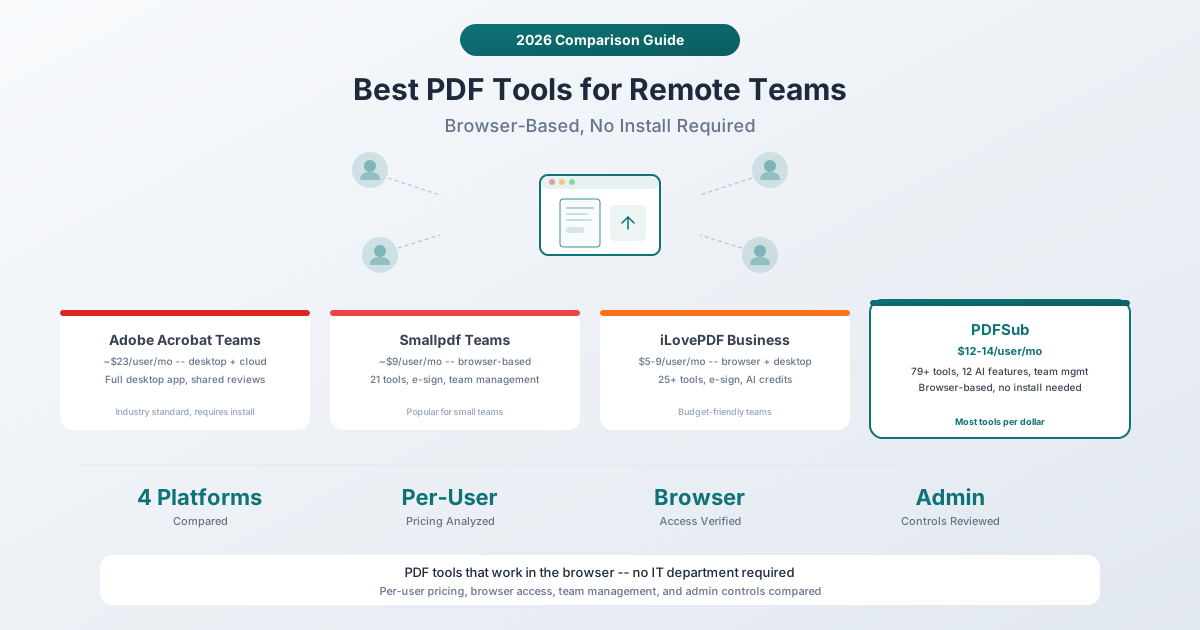
What Remote Teams Need from PDF Tools
Before comparing platforms, let's be specific about what "works for remote teams" actually means:
-
Browser-based access. Team members should be able to use the tools from any device with a browser -- no desktop installation required. Some team members use Mac, some use Windows, some use Chromebooks. A browser-based tool works everywhere.
-
Team management. An admin needs to add and remove users, control permissions, and manage billing centrally. Individual accounts that cannot be managed create security headaches when someone leaves.
-
Reasonable per-user pricing. At $23/user/month, a 10-person team pays $230/month for PDF tools. At $25/user/month with full AI and financial tools, you get capabilities Adobe charges extra for - including chat, translation, bank statements, and e-sign with no per-envelope fees.
-
Enough tools. A remote team does not want one subscription for merging PDFs, another for conversion, another for signing, and another for AI features. The platform should cover most document needs.
-
Privacy controls. Remote teams often handle sensitive documents. Understanding where files are processed (browser vs. cloud), how they are stored, and who can access them matters.
1. Adobe Acrobat Teams
Best for: Organizations that need the industry-standard PDF editor with full desktop capabilities.
Adobe Acrobat remains the most full-featured PDF editor available. The Teams plan adds user management, shared licensing, and Adobe Admin Console integration. Every team member gets the desktop app (Windows and Mac), mobile apps, and web access.
Pricing: Approximately $23/user/month for Acrobat Standard, higher for Acrobat Pro. Annual commitment typically required. The AI Assistant is an add-on with additional per-user costs.
Tools included: Full PDF editing (text, images, pages), form creation, e-signatures (Adobe Sign), redaction, accessibility checker, PDF creation from any application, and more. The AI Assistant (additional cost) adds summarization and chat.
Strengths:
- Industry standard -- virtually every PDF feature you could need
- Desktop app provides the best editing experience for complex documents
- Adobe Admin Console for enterprise-grade user management
- E-signatures with Adobe Sign (legally binding)
- Deep integration with Microsoft 365 and other enterprise tools
- Extensive training resources and community support
Limitations:
- Expensive -- $23/user/month makes it the most costly option for teams
- Desktop installation required for full functionality (web version has limited features)
- The AI Assistant costs extra on top of the base subscription
- Overkill for teams that only need basic operations (merge, split, compress, convert)
- The interface can be overwhelming for casual users
- Per-user licensing means costs scale linearly
2. Smallpdf Teams
Best for: Small to mid-size remote teams that want simple, browser-based PDF tools with team management.
Smallpdf positions itself as the anti-Adobe -- simple, browser-based, affordable. The Teams plan adds user management, centralized billing, and shared storage. It is popular with teams that need basic PDF operations without the complexity of a full desktop editor.
Pricing: Approximately $9/user/month (Pro plan, billed annually). Teams pricing may vary based on team size. A free tier exists with limited daily operations.
Tools included: About 21 PDF tools: merge, split, compress, convert (Word, Excel, PowerPoint, images), e-sign, edit, protect, unlock, rotate, and more.
Strengths:
- Clean, simple interface -- minimal learning curve
- Fully browser-based -- no installation needed
- Affordable per-user pricing
- Team management with centralized billing
- Good conversion quality for standard documents
- Mobile-friendly web interface
Limitations:
- About 21 tools compared to 98+ on PDFSub
- Limited AI features compared to newer platforms
- E-sign is basic compared to dedicated signing platforms
- No bank statement conversion, invoice extraction, or financial document tools
- Processing happens on Smallpdf's servers (files are uploaded)
- Free tier has daily usage limits that push toward paid plans
3. iLovePDF Business
Best for: Budget-conscious remote teams that need solid PDF tools at the lowest per-user cost.
iLovePDF offers competitive pricing with a generous free tier and affordable paid plans. The Business plan (25+ users) includes dedicated account management and customizable features.
Pricing: Premium is $9/month for 1 user, or $5/month billed annually. For teams of 1-25 users, Premium supports adding users. Business pricing (25+ users) is custom. The free tier includes basic tool access with size and usage limits.
Tools included: 25+ PDF tools: merge, split, compress, convert (Word, Excel, PowerPoint, images), sign, watermark, page numbers, repair, edit, and more. Premium includes 2,000 AI credits.
Strengths:
- Lowest per-user cost when billed annually (~$5/user/month)
- Generous free tier for basic operations
- 25+ tools covering most common PDF needs
- Available as web app, desktop app, and mobile app
- Regional processing options (13 regions) for data residency compliance
- AI credits included with Premium plans
Limitations:
- Free tier has strict file size limits (15 MB for conversions)
- AI features are credit-limited (2,000 credits for Premium)
- Team management is less sophisticated than Adobe or enterprise tools
- Business plan pricing requires contacting sales
- No financial document tools (bank statements, invoices, receipts)
- Desktop app provides better performance but requires installation
4. PDFSub
Best for: Remote teams that want the most tools per dollar, including AI features and financial document processing.
PDFSub offers 98+ PDF tools entirely through the browser, with team management on the Professional and Business plans. Standard PDF operations (Merge PDFs, Split PDF, Compress PDF, Rotate PDF) process entirely in the browser -- files never leave the user's device. AI features (Chat with PDF, Summarize PDF, Translate PDF, Extract Data) use server-side processing.
Pricing: The All-In-One plan is $20/user/mo (annual) or $25/user/mo (monthly). Unlimited team seats can be added at the same per-user rate, with team management included on every plan. A 7-day free trial provides full access to all features.
Tools included: 98+ tools spanning standard PDF operations (merge, split, compress, convert, Edit PDF, E-Sign PDF, Add Watermark, Redact PDF), AI features (chat, summarize, translate, extract data, Extract Tables, OCR, Handwritten Conversion), financial document tools (Bank Statement Converter, Invoice Extractor, Receipt Scanner, Financial Report Analyzer), and format conversions (PDF to Word, Excel to PDF, PDF to PowerPoint, PDF to Image, HTML to PDF, EPUB, and more).
Strengths:
- 98+ tools -- the most comprehensive tool set on this list
- 12 AI-powered tools included in all plans (no separate AI add-on)
- Standard tools process in the browser (files stay on the user's device)
- Browser-based -- works on any device including Chromebooks
- Financial document tools (bank statements, invoices, receipts) not available on other platforms
- 133-language support for translation and multilingual documents
- Fixed per-user pricing with no per-document or per-page charges
- SOC 2 Ready
Limitations:
- Newer platform compared to Adobe Acrobat or Smallpdf
- No desktop app (browser-only, which some power users may find limiting for complex editing)
- E-sign is functional but less feature-rich than dedicated signing platforms like DocuSign
- AI features require server-side processing (documents are uploaded for AI operations)
Pricing Comparison for a 10-Person Team
| Platform | Per User/Month | 10-Person Monthly Cost | Total Tools |
|---|---|---|---|
| Adobe Acrobat Teams | ~$23 | ~$230 | Full editor + add-ons |
| Smallpdf Teams | ~$9 | ~$90 | ~21 tools |
| iLovePDF Premium | ~$5-9 | ~$50-90 | ~25 tools |
| PDFSub All-In-One (annual) | $20 | $200 (10 seats × $20) | 98+ tools + priority |
PDFSub's All-In-One plan is $20/user/mo (annual) or $25/user/mo (monthly) - every user gets the full feature set, including 500 AI credits, 500 bank statement pages, e-sign with no per-envelope fees, and all 98+ tools. For a 10-person team, the total monthly cost lands between Adobe's enterprise pricing and the per-user discounts on Smallpdf/iLovePDF, but with broader tool coverage and AI built in.
What About Google Docs?
It is worth mentioning the elephant in the room. Google Workspace (Gmail, Drive, Docs) includes basic PDF viewing and lightweight editing. You can open PDFs in Google Docs, which converts them to editable documents. This works for simple text PDFs but breaks layouts, removes formatting, and cannot handle complex documents.
For teams already paying for Google Workspace, this "free" option handles basic needs. But the moment you need to merge PDFs, compress for email, extract data, convert to Word without losing formatting, add watermarks, or do any specialized operation, you need a dedicated PDF tool.
Security Considerations for Remote Teams
Remote teams should pay attention to how each platform handles files:
Browser processing (PDFSub standard tools): Files never leave the user's device. Merge, split, compress, rotate, watermark, and other standard operations happen entirely in the browser. This is the most privacy-friendly approach.
Server processing (Smallpdf, iLovePDF, all AI features): Files are uploaded to the platform's servers for processing. Both Smallpdf and iLovePDF state that files are automatically deleted after processing. AI features on all platforms require server processing.
Desktop processing (Adobe Acrobat): Files are processed locally on the user's machine. However, cloud features (shared reviews, Adobe Sign) require uploading files.
For sensitive documents, browser-based processing (PDFSub's standard tools) provides the strongest privacy guarantee because files never leave the device. For AI features, all platforms require server-side processing -- there is no way around this with current technology.
Frequently Asked Questions
Can remote team members use these tools on Chromebooks?
Chromebooks cannot install traditional desktop software, which eliminates Adobe Acrobat's desktop app. All browser-based tools (PDFSub, Smallpdf, iLovePDF web version) work perfectly on Chromebooks. If your team includes Chromebook users, a browser-first platform is essential.
How do team management features differ between platforms?
Adobe offers the most sophisticated team management through Adobe Admin Console (user provisioning, SSO, integration with identity providers). PDFSub, Smallpdf, and iLovePDF offer admin dashboards for adding/removing users and managing billing. For most small to mid-size teams, the simpler admin features are sufficient. Enterprise organizations with SSO requirements should evaluate Adobe or contact platforms for enterprise plans.
Is it cheaper to buy individual licenses or a team plan?
Team plans typically offer per-user discounts, centralized billing (one invoice instead of many), and admin controls. For teams of 3+ people, team plans are almost always better than individual licenses -- both for cost and for management. The administrative benefit of being able to revoke access when someone leaves the team is alone worth the team plan.
What if only some team members need advanced tools?
Most platforms require the same plan for all team members. Adobe and PDFSub allow different plan tiers for different users. If only 3 of your 10 team members need AI features, you might put them on a higher tier and the rest on a basic plan. Check each platform's flexibility on mixed plans before committing.
Can remote teams use PDF tools offline?
Adobe Acrobat's desktop app works fully offline. Browser-based tools (PDFSub, Smallpdf, iLovePDF web) require an internet connection. PDFSub's standard tools process files locally in the browser, but the browser session itself needs connectivity. For teams in areas with unreliable internet, a desktop app (Adobe) or a platform with offline-capable features may be important.
The Bottom Line
For most remote teams, the decision comes down to tool count versus per-user cost. Adobe Acrobat is the best editor but the most expensive. Smallpdf and iLovePDF are affordable but limited in tool count. PDFSub offers the most tools per dollar with 98+ features including AI and financial document processing.
If your remote team regularly works with documents -- editing, converting, extracting data, translating, or analyzing -- PDFSub's team plans provide the broadest capability set at a competitive per-user price. The 7-day free trial lets your team test the full platform before committing.