Best PDF Tools for Mac (Without Adobe) (2026)
Mac users have Preview built in - but it can't merge, compress, or convert PDFs. Here are the best PDF tools for Mac that go beyond what Preview offers.
PDFSub is best for:
- Mac users who need compression, conversion, redaction, and OCR that Preview cannot do
- Anyone on macOS who wants 98+ tools without installing a heavy desktop app like Adobe Acrobat
- Mac users who need AI-powered summarization, translation, and data extraction in the browser
- Professionals who switch between Mac, iPad, and other devices and want one tool that works everywhere
PDFSub is NOT best for:
- Mac users who only need viewing, annotation, and basic signing (Preview handles this well)
- Users who want a native macOS desktop app with Finder integration and offline support
- Creative professionals needing tight integration with the Apple ecosystem and Continuity features
Mac users have it better than Windows users when it comes to PDFs. Preview is built into every Mac, it handles basic viewing and annotation well, and it even does some things that surprise people who have never explored its capabilities.
But Preview has limits. Clear, frustrating limits that send Mac users searching for alternatives. You cannot compress a 45 MB PDF to email it. You cannot convert a PDF to Word. You cannot redact sensitive information. You cannot OCR a scanned document. You cannot batch-process a folder of files.
The obvious answer is Adobe Acrobat, but at $12.99-24.99 per month, many Mac users want to know: is there something between free Preview and expensive Acrobat?
Yes. There is quite a bit. Here is an honest look at what Preview can and cannot do, and the best alternatives for Mac users who need more.
What Apple Preview Can Actually Do
Before looking at alternatives, it is worth understanding what Preview already handles. Many Mac users underestimate it.
What Preview does well:
- View PDFs. Obviously. But it also handles large documents smoothly, supports multiple tabs, and offers a clean reading experience.
- Annotate. Highlight text, add sticky notes, draw shapes, add text boxes, underline, and strikethrough. The annotation tools are genuinely useful for document review.
- Sign documents. Preview has a built-in signature feature. You can draw a signature on the trackpad, photograph one through your camera, or use a previously saved signature. This covers most basic signing needs.
- Fill forms. Interactive PDF forms with text fields work in Preview. Click the field, type, done.
- Merge PDFs. Yes, Preview can merge PDFs -- but the process is not obvious. You open the first PDF, show thumbnails in the sidebar (View > Thumbnails), then drag the second PDF file from Finder into the sidebar at the position where you want it.
- Rearrange pages. In the thumbnail sidebar, you can drag pages to reorder them within a document.
- Delete pages. Select a thumbnail, press Delete. A page is removed.
- Export formats. File > Export lets you save as JPEG, PNG, TIFF, or PDF with basic options.
- Crop. Select an area with the rectangular selection tool, then Tools > Crop to trim the page.
What Preview cannot do:
- Compress PDFs to significantly reduce file size
- Convert PDFs to Word, Excel, PowerPoint, or HTML
- OCR scanned documents (no text extraction from images)
- Add watermarks
- Edit existing text in a PDF
- Batch process multiple files
- Add page numbers to documents
- Password-protect PDFs with fine-grained permissions
- Extract tables or data from PDFs
- Translate documents
- Summarize documents with AI
This is the gap that the tools below fill.
The 5 Best PDF Tools for Mac (Beyond Preview)
1. PDFSub -- Best Browser-Based All-in-One
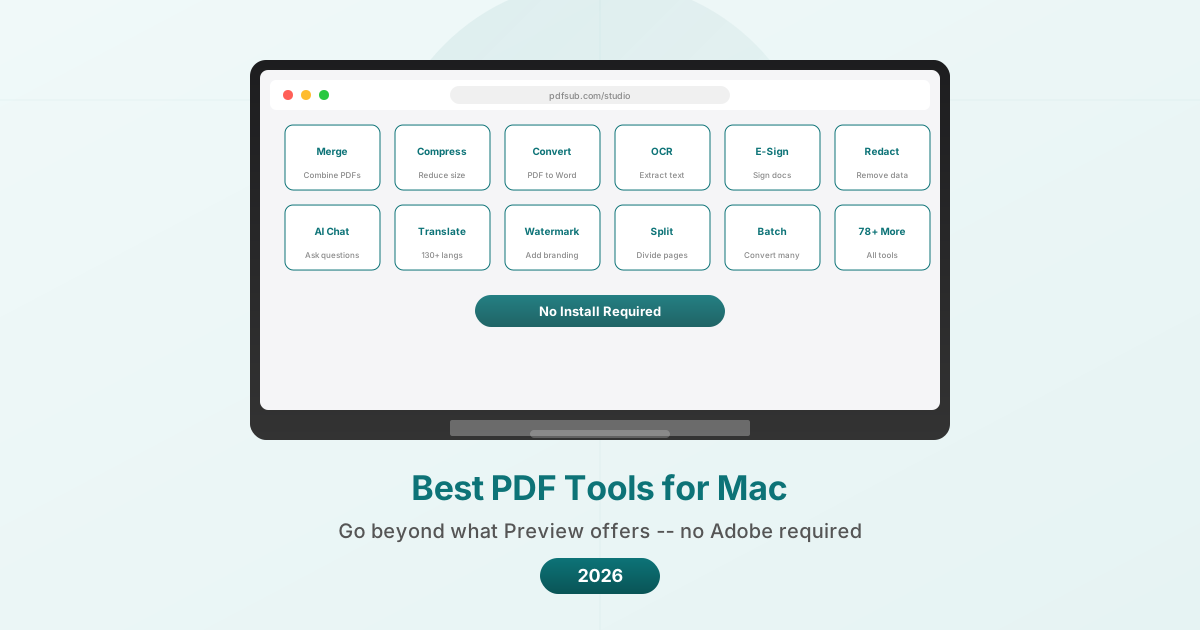
PDFSub runs entirely in your browser, which makes it platform-independent by design. On a Mac, it works in Safari, Chrome, Firefox, or any modern browser without installing anything.
Pricing: 7-day free trial available. Plans at $20/user/mo (annual).
Why Mac users choose it:
The browser-based approach means PDFSub works on any Mac -- including older machines, M-series and Intel Macs alike, without worrying about compatibility. There is nothing to install, nothing to update, and no app taking up disk space.
For basic operations (merge, split, rotate, compress, reorder pages), files are processed in your browser and never leave your Mac. This is a privacy advantage over server-based tools and a practical advantage over desktop apps that need updates and consume system resources.
What it adds beyond Preview:
- Compress PDF that actually reduces file size significantly
- PDF to Word, Excel, PowerPoint, and other format conversions
- OCR for scanned documents
- AI-powered Summarize PDF, Translate PDF (130+ languages), Chat with PDF, and Extract Data
- Invoice Extractor and Receipt Scanner
- Bank Statement Converter to Excel, CSV, OFX, QBO
- Redact PDF, Add Watermark, and Page Numbers
- Batch Convert for multiple files
- Password Protect and Unlock PDF
- 98+ tools total
Limitations:
- No native Mac app (browser-based)
- AI features use server-side processing (with automatic deletion)
- Requires internet connection
- Free tier has limited operations
- SOC 2 Ready but not SOC 2 Type II certified
Best for: Mac users who want a comprehensive PDF toolkit and advanced PDF editing features (form creation, digital signatures, advanced redaction) without installing software. Especially valuable for users who also need Adobe's full feature set, AI features, financial document processing, or translation.
2. PDF Expert -- Best Native Mac App
PDF Expert by Readdle is a Mac-native PDF app that feels like it belongs on macOS. The interface follows Apple's design language, the app integrates with iCloud and Finder, and performance is optimized for Apple Silicon.
Pricing: Annual plan at $79.99/year. Lifetime license at $139.99 (one-time). Free trial available.
Why Mac users choose it:
PDF Expert is the closest thing to "what Preview would be if Apple made it a pro tool." The interface is familiar, the app is fast, and it handles most PDF tasks without the complexity of Adobe Acrobat.
What it adds beyond Preview:
- Full text editing (change existing text, fonts, sizes)
- Advanced annotation tools with customizable presets
- Form filling with auto-complete
- Page management (merge, split, reorder with visual interface)
- PDF compression
- File conversion (PDF to Word, Excel, PowerPoint, image formats)
- Read aloud feature for accessibility
- Outline and table of contents editing
- Link editing and creation
- Redaction tools
Limitations:
- Mac and iOS only (no Windows or Android)
- No AI features (no summarization, translation, or data extraction)
- No OCR for scanned documents (a notable gap)
- No bank statement or financial document tools
- Annual subscription or high one-time price
- No browser-based option for quick tasks on other devices
Best for: Mac users who want a native desktop PDF editor that goes beyond Preview but do not need Adobe's full feature set. The lifetime license option makes it cost-effective long-term.
3. Smallpdf -- Best for Quick Tasks
Smallpdf is a browser-based PDF tool that works on any Mac. The interface is notably clean and simple, making it the fastest option for one-off tasks.
Pricing: Free (2 tasks/day). Pro at $10/user/month (annual).
Why Mac users choose it:
When you need to compress one PDF for an email attachment right now, Smallpdf is the fastest path from problem to solution. No app to open, no account needed for free use, just drop a file and get a result.
What it adds beyond Preview:
- PDF compression with noticeable file size reduction
- PDF to Word, Excel, PowerPoint, JPG conversion
- Word, Excel, PowerPoint to PDF conversion
- E-sign functionality
- Page splitting and extracting
- Merge with visual reordering
- Password protection and removal
Limitations:
- Only 2 free tasks per day across all tools
- Files are uploaded to servers (deleted after 1 hour)
- No AI features
- No OCR on free tier
- No financial document tools
- Aggressive upsell prompts
- Pro subscription required for desktop app
Best for: Mac users who need quick, occasional PDF tasks and value simplicity above all. Not practical for free daily use due to the 2-task limit.
4. iLovePDF -- Best Budget Option for Mac
iLovePDF is another browser-based option that works well on Mac. It offers a more generous free tier than Smallpdf and the lowest paid pricing of any option on this list.
Pricing: Free with limits. Premium at $5/user/month.
Why Mac users choose it:
At $4/month, iLovePDF is the least expensive way to get a reliable set of PDF tools beyond Preview. The free tier handles more tasks per day than Smallpdf, making it practical for light daily use without paying.
What it adds beyond Preview:
- PDF compression
- Format conversion (PDF to/from Word, Excel, PowerPoint, JPG)
- Merge, split, and organize pages
- Watermarking
- Page numbering
- Password protection
- OCR on Premium
- Batch processing on Premium
Limitations:
- Ads on free tier
- Files processed on servers
- No AI features
- No financial document tools
- No native Mac app (browser-based)
- Complex editing features limited compared to PDF Expert or Acrobat
Best for: Budget-conscious Mac users who need basic PDF operations beyond Preview at the lowest possible price.
5. Foxit PDF Editor -- Best Desktop Alternative to Adobe on Mac
Foxit PDF Editor offers a full desktop PDF editor for Mac that aims to match Adobe Acrobat's capabilities at a lower price and with better performance.
Pricing: PDF Editor at $10.99/month or $129.99/year. PDF Editor+ at $13.99/month or $159.99/year. Perpetual license approximately $210.
Why Mac users choose it:
Foxit is the only tool on this list (besides Adobe) that offers full PDF text editing, advanced form creation, and enterprise-grade features in a native Mac application. For users who need more than PDF Expert offers but do not want Adobe's price, Foxit sits in between.
What it adds beyond Preview:
- Full text and image editing in PDFs
- Advanced form creation and editing
- OCR for scanned documents
- Redaction with search-and-redact
- Digital signatures (certificate-based)
- AI features (20 free credits/month)
- Collaboration tools (commenting, review workflows)
- Batch processing
- PDF/A conversion for archival
Limitations:
- Interface is more complex than PDF Expert
- AI credits are limited on base plan
- Perpetual license does not include future major version upgrades
- Desktop app requires updates and disk space
- Less polished Mac experience than PDF Expert (Foxit is cross-platform, not Mac-native)
- No financial document tools (bank statements, invoices)
Best for: Mac users who need advanced PDF editing features (form creation, digital signatures, advanced redaction) without paying Adobe's premium. The perpetual license is attractive for users who dislike subscriptions.
Feature Comparison
| Feature | Preview | PDFSub | PDF Expert | Smallpdf | iLovePDF | Foxit |
|---|---|---|---|---|---|---|
| View and read | Yes | Yes | Yes | No | No | Yes |
| Annotate | Yes | Yes | Yes | No | No | Yes |
| Basic sign | Yes | Yes | Yes | Yes | No | Yes |
| Merge | Awkward | Easy | Yes | Yes | Yes | Yes |
| Compress | No | Yes | Yes | Yes | Yes | Yes |
| PDF to Word | No | Yes | Yes | Yes | Yes | Yes |
| OCR | No | Yes | No | Pro only | Premium | Yes |
| Edit text | No | Yes | Yes | No | No | Yes |
| Redact | Yes | Yes | Yes | No | No | Yes |
| AI features | No | Yes | No | No | No | Basic |
| Watermark | No | Yes | No | No | Yes | Yes |
| Batch process | No | Yes | No | Pro | Premium | Yes |
| Financial tools | No | Yes | No | No | No | No |
| Works offline | Yes | No | Yes | No | No | Yes |
| Native Mac app | Yes | No | Yes | No | No | Yes |
| Starting price | Free | $20/mo | $79.99/yr | $10/mo | $5/mo | $10.99/mo |
The Preview + Browser Approach
Many Mac users find the most practical setup is combining Preview (for viewing, annotating, and signing) with a browser-based tool (for everything Preview cannot do).
This approach has several advantages:
- Preview handles 60-70% of daily PDF tasks at no cost
- A browser-based tool fills the gaps when needed
- No additional desktop app to install or update
- Works on any Mac regardless of age or chip
The question becomes which browser-based tool to pair with Preview, and that depends on your specific needs:
- Need AI and financial tools: PDFSub
- Need the simplest interface: Smallpdf
- Need the lowest price: iLovePDF
- Need everything free: PDF24 (not Mac-native, but works in any browser)
Frequently Asked Questions
Can Preview really merge PDFs?
Yes. Open the first PDF in Preview, show thumbnails in the sidebar (View > Thumbnails), then drag the second PDF file from Finder directly into the sidebar at the position where you want it. It is not intuitive, but it works. The gotcha: make sure you save as a new file (File > Export as PDF) rather than saving over your original document.
Is PDF Expert worth it over Preview?
If you need to edit existing text in PDFs (not just annotate), PDF Expert justifies its price. If you only annotate, sign, and occasionally merge, Preview covers you. The decision point is whether you regularly need to change the actual content of PDF documents.
Why would I use a browser-based tool instead of a Mac app?
Three reasons: no installation, no updates, and cross-device availability. A browser-based tool works immediately on any Mac (or any device with a browser) without downloading anything. Mac apps need to be installed, updated, and they consume disk space. For tools you use occasionally (like PDF compression or conversion), a browser-based option is often more practical than keeping a desktop app around.
Can I use these tools on my iPhone or iPad?
Preview is iPad-only (and more limited than the Mac version). PDF Expert has iOS apps. Smallpdf and iLovePDF have mobile apps. PDFSub works in Safari on iPhone and iPad. Foxit has mobile apps. Browser-based tools generally work on any device, while desktop apps may have separate (sometimes more limited) mobile versions.
What about free tools like PDF24?
PDF24 is completely free with no paid tier, but its desktop app is Windows-only. The browser-based tools at tools.pdf24.org work fine on Mac. If you want unlimited free PDF operations and do not mind server-based processing, PDF24 is worth considering. The main trade-off compared to the tools listed above is that files are uploaded to servers for processing.
The Bottom Line
Mac users start in a better position than Windows users thanks to Preview. For basic viewing, annotation, signing, and awkward-but-functional merging, Preview handles daily needs at zero cost.
When you need more -- compression, conversion, OCR, redaction, AI features, or financial document processing -- the right tool depends on your priorities. PDF Expert offers the best native Mac experience. PDFSub offers the broadest feature set without installation. Smallpdf offers the simplest interface. iLovePDF offers the lowest price. And Foxit offers the closest feature parity with Adobe.
Start with Preview. When you hit its limits, try the free tiers of the tools above with a document that represents your actual work. The one that handles your specific needs with the least friction is the right choice -- regardless of which one a comparison article recommends.
Try PDFSub's 98+ tools in your browser at pdfsub.com.