Best PDF Tools for Chromebook (2026)
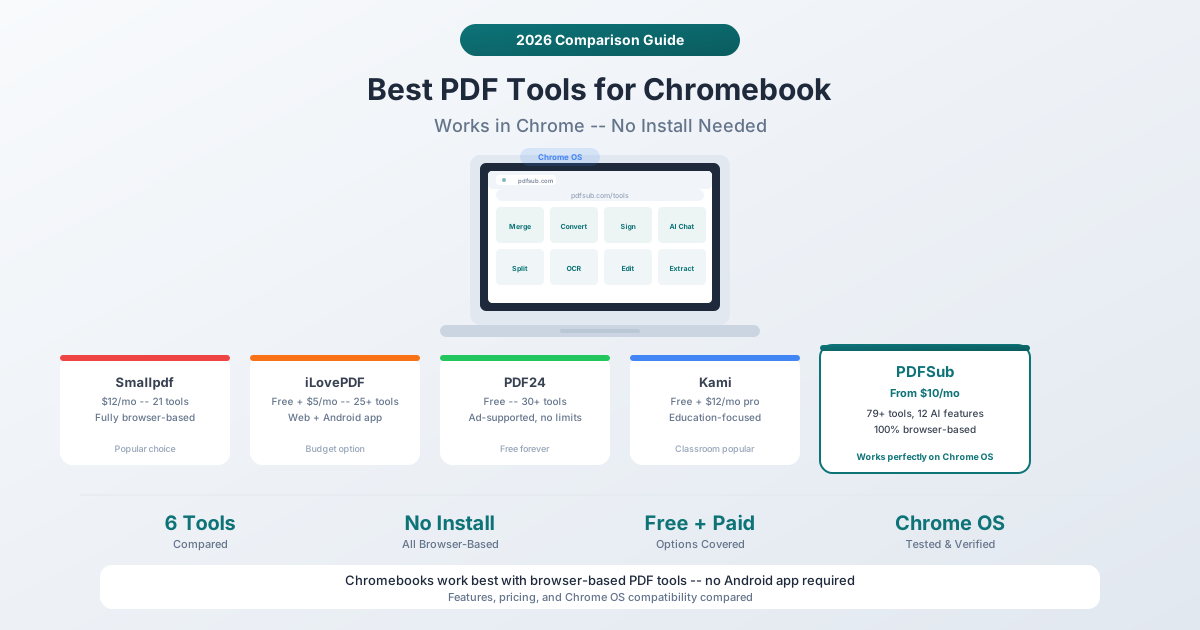
Chromebooks can't install desktop PDF software. Here are the best browser-based PDF tools that work perfectly on Chrome OS - no Android app needed.
PDFSub is best for:
- Chromebook users who want the largest tool suite (98+) available without any installation
- Students and educators on Chrome OS who need AI summarization and translation for research
- Professionals on managed Chromebooks who cannot install Android apps or desktop software
- Anyone on Chrome OS who needs financial tools (bank statements, invoices) that other browser tools lack
PDFSub is NOT best for:
- Chromebook users who only need basic viewing and annotation (Google Docs may suffice)
- Users who prefer completely free tools and are fine with ads (PDF24, iLovePDF)
- Anyone who needs heavy offline PDF work - Chromebooks require internet for most browser tools
Chromebooks are excellent for many things. PDF editing has not traditionally been one of them.
The problem is simple: Chromebooks run Chrome OS, which cannot install traditional desktop applications like Adobe Acrobat, Foxit PDF Editor, or Nitro Pro. You have three options: use a web-based PDF tool, install an Android app from the Google Play Store, or use Google Docs (which butchers PDF formatting).
The good news is that browser-based PDF tools have gotten good enough that the Chromebook limitation barely matters anymore. Several platforms now offer full-featured PDF editing, conversion, and AI capabilities entirely through the browser.
Here is what actually works well on a Chromebook in 2026.
Why Browser-Based Tools Work Better Than Android Apps
Chromebooks can run Android apps from the Google Play Store, and many PDF apps are available there. But there are good reasons to prefer browser-based tools:
-
Full-size interface. Android apps are designed for phone screens. Even when they scale up to a Chromebook's larger display, the interface often feels cramped or oddly proportioned.
-
Better file handling. Browser tools can access files from Google Drive, Dropbox, or your local Downloads folder seamlessly. Android apps sometimes have awkward file picker behavior on Chrome OS.
-
Consistent updates. Web apps are always up to date. Android apps on Chromebooks sometimes lag behind phone versions.
-
No storage impact. Web apps do not consume local storage (which is often limited on Chromebooks -- 32-64 GB is common).
-
Feature parity. The best web-based PDF tools now match or exceed what Android apps can do.
1. PDFSub
Best for: Chromebook users who want the most comprehensive PDF toolkit available in a browser.
PDFSub is 100% browser-based. Every tool -- from basic merging and splitting to AI-powered Chat with PDF and Extract Data -- runs in Chrome without any installation. Standard PDF operations (Merge PDFs, Split PDF, Compress PDF, Rotate PDF, Add Watermark) process entirely within the browser, which means files never leave your Chromebook.
Pricing: The All-In-One plan is $20/user/mo (annual) or $25/user/mo (monthly), with a 7-day free trial. All plans include the full tool suite.
Tools: 98+ tools covering standard PDF operations, AI features (chat, Summarize PDF, Translate PDF, extract data), format conversions (PDF to Word, Excel to PDF, PDF to PowerPoint, PDF to Image, HTML to PDF, EPUB), financial document tools (Bank Statement Converter, Invoice Extractor, Receipt Scanner), and editing (E-Sign PDF, PDF Form Filler, Redact PDF, Stamp PDF, annotations).
Why it works well on Chromebook:
- Pure browser application -- zero installation
- Standard tools process locally in the browser (fast, private)
- Works with files from Downloads folder, Google Drive, or Dropbox
- Responsive design works well on various Chromebook screen sizes
- No dependency on Android app compatibility
- 98+ tools eliminate the need for multiple browser tabs with different tools
Chromebook-specific considerations:
- Large PDF files (100+ MB) may strain Chromebooks with limited RAM (4 GB)
- AI features require an internet connection (server-side processing)
- Browser processing for standard tools means no internet needed for those operations (once the page loads)
- Works on all Chromebook browsers, not just Chrome
2. Smallpdf
Best for: Chromebook users who want simple, clean PDF operations with a minimal learning curve.
Smallpdf's web interface is clean and straightforward. The about 21 tools cover the most common PDF needs, and the browser-based experience works well on Chromebooks.
Pricing: Free tier with limited daily operations. Pro plan is approximately $12/month billed annually.
Tools: About 21 tools: merge, split, compress, convert (Word, Excel, PowerPoint, images), e-sign, edit, protect, unlock, rotate, OCR.
Why it works well on Chromebook:
- Clean, intuitive web interface
- Minimal resource consumption
- Quick operations for common tasks
- No installation needed
Chromebook-specific considerations:
- Files are uploaded to Smallpdf's servers for processing (no local processing)
- Free tier has daily limits that can be restrictive for regular use
- Limited tool count (about 21) means you may need additional tools
3. iLovePDF
Best for: Budget-conscious Chromebook users who want free or very affordable PDF tools.
iLovePDF offers a generous free tier with access to essential tools. The web interface works well on Chromebooks, and the Premium plan is one of the most affordable options for regular users.
Pricing: Free tier with size and usage limits. Premium is $9/month or $5/month billed annually.
Tools: 25+ tools: merge, split, compress, convert, sign, watermark, page numbers, repair, edit, PDF/A conversion, and more.
Why it works well on Chromebook:
- Generous free tier for basic operations
- Low premium pricing ($5/month annually)
- Clean web interface
- Good conversion quality
Chromebook-specific considerations:
- Free tier limits file sizes (15 MB for some conversions, 100 MB for merge)
- Files are uploaded to iLovePDF servers for processing
- The Android app is available but the web version is generally better on Chromebooks
- AI features are credit-limited (2,000 credits for Premium)
4. PDF24
Best for: Chromebook users who want completely free PDF tools with no feature restrictions.
PDF24 is the rare tool that is genuinely, completely free with no artificial limits. No file size restrictions, no daily operation caps, no feature gating. It is supported by advertising on the website.
Pricing: Completely free. No paid plans. No usage limits.
Tools: 30+ tools: merge, split, compress, convert, edit, sign, OCR, protect, watermark, page numbers, compare, and more.
Why it works well on Chromebook:
- Completely free with no restrictions
- Large tool set (30+ tools)
- No account required for most operations
- Browser-based with no installation
Chromebook-specific considerations:
- Ad-supported (ads appear on the website -- not intrusive but present)
- Files are uploaded to PDF24's servers for processing
- Processing times can be slower during peak usage
- No AI features (no summarization, chat, or data extraction)
- The desktop app (PDF24 Creator) is not available on Chromebooks (Windows only)
5. Google Docs
Best for: Extremely basic PDF editing when you have no other option.
Google Docs can open PDF files and convert them to editable Google Docs format. For Chromebook users, this is the "already have it" option that requires no additional tools or subscriptions.
Pricing: Free with a Google account (which you already have if you use a Chromebook).
How it works: Upload a PDF to Google Drive. Right-click and select "Open with Google Docs." The PDF is converted to a Google Doc that you can edit. Export back to PDF when done.
Why you might use it on Chromebook:
- Already installed -- no additional tool needed
- Free and unlimited
- Seamless Google Drive integration
- Works offline (with offline mode enabled)
Why it usually does not work well:
- Destroys formatting during conversion (columns, tables, images, fonts)
- No PDF-specific tools (no merge, split, compress, watermark)
- Cannot handle forms or interactive PDFs
- No OCR -- scanned PDFs produce empty or garbled documents
- No AI features
- Editing the Google Doc and exporting back to PDF often produces a different-looking document
Google Docs is a last resort, not a PDF tool. Use it when you need to extract text from a simple, single-column PDF and do not care about formatting.
6. Kami
Best for: Students and teachers who need PDF annotation and collaboration on Chromebooks.
Kami is particularly popular in K-12 education because it integrates directly with Google Classroom, Canvas, and other learning management systems. Teachers can assign PDFs for students to annotate, fill out, and submit -- all within the browser.
Pricing: Basic (free) includes 10+ essential tools and Google Drive integration. Teacher plan is $149/year. Pro plan is $12/month or $85/year.
Tools: Annotation tools (highlight, underline, strikethrough, text boxes, drawings, shapes), form filling, voice comments, video comments, text-to-speech, and screen capture.
Why it works well on Chromebook:
- Purpose-built for the education market where Chromebooks dominate
- Google Classroom and LMS integrations
- Chrome extension for quick access
- Collaborative annotations (multiple users on the same document)
- 1,000+ templates for educational worksheets
Chromebook-specific considerations:
- Education-focused -- lacks many standard PDF tools (no merge, compress, convert)
- No AI features (no summarization, chat, or data extraction)
- The free tier is functional but limited to about 10 tools
- Pro pricing ($12/month) is comparable to more feature-rich tools
Comparison Table
| Feature | PDFSub | Smallpdf | iLovePDF | PDF24 | Google Docs | Kami |
|---|---|---|---|---|---|---|
| Price | $15/mo | Free/$12/mo | Free/$5/mo | Free | Free | Free/$12/mo |
| Total Tools | 98+ | ~21 | ~25 | ~30 | 1 (convert) | ~15 |
| Browser Processing | Yes (standard) | No | No | No | N/A | No |
| AI Features | 12 tools | 2 | Limited | None | None | None |
| Merge/Split | Yes | Yes | Yes | Yes | No | No |
| Convert (Word/Excel) | Yes | Yes | Yes | Yes | Partial | No |
| E-Sign | Yes | Yes | Yes | Yes | No | No |
| OCR | Yes (AI) | Yes | Yes | Yes | No | No |
| Financial Docs | Yes | No | No | No | No | No |
| Education Features | Basic | Basic | Basic | Basic | Basic | Deep |
| Offline Capable | Partial | No | No | No | Yes | No |
| File Upload Required | No (standard) | Yes | Yes | Yes | Yes | Yes |
Chromebook-Specific Tips
Storage Management
Chromebooks typically have 32-64 GB of storage. Large PDF files can fill this up quickly. Tips:
- Process files directly from Google Drive rather than downloading first
- Delete processed files from Downloads after you are done
- Use PDF compression tools to reduce file sizes before saving
- Consider a Chromebook with 128 GB or more if you work with PDFs regularly
RAM Considerations
Many Chromebooks have 4 GB of RAM. Browser-based PDF tools consume memory, especially with:
- Large PDFs (50+ pages)
- Multiple open tabs
- AI processing tasks
Close unnecessary tabs and extensions when working with large documents. Chromebooks with 8 GB RAM handle PDF tools much more smoothly.
Offline Usage
Most browser-based PDF tools require an internet connection. The exception is PDFSub's standard tools (merge, split, compress, etc.), which process files locally in the browser once the page is loaded. For offline work:
- Google Docs works offline (with offline mode enabled)
- PDFSub's standard tools can work after the initial page load
- All AI features on every platform require an internet connection
- Consider downloading important documents before going offline
Android Apps vs. Web Tools
While Android PDF apps work on most Chromebooks, browser-based tools are generally a better experience:
| Factor | Android App | Web Tool |
|---|---|---|
| Interface | Phone-sized, scaled up | Full desktop layout |
| File access | Limited file picker | Full browser file access |
| Updates | Manual app updates | Always current |
| Storage | Consumes local storage | No local storage used |
| Performance | Varies by Chromebook | Consistent |
Frequently Asked Questions
Can I use Adobe Acrobat on a Chromebook?
Adobe offers a limited web version of Acrobat (acrobat.adobe.com) that handles basic operations like viewing, commenting, and filling forms. The full desktop editor (Acrobat Pro) cannot be installed on Chrome OS. The Android version of Adobe Acrobat Reader works on Chromebooks but has limited editing capabilities. For full PDF editing on a Chromebook, browser-based alternatives like PDFSub, Smallpdf, or iLovePDF are better options.
Which free option is best for Chromebooks?
PDF24 is the best completely free option -- 30+ tools with no usage limits, no account required for most operations, and no feature gating. iLovePDF's free tier is also strong but has file size restrictions. Google Docs is free but should only be used as a last resort for PDF tasks.
Do browser-based PDF tools work on ARM-based Chromebooks?
Yes. Browser-based tools run in Chrome regardless of the underlying processor architecture (ARM or Intel/AMD). This is a genuine advantage over Android apps, which sometimes have compatibility issues with specific ARM processors. All tools on this list work on both ARM and Intel Chromebooks.
Can I process confidential documents on a Chromebook?
PDFSub's standard tools (merge, split, compress, etc.) process files entirely in your browser -- the files never leave your Chromebook. This is the most privacy-friendly approach for sensitive documents. For AI features on any platform, documents are sent to servers for processing. If you handle highly confidential documents, use tools with browser-side processing for standard operations and evaluate each platform's security policies for AI operations.
What is the best PDF tool for students on Chromebooks?
For K-12 students and teachers, Kami is the purpose-built choice with Google Classroom integration and collaborative annotation. For college students who need broader capabilities (research paper annotation, document conversion, AI summarization), PDFSub or Smallpdf offers more tools. PDF24 is a solid free option for students on a budget.
The Bottom Line
Chromebooks are no longer limited when it comes to PDF tools. Browser-based platforms have caught up -- and in some cases surpassed -- what desktop applications offer.
For the most comprehensive experience on a Chromebook, PDFSub's 98+ browser-based tools offer everything from basic operations (merge, split, compress) to AI features (chat, translate, extract data) to financial document processing -- all running directly in Chrome with no installation needed. The 7-day free trial lets you test everything on your specific Chromebook before committing.