7 Best Bank Statement Converters in 2026 (Tested & Compared)
We tested the top bank statement converters side by side. Here's which ones actually work for accountants, bookkeepers, and financial pros.
PDFSub is best for:
- Accountants and bookkeepers who need one platform for bank statements plus 98+ PDF tools
- Firms with international clients needing 130+ languages and 20,000+ bank templates
- Professionals who want 8 export formats (Excel, CSV, QBO, OFX, QFX, QIF, TSV, JSON) at $20/user/mo (annual)
PDFSub is NOT best for:
- High-volume lenders processing 10,000+ statements/month who need enterprise API infrastructure
- Forensic accountants who need built-in fraud detection and evidence chain tools
- Teams that require SOC 2 Type II certification for compliance audits
You're staring at a stack of PDF bank statements. Your client needs them reconciled by Friday. And the thought of manually typing every transaction into a spreadsheet makes you want to close your laptop and walk away.
You're not alone. The average accountant spends over six hours per week on manual data entry, and bank statements are the worst offenders. They look clean on screen, but try copying that data into Excel and you'll get a jumbled mess of misaligned columns and merged cells.
Bank statement converters solve this problem. They extract transaction data from PDF statements and turn it into clean, structured formats like Excel, CSV, or QuickBooks-ready files. But not all converters are created equal - some choke on scanned documents, others only work with English statements, and a few will nickel-and-dime you on every page.
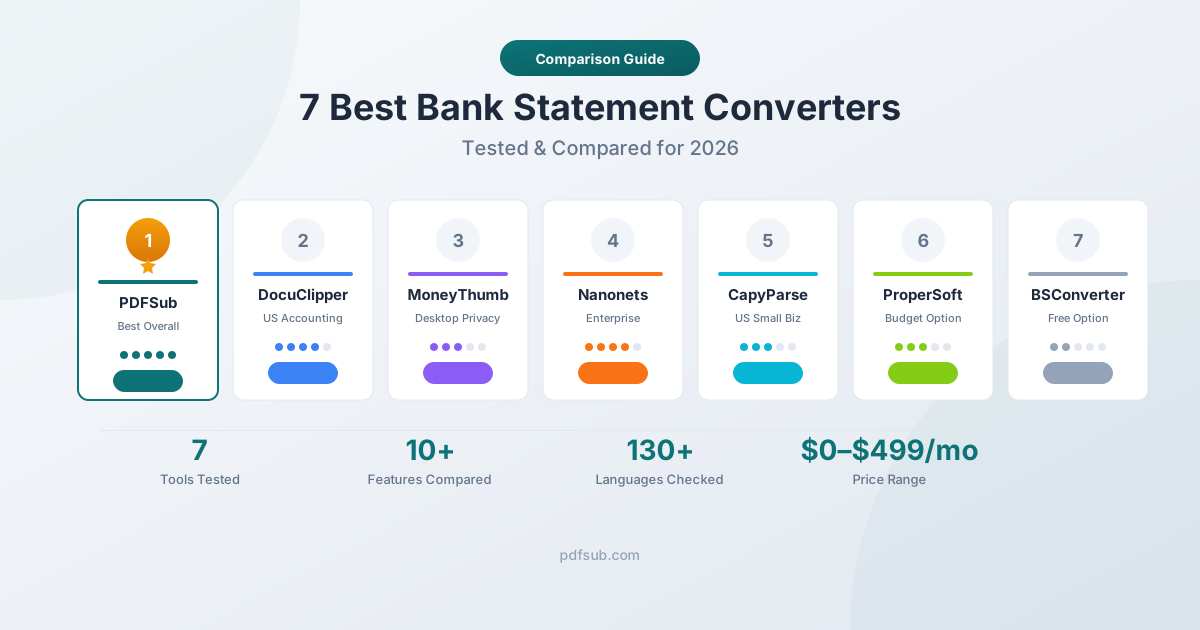
We tested seven of the most popular bank statement converters to find out which ones actually deliver. Here's what we found.
Why Bank Statement Conversion Matters (The Numbers Don't Lie)
Before we dive into the tools, let's talk about why this matters. If you're an accountant or bookkeeper managing multiple clients, manual data entry isn't just tedious - it's expensive.
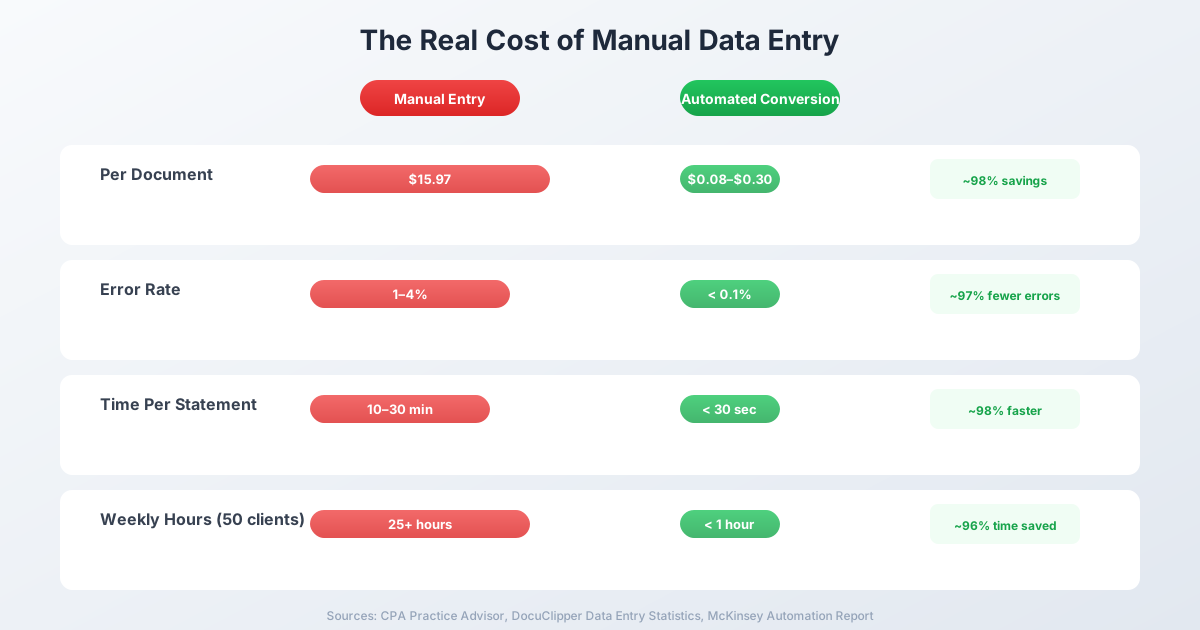
- Time cost: Processing a single bank statement manually takes 10–30 minutes. Multiply that by 50–300 clients and you're looking at hundreds of hours per month.
- Error rate: Manual data entry has a 1–4% error rate. That means for every 10,000 entries, you're looking at 100–400 mistakes. Each error costs $50–$150 to find and fix.
- Cost per document: The average cost of manually processing a single financial document is roughly $16. Automated conversion brings that down to pennies.
- The big picture: 78% of businesses that automate bank statement conversion report saving over five hours per week.
The bank statement analyzer market hit $1.2 billion in 2024 and is projected to reach $3.5 billion by 2033. The shift to automation isn't a trend - it's a tidal wave.
How We Evaluated Each Tool
We didn't just read marketing pages. We tested each converter against the same criteria that matter to working accountants and bookkeepers:
| Criteria | What We Looked For |
|---|---|
| Accuracy | Does it extract transaction dates, descriptions, and amounts correctly? |
| Format support | Can it output Excel, CSV, QBO, OFX, and other accounting formats? |
| Language support | Does it handle non-English statements and international date/number formats? |
| Bank coverage | How many banks and statement layouts does it support? |
| Privacy | Does the file get uploaded to a server, or processed locally? |
| Pricing | Is it affordable for solo bookkeepers and small firms? |
| Ease of use | Can you convert a statement in under two minutes? |
| Integrations | Does it connect with QuickBooks, Xero, Sage, or other accounting software? |
Now let's look at the tools.
1. PDFSub - Best Overall
Best for: Accountants and bookkeepers who work with international clients, value privacy, or need multiple output formats.
PDFSub takes a fundamentally different approach to bank statement conversion. Instead of uploading your files to a server, it processes them directly in your browser first. Your bank statements never leave your device unless the document requires server-side AI processing (like scanned or image-heavy PDFs).
What Sets It Apart
The biggest differentiator is language support. PDFSub handles bank statements in over 130 languages - including Chinese, Japanese, Arabic, Hindi, German, French, and dozens more. Most competitors cap out at English or a handful of Western European languages.
It's also template-agnostic. Rather than relying on pre-built templates for specific banks, PDFSub's parser analyzes the PDF structure directly. That means it works with statements from over 20,000 banks worldwide, even obscure regional banks and credit unions that template-based tools can't handle.
Output Formats
Eight formats - the most of any tool we tested:
- Excel (.xlsx)
- CSV
- TSV
- JSON
- OFX
- QBO (QuickBooks)
- QFX
- QIF (Quicken)
How It Works
PDFSub uses a multi-tier extraction system:
- Browser-based extraction - For clean, natively digital PDFs, everything happens in your browser. No upload, no server, no privacy risk.
- Server-side fallback - For trickier documents, an encrypted server-side parser handles extraction, then deletes your file.
- AI extraction - For scanned or image-heavy PDFs, AI-powered extraction kicks in as a final layer.
This tiered approach means you get the fastest, most private processing possible for clean statements, with AI as a safety net for difficult ones.
Pricing
PDFSub's All-In-One plan is $20/user/mo (annual) or $25/user/mo (monthly) - 98+ tools, 500 AI credits, and 500 bank statement pages per user. Stackable add-on packs (500 BSC pages at $20/month or 500 AI credits at $7/month, annual rates) cover any higher volume. All paid plans include a 7-day free trial with full functionality.
See current pricing for details.
Pros
- 130+ language support (far beyond any competitor)
- Browser-based privacy for most statements
- 8 output formats including QBO, OFX, QFX, QIF
- Template-agnostic - works with 20,000+ banks
- Auto-detects international date formats, number formats, and currencies
- Multi-account statement detection
- Part of a full 98+ tool PDF platform (merge, split, compress, convert, AI, and more)
- 7-day free trial on all paid plans
Cons
- Newer to the market than DocuClipper or MoneyThumb
- No SOC 2 certification (yet)
- No built-in fraud detection
2. DocuClipper - Best for US Accounting Firms
Best for: US-based accounting firms that need integrations with QuickBooks, Xero, and Sage, and prioritize SOC 2 compliance.
DocuClipper is one of the most established bank statement converters, rated #1 on G2 with a 4.8/5 rating. It's trusted by over 10,000 professionals and has earned SOC 2 certification - a significant trust signal for firms handling sensitive client data.
What It Does Well
DocuClipper shines with its accounting integrations. It connects directly with QuickBooks, Xero, Sage, NetSuite, and Dynamics 365. If your workflow revolves around these tools, DocuClipper makes the import process seamless.
It also includes fraud detection and document verification - features that matter for lenders, auditors, and firms handling high-stakes financial documents.
Where It Falls Short
The biggest limitation is language support. DocuClipper is primarily English-only. If you work with international clients sending statements in German, Japanese, or Arabic, you'll need a different tool.
The free trial also has a catch: you can convert up to 200 pages, but only export 10 transactions. That's barely enough to evaluate the tool properly.
Pricing
| Plan | Monthly | Annual | Pages/Month |
|---|---|---|---|
| Starter | $39 | $27/mo | 200 |
| Professional | $74 | $59/mo | 500 |
| Business | $159 | $99/mo | 2,000 |
| Enterprise | Custom | Custom | Custom |
Pros
- SOC 2 certified
- Direct integrations with QuickBooks, Xero, Sage, and more
- Fraud detection and document verification
- High accuracy (99.6% claimed)
- Unlimited users on all plans
Cons
- English-only statement support
- Free trial limits exports to 10 transactions
- Cloud-only - files must be uploaded to their servers
- Pricing can get steep for high-volume users
3. MoneyThumb - Best for Desktop Privacy
Best for: Users who want to process everything locally on their computer without any cloud upload.
MoneyThumb has been around for years and offers something rare: a desktop application that processes bank statements entirely on your local machine. If you're handling ultra-sensitive financial documents and don't want any data touching a cloud server, MoneyThumb's desktop option is worth considering.
What It Does Well
The desktop version means complete data privacy. Nothing gets uploaded anywhere. MoneyThumb also includes Thumbprint fraud detection, which identifies tampered or altered PDF statements - a useful feature for lenders and auditors.
It supports a solid range of output formats: QBO, OFX, CSV, QFX, QIF, and Excel.
Where It Falls Short
The user interface feels dated, and the pricing structure is confusing. Desktop licenses run $550–$600 upfront, and if you need OCR for scanned documents, that's a separate add-on (PDF+) at $99/year.
Customer reviews on Trustpilot are mixed, with some users reporting billing issues and continued charges after cancellation.
Pricing
Desktop (one-time):
| Product | Price |
|---|---|
| 2qbo Convert Pro (digital PDFs) | ~$550 |
| 2qbo Convert Pro+ (digital + scanned) | ~$600 |
Cloud (monthly):
| Plan | Price | Conversions |
|---|---|---|
| Individual | $24.95/mo | 5 statements |
| Standard | $49.95/mo | 20 statements |
| Pro | $99.95/mo | 60 statements |
Pros
- Desktop processing = complete privacy
- Long track record in the market
- Thumbprint fraud detection
- Multiple output formats
Cons
- Expensive upfront for desktop ($550+)
- OCR for scanned PDFs costs extra
- Outdated user interface
- Mixed customer service reviews
- English-focused
4. Nanonets - Best for Enterprise
Best for: Large organizations processing thousands of documents per month that need enterprise-grade security, compliance, and integrations.
Nanonets is an intelligent document processing platform, not just a bank statement converter. It's trusted by 34% of Fortune 500 companies and handles invoices, receipts, contracts, and more alongside bank statements.
What It Does Well
Nanonets has the most powerful AI engine of any tool on this list. It supports 40+ languages, offers SOC 2 and HIPAA compliance, and integrates with enterprise systems like SAP, Oracle, Salesforce, and NetSuite.
If you need custom model training, human-in-the-loop verification workflows, or API-level automation, Nanonets is built for that.
Where It Falls Short
It's overkill for small businesses. Pricing starts around $499/month, and the per-page cost model (roughly $0.30/page for extraction) adds up quickly. The setup is complex, and many reviewers note a steep learning curve.
For a solo bookkeeper who just needs to convert 20 statements a month, Nanonets is like using a bulldozer to plant a flower.
Pricing
| Plan | Price | Details |
|---|---|---|
| Free | $0 | $200 in credits to start |
| Pro | ~$499+/mo | Per-block pricing (~$0.30/page extraction) |
| Enterprise | Custom | SSO, HIPAA, dedicated support |
Pros
- Most powerful AI/ML engine
- 40+ languages
- SOC 2 + HIPAA compliance
- Enterprise integrations (SAP, Oracle, Salesforce)
- Custom model training
Cons
- Expensive ($499+/month)
- Complex, opaque pricing
- Overkill for small businesses
- Steep learning curve
- Not specialized for bank statements
5. CapyParse - Best for US Small Businesses
Best for: US-based small businesses and bookkeepers who want affordable, accurate conversion without complexity.
CapyParse is a newer entrant that's earned attention for its accuracy. Its AI doesn't rely on pre-trained templates for specific banks - it dynamically understands statement layouts, similar to PDFSub's approach.
What It Does Well
CapyParse handles both digital and scanned PDFs (including images like JPGs and PNGs), and multiple reviewers report 99%+ accuracy. It also detects multiple accounts within consolidated statements.
At $20/month for 250 pages, the pricing is straightforward and affordable.
Where It Falls Short
The biggest limitation: CapyParse is currently optimized for US financial institutions only. International bank support and additional languages are listed as "coming soon." If you work with non-US clients, this is a dealbreaker.
Output formats are also limited to CSV, Excel, and QBO - no OFX, QFX, or QIF.
Pricing
| Plan | Price | Pages |
|---|---|---|
| Free | $0 | 10 pages (no credit card) |
| Basic | $20/mo | 250 pages |
| Custom | Contact sales | Custom volume |
Pros
- 99%+ accuracy in tests
- Handles scanned documents and images
- Affordable pricing
- Multi-account detection
- No pre-training needed per bank
Cons
- US-only (international "coming soon")
- Limited output formats (CSV, Excel, QBO only)
- Relatively new - less established
- No direct accounting software integrations on standard plans
6. ProperSoft - Best Budget Option
Best for: Budget-conscious freelancers and individual bookkeepers who want a one-time purchase with no monthly fees.
ProperSoft stands out for one reason: a $200 lifetime license. No monthly fees, no per-page charges, no subscriptions. For bookkeepers who convert statements occasionally, this is the most economical option by far.
What It Does Well
ProperSoft supports the widest range of input and output formats of any tool we tested. It can read PDF, Excel, CSV, TXT, QFX, OFX, QBO, QIF, MT940, and more - and export to just as many formats. If you need to convert between obscure financial file formats, ProperSoft probably handles it.
It's also desktop-only, meaning your data stays on your computer.
Where It Falls Short
ProperSoft cannot process scanned or image-based PDFs. It only works with natively digital documents. If a client sends you a scan of their statement, you're stuck.
The user interface is dated, and some users report issues with specific bank formats not converting correctly.
Pricing
| License | Price | Details |
|---|---|---|
| Monthly | $19.99/mo | All converters + support |
| Yearly | $119.99/yr | Save 50% vs. monthly |
| Lifetime | $199.99 | One-time, free updates forever |
Pros
- $200 lifetime license - best value
- Widest format support (input and output)
- Desktop processing (data stays local)
- Good customer reviews (4.6/5 on Sitejabber)
Cons
- No scanned/image PDF support
- Desktop-only, no cloud access
- Outdated user interface
- No fraud detection or analytics
- Some bank formats don't convert correctly
7. BankStatementConverter.com - Best Free Option
Best for: Occasional users who need to convert one or two statements for free without creating an account.
BankStatementConverter.com offers something none of the other tools do: free conversions without registration. You can convert one page every 24 hours without even creating an account, or up to five pages daily with a free registration.
What It Does Well
The interface is dead simple. Upload a PDF, get an Excel or CSV file back. No learning curve, no configuration, no commitment.
For someone who converts one statement a month for personal use, this is perfectly fine.
Where It Falls Short
Accuracy is inconsistent. Independent tests show results ranging from 83% to 100% depending on the statement format. There are no QBO, OFX, or accounting-specific output formats, no API, and no integrations with any accounting software.
It's a single-purpose tool with limited scalability. If you process more than a handful of statements per month, you'll quickly outgrow it.
Pricing
| Plan | Price | Pages |
|---|---|---|
| Anonymous (free) | $0 | 1 page/day |
| Registered (free) | $0 | 5 pages/day |
| Paid plans | ~$30/mo | Credit-based system |
Pros
- Free conversions without registration
- Simple, no-frills interface
- No account needed for basic use
Cons
- Inconsistent accuracy (83–100%)
- No accounting format exports (QBO, OFX, QIF)
- No API or integrations
- Limited to Excel and CSV output
- Not suitable for professional use at scale
Side-by-Side Comparison
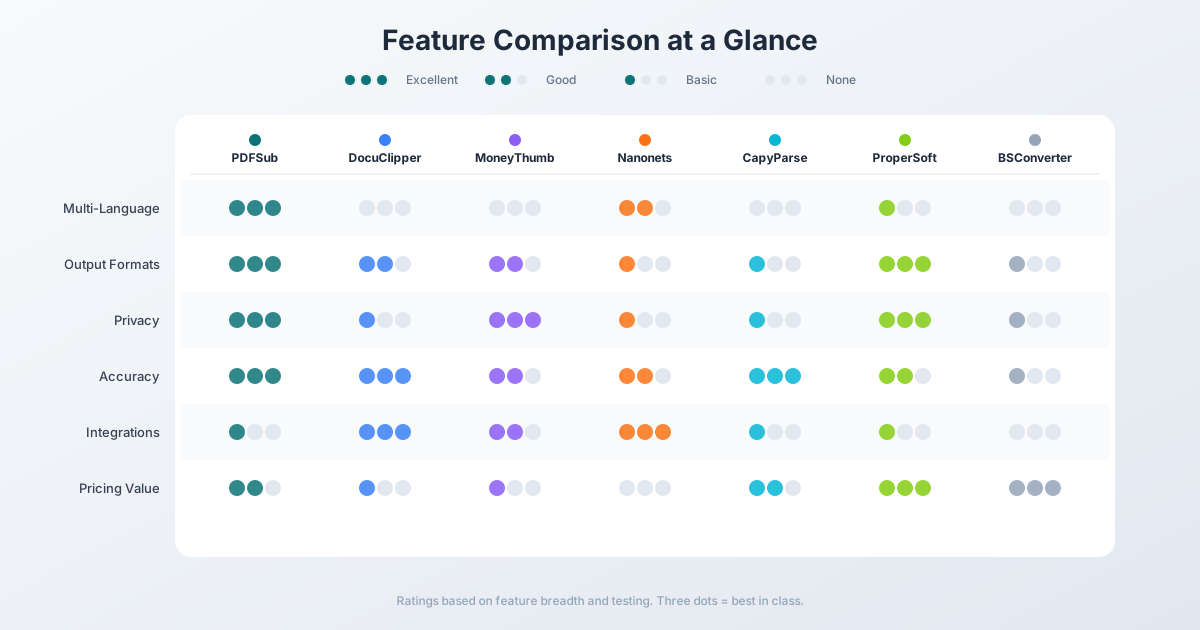
Here's how all seven tools stack up on the features that matter most:
| Feature | PDFSub | DocuClipper | MoneyThumb | Nanonets | CapyParse | ProperSoft | BSConverter |
|---|---|---|---|---|---|---|---|
| Starting price | $29/mo | $27/mo | $24.95/mo | Free credits | Free (10 pg) | $19.99/mo | Free |
| Languages | 130+ | English only | English-focused | 40+ | US only | Format auto-detect | Not specified |
| Banks supported | 20,000+ | 10,000+ | Most worldwide | Not specified | US banks | Not specified | All globally (claimed) |
| Output formats | 8 (Excel, CSV, TSV, JSON, OFX, QBO, QFX, QIF) | 4 (Excel, CSV, QBO, OFX) | 6 (QBO, OFX, CSV, QFX, QIF, Excel) | 3 (Excel, CSV, JSON) | 3 (CSV, Excel, QBO) | 10+ (CSV, Excel, QIF, QBO, OFX, MT940+) | 2 (Excel, CSV) |
| Privacy model | Browser-first | Cloud upload | Desktop or cloud | Cloud upload | Cloud upload | Desktop only | Cloud upload |
| Scanned PDFs | Yes (AI tier) | Yes | Yes (PDF+ add-on) | Yes | Yes | No | Yes |
| Fraud detection | No | Yes | Yes (Thumbprint) | No | No | No | No |
| Accounting integrations | Export-based | QuickBooks, Xero, Sage, NetSuite | QuickBooks, Quicken, Xero, Sage | SAP, Oracle, Salesforce, etc. | Limited | Export-based | None |
| SOC 2 certified | No | Yes | No | Yes | No | No | No |
| Free trial | 7-day free trial | 14-day trial (10 tx export) | Limited trial | $200 credits | 10 pages | 10 tx/file trial | 1–5 pages/day |
How Bank Statement Conversion Actually Works
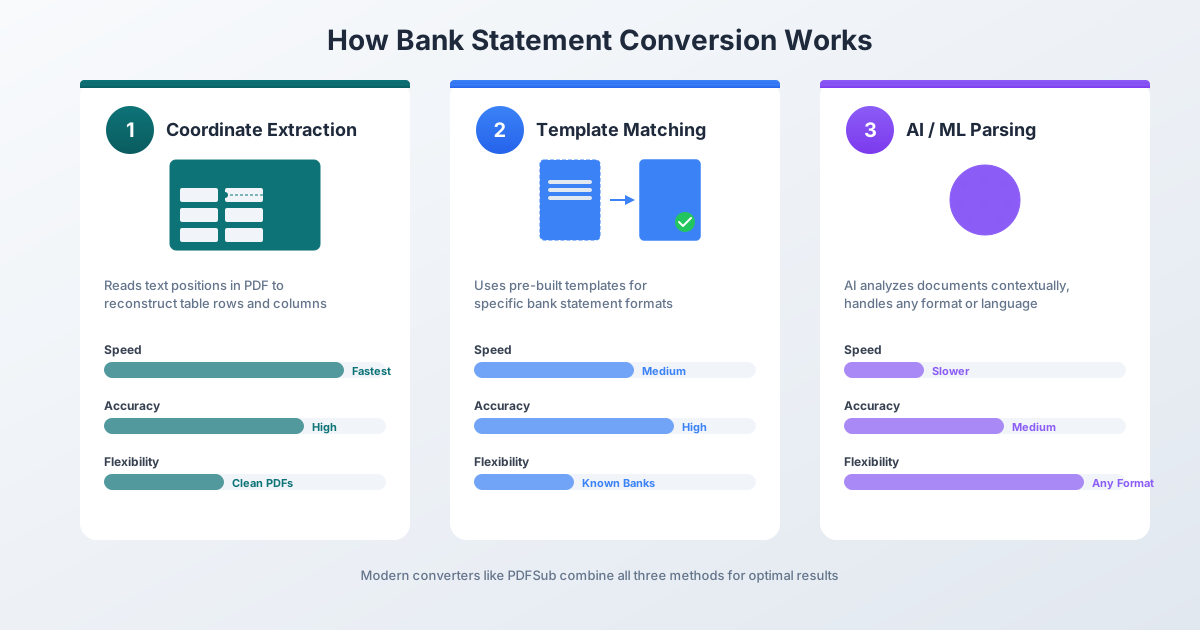
If you're new to bank statement conversion, here's a quick primer on what's happening behind the scenes when you upload a PDF.
Method 1: Coordinate-Based Extraction
The converter reads the raw text positions in the PDF - every character has an x,y coordinate on the page. By analyzing which characters line up vertically (columns) and horizontally (rows), the tool reconstructs the table structure.
Pros: Fast, accurate for clean PDFs, no internet required. Cons: Breaks on complex layouts, multi-line descriptions, or unusual formatting.
Method 2: Template Matching
The converter has pre-built templates for specific banks (e.g., "Chase savings statement, version 3"). When you upload a statement, it identifies the bank and applies the matching template.
Pros: High accuracy for supported banks. Cons: Only works with banks in the template library. New or updated formats require manual template creation.
Method 3: AI/ML Parsing
An AI model analyzes the document, understands the table structure contextually, and extracts transactions - even from scanned or image-based PDFs.
Pros: Handles any format, any language, scanned documents. Cons: Slower, more expensive (API costs), requires internet.
Most modern converters (including PDFSub) combine these methods. Clean digital PDFs get fast coordinate extraction. Tricky layouts fall back to AI. This layered approach gives you the best balance of speed, accuracy, and cost.
Which Tool Should You Choose?
It depends on your specific needs:
-
Working with international clients? PDFSub is the clear winner with 130+ languages. DocuClipper and most others are English-only.
-
Need QuickBooks/Xero integrations? DocuClipper has the tightest accounting software integrations. PDFSub exports to QBO/OFX/QFX files that import directly.
-
Processing thousands of documents at enterprise scale? Nanonets is built for this, with SAP, Oracle, and Salesforce integrations.
-
Want everything local on your desktop? MoneyThumb (desktop license) or ProperSoft keep your data completely offline.
-
On a tight budget? ProperSoft's $200 lifetime license is the best long-term value. PDFSub offers a 7-day free trial to evaluate before committing.
-
Just need to convert one statement? BankStatementConverter.com's free-without-registration option is the simplest.
-
Want the most output formats? ProperSoft leads with 10+ formats for input and output. PDFSub is second with 8 output formats.
-
Privacy is your top priority? PDFSub's browser-first approach means most statements never leave your device. MoneyThumb and ProperSoft offer full offline desktop processing.
For most accountants and bookkeepers, PDFSub offers the best balance of language support, output formats, privacy, and platform breadth. The combination of 130+ languages, browser-based processing, 8 output formats, and a full 98+ tool PDF platform is unmatched - and the 7-day free trial lets you evaluate it with your own statements before committing.
Ready to try it? Start your free trial and convert your first bank statement today.
Frequently Asked Questions
What is the most accurate bank statement converter?
Accuracy varies by document quality and bank format. DocuClipper claims 99.6%, CapyParse reports 99%+, and MoneyThumb claims 99%. In practice, all modern AI-powered converters achieve 95%+ accuracy on clean digital PDFs. Scanned documents typically see lower accuracy across all tools. The best approach is to test your specific bank's statements with a free tier before committing.
Can bank statement converters handle scanned PDFs?
Most can, but with caveats. PDFSub, DocuClipper, Nanonets, and CapyParse all handle scanned PDFs using OCR or AI. MoneyThumb requires the separate PDF+ add-on for scanned documents. ProperSoft does not support scanned PDFs at all. Accuracy on scanned documents is typically 5–10% lower than on natively digital PDFs.
Which bank statement converter supports the most languages?
PDFSub leads with 130+ languages, including CJK (Chinese, Japanese, Korean), Arabic, Hindi, and European languages. Nanonets supports 40+ languages. Most other tools - including DocuClipper, MoneyThumb, and CapyParse - are primarily English-only or US-focused.
Is it safe to upload bank statements to online converters?
It depends on the tool. Cloud-based converters (DocuClipper, Nanonets, CapyParse, BankStatementConverter.com) require uploading your files to their servers. DocuClipper and Nanonets are SOC 2 certified, which provides security assurance. PDFSub runs Tier 1 extraction in your browser for digital statements and uses the PDFSub Engine for conversions - an isolated service with no internet access. MoneyThumb and ProperSoft offer desktop-only processing. For maximum security, choose a tool that processes locally or has independent security certification.
What file formats can bank statement converters export to?
Common exports include Excel (.xlsx), CSV, and QBO (QuickBooks). More comprehensive tools also support OFX, QFX, QIF (Quicken), JSON, TSV, and MT940. PDFSub offers 8 formats, ProperSoft offers 10+, and MoneyThumb offers 6. BankStatementConverter.com is the most limited with just Excel and CSV.
How much does bank statement conversion cost?
Pricing ranges widely. Free options include BankStatementConverter.com (1–5 pages/day) and CapyParse (10 pages). Monthly subscriptions range from $20/month (CapyParse, ProperSoft) to $499+/month (Nanonets). PDFSub's All-In-One plan is $20/user/mo (annual) or $25/user/mo (monthly), including 500 bank statement pages per user and a 7-day free trial. ProperSoft offers a $200 lifetime license for budget-conscious users. DocuClipper's most popular plan is $59/month (annual billing) for 500 pages.