AI Receipt Scanner: Convert Paper Receipts to Spreadsheets
Manual expense reports cost $58 each and take 20 minutes. AI receipt scanners do it in seconds - but accuracy varies wildly. Here's what actually works.
That crumpled receipt in your wallet is worth $47.83 in tax deductions - if you can read it. Give it six months in a glove compartment and the thermal ink will fade to a ghost. Give it to an accounts payable clerk and it'll cost $58 and 20 minutes to process into an expense report.
This is the receipt problem: small pieces of paper that carry real financial data, printed on the worst possible medium, processed by the most expensive possible method.
AI receipt scanners promise to fix this. Point your phone or upload a PDF, and structured data appears - merchant name, items, totals, tax, payment method - ready for your spreadsheet or accounting software.
But the gap between "promise" and "production-ready" is wide. Some tools hit 99%+ accuracy on clean receipts and fall apart on faded thermal paper. Others nail the scanning but lock you into a $9/user/month expense management platform when all you needed was the data in a CSV.
Let's break down what actually works, what it costs, and which tool fits which workflow.
The Real Cost of Manual Receipt Processing
Let's quantify the problem before talking about solutions.
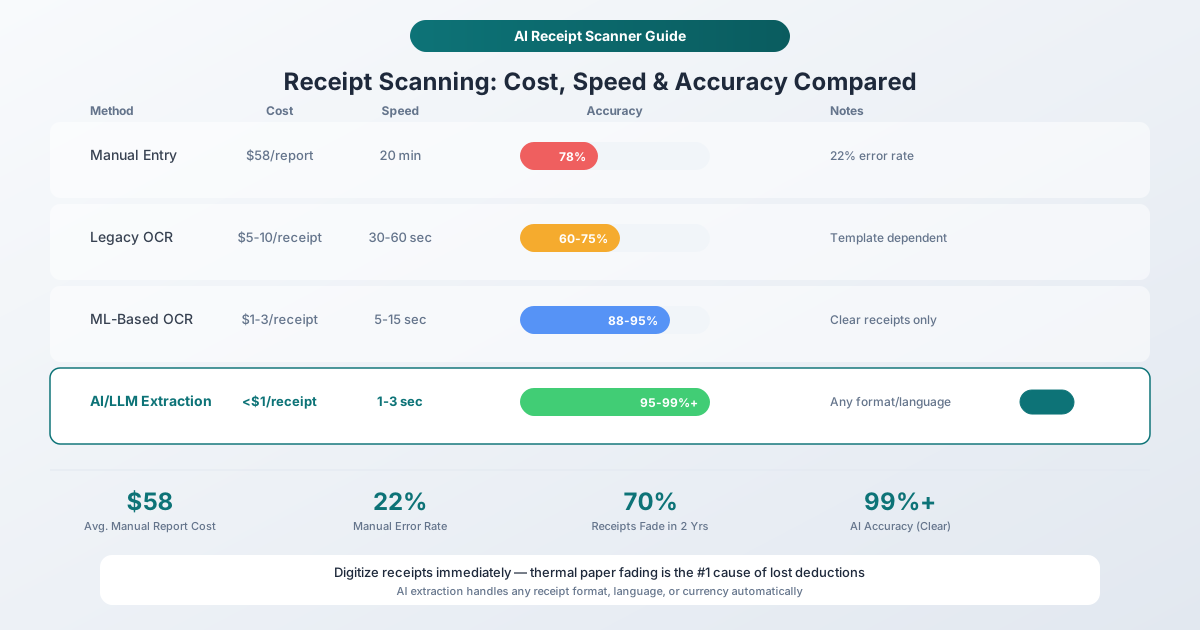
The Global Business Travel Association (GBTA) found that the average expense report costs $58 to process and takes 20 minutes to complete. That's not a typo - it includes the employee's time capturing and categorizing receipts, the approver's time reviewing them, and the AP team's time entering data into the accounting system.
But it gets worse. One in five expense reports contain errors, and each error costs an additional $52 and 18 minutes to correct. For a company processing 51,000 expense reports per year - the average for a mid-size business - that's approximately $500,000 and 3,000 hours spent annually just on corrections.
Here's what the numbers look like at different scales:
| Scenario | Manual Cost | Manual Time | With AI Automation |
|---|---|---|---|
| Freelancer (20 receipts/month) | ~$100/month in lost time | 3-4 hours | Under 5 minutes |
| Small business (200 receipts/month) | ~$2,400/month | 30-40 hours | Under 1 hour |
| Mid-size company (2,000 receipts/month) | ~$24,000/month | 300-400 hours | 8-10 hours (with review) |
| Enterprise (10,000+ receipts/month) | ~$120,000/month | 1,500+ hours | 40-50 hours (with review) |
The cost reduction from automation is dramatic: 35% lower processing costs and 60% faster turnaround on average. But the real savings come from eliminating errors - that 22% error rate in manual processing drops to 1-5% with AI.
And there's a hidden cost most people don't think about: lost deductions. A receipt you can't read is a deduction you can't claim. The IRS requires documentation for individual expenses over $75, and even below that threshold, having clean records prevents audit headaches. Every faded receipt is potential money left on the table.
The Thermal Paper Problem
Here's something most receipt scanning articles skip: why receipts fade in the first place, and why it matters for your extraction accuracy.
70% of consumers have experienced fading receipt issues within two years, according to FTC research. That's because most store receipts are printed on thermal paper - paper coated with a chemical layer (typically BPA or BPS) that darkens when heated by the printer's thermal head. No ink is involved.
The problem is that the same chemicals that make thermal paper convenient also make it unstable:
- Heat above 140°F (60°C) accelerates fading - a car dashboard in summer easily exceeds this
- UV light from sunlight or fluorescent lighting degrades the chemical coating
- Friction from wallets, pockets, and folders rubs away the printed surface
- Humidity and moisture cause the coating to deteriorate
- Adhesive tape applied directly to thermal paper can erase text in weeks
- Plastic sleeves can react with the coating and accelerate fading
Under normal storage conditions, thermal receipts maintain legibility for 3-5 years. But "normal" doesn't account for the receipt that spent a week in your jeans pocket, survived a wash cycle, and now lives in a shoe box with 200 others.
The practical implication: The sooner you digitize a receipt, the better your extraction accuracy. A fresh thermal receipt with crisp text will extract at 99%+ accuracy. The same receipt after six months in a wallet might hit 85% - or become unreadable entirely.
This is why receipt scanning should happen at the point of transaction, not at the end of the month when you're doing bookkeeping.
What Data Gets Extracted from a Receipt
Modern AI receipt scanners extract far more than just the total. Here's the full spectrum of data fields:
Core Transaction Data
- Merchant/store name - the business that issued the receipt
- Store address - street, city, state, ZIP
- Store phone number and website
- Transaction date and time - parsed into standardized format
- Receipt/transaction number - unique identifier for the purchase
Line Item Details (Level 3 Data)
- Item descriptions - what was purchased
- SKU or product codes - when printed on receipt
- Quantities - number of each item
- Unit prices - price per item
- Line totals - extended price per line
- Item-level discounts - coupons or markdowns applied
- Item categories - when classifiable (groceries, office supplies, etc.)
Financial Summary
- Subtotal - pre-tax amount
- Tax amount - with tax rate percentage when shown
- Tip/gratuity - for restaurant and service receipts
- Total amount - final amount paid
- Change given - for cash transactions
- Currency - detected from symbols or text (USD, EUR, GBP, etc.)
Payment Information
- Payment method - cash, credit, debit, mobile payment
- Card type - Visa, Mastercard, Amex, etc.
- Last four digits of the card used
- Authorization code - transaction approval reference
Why Line Items Matter
Most basic receipt scanners only capture header-level data - merchant, date, total. But line item extraction (also called Level 3 data) is where the real value lies for expense management:
- Tax categorization: Individual items can be categorized differently (a business lunch receipt might include both deductible meals and non-deductible personal items)
- Spending analysis: See exactly what you're buying, not just where you're buying it
- Policy compliance: Companies can flag out-of-policy purchases at the item level
- Duplicate detection: Line items help identify when the same purchase is submitted twice
PDFSub's Receipt Scanner extracts all of these fields - merchant info, line items, totals, tax, payment method, and currency - and outputs them as structured JSON or CSV.
How AI Receipt Scanning Works
The technology has evolved through three distinct generations, and understanding them helps you evaluate tools:
Generation 1: Template-Based OCR (2000s-2015)
The earliest receipt scanners used optical character recognition (OCR) with rigid templates. The software expected specific text in specific locations - "TOTAL" always appears at the bottom, the date is always on the second line, etc.
Accuracy: 60-75% on receipts matching the template; near-zero on unfamiliar formats.
The problem: There is no standard receipt format. Every POS system produces different layouts. A Walmart receipt looks nothing like a restaurant check, which looks nothing like a gas station receipt. Template-based OCR required maintaining thousands of templates and still failed on any receipt that didn't match.
Generation 2: Machine Learning OCR (2015-2022)
ML-based scanners trained on millions of receipt images learned to recognize patterns rather than rely on fixed positions. They could identify that a number following the word "Total" (or "TOTAL" or "Tot" or "Grand Total") was probably the total amount, regardless of where it appeared on the page.
Accuracy: 88-95% on clear receipts; 75-88% on degraded or unusual formats.
The improvement: Much better at handling format variability. But still struggled with faded thermal paper, handwritten elements, and receipts in languages outside the training data.
Generation 3: AI/LLM-Based Extraction (2022-Present)
Current-generation scanners use large language models and vision AI that understand receipts the way a human does - by reading the entire document and comprehending the semantic meaning of each element. They don't just see characters; they understand context.
A vision-enabled AI model can:
- Read a faded receipt where traditional OCR sees only fragments
- Understand that "Lg Coffee" means "Large Coffee" without a lookup table
- Parse handwritten tip amounts alongside printed subtotals
- Handle any language, currency, or date format
- Distinguish between the subtotal, tax, and total even when labeled differently
Accuracy: 95-99.5% on clear receipts; 88-95% on degraded receipts.
The tradeoff: Higher computational cost. Vision-based AI processing is more expensive per document than traditional OCR, which is why the best tools use a tiered approach - try cheap text extraction first, escalate to vision AI only when needed.
This is exactly how PDFSub's Receipt Scanner works:
- First: Client-side text extraction in your browser (free, instant)
- If text quality is good: Send extracted text to AI for structuring (lower cost)
- If text quality is poor: Send the full document to vision AI (higher accuracy, higher cost)
- Result: Structured JSON with all extracted fields, downloadable as CSV
This tiered approach keeps costs low for clear digital receipts while still handling the worst-case faded thermal scans.
Accuracy: Honest Numbers
Receipt scanning accuracy claims are everywhere, and they're often misleading. Let's look at what the benchmarks actually show.
Top-Tier Tools (Benchmarked)
| Tool | Claimed Accuracy | Benchmark Conditions | Notes |
|---|---|---|---|
| Veryfi | 99.56% | Clean expense receipts, 91 currencies | Enterprise API, independently benchmarked |
| Expensify SmartScan | 99% | Standard business receipts | 40+ languages, consumer-friendly |
| Tabscanner | 98-100% | Structured receipts | Claims 100% in controlled tests |
| Klippa DocHorizon | ~99% | Well-structured receipts | Drops to ~95% on degraded quality |
| Taggun | 83.67% | General receipts | Lower tier, powers Smart Receipts app |
What Affects Accuracy in Practice
Image quality is everything. The same AI model that hits 99% on a well-lit, flat receipt photo drops to 85% on a crumpled receipt photographed at an angle in dim lighting. The variables:
- Lighting: Even, bright lighting without shadows produces the best results
- Angle: Flat, perpendicular shots outperform angled photos by 10-15% in accuracy
- Focus: Blur is the #1 accuracy killer - if you can't read it, the AI can't either
- Resolution: Higher resolution photos capture fine print that low-res misses
- Background: Cluttered backgrounds (other papers, table textures) can confuse document boundary detection
Receipt condition matters almost as much:
- Fresh thermal receipts: 97-99%+ accuracy
- 3-month-old thermal receipts (normal storage): 95-98%
- 6-month-old thermal receipts (wallet storage): 88-95%
- Heavily faded or damaged: 70-88% (some fields unrecoverable)
Format complexity plays a role:
- Simple receipts (gas station, parking): 99%+ (few fields, clear layout)
- Standard retail receipts: 97-99% (moderate line items)
- Restaurant receipts with handwritten tips: 93-97% (mixed printed/handwritten)
- Long grocery receipts (50+ items): 95-98% (line item volume creates more opportunities for error)
- International receipts in non-Latin scripts: 90-97% (depends on language support)
The Practical Takeaway
For digital receipts (PDF invoices, email confirmations, e-receipts): expect near-perfect accuracy. The text is already structured and machine-readable.
For photographed paper receipts: accuracy depends on your camera technique and the receipt's condition. Good habits - scan immediately, use good lighting, keep receipts flat - make a bigger difference than switching between top-tier tools.
For faded or damaged receipts: no tool performs miracles. Digitize early, or accept that some data will need manual verification.
Comparing Receipt Scanning Tools
The market splits into three categories: full expense management platforms, standalone scanning tools, and multi-purpose PDF tools with receipt capabilities.
Full Expense Management Platforms
These tools do far more than scan receipts - they manage the entire expense workflow from capture to reimbursement. The scanning is excellent, but you're buying into an ecosystem.
Expensify - The market leader for team expense management
Expensify's SmartScan technology hits 99% accuracy across 40+ languages. The workflow is polished: snap a photo, email a receipt to [email protected], or text it to 47777. The Concierge AI learns your categorization preferences over time and suggests categories automatically.
Where it shines: multi-level approval workflows, corporate card reconciliation, mileage tracking, and per diem calculations. For teams of 10+ with regular travel expenses, the workflow automation justifies the cost.
Where it falls short: overkill for freelancers or small businesses that just need receipt data in a spreadsheet. The platform is designed around expense reports, not raw data extraction.
| Plan | Price | Includes |
|---|---|---|
| Free | $0 | 25 SmartScans/month |
| Collect | $5/user/month | Unlimited scans, basic approval workflows |
| Control | $9/user/month | Advanced policies, multi-level approvals, ERP integration |
Dext (formerly Receipt Bank) - Built for accounting professionals
Dext focuses on the accountant-bookkeeper workflow: collect receipts from clients, extract data, sync to accounting software. Real-time sync with Xero, QuickBooks, and Sage makes it a staple in accounting firms.
The extraction accuracy is strong, and the client-facing collection tools (email forwarding, mobile app for clients) reduce the "chasing receipts" problem that plagues bookkeepers.
| Plan | Price | Notes |
|---|---|---|
| Starter | $31.50/month | After free trial; per client |
Best for: Accounting firms managing multiple clients' receipt workflows. Not ideal for individual expense tracking.
Wave - Budget-friendly for small businesses
Wave offers unlimited receipt scanning with bulk import (up to 10 receipts at once) at $8/month. The receipt scanner ties into Wave's free invoicing and accounting tools, making it one of the most affordable complete financial platforms for small businesses.
The scanning accuracy is good but not best-in-class. For businesses already using Wave for invoicing, adding receipt scanning is a no-brainer. For everyone else, dedicated scanning tools offer better extraction.
Standalone Receipt Scanning Tools
Shoeboxed - The receipt digitization specialist
Shoeboxed's unique angle is the Magic Envelope: physically mail your receipts to Shoeboxed, and they'll scan and digitize them for you. For businesses drowning in paper receipts without the time or inclination to photograph each one, this is genuinely useful.
The app also offers standard mobile scanning and email forwarding. Extracted data exports to QuickBooks, Xero, and other accounting platforms. The IRS-accepted digital storage makes it a solid choice for tax documentation.
| Plan | Price | Scans/Month |
|---|---|---|
| Starter | $9/month | 30 |
| Professional | $29/month | 200 |
| Plus | $79/month | 750 |
Best for: Businesses with large backlogs of physical receipts; users who prefer outsourced digitization.
Veryfi - Enterprise-grade API
Veryfi is the accuracy king: 99.56% on expense receipts, independently benchmarked, supporting 91 currencies and 38 languages. SKU-level extraction, duplicate detection, and vendor identification via logos set it apart technically.
But it's built for developers and enterprises. The API-first approach means no consumer-friendly interface - you integrate Veryfi into your own systems. And at $500/month for 6,250 receipts, it's priced for volume.
SOC2 Type 2, GDPR, HIPAA, and CCPA compliance make it suitable for regulated industries.
Best for: Companies building custom expense management systems; enterprises with strict compliance requirements.
Smart Receipts - Open-source and privacy-focused
The only open-source receipt scanner on this list. Smart Receipts processes data locally on your device - nothing uploads to a cloud server unless you choose to. Customizable categories and CSV/PDF export give you full control over your data.
The scanning accuracy is lower than commercial alternatives (it uses the Taggun API, benchmarked at ~84%), but for privacy-conscious users who want their financial data to stay on their device, it's the only real option in the standalone category.
Best for: Privacy-conscious individuals; users who want offline-first receipt processing.
Multi-Purpose PDF Tools with Receipt Scanning
PDFSub - Receipt scanning as part of a complete PDF toolkit
PDFSub takes a different approach from the dedicated receipt scanners above. Instead of building an entire expense management workflow, it focuses on accurate data extraction - scanning receipts and outputting structured data as JSON or CSV.
What makes it worth considering for receipt scanning specifically:
- Privacy-first processing - text extraction happens in your browser first. Your receipt data doesn't leave your device unless the document requires server-side AI (faded scans, image-based PDFs). Server-processed files are processed in isolation and auto-deleted.
- 130+ languages - handles receipts from any country with automatic detection of date formats, number formats, and currency symbols. A receipt from Tokyo and a receipt from Berlin are processed with equal accuracy.
- No workflow lock-in - you get your data as CSV or JSON and use it however you want. Import into Excel, Google Sheets, QuickBooks, or your own systems. No commitment to a full expense management platform.
- Part of a larger toolkit - the same subscription that covers receipt scanning also gives you bank statement conversion (8 export formats including QBO, OFX, QIF), invoice extraction, financial report analysis, and 90+ other PDF tools.
- 7-day free trial - full access to all tools on any paid plan.
The tradeoff: PDFSub doesn't manage your expense workflow. There's no approval chain, no corporate card reconciliation, no mileage tracking. It extracts data from receipts accurately and gives it to you in a usable format. What you do with that data is up to you.
When PDFSub makes more sense than Expensify or Dext:
- You're a freelancer or sole proprietor who just needs receipt data in a spreadsheet
- You process international receipts in multiple languages
- You want receipt scanning alongside other PDF tools (bank statements, invoices) without multiple subscriptions
- You care about privacy and prefer browser-based processing
- You don't need an expense management workflow - just the extracted data
When Expensify or Dext makes more sense:
- Your team needs approval workflows and policy enforcement
- You need corporate card reconciliation
- Mileage tracking and per diem calculations are part of your workflow
- You want a dedicated mobile app optimized for on-the-go capture
How PDFSub's Receipt Scanner Works
Here's the step-by-step workflow:
- Go to the Receipt Scanner at pdfsub.com/tools/receipt-scanner or open it in the Studio dashboard
- Upload your receipt - drag and drop a PDF or image file. Supports files up to 10MB.
- Click "Scan Receipt" - the AI processes the document automatically
- Review the extracted data - structured output shows merchant, items, totals, tax, and payment info
- Download your results - save as CSV for spreadsheets or JSON for system integrations
For batch processing, upload multiple receipts in one session. Each receipt generates its own output file.
The Extraction Pipeline
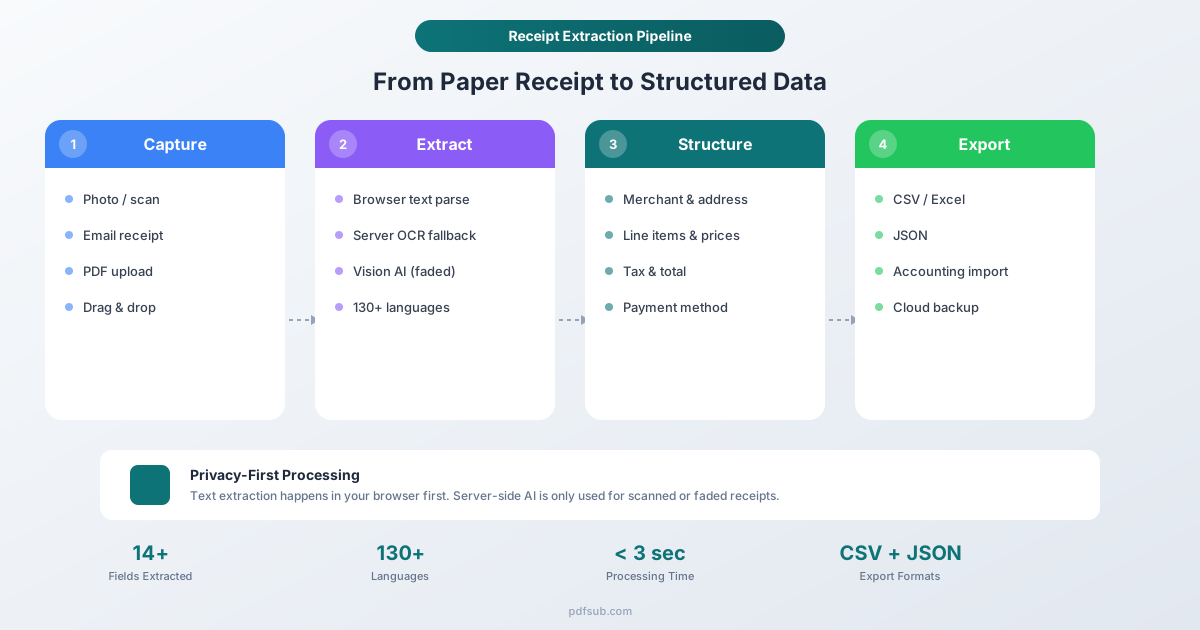
Behind the scenes, PDFSub uses a multi-tier extraction system that optimizes for both accuracy and cost:
Tier 1: Client-side text extraction - Your browser reads the PDF's embedded text using coordinate-based parsing. No data leaves your device. If the text quality is good (clear digital receipt, e-receipt, or well-scanned document), this text goes directly to the AI for structuring.
Tier 2: Server-side text extraction - If client-side extraction fails or produces poor quality text, the server extracts text using a different engine. Still text-based, still lower cost.
Tier 3: Server-side OCR - For scanned receipts where text extraction fails entirely, OCR converts the image to text before AI processing.
Tier 4: Vision AI - The final fallback for the most challenging receipts (badly faded, crumpled, photographed at odd angles). The full document image is sent to the AI model, which uses vision capabilities to read the receipt like a human would. Highest accuracy, highest cost.
This tiered approach means a clear e-receipt from Amazon costs a fraction of the AI credits that a faded gas station receipt requires - you pay proportionally to the processing difficulty.
IRS Requirements for Digital Receipts
If you're scanning receipts for tax purposes, you need to know the rules. The good news: the IRS has accepted digital receipts since Revenue Procedure 97-22 in 1997.
What the IRS Requires
Digital receipts are legally equivalent to paper originals - you can shred the paper after scanning - provided your digital copies meet these requirements:
- Complete and accurate - The digital copy must fully represent the original document
- Legible - An auditor must be able to "positively and quickly" identify all text and numbers
- Retrievable - Records must be organized and producible for the IRS upon request
- Protected - Electronic records must be secured against unauthorized access or alteration
- Backed up - Regular backups to prevent data loss
What Must Be on the Receipt
For tax deductions, the IRS wants:
- Amount paid - the total transaction amount
- Date of transaction - when the purchase occurred
- Merchant/vendor name - who you paid
- Description of goods or services - what you bought
- Business purpose - why it was a business expense (you can add this as a note)
The $75 Threshold
The IRS generally requires receipts for individual expenses of $75 or more for travel, entertainment, and gifts. Below $75, a log or contemporaneous record may suffice - but keeping receipts for all amounts is the safer practice, especially for audit protection.
How Long to Keep Digital Receipts
| Situation | Retention Period |
|---|---|
| Standard tax returns | 3 years from filing date |
| Underreported income (>25%) | 6 years from filing date |
| Fraudulent return or no return filed | No limitation |
| Employment tax records | 4 years after tax is due or paid |
| Best practice recommendation | 7 years to cover all scenarios |
Practical Tips for IRS-Compliant Digital Storage
- Scan immediately - thermal paper fades; capture data while it's legible
- Use descriptive filenames -
2026-03-01_OfficeDepot_Supplies_47.83.pdfis auditor-friendly - Organize by month and year - makes retrieval straightforward during an audit
- Store securely - cloud backup with access controls; don't rely on a single device
- Keep metadata - date captured, original format, and source help establish authenticity
- Use standard formats - PDF, JPEG, and PNG are all IRS-accepted
Mobile Apps vs. Web-Based Tools: Which Approach Fits?
The receipt scanning market splits into two fundamental approaches, and choosing the wrong one creates friction in your workflow.
Mobile-First Apps
Best for: Real-time capture during meetings, travel, and meals. Employees who need to scan receipts on the go.
Strengths:
- Camera-based scanning with real-time OCR
- Offline capture with sync-when-connected
- One-tap capture reduces entry to under 10 seconds per receipt
- GPS and mileage tracking integration
- Push notifications for missing receipts
- Full expense management ecosystems (approvals, reimbursement)
Weaknesses:
- Subscription per-user pricing adds up for teams
- Often locked into the platform's workflow
- Less efficient for batch processing large backlogs
- App installation required
Top picks: Expensify (teams), Wave (budget-conscious), SparkReceipt (individuals)
Web-Based Tools
Best for: Batch processing, desktop workflows, bookkeepers processing client documents, accountants at tax time.
Strengths:
- Upload multiple files at once via drag-and-drop
- Process PDF receipts, email receipts, and scanned batches
- No app installation - works in any browser
- Often supports broader document types (invoices, bank statements)
- Export to Excel, CSV, JSON for flexible downstream use
- Typically lower per-document cost
Weaknesses:
- Less convenient for real-time capture at point of sale
- No offline capability
- Usually extraction-focused rather than full workflow management
Top picks: PDFSub (multi-purpose with privacy focus), Shoeboxed (digitization specialist)
The Hybrid Approach
For many businesses, the answer is both:
- Mobile app for employees to capture receipts in real-time during the workday
- Web-based tool for the accountant to process batches of client receipts, scan backlog documents, and handle PDFs that arrive via email
PDFSub fits naturally into the web-based side of this equation - processing receipt PDFs alongside bank statements and invoices in a single platform.
Best Practices for Accurate Receipt Scanning
Whether you're using PDFSub, Expensify, or any other tool, these habits maximize your extraction accuracy:
Capture Receipts Immediately
Thermal paper starts fading the moment it's printed. Scan or photograph receipts the same day - ideally within hours. A fresh receipt extracts at 99%+ accuracy; the same receipt after six months might be partially unreadable.
Use Good Lighting and a Flat Surface
If photographing paper receipts:
- Place the receipt flat on a contrasting surface (dark table for white receipt)
- Use even, bright lighting without shadows
- Hold your camera perpendicular to the receipt (not at an angle)
- Make sure all text is in focus before capturing
- For long receipts, take multiple overlapping photos or fold and scan in sections
Prefer Digital Receipts When Possible
Ask vendors for email receipts instead of paper. Digital receipts - PDFs, email confirmations, in-app receipts - extract with near-perfect accuracy because the text is already machine-readable. No OCR needed, no fading, no quality degradation.
Most major retailers, airlines, hotels, and online services offer email receipts as an option. Some POS systems can text receipts directly to your phone.
Verify Totals on High-Value Receipts
AI extraction is highly accurate but not infallible. For receipts over $75 (the IRS documentation threshold) or any receipt that's a significant tax deduction, spend 10 seconds verifying that the extracted total matches the original.
Standardize Your Categories
Whether you're categorizing for personal budgeting or business expense reporting, establish categories upfront and use them consistently:
- Meals & Entertainment - restaurant receipts, coffee meetings
- Travel - airfare, hotels, car rentals, gas
- Office Supplies - paper, toner, desk items
- Software & Subscriptions - SaaS tools, app purchases
- Professional Services - legal, accounting, consulting fees
- Utilities - phone, internet, electricity (for home office)
Consistent categories make tax preparation dramatically easier and help identify spending trends.
Back Up Your Digital Receipts
The IRS requires that digital records be protected against data loss. Use cloud storage (Google Drive, Dropbox, iCloud) with automatic backup, and don't rely on a single device. A phone that gets lost or damaged takes all your un-backed-up receipt photos with it.
Beyond Receipts: The Complete Financial Extraction Workflow
Receipt scanning rarely exists in isolation. If you're digitizing receipts, you're probably also dealing with:
- Invoices from vendors that need data extracted for accounts payable - PDFSub's Invoice Extractor pulls vendor info, line items, totals, and payment terms from any invoice layout
- Bank statements that need converting for reconciliation - the Bank Statement Converter exports to Excel, CSV, QBO, OFX, QFX, QIF, and more
- Financial reports that need analysis - the Financial Report Analyzer extracts key metrics from P&L statements, balance sheets, and annual reports
Having all these tools in one platform means one subscription, one login, and consistent extraction quality across every financial document type. No juggling three different vendors for three different document types.
For accountants and bookkeepers managing multiple clients, this is particularly valuable: you can process a client's bank statements, invoices, and receipts in a single session without switching tools.
FAQ
What types of receipts can AI scanners process?
Modern AI receipt scanners handle virtually any receipt format: retail store receipts, restaurant checks, gas station receipts, hotel folios, airline boarding passes, online order confirmations, utility bills, parking receipts, and professional service invoices. Both paper receipts (photographed or scanned) and digital receipts (PDF, email) are supported. The best tools also handle handwritten elements like tips and notes.
How accurate is AI receipt scanning?
Accuracy depends heavily on receipt condition and image quality. For clear digital receipts (PDFs, e-receipts): 97-99%+. For fresh paper receipts with good photos: 95-99%. For aged or faded thermal receipts: 88-95%. For damaged, crumpled, or heavily faded receipts: 70-88%. The best tools (Veryfi, Expensify) benchmark at 99%+ on clean receipts. Always verify totals on high-value receipts regardless of the tool.
Is it safe to upload receipts to an online scanner?
This varies significantly. Some tools upload all receipts to cloud servers for processing and may retain them. PDFSub processes text client-side in your browser first - receipt data doesn't leave your device unless server-side AI is needed for scanned or degraded receipts. Server-processed files are processed in isolation and auto-deleted. Smart Receipts (open-source) processes entirely on-device. Always check a tool's privacy policy before uploading financial documents.
Can I scan receipts in languages other than English?
Most basic receipt scanners are English-only or support a handful of languages. Expensify supports 40+ languages. Veryfi handles 38 languages and 91 currencies. PDFSub supports 130+ languages with automatic detection of international date formats (DD/MM/YYYY vs MM/DD/YYYY), number formats (1.234,56 vs 1,234.56), and currency symbols - handling receipts from any country without manual configuration.
Do digital receipts satisfy IRS requirements?
Yes. The IRS has accepted digital receipts as legally equivalent to paper originals since Revenue Procedure 97-22 (1997). Digital copies must be complete, accurate, legible, retrievable, and protected against loss or unauthorized access. You can discard paper originals after creating compliant digital copies. Keep digital receipts for at least 3 years from your tax filing date - 7 years is the recommended best practice.
What's the difference between a receipt scanner and an expense management tool?
A receipt scanner extracts data from receipt images - merchant, items, totals, tax, payment method - and gives you structured output (CSV, JSON, Excel). An expense management tool (like Expensify or Dext) wraps scanning into a complete workflow: categorization, approval chains, policy enforcement, corporate card reconciliation, reimbursement, and accounting software sync. If you just need the data, a scanner is simpler and cheaper. If you need the workflow, an expense management platform is worth the per-user cost.
How should I organize digital receipts for tax season?
Create a folder structure organized by year and month (e.g., 2026/03-March/). Use descriptive filenames that include the date, merchant, and amount (2026-03-01_Staples_OfficeSupplies_47.83.csv). Separate business and personal expenses into different top-level folders. Keep a running spreadsheet of expenses with categories, amounts, and receipt file references. Back up everything to cloud storage. This makes tax preparation - and potential audits - dramatically less stressful.
Can I process multiple receipts at once?
Yes. PDFSub supports batch processing - upload multiple receipt PDFs in a single session, and each receipt generates its own structured output file. Mobile apps like Expensify and Wave also support batch capture. Shoeboxed's Magic Envelope service processes entire batches of physical receipts mailed in at once.
Getting Started
If you're spending hours on receipt entry every month - or worse, losing deductions because receipts fade before you get to them - the math is clear. Even a freelancer processing 20 receipts per month saves 3-4 hours monthly by switching to AI extraction.
Try PDFSub's Receipt Scanner - start a 7-day free trial with full access. Upload a receipt, see the extracted data, and decide if the accuracy meets your needs.
For ongoing receipt processing alongside bank statements and invoices, PDFSub's paid plans include additional AI credits and access to the full suite of 90+ PDF tools.