PDF Compliance Guide for Lawyers: Privilege, Metadata, and Court Filing
ABA Model Rule 1.1 requires technology competence. Here's what lawyers need to know about PDF metadata, redaction, court filing formats, and protecting client confidentiality.
A partner at a mid-size firm sends opposing counsel a contract draft as a PDF. Routine. Except the PDF contains metadata showing the document's edit history, including the internal revision where the client's actual settlement floor was discussed in comments. Opposing counsel opens the file properties, sees the metadata, and now has leverage that never should have left the firm.
This scenario isn't hypothetical. Metadata leaks in legal documents have led to bar complaints, malpractice claims, and sanctioned attorneys. And the ethical framework is clear: if you're a lawyer, you're expected to know better.
Since 2012, the ABA Model Rules of Professional Conduct have explicitly required technology competence. Comment 8 to Model Rule 1.1 states that lawyers must "keep abreast of changes in the law and its practice, including the benefits and risks associated with relevant technology." As of 2026, over 40 states plus the District of Columbia and Puerto Rico have adopted this requirement.
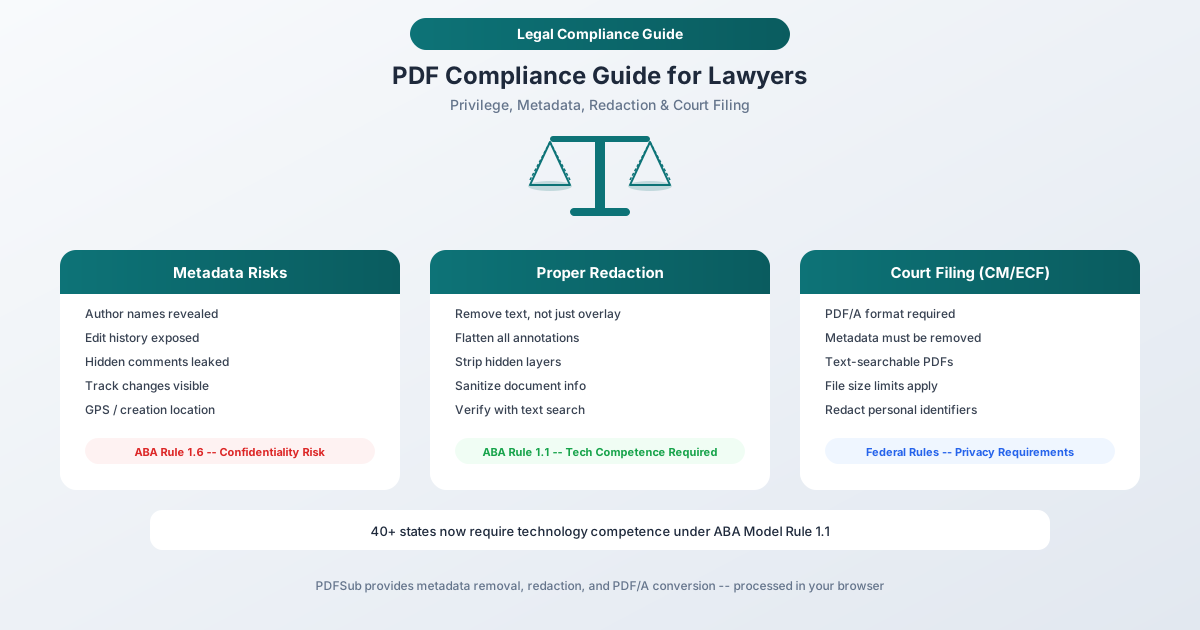
This guide covers the three areas where PDF handling intersects with legal ethics: metadata management, proper redaction, and court filing compliance.
Part 1: The Metadata Problem
What's Hiding in Your PDFs
Every PDF carries metadata - embedded information about the document that isn't visible on the page but is accessible to anyone who knows where to look. For legal documents, this metadata can contain:
- Author name and organization - who created the document and at which firm
- Creation and modification dates - the document's timeline, which may reveal strategy
- Edit history - previous versions, tracked changes, and revision marks
- Comments and annotations - internal notes that were "hidden" but not removed
- Software used - which tools were used to create or modify the document
- Embedded fonts and images - which may contain their own metadata, including GPS coordinates from photos
- Form field data - including data entered and then deleted by the user
- JavaScript - executable code that can transmit information when the document is opened
Why Metadata Matters Under the Model Rules
Model Rule 1.6 (Confidentiality) requires lawyers to make "reasonable efforts to prevent the inadvertent or unauthorized disclosure of, or unauthorized access to, information relating to the representation of a client." Sending a document with privileged metadata is, by definition, a failure to make reasonable efforts.
Model Rule 1.1 (Competence), through Comment 8, requires understanding the technology you use. Not knowing that PDFs contain metadata is not a defense - it's the competence gap the rule was designed to address.
Several state bar opinions have specifically addressed metadata:
- The New York State Bar Association (Opinion 782) concluded that lawyers have a duty to use reasonable care when transmitting documents to prevent disclosure of confidential metadata.
- The ABA Formal Opinion 06-442 concluded that sending a document with metadata is not inherently a violation, but failing to take reasonable steps to remove privileged metadata can be.
- Multiple state bars have issued opinions confirming that receiving attorneys may have ethical obligations regarding inadvertently disclosed metadata as well.
How to Remove Metadata from PDFs
The process is called "sanitizing" or "scrubbing" a document. There are two approaches:
Before creating the PDF: If you're converting a Word document to PDF, sanitize the Word file first. Remove comments, accept or reject all tracked changes, and strip document properties. Then convert to PDF.
After creating the PDF: Use a PDF tool that can remove embedded metadata. This should strip document properties (author, title, subject, keywords), remove comments and annotations, flatten form fields, remove JavaScript, strip edit history, and remove embedded file attachments.
PDFSub's Edit Metadata tool processes files entirely in your browser - the PDF never leaves your device during sanitization. This is particularly important for legal documents where the metadata itself may be privileged.
Critical point: Simply opening a PDF and re-saving it does NOT remove metadata. You need a tool specifically designed for metadata removal.
Part 2: Proper Redaction
The Redaction Trap
Redaction errors are among the most embarrassing and consequential mistakes a lawyer can make. The core problem is the difference between "visual redaction" and "true redaction."
Visual redaction - drawing a black box over text - looks redacted on screen and in print. But the text underneath is still there in the PDF's data layer. Anyone can select the "redacted" area, copy the text, and paste it elsewhere. Or they can open the PDF in a text editor and read the content directly.
High-profile redaction failures have affected federal court filings, government documents, and major litigation. In every case, the lawyer thought the content was redacted because it looked redacted. It wasn't.
True redaction permanently removes the underlying text and replaces it with a black (or colored) box that contains no recoverable data. After true redaction, the original text is gone from the file - not hidden, not covered, but deleted.
How to Redact Properly
A proper redaction workflow includes these steps:
- Mark areas for redaction - identify the text, images, or pages that need to be removed
- Apply redaction - this step permanently removes the underlying content and replaces it with a visual indicator
- Remove hidden data - strip metadata, comments, form data, JavaScript, and any other hidden content
- Flatten the document - convert all annotations and form fields into static content
- Verify the redaction - search the document for the redacted terms to confirm they no longer exist in the file
- Check with a text editor - for high-stakes documents, open the file in a plain text editor to verify no trace of the redacted content remains in the file's raw data
PDFSub's Redact PDF tool handles steps 1 through 4 in a single workflow. Step 5 (verification) can be done using PDFSub's PDF Viewer or any text search tool.
Common Redaction Mistakes
- Using "highlight" instead of "redact" - highlighting in black covers the text visually but doesn't remove it
- Using image editing tools - screenshotting a PDF, blacking out text in an image editor, and re-exporting creates a visually redacted document but may still contain hidden text layers
- Forgetting about headers, footers, and margins - redacting the body but leaving identifying information in document margins
- Not flattening annotations - "sticky notes" and comments may survive even after body text is redacted
- Redacting one version but sharing another - version control failures are a common source of leaks
Part 3: Court Filing Requirements
CM/ECF and PDF Standards
The federal court system uses CM/ECF (Case Management/Electronic Case Files) for electronic filing. Most state courts have adopted similar systems. These systems impose specific requirements on PDF documents:
PDF format required. All documents filed through CM/ECF must be in PDF format. This seems obvious, but the specifics matter.
PDF/A compliance. CM/ECF is moving toward requiring PDF/A compliant files to meet National Archives and Records Administration (NARA) requirements. PDF/A is an ISO-standardized subset of PDF designed for long-term archiving. It prohibits features that could prevent reliable rendering in the future - things like encryption, JavaScript, external font references, and multimedia content.
Each court sets its own timeline for requiring PDF/A, so check your jurisdiction's local rules. Even where not yet required, filing in PDF/A demonstrates technical competence and future-proofs your filings.
Text-searchable PDFs. Courts increasingly require that filed PDFs contain searchable text, not just scanned images. If you're filing scanned documents, you need to run OCR (optical character recognition) to add a searchable text layer.
Metadata must be clean. Federal courts have encountered "Internal Server Error" messages when attorneys try to file PDFs containing certain types of metadata. Beyond the technical issue, courts explicitly warn e-filers to "use the utmost care to make sure that the PDF documents submitted to ECF are correctly redacted using effective redaction practices AND completely free of any hidden metadata."
File size limits. Most CM/ECF systems cap individual filings at 25-50 MB. Large filings must be split into multiple documents.
Privacy Redaction Requirements
Federal rules require that filers redact certain personal identifiers from court filings:
- Social Security or taxpayer-identification numbers (use only last four digits)
- Dates of birth (use only the year)
- Names of minor children (use initials only)
- Financial account numbers (use only last four digits)
- Home addresses in criminal cases (use only city and state)
These requirements apply to all filings, not just those that will be sealed. Failure to redact personal identifiers can result in sanctions and may require filing amended documents.
Court Filing Checklist
Before filing any PDF with a court, verify:
- Document is in PDF format (PDF/A if required by local rules)
- Text is searchable (not just scanned images)
- All metadata has been removed
- Personal identifiers are properly redacted
- No hidden comments, annotations, or tracked changes
- No embedded JavaScript or multimedia
- File size is within court limits
- Document is properly bookmarked for lengthy filings
- Filename follows court conventions
PDFSub provides tools for each of these steps: PDF/A Conversion, OCR for scanned documents, Edit Metadata (removal), Redact PDF, and Compress PDF (for file size). The browser-based tools handle most of this without uploading client documents to any server.
Building a Firm-Wide PDF Workflow
Individual awareness isn't enough. Firms need systematic workflows that prevent metadata leaks and redaction failures before they happen.
Recommended Workflow
- Draft in your word processor with tracked changes and comments as normal
- Sanitize before conversion - accept/reject all changes, remove comments, strip document properties
- Convert to PDF - preferably to PDF/A if the document will be filed or archived
- Redact if needed - use proper redaction tools, not visual overlays
- Sanitize the PDF - remove any metadata the conversion process added
- Verify - search for redacted terms, check document properties, spot-check with a text editor for high-stakes documents
- File or transmit - only after verification
Training and Accountability
Every attorney and paralegal who handles documents should understand:
- What metadata is and where it hides
- The difference between visual and true redaction
- How to verify redaction was successful
- What PDF/A is and when to use it
- How to check and remove document properties
This isn't optional professional development. Under Model Rule 1.1 Comment 8, it's an ethical obligation.
Frequently Asked Questions
Does Model Rule 1.1 Comment 8 apply in my state?
As of 2026, over 40 states plus the District of Columbia and Puerto Rico have adopted the technology competence amendment to Rule 1.1. Even in states that haven't formally adopted the amendment, general competence requirements are interpreted broadly enough to encompass technology. Check your state bar's ethics opinions for specific guidance.
Can I be sanctioned for a metadata leak?
Yes. While most metadata incidents result in bar complaints rather than sanctions, courts have sanctioned attorneys for filing documents containing privileged metadata. The severity depends on the sensitivity of the leaked information, whether it affected the case outcome, and whether the attorney demonstrated a pattern of carelessness.
What's the difference between PDF and PDF/A?
PDF is the general format. PDF/A is a restricted subset designed for long-term archiving. PDF/A prohibits encryption, JavaScript, audio/video, external font references, and transparency in certain versions. It ensures that the document will render identically regardless of when or where it's opened. Think of PDF/A as "PDF that will still work in 50 years."
Should I use browser-based or server-based PDF tools for client documents?
Browser-based tools are the safer choice for client documents because files never leave your device - eliminating third-party risk entirely. This simplifies your confidentiality obligations under Model Rule 1.6 because there's no third-party server to evaluate. For operations that require server processing, choose a tool with documented security practices and clear data deletion policies.
How do I verify that redaction actually removed the text?
Three verification methods, in order of thoroughness: (1) Use Ctrl+F / Cmd+F to search for the redacted terms in a PDF viewer - they should return zero results. (2) Try selecting and copying text from the redacted area - nothing should paste. (3) Open the PDF in a plain text editor (like Notepad or TextEdit) and search for the redacted terms in the raw file data. If the terms appear anywhere in the raw data, redaction was not performed correctly.
The Competence Standard Is Rising
Technology competence isn't a suggestion - it's a professional obligation that bar associations are enforcing with increasing rigor. The tools exist to handle PDFs safely. The ethical framework requires using them. And the consequences of failing to do so - malpractice exposure, bar complaints, sanctions, and most importantly, harm to clients - make this one of the most practical areas where technology investment pays for itself.
PDFSub provides the tools lawyers need for compliant PDF handling: metadata removal, proper redaction, PDF/A conversion, OCR, compression, and more - with browser-based processing that keeps client documents on your device.
Explore PDFSub's legal tools - metadata removal, redaction, and PDF/A conversion that never uploads your files.