How to OCR a Scanned PDF (Make It Searchable)
Scanned PDFs are just pictures of pages - you can't search, copy, or edit the text. OCR fixes that by adding an invisible text layer. Here's how to do it with three different methods.
You scanned a stack of documents to PDF. They look fine on screen - crisp, readable, professional. But try to search for a word, copy a paragraph, or select a phone number, and nothing happens. Your cursor just drags a blue rectangle across the page like you're selecting an image. Because that's exactly what you're doing.
Scanned PDFs are photographs. Each page is a single image - a flat grid of pixels with no concept of letters, words, or sentences. Your computer sees exactly as much text in a scanned PDF as it sees in a JPEG of a sunset: none.
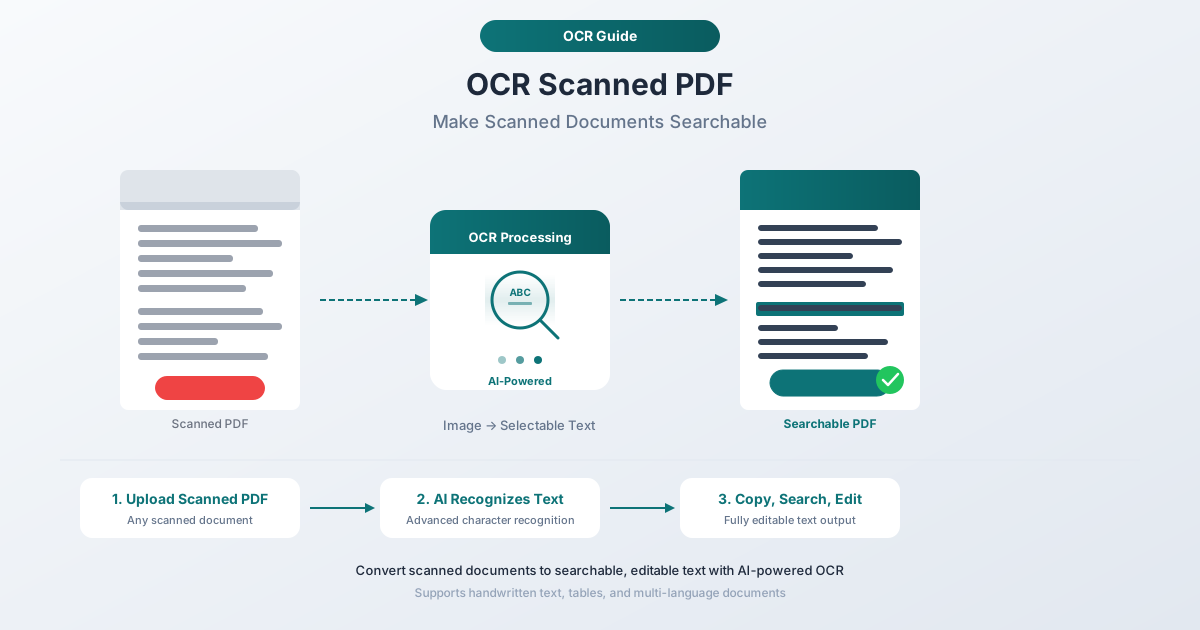
OCR (Optical Character Recognition) solves this. It analyzes the image of each page, identifies the characters, and adds an invisible text layer on top of the original scan. The visual appearance stays identical, but now you can search, copy, select text, and let screen readers access it.
This guide covers what OCR is, how it works, three methods to OCR your scanned PDFs, and how to get the best results.
How to Tell If Your PDF Needs OCR
Before investing time in OCR, check whether your PDF actually needs it. Many PDFs are "born digital" - created from Word documents, Excel spreadsheets, or web pages - and already contain a real text layer.
The 5-Second Test
- Open your PDF in any viewer (Adobe Reader, Preview, Chrome, Edge)
- Press Ctrl+F (Windows/Linux) or Cmd+F (Mac)
- Type a word you can see on the page
- If the viewer highlights the word: your PDF already has searchable text. No OCR needed.
- If nothing is found: your PDF is image-only. It needs OCR.
The Selection Test
Try clicking and dragging to select text on the page:
- If you can select individual words and they highlight in blue: the PDF has a text layer.
- If the entire page selects as one block (like selecting an image): the PDF is a scan with no text layer.
- If you can select some text but not other text: the PDF has partial OCR or mixed content - some pages are digital, others are scanned.
Common PDF Types That Need OCR
| Document Type | Usually Needs OCR? | Why |
|---|---|---|
| Scanned paper documents | Yes | Pure image, no text data |
| Faxed documents saved as PDF | Yes | Fax output is raster image |
| Photos of documents (phone camera) | Yes | Camera capture = image |
| PDFs from copier "scan to email" | Yes | Most copiers produce image PDFs |
| PDFs exported from Word/Excel | No | Born digital, text layer included |
| PDFs from web browsers (print to PDF) | No | Text is preserved |
| Government forms downloaded online | Usually no | Most are born digital |
| Receipts emailed as PDF attachments | Usually no | Generated by POS systems with text |
What Is OCR? A Plain-English Explanation
OCR stands for Optical Character Recognition. It's the technology that reads text from images - analyzing pixel patterns to identify letters, numbers, and symbols, much like your eyes reading words on a page.
When you scan a document, the scanner creates a photograph. That photograph contains pixels - dark where ink was, light where paper was - but no actual text data. The scanner doesn't know that an arrangement of pixels spells "Invoice." It just records the image.
OCR takes that image, analyzes the shapes, matches them against known character patterns, and outputs the text those shapes represent. The result is a PDF that looks identical to the original scan but contains an invisible text layer. When you press Ctrl+F and search for "December," the PDF viewer checks the text layer, finds the match, and highlights the region on the image where that word appears.
How Far OCR Has Come
OCR dates back to the 1950s, when early systems could only handle specific fonts in controlled environments. The technology evolved through template matching (1970s-80s), feature extraction (1990s-2000s), and machine learning (2010s). Today's OCR combines deep neural networks for character recognition with language models that use context to resolve ambiguities - if the system isn't sure whether a character is "l" or "1", the surrounding words help it decide.
Modern OCR engines achieve over 99% character accuracy on clean, well-scanned printed documents.
How OCR Works: The Technical Process
OCR isn't a single algorithm. It's a pipeline of steps, each building on the previous one.
Step 1: Image Preprocessing
Before any character recognition happens, the OCR engine cleans up the image. This includes binarization (converting to black and white for maximum contrast), deskewing (correcting even slight page rotation - a 1-2 degree tilt can reduce accuracy noticeably), noise removal (eliminating scanner artifacts and specks), and border removal (stripping black edges and binding shadows).
Step 2: Layout Analysis
The engine identifies the page structure - text blocks, columns, images, headers, footers, tables, and reading order. Without this step, a two-column document might produce jumbled output that reads across both columns simultaneously.
Step 3: Character Segmentation
Within each text block, individual characters are isolated. Lines are separated by vertical spacing, words by horizontal gaps, and characters within words by their boundaries. This is harder than it sounds - characters in many fonts overlap or touch, and in scripts like Arabic and Devanagari, characters connect in complex ways.
Step 4: Character Recognition
Each segmented character image is classified using deep neural networks trained on millions of labeled character images. The network outputs a confidence-ranked list of candidates, not a single answer. A clean "A" might get 99.8% confidence. A degraded character might produce a much flatter distribution.
Step 5: Language Modeling
Raw character recognition is error-prone. Context resolves ambiguities. Is "lnvoice" a word? No - the "l" was actually an "I", making it "Invoice." Statistical language models predict likely character sequences, and format validation applies rules to patterns like dates and numbers.
Step 6: Output Generation
The recognized text is mapped back to original image coordinates and written into the PDF as an invisible text layer. Each word aligns precisely with its visual counterpart, enabling search-and-highlight functionality.
Method 1: PDFSub OCR Tool (Recommended)
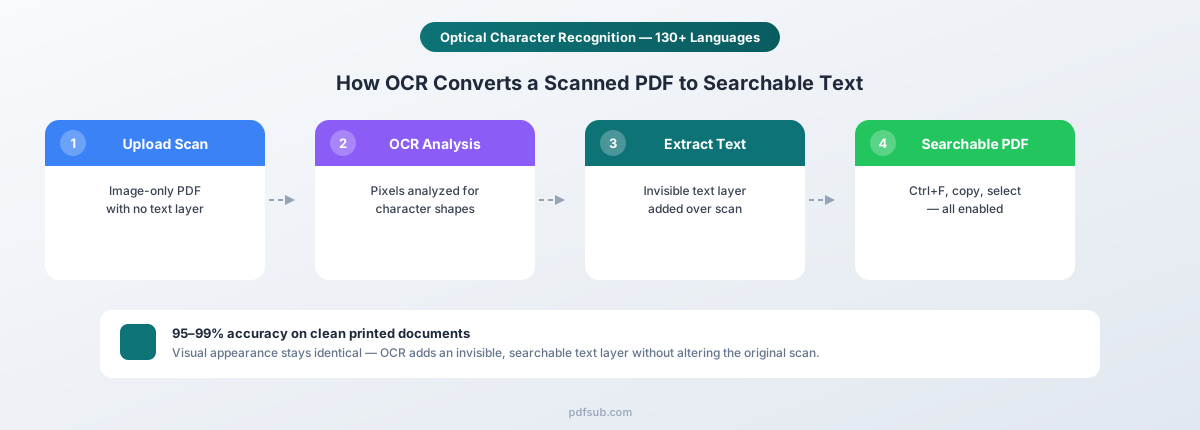
PDFSub's OCR tool processes scanned PDFs and adds a searchable text layer while preserving the original visual appearance of every page.
Step-by-Step Instructions
- Go to the OCR tool - Navigate to pdfsub.com/tools/ocr
- Upload your scanned PDF - Drag and drop your file or click to browse. There's no need to split large documents - multi-page PDFs are handled automatically.
- OCR processes your document - The tool analyzes each page, recognizes text, and builds the invisible text layer. Processing time depends on page count and complexity, but most documents complete in seconds.
- Download your searchable PDF - The output file looks identical to your original scan but now supports text search, text selection, and copy-paste.
Why PDFSub
130+ language support. OCR works with documents in English, Spanish, French, German, Chinese, Japanese, Korean, Arabic, Hindi, Russian, Portuguese, and over 120 additional languages. Multi-language documents are handled automatically - you don't need to specify the language in advance.
Original appearance preserved. The OCR process adds text data without altering the visual content. Your scanned pages look exactly the same. Fonts, layouts, stamps, signatures, and handwritten annotations all remain untouched.
No software to install. Everything runs in your browser or on secure servers. There's nothing to download, no system requirements to check, and no compatibility issues.
Privacy-conscious design. Uploaded documents are processed and then deleted. PDFSub doesn't store your files or use them for training.
Try it free. PDFSub offers a 7-day free trial so you can test OCR on your own documents before committing.
Method 2: Adobe Acrobat Pro
Adobe Acrobat Pro includes a built-in OCR feature called "Recognize Text" within its Scan & OCR toolset.
Step-by-Step Instructions
- Open your scanned PDF in Adobe Acrobat Pro
- Go to Tools and select Scan & OCR
- Click Recognize Text and choose In This File or In Multiple Files
- Under Settings, select Searchable Image (adds invisible text layer - recommended)
- Click Recognize Text to start processing
- Save the file
Strengths and Limitations
Adobe delivers high accuracy on clean English scans, supports batch processing, and lets you correct OCR errors directly. However, Acrobat Pro costs $19.99/month on an annual plan ($239.88/year), requires desktop installation (no browser-based OCR), supports only about 20 languages, and can be slow on documents over 50 pages.
Method 3: Google Drive (Free, but Lossy)
Google Drive includes a basic OCR feature that extracts text from scanned PDFs - but with a significant trade-off.
Step-by-Step Instructions
- Upload your scanned PDF to Google Drive
- Right-click the file and select Open with then Google Docs
- Google processes the PDF and creates a Google Doc with the extracted text
- The text is now searchable, selectable, and editable
Strengths and Limitations
Google Drive OCR is completely free, delivers good accuracy on clean typed documents, and detects languages automatically. However, there's a critical trade-off: it destroys formatting. Google doesn't add a text layer to your PDF - it extracts text into a Google Doc. Tables become plain text, columns collapse, and the original layout is lost. You end up with a Google Doc, not a searchable PDF.
It also works best on documents under 10 pages. Longer documents may be truncated.
Best for: Extracting text content when you don't need the original layout. If you need a searchable PDF that preserves appearance, use Method 1 or Method 2.
OCR Accuracy: What to Expect by Document Type
OCR isn't magic. Accuracy varies dramatically based on document quality, content type, and scanning conditions. Here's what real-world testing shows.
Typed Documents (Modern Fonts): 95-99%
Modern printed documents - invoices, contracts, reports printed on laser printers - are the best-case scenario. Standard fonts are well-represented in OCR training data, and clean prints on white paper produce high-contrast images. At 99% accuracy on a 250-word page (~1,500 characters), you'd expect about 15 character errors - most inconsequential, like a period misread as a comma or a lowercase "l" confused with "1".
Older Typewritten Documents: 85-95%
Mechanical typewriters present challenges: inconsistent letter alignment, varying ink density from ribbon wear, and uniform character width causing segmentation confusion. Still, typewritten text is individually formed and horizontally aligned, so most OCR engines handle it well enough for search purposes.
Handwritten Text: 60-80%
Handwriting remains OCR's hardest challenge. Variability is enormous - not just between people but within a single person's writing on one page. Neat block printing might reach 80-85%. Cursive in pencil on lined paper might drop below 60%. Always manually verify critical data from handwritten documents.
Mixed Content (Text + Tables): 90-97%
Documents combining text with tabular data add a layout analysis challenge. Character recognition within cells is typically accurate, but structural errors - misidentified cell boundaries, columns assigned incorrectly, multi-line cells split into rows - corrupt data relationships and matter more than individual character mistakes.
Accuracy Summary Table
| Document Type | Character Accuracy | Searchable? | Data Extraction Reliable? |
|---|---|---|---|
| Modern printed (laser) | 95-99% | Excellent | Yes |
| Modern printed (inkjet) | 93-98% | Excellent | Usually |
| Older typewritten | 85-95% | Good | With verification |
| Clean handwriting (block) | 70-80% | Partial | No - verify everything |
| Cursive handwriting | 60-70% | Poor | No |
| Mixed text + tables | 90-97% | Good | With structural review |
| Degraded/damaged paper | 70-90% | Varies | With heavy verification |
Best Practices for Scanning Before OCR
The single biggest factor in OCR accuracy isn't the OCR software - it's the scan quality. A great OCR engine working on a poor scan will produce worse results than a mediocre engine working on a great scan.
Resolution: 300 DPI Minimum
DPI (dots per inch) determines how much detail the scanner captures.
- 300 DPI: The standard for most documents. Enough for reliable recognition of standard fonts at normal text sizes (10-12pt).
- 600 DPI: Recommended for small text (footnotes, fine print) or when you need maximum accuracy.
- 150 DPI or lower: Not recommended. Characters are too small for reliable recognition. Accuracy drops significantly.
- 1200 DPI: Overkill for OCR. No accuracy improvement, and file sizes become enormous.
Color Mode: Grayscale Is Usually Best
- Grayscale: Best for most documents. Preserves enough contrast for good binarization while keeping file sizes manageable.
- Black and white: Can work for clean, high-contrast documents but may destroy detail in marginal areas.
- Color: Only necessary if the document contains color-coded information you need to preserve. For OCR purposes, color adds no benefit over grayscale.
Alignment and Orientation
- Keep pages straight. Even 2-3 degrees of skew can reduce OCR accuracy by 5-10%. Use the scanner's paper guides to keep pages aligned.
- Scan single-sided pages face-down. Avoid letting bleed-through from the reverse side create shadow text that confuses the OCR engine.
- Use a flatbed scanner for bound documents. Sheet-feed scanners can skew pages from books or bound reports. Flatbed scanning keeps the page flat and properly aligned.
Scanner Maintenance and Document Prep
- Clean the glass before scanning batches - smudges create artifacts on every page
- Check for streaks by scanning a blank page - vertical lines indicate dirty rollers
- Remove staples and paper clips to prevent jams and scratches
- Flatten creased pages - deep creases create shadows the OCR engine may misread
- Repair tears with tape on the back side - tape on the front creates reflections
After OCR: What to Do Next
Running OCR is only the first step. Here's how to make the most of your newly searchable documents.
Verify the Results
Always spot-check OCR output, especially for critical documents:
- Search for key terms you know appear in the document. If Ctrl+F finds them consistently, the OCR is working.
- Copy a paragraph and paste it into a text editor. Read through for obvious errors - garbled words, missing characters, nonsensical substitutions.
- Check numbers carefully. Financial amounts, dates, phone numbers, and account numbers are high-stakes data. A "6" misread as "8" in a transaction amount is a real problem. OCR engines occasionally confuse similar digits (0/O, 1/l, 5/S, 6/8).
Correct Errors and Organize
If you find errors in critical documents, Adobe Acrobat Pro lets you edit the text layer directly, or you can re-scan problematic pages at 600 DPI and re-run OCR. For handwritten sections, manual transcription is often faster than correcting poor OCR.
Once searchable, your PDFs integrate into existing workflows. Desktop search (Windows Search, Spotlight on Mac) automatically indexes them. Document management systems (SharePoint, Google Drive, Dropbox) enable full-text search across your library. Good filenames plus searchable content is the ideal combination.
Real-World Use Cases for OCR
Digitizing Paper Archives
Businesses, law firms, and government agencies often have decades of paper documents. Simply scanning to PDF creates image files searchable only by filename. Adding OCR turns a passive archive into a queryable database. The typical workflow: scan at 300 DPI grayscale, run OCR, apply naming conventions, and upload to a document management system.
Making Legal Documents Searchable
Legal professionals deal with enormous document volumes during discovery and due diligence. Opposing counsel may produce thousands of pages of scanned documents. Without OCR, review means reading every page manually. With OCR, attorneys can search for key terms, names, dates, and amounts across the entire set - making review feasible within realistic timelines.
Accessibility Compliance
Under the Americans with Disabilities Act (ADA) and Section 508, digital documents from government agencies and federally funded organizations must be accessible. Screen readers cannot interpret image-only PDFs - they need a text layer. OCR is the first step toward compliance. Additional work (heading structure, alt text, reading order tags) may follow, but without the text layer, accessibility is impossible.
Insurance and Financial Processing
Insurance companies and banks receive millions of scanned claim forms, medical records, checks, and loan applications. OCR enables automated data extraction - pulling policy numbers, claim amounts, dates of service, and account details from scanned documents into processing systems.
Academic and Research Archives
Universities, libraries, and archives are digitizing historical documents, newspapers, and manuscripts. OCR makes centuries of knowledge searchable. Projects like Google Books and the Internet Archive have OCR'd billions of pages, enabling full-text search across collections that would take lifetimes to read manually.
Frequently Asked Questions
Can I OCR multiple PDFs at once (batch processing)?
Yes. PDFSub supports processing multi-page documents in a single operation. For large batch jobs - hundreds or thousands of files - you would process them sequentially through the tool. Adobe Acrobat Pro also offers batch OCR through its Action Wizard feature, which can process entire folders of PDFs automatically.
Does OCR change how my PDF looks?
No. Proper OCR adds an invisible text layer behind the visible page image. The visual appearance of your scanned PDF is unchanged - same pages, same layout, same resolution. The text layer is only "visible" to search functions, text selection, copy-paste, and screen readers.
What happens if I run OCR on a PDF that already has searchable text?
Most OCR tools detect existing text layers and either skip those pages or give you the option to re-process them. Running OCR on an already-searchable PDF is generally harmless but unnecessary - it won't improve the existing text layer and may slightly increase file size due to the redundant data.
Will my file size increase after OCR?
Slightly. Expect a 5-15% increase for a typical scanned document. The text layer itself is small (characters and position data), and the increase is negligible compared to the image data that makes up the bulk of a scanned PDF.
Can OCR handle PDFs that are a mix of scanned and digital pages?
Yes. Good OCR tools process each page independently. Pages that already have a text layer are detected and can be skipped. Pages that are image-only get processed. The result is a fully searchable PDF regardless of how the original was assembled.
What languages does OCR support?
Language support varies by tool. PDFSub's OCR supports over 130 languages, including Latin-script (English, Spanish, French, German), CJK (Chinese, Japanese, Korean), Cyrillic (Russian, Ukrainian), Arabic-script (Arabic, Persian, Urdu), Devanagari (Hindi, Marathi), and many more.
Can OCR read handwriting?
Partially. Neat block printing reaches 70-80% accuracy. Cursive is significantly harder (60-70% or lower). For critical data from handwritten documents, always verify results manually.
Is OCR the same as PDF text extraction?
No. OCR converts images of text into actual characters - needed when there's no text data, only pixels. PDF text extraction reads text that already exists in a digital PDF's content stream - needed when text is trapped in a format you can't easily work with. If your PDF is born digital, you need extraction. If it's scanned, you need OCR first.
Does OCR work on photos taken with a phone camera?
Yes, but accuracy depends on photo quality. For best results: hold the phone parallel to the document, ensure even lighting (no shadows), fill the frame, hold steady, and use your phone's document scanning mode if available. Phone photos typically produce 85-95% accuracy for clean printed text - lower than flatbed scans but often good enough for searchability.
Can I edit the text after OCR?
The OCR text layer is invisible and positioned over the scan image. You can copy text and paste it into any editor, use Adobe Acrobat Pro to edit the text layer directly, or export to Word or plain text for editing. To change the visible content of a scanned document, you'd need to re-scan or use a PDF editor to add annotations over the image.
Getting Started with OCR
If you have scanned PDFs that need to be searchable, the fastest path is straightforward:
- Test your PDFs - Use the Ctrl+F test to confirm they need OCR
- Try PDFSub's OCR tool - Upload a scanned PDF at pdfsub.com/tools/ocr and see the results
- Verify the output - Spot-check a few pages to confirm accuracy meets your needs
- Process your remaining documents - Once you're confident in the results, work through your backlog
PDFSub offers a 7-day free trial that includes access to the OCR tool and all other PDF tools on the platform. Upload a scanned document and see the difference searchable text makes. Cancel anytime.