How to View PDFs Online (Free PDF Viewer)
Need to view a PDF without installing software? Here's how to use PDFSub's free online PDF viewer - zoom, scroll, search, and navigate any PDF in your browser.
Sometimes you just need to read a PDF. No editing, no converting, no extracting - just open the file and look at it. Maybe you're on a computer that doesn't have a PDF reader installed. Maybe you don't want to install one. Maybe you're on someone else's machine and can't install software. Or maybe your built-in PDF viewer is slow, buggy, or doesn't have the features you need.
PDFSub's PDF Viewer is a browser-based tool that lets you open and read any PDF file directly in your web browser. No software to install, and your file never leaves your device - access it with a 7-day free trial.
How to Open a PDF in the Viewer
Step 1: Go to the Viewer
Open PDFSub's PDF Viewer in any modern web browser - Chrome, Firefox, Safari, Edge, or any Chromium-based browser.
Step 2: Upload Your File
Drag and drop your PDF onto the page, or click the upload area to browse your files. The file loads almost instantly because it's processed entirely in your browser - there's no upload to a remote server.
Step 3: Read
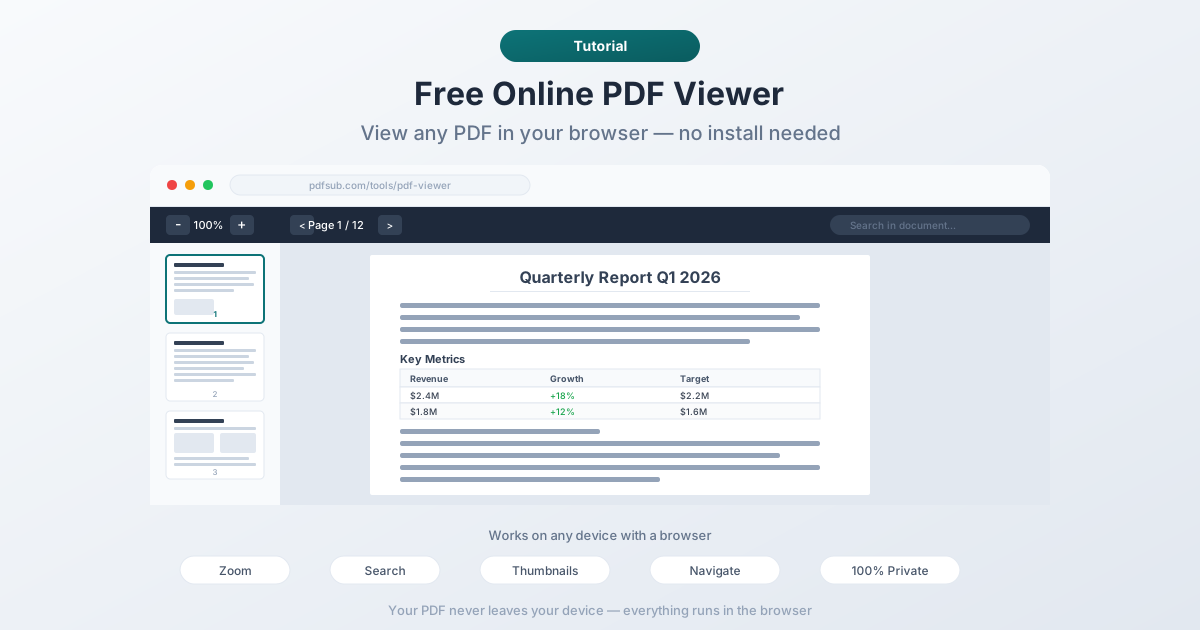
That's it. Your PDF is now displayed in the viewer. Scroll through pages, zoom in and out, search for text, and navigate using the thumbnail sidebar.
Viewer Features
Zoom Controls
Use the plus and minus buttons in the toolbar to zoom in and out. This is especially useful for PDFs with small text, detailed diagrams, or large-format pages that need to be viewed at full size. You can also use keyboard shortcuts (Ctrl/Cmd + and Ctrl/Cmd -) for quick zooming.
Page Navigation
Jump to any page using the page number controls in the toolbar. For long documents, this is faster than scrolling. You can also use the thumbnail sidebar to get a visual overview and click on any thumbnail to jump directly to that page.
Thumbnail Sidebar
The sidebar displays small previews of every page in the document. This gives you a bird's-eye view of the entire PDF and makes it easy to find the section you're looking for. Click any thumbnail to jump straight to that page.
Text Search
Need to find a specific word or phrase? Use the search function (accessible from the toolbar) to search across the entire document. The viewer highlights all matches and lets you jump between them. This works on digital PDFs with selectable text - scanned documents without OCR won't have searchable text.
Text Selection and Copy
You can select text in the PDF just like on a web page - click and drag to highlight, then copy. This works for digital PDFs where the text layer is present. It's useful for quickly grabbing a quote, a reference number, or a snippet you need elsewhere.
Why Use an Online PDF Viewer?
No Installation Required
The most obvious reason. You don't need to download or install anything. If you have a web browser, you have a PDF viewer. This is especially valuable on locked-down work computers, borrowed devices, or Chromebooks where installing software isn't an option.
Works on Any Device
Desktop, laptop, tablet, phone - if it has a modern browser, the viewer works. The interface adapts to your screen size, so you can read PDFs comfortably on whatever device you're using.
Privacy: Your File Stays Local
This is a big one. PDFSub's PDF Viewer runs entirely in your browser. Your PDF file is processed locally on your device - it's never uploaded to a server. This means you can view confidential documents, personal files, or sensitive information without worrying about where it's going.
You can verify this yourself: load the viewer page, disconnect from the internet, and then open a PDF. It still works. The file never leaves your device.
No Account Needed
Some online PDF tools require you to create an account before you can use them. PDFSub's viewer doesn't. Open the page, drop your file, and start reading. No email, no password, no subscription.
Fast Loading
Because the file is processed locally in your browser (no upload/download round trip to a server), PDFs open almost instantly. Even large files load quickly since there's no network transfer involved.
When to Use the Online Viewer vs. a Desktop App
An online viewer isn't always the best choice. Here's when each makes sense:
Use the online viewer when:
- You're on a device without a PDF reader installed
- You need to quickly view a file without any setup
- You're on a public or shared computer
- Privacy matters and you don't want to upload the file
- You just need to read - no editing, annotating, or signing
Use a desktop PDF app when:
- You work with PDFs every day and need advanced features
- You need to annotate, highlight, or add comments regularly
- You're working with extremely large files (hundreds of MB)
- You need accessibility features like screen reader support
- You need to fill and sign forms frequently
For most one-off viewing needs - checking a document someone emailed you, reading a report, viewing a receipt - the online viewer is the faster option.
Tips for a Better Viewing Experience
Use keyboard shortcuts. Arrow keys scroll through the document, Ctrl/Cmd + and Ctrl/Cmd - zoom in and out, and Ctrl/Cmd F opens search. These shortcuts work just like they do in native PDF viewers.
Zoom to fit width. If the text is too small, zoom in until the page width matches your screen. This gives you the largest possible text without having to scroll horizontally.
Use thumbnails for long documents. If you're working with a 50-page report, don't scroll through the whole thing. Open the thumbnail sidebar, scan the visual previews, and click to jump to the section you need.
Try full-screen mode. For distraction-free reading, press F11 (or use your browser's full-screen mode) to hide the browser chrome. Combined with the viewer's clean interface, this gives you a focused reading experience.
Frequently Asked Questions
Is the PDF viewer really free?
Yes, completely free. No account, no subscription, no watermarks, no limitations. You can view as many PDFs as you want, of any size. The viewer is a free tool within PDFSub's platform.
Does it work with scanned PDFs?
Yes. The viewer displays scanned PDFs just like digital ones - you'll see the scanned pages rendered as images. However, text search and text selection won't work on scanned pages because they're images, not actual text. If you need searchable text from a scanned PDF, you'd need to run OCR first.
Can I view password-protected PDFs?
If the PDF is password-protected, you'll be prompted to enter the password. Once you provide the correct password, the document opens normally. The viewer supports both user passwords (for opening) and owner passwords (for permissions).
Is there a file size limit?
There's no hard limit imposed by the viewer. The practical limit is your device's available memory, since the PDF is processed in your browser. Most devices handle PDFs up to 100-200 MB without issues. Extremely large files (500+ MB) might be slow on devices with limited RAM.
Can I print from the viewer?
Yes. Use your browser's print function (Ctrl/Cmd P) to print the PDF. The viewer renders the document at full quality, so the printed output matches what you see on screen.
A PDF viewer should be simple: open a file, read it, done. PDFSub's viewer does exactly that - no installation, no upload. Just a clean reading experience in your browser.
Try it at pdfsub.com/tools/pdf-viewer.