How to Rotate Pages in a PDF Online (Free)
Scanned pages came in sideways? Here's how to rotate individual pages or entire PDFs - 90, 180, or 270 degrees. Free, in your browser.
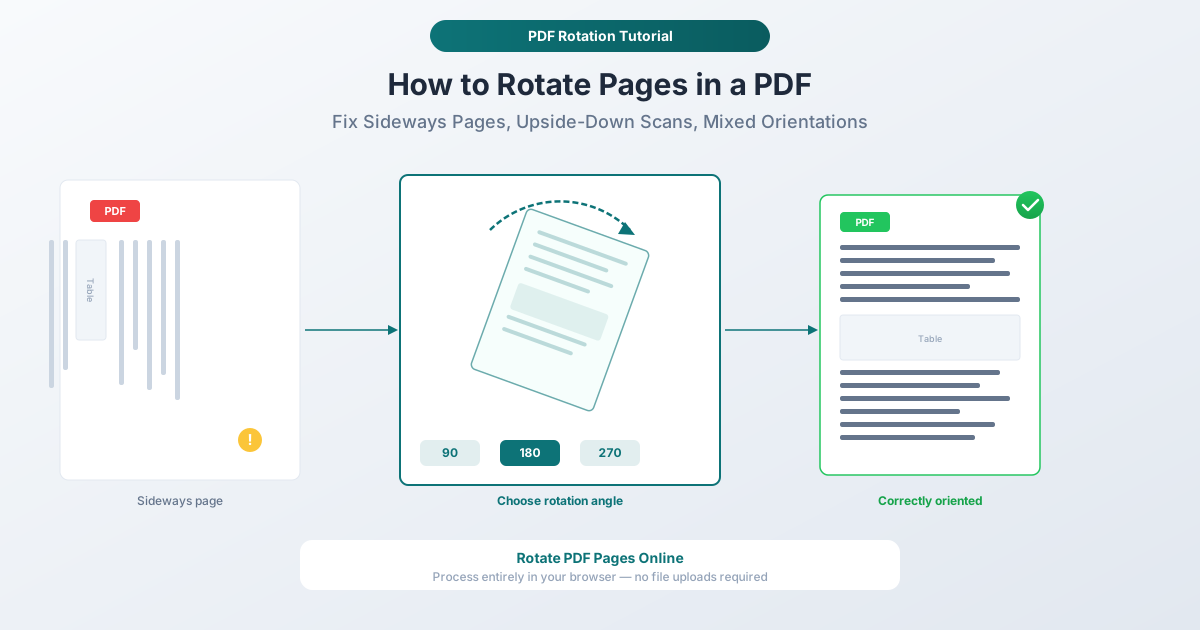
You open a PDF and page three is sideways. Or worse - every other page is upside down. Maybe a vendor scanned a contract and half the pages went through at the wrong angle. Maybe you photographed receipts with your phone and the resulting PDF is a jumble of portrait and landscape pages.
Rotated pages are one of the most common PDF headaches. The content is all there - but it's unreadable without tilting your head. This guide covers three ways to fix it: rotating individual pages, rotating all pages at once, and handling the mixed-orientation situations that make PDFs frustrating.
Why PDF Pages End Up Rotated
Scanners miss orientation. Any page placed at the wrong angle on a flatbed or fed backward through a document feeder comes out rotated. Automatic orientation detection is unreliable.
Phone cameras produce mixed orientations. Photograph documents with your phone and the orientation depends on how you held it for each shot. The resulting PDF is a jumble of portrait, landscape, and upside-down pages.
Landscape content in portrait documents. Financial reports and data-heavy documents often include wide tables formatted in landscape while the rest of the document is portrait.
Export software misreads metadata. Some tools set PDF rotation metadata incorrectly. A page that looked fine in one viewer shows up sideways in another.
Method 1: PDFSub Rotate Tool (Recommended)
PDFSub's Rotate PDF tool is the fastest way to fix page orientation online. It runs entirely in your browser - your files never leave your device - and a 7-day free trial lets you get started without committing.
Step-by-Step Instructions
Step 1: Open the Rotate tool. Go to pdfsub.com/tools/rotate. No software to install.
Step 2: Upload your PDF. Drag and drop your file into the upload area, or click to browse your computer.
Step 3: Preview your pages. A thumbnail preview of every page in your document appears, so you can see exactly which pages need rotation.
Step 4: Select pages and choose a rotation angle. Click on individual pages to select them, or select all pages at once. Then choose your rotation: 90 degrees clockwise, 180 degrees (flip upside down), or 270 degrees clockwise (which is the same as 90 degrees counterclockwise).
Step 5: Rotate and download. Click the rotate button. Your corrected PDF is ready to download in seconds.
Why This Method Is Best
Privacy by design. Everything processes in your browser. Your PDF never touches a server. This matters for contracts, financial records, medical documents, and anything sensitive.
Page-level control. Rotate individual pages without affecting the rest of the document. Fix page seven without touching the other forty-nine.
Visual preview. See thumbnails of every page before and after rotation. Verify the orientation is correct before downloading.
Works on any device. Windows, Mac, Linux, Chromebooks - no installation needed.
Free to try. PDFSub offers a 7-day free trial with full access to all tools, including Rotate PDF.
Method 2: Adobe Acrobat (Paid)
Adobe Acrobat Pro includes page rotation as part of its Organize Pages feature.
How to Rotate in Acrobat
- Open the PDF in Adobe Acrobat Pro.
- Go to Tools > Organize Pages.
- Select the page(s) you want to rotate by clicking the thumbnails.
- Click the counterclockwise or clockwise rotation button in the toolbar.
- Repeat as needed for 180 or 270 degrees.
- Save the file.
Limitations
- Requires a paid subscription. Acrobat Pro costs $19.99/month or more. The free Reader cannot rotate and save - it only rotates the view temporarily.
- Desktop software required. Download and install needed.
- No batch angle selection. One click per 90-degree increment.
Method 3: Preview on Mac (Free, Limited)
If you're on a Mac and just need to fix one or two pages, Preview handles basic rotation.
How to Rotate in Preview
- Open the PDF in Preview.
- Navigate to the page you want to rotate.
- Go to Tools > Rotate Left or Tools > Rotate Right (or use the keyboard shortcuts Cmd+L / Cmd+R).
- Repeat for additional pages.
- Save the file or use File > Export as PDF to save a copy.
Limitations
- One page at a time. Preview rotates only the currently visible page - no batch selection.
- 90-degree increments only. To rotate 180 degrees, apply the command twice.
- Mac only. Not available on Windows, Linux, or Chromebooks.
Common Scenarios
Fixing Scanned Pages That Came In Sideways
The most common rotation task. Open the PDF in PDFSub's Rotate tool, click the sideways page thumbnails, rotate them 90 or 270 degrees, and download the corrected file. Takes about ten seconds.
Rotating Landscape Tables in a Portrait Document
Select only the landscape pages and rotate them to match the document's portrait orientation. No need to rotate the entire document and then undo forty-nine pages.
Fixing Phone-Scanned Documents
Use PDFSub's page thumbnails to spot the misoriented pages, select them, and rotate each to the correct position. Handles the typical mix of portrait, landscape, and upside-down pages from phone camera scans.
Flipping an Upside-Down Document
Select all pages, choose 180-degree rotation, and the entire document flips right-side up in one operation.
Correcting Pages Before Merging
Before merging multiple PDFs into one document, check that all pages are correctly oriented. It's easier to fix rotation in individual files before merging than in a large combined document afterward.
Frequently Asked Questions
Does rotating a PDF page affect the text or image quality?
No. Rotation changes the page's orientation metadata - it tells PDF viewers to display the page at a different angle. The actual content (text, images, vector graphics) is untouched. Quality remains identical before and after rotation.
Can I rotate just one page in a multi-page PDF?
Yes. PDFSub's Rotate tool lets you select individual pages from the thumbnail view and rotate only those pages. The rest of the document stays exactly as it is.
What's the difference between rotating and flipping a PDF page?
Rotating turns the page around its center - 90, 180, or 270 degrees. Flipping mirrors the page along an axis, creating a mirror image. For fixing sideways or upside-down pages, you want rotation, not flipping.
Does PDFSub upload my file to rotate it?
No. PDFSub's Rotate tool processes everything directly in your browser. Your PDF never leaves your device. There is no upload step, no server processing, and nothing stored remotely.
Can I rotate a password-protected PDF?
If the PDF permits editing, yes. If it's locked against modifications, you'll need to remove the restriction first. PDFSub's Unlock tool can remove editing restrictions from PDFs you have permission to modify.
Start Rotating
Ready to fix those sideways pages? Open the Rotate PDF tool and drop in your PDF. Select the pages that need correction, choose 90, 180, or 270 degrees, and download the result. Processing happens in your browser - your documents never leave your device. No account required to get started, and PDFSub offers a 7-day free trial with full access to all tools.