How to Replace an Image in a PDF Online
Need to swap a logo, photo, or graphic in a PDF without recreating the entire document? Here's how to replace images in-place.
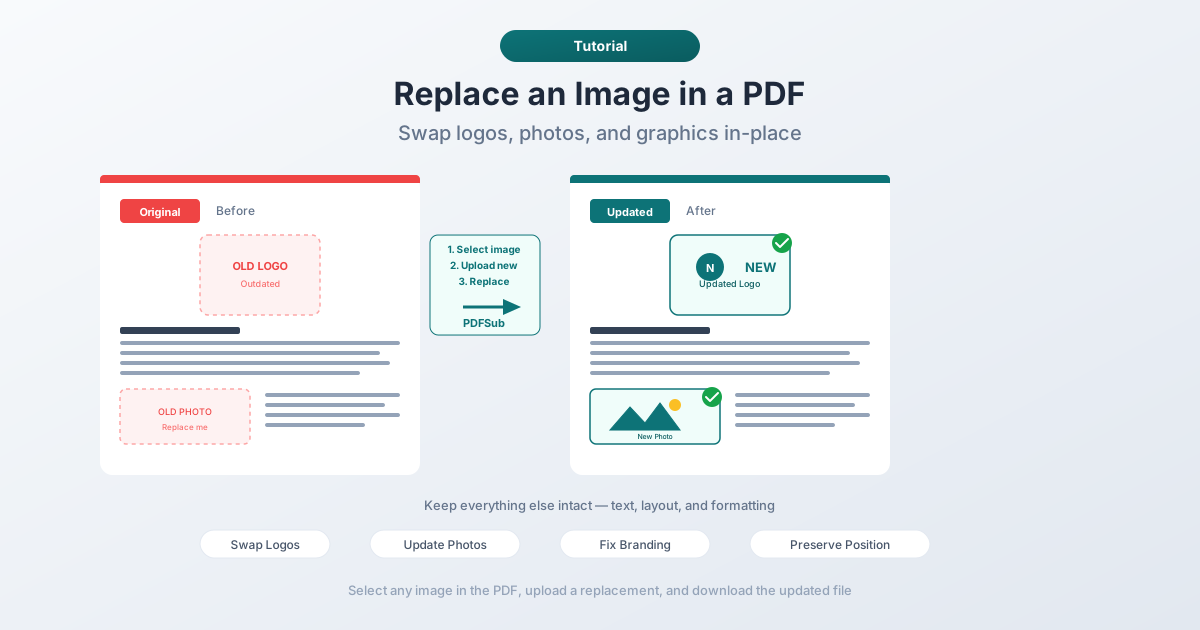
You've got a PDF - maybe a brochure, a proposal, or a company report - and one of the images needs to change. The company logo was updated. A product photo is outdated. A placeholder graphic needs to be swapped for the final version. The rest of the document is perfect. You just need to replace that one image.
Recreating the entire document from scratch is overkill. Opening the original source file (if you even have it) means dealing with fonts, formatting, and export settings. What you actually want is surgical: point at the image, upload a replacement, and keep everything else exactly as it is.
That's what in-place image replacement does. This guide covers how it works, when to use it, and how to do it with PDFSub.
Why Replacing Images in PDFs Is Tricky
PDFs weren't designed for easy editing. Unlike Word documents or design files, a PDF is essentially a finished product - a snapshot of a document at a specific point in time. Images inside a PDF are embedded as binary data streams, compressed and encoded, with precise positioning coordinates that tell the PDF viewer exactly where to render them on the page.
This means you can't just "paste over" an image like you would in a word processor. The replacement process involves:
- Identifying the image within the PDF's internal structure
- Decoding the existing image data to understand its dimensions and color space
- Encoding the new image to match the PDF's requirements
- Replacing the data stream while preserving the positioning
- Updating references so the PDF viewer renders the new image correctly
If any of these steps go wrong, you end up with a corrupted file, a distorted image, or a PDF that won't open at all. This is why most people resort to recreating documents from scratch - it feels safer than trying to surgically modify the file.
But with the right tool, the process is reliable and takes about 30 seconds.
How Image Replacement Works in PDFSub
PDFSub handles the entire replacement process server-side. You don't need to understand PDF internals - the tool handles the heavy lifting. Here's the step-by-step process:
Step 1: Upload Your PDF
Go to PDFSub's Replace Image tool and upload your PDF. The tool scans the document and identifies all embedded images.
Step 2: Select the Image to Replace
After the PDF is processed, you'll see all the images found in the document. Each image is displayed with its page number, position, and dimensions. Click on the image you want to replace.
This step is important because PDFs often contain images you might not expect - background graphics, decorative elements, or small icons. The tool shows you everything so you can pick the right one.
Step 3: Upload the Replacement Image
Upload your new image. This can be a JPG, PNG, or other common image format. The tool automatically handles:
- Resizing - the new image is scaled to fit the exact dimensions of the original, so it occupies the same space on the page
- Format conversion - your image is converted to the format needed by the PDF
- Color space matching - if the original image used CMYK (common in print PDFs), the tool handles the conversion
- Compression - the new image is compressed appropriately for the PDF
Step 4: Download the Updated PDF
Once the replacement is processed, download your updated PDF. The new image sits exactly where the old one was. All text, formatting, links, and other elements remain unchanged.
Common Use Cases
Updating a Company Logo
This is probably the most common scenario. Your company rebrands, the logo changes, and now you have dozens of PDFs - proposals, contracts, brochures, presentations - that all show the old logo. Opening each one in the original design software (assuming you still have it and the right fonts) would take hours.
With image replacement, you upload the PDF, find the logo, swap it with the new version, and download. Repeat for each file. The entire process takes minutes instead of hours.
Replacing Product Photos
Catalogs, spec sheets, and marketing materials often need photo updates. A product gets a new color option. A seasonal collection changes. An older photo needs to be replaced with a professionally shot version. Image replacement lets you update the visuals without touching the surrounding text, pricing, or formatting.
Fixing Branding Across Documents
Beyond logos, branding updates might include new icons, updated header graphics, or revised watermarks. If these are embedded as images in your PDFs (which they usually are), you can replace them one at a time or in batch, maintaining consistency across your document library.
Swapping Placeholder Images
During document creation, teams often use placeholder images - "insert photo here" boxes or stock photos that need to be replaced with final assets. If the document has already been exported to PDF and re-editing the source file isn't practical, image replacement is the fastest path to a finished document.
Correcting Errors in Charts or Graphs
If a chart or graph was embedded as an image (rather than vector graphics), and the data was wrong, you can generate a corrected version and swap it in. This is faster than re-exporting the entire document, especially when the chart was created in a separate tool.
What Gets Preserved (and What Doesn't)
When you replace an image in a PDF, here's what stays the same:
- Position on the page - the new image appears in exactly the same location
- Bounding box - the new image is scaled to match the original dimensions
- Text and formatting - all text, fonts, and layout are untouched
- Links and bookmarks - hyperlinks and navigation remain functional
- Other images - only the selected image changes
- Page count and structure - the document structure is preserved
- Metadata - document properties remain intact
What might change:
- Image quality - if the replacement image has a different resolution than the original, the visual quality may differ. For best results, use a replacement image that's at least as large as the original
- Aspect ratio - if the replacement image has a different aspect ratio, it will be scaled to fit the original dimensions, which may cause some distortion. Try to match the aspect ratio of the original when possible
- File size - a higher-resolution replacement will increase the file size; a more compressed one may decrease it
Tips for Best Results
Match the aspect ratio. If the original image is 4:3, your replacement should also be 4:3 (or close to it). Mismatched aspect ratios lead to stretching or squishing. If you're not sure about the original dimensions, the tool will show you the image size when you select it.
Use high-resolution replacements. PDFs are resolution-independent, but the images inside them are not. If the original logo was 300 DPI and you replace it with a 72 DPI web graphic, it'll look blurry when printed. Always use the highest-quality version of your replacement image available.
Check the color space. Documents intended for print often use CMYK color. If your replacement image is RGB (which most web and phone images are), the colors might shift slightly in print. For screen viewing, this doesn't matter - but for print materials, it's worth being aware of.
Prefer PNG for logos and graphics. PNG supports transparency and doesn't lose quality through compression. If you're replacing a logo that originally had a transparent background, use a PNG with transparency to maintain the same look.
Use JPG for photos. Photographs compress much better as JPG. Unless you need transparency, JPG will give you a smaller file size without noticeable quality loss for photographic content.
Preview before sharing. After replacing an image, open the downloaded PDF and check the result. Make sure the new image looks right at both zoom levels - 100% for screen viewing and zoomed in for detail. Verify that surrounding text didn't shift (it shouldn't, but it's good practice to confirm).
Image Replacement vs. Other Approaches
There are several ways to update images in a PDF. Here's how they compare:
| Approach | Speed | Quality | Requires Source File | Preserves Layout |
|---|---|---|---|---|
| Image replacement | Fast | High | No | Yes |
| Re-export from source | Slow | Highest | Yes | Maybe |
| Overlay / stamp | Fast | Medium | No | No (covers, doesn't replace) |
| Screenshot + recreate | Very slow | Low | No | No |
| PDF editor (full) | Medium | High | No | Usually |
Image replacement hits the sweet spot: it's fast, preserves the document structure, doesn't require the original source file, and produces a clean result. The only approach that's potentially better is re-exporting from the source - but only if you have the source file, the right software, and the correct fonts installed.
Frequently Asked Questions
Can I replace multiple images at once?
Yes. After uploading your PDF, you can select and replace multiple images in sequence. Each replacement is independent - you pick the image, upload the replacement, and move to the next one. The final download includes all your changes.
Does the replacement image need to be the same size as the original?
No. The tool automatically scales your replacement image to match the dimensions of the original. However, for best visual quality, use a replacement image that's at least as large as (or larger than) the original. Upscaling a small image to fill a large space will result in a blurry result.
Will replacing an image break the PDF's digital signature?
Yes. Any modification to a digitally signed PDF will invalidate the signature. This is by design - digital signatures are meant to prove the document hasn't been altered. If you need to replace an image in a signed document, the document will need to be re-signed afterward.
Can I replace vector graphics (not just raster images)?
The image replacement tool works with raster images (JPG, PNG, etc.) embedded in the PDF. Vector graphics (lines, shapes, paths drawn directly by the PDF) are different - they're part of the page's drawing instructions, not separate image objects. For vector elements, you'd need a full PDF editor.
What image formats can I use as replacements?
You can upload JPG, PNG, WEBP, and other common image formats as replacements. The tool handles the conversion to the appropriate format for embedding in the PDF. For logos and graphics with transparency, PNG is recommended. For photographs, JPG works well.
Replacing an image in a PDF doesn't have to mean rebuilding the entire document. With the right tool, it's a three-step process: upload, select, replace. The rest of the document stays exactly as it was - text, formatting, layout, everything.
Give it a try at pdfsub.com/tools/replace-image-in-pdf.