How to Repair a Corrupted PDF File Online
PDF won't open or shows errors? Here's how to repair corrupted PDF files - fix damaged headers, broken cross-references, and truncated data.
You double-click a PDF and nothing happens. Or it opens but pages are blank. Or your PDF viewer shows an error: "This document is damaged and cannot be repaired." A corrupted PDF is one of those problems that feels catastrophic - especially when the file contains important data and you don't have another copy.
The good news: many corrupted PDFs can be repaired. The damage is usually structural, not content-level. The text and images are still inside the file; the internal bookkeeping that tells the PDF viewer where to find them is what's broken.
This guide explains why PDFs get corrupted, what repair tools actually fix, how to repair a damaged PDF, and when to accept that a file is beyond recovery.
Why PDFs Get Corrupted
PDF corruption isn't random. There's almost always a specific cause, and understanding it helps prevent future damage.
Incomplete Downloads
The most common cause. Your browser or download manager didn't finish downloading the file. The PDF is truncated - it starts correctly but ends abruptly mid-stream. The header and early pages might be intact, but later pages and the critical cross-reference table at the end are missing.
Email Attachment Damage
Some email systems modify binary attachments during transit. Older mail servers, aggressive virus scanners, or encoding mismatches can corrupt the byte stream. The file arrives looking like a PDF (right extension, right icon) but the internal data is mangled.
Disk and Storage Errors
Bad sectors on a hard drive, flash drive corruption, or storage media degradation can damage individual bytes within the file. Even a single flipped bit in the wrong location can make the file unreadable.
Interrupted Saves
If the application crashes while writing a PDF - or if you yank a USB drive while a file is being saved - the result is a partially written file. The old version is gone, and the new version isn't complete.
Software Bugs
PDF generation software isn't perfect. A bug in the tool that created the PDF might produce a file with structural errors - valid enough to open in some viewers but broken in others. This is surprisingly common with automated PDF generators.
File Transfer Corruption
FTP transfers in text mode (instead of binary mode), copy operations on unreliable network drives, or syncing conflicts in cloud storage can introduce corruption. Any process that modifies the raw bytes of a PDF - even slightly - can break it.
What PDF Repair Actually Fixes
A PDF file has a specific internal structure. Understanding it helps set realistic expectations for what repair can accomplish.
PDF Structure (Simplified)
Header - identifies the file as a PDF and the version
Body - the actual content (text, images, fonts, pages)
Cross-Ref - a table listing where every object starts in the file
Trailer - points to the cross-reference table and the root object
The cross-reference table (xref) is the most important structural element. It's like a book's index - it tells the PDF viewer where to find each page, image, and text block within the file. If the xref is damaged, the viewer can't locate the content, even though the content itself is intact.
What Repair Tools Fix
Damaged or missing cross-reference tables. The repair tool scans the entire file, locates all objects, and rebuilds the xref table from scratch. This fixes the most common type of corruption.
Broken or missing headers. If the PDF header is damaged, the tool reconstructs it based on the content found in the file.
Corrupted stream data. PDF content is stored in compressed streams. If a stream's metadata (length, compression method) is wrong but the stream data is intact, the tool can recalculate the correct values.
Truncated files. If the file was cut short (incomplete download), the tool recovers whatever content exists in the intact portion. You might get 8 out of 10 pages back - better than nothing.
Linearization errors. Linearized PDFs (optimized for web viewing) have additional structure that can become inconsistent. Repair tools can strip or rebuild linearization data.
What Repair Tools Can't Fix
Overwritten content. If the bytes that stored a particular page's text or image have been replaced with garbage data, no tool can reconstruct the original content. The information is gone.
Encrypted files with lost passwords. Corruption of an encrypted PDF's security data means the content can't be decrypted. Repair can fix structural issues, but if the encryption keys are damaged, the content is inaccessible.
Severe byte-level corruption. If large sections of the file are corrupted (not just the structural bookkeeping), recovery is limited to whatever intact content remains.
Zero-byte files. If the file is completely empty, there's nothing to repair.
How to Repair a PDF Online (Step by Step)
Step 1: Upload the Corrupted PDF
Go to PDFSub's Repair PDF tool and upload your damaged file. The file is sent to PDFSub Engine for processing in a secure, isolated environment.
Step 2: Analyze and Repair
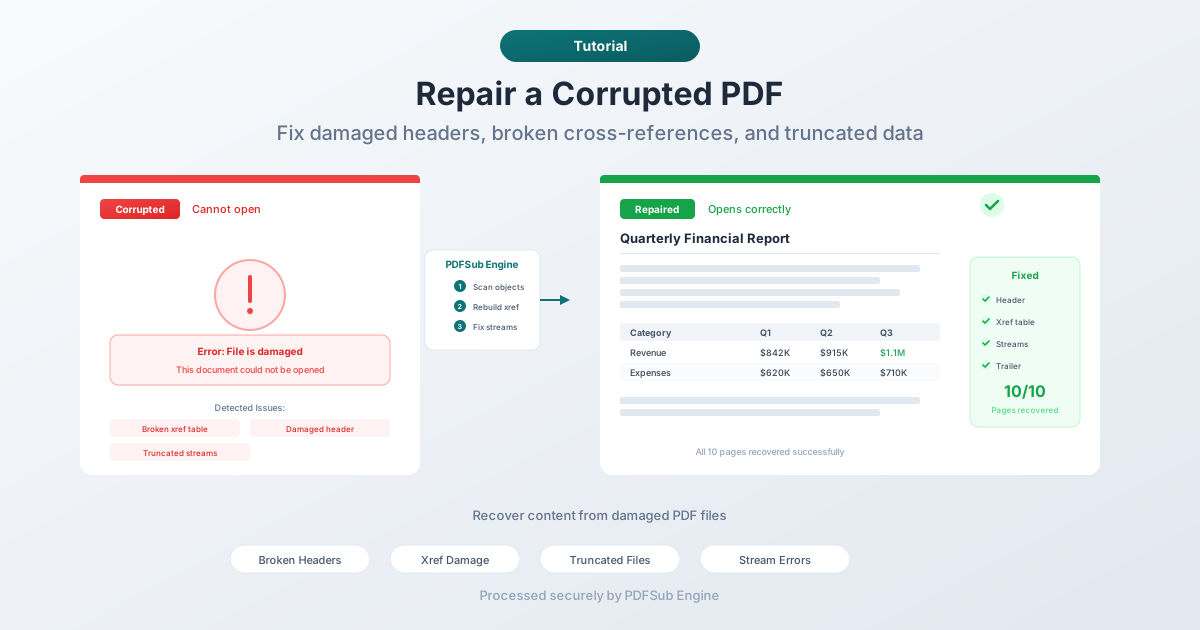
PDFSub Engine analyzes the file structure, identifies the type of corruption, and attempts repair:
- Scans for all PDF objects in the file
- Rebuilds the cross-reference table
- Reconstructs the trailer and header if needed
- Validates stream data and fixes length mismatches
- Reassembles the file with corrected structure
The process typically takes a few seconds.
Step 3: Download the Repaired File
If repair succeeds, download the fixed PDF. Open it in your PDF viewer and verify that the content is intact - check all pages, images, and text.
Step 4: Verify Thoroughly
Don't just check the first page. Scroll through the entire document:
- Are all pages present?
- Do images appear correctly?
- Is text selectable (if it was before)?
- Do hyperlinks work?
- Are embedded fonts rendering properly?
If some content is missing, the corruption was likely in the content data itself, not just the structure. The repaired file contains everything that was recoverable.
Other Repair Methods
Try a Different PDF Viewer
Before running a repair tool, try opening the file in a different PDF viewer. Different applications have different tolerance for structural errors. A file that won't open in one viewer might open fine in another.
Common viewers to try:
- Your web browser (Chrome, Firefox, Edge all have built-in PDF renderers)
- Adobe Acrobat Reader
- Foxit Reader
- SumatraPDF (Windows)
- Preview (macOS)
Some viewers automatically attempt repair when they detect structural issues. You might see a message like "This file is damaged. An attempt was made to repair it."
Re-Download the File
If the file came from a download, download it again. Incomplete downloads are the most common cause of corruption, and re-downloading often solves the problem instantly. Make sure the download completes fully before opening the file.
Restore from Backup
Check for backup copies:
- Cloud storage version history (Google Drive, Dropbox, OneDrive)
- Time Machine (macOS) or File History (Windows)
- Email attachments (if someone sent you the file)
- The original source (can the sender resend?)
A clean copy from backup is always better than a repaired file.
Extract What You Can
If repair fails, you may still be able to extract partial content:
- Copy text: Some viewers can select and copy text even from partially corrupted files
- Extract images: Image extraction tools can sometimes pull embedded images from damaged PDFs
- Convert what opens: If some pages render, you can print those pages to a new PDF
Preventing PDF Corruption
Verify Downloads
After downloading a PDF, check the file size. If the sender can tell you the expected size, compare. A file that's significantly smaller than expected was probably truncated.
Use Binary Mode for File Transfers
When transferring PDFs via FTP or other file transfer tools, always use binary mode. Text mode can corrupt binary files by converting line endings.
Don't Interrupt Saves
Wait for PDF saves and exports to complete before closing applications, ejecting drives, or shutting down. A progress bar that's still moving means the file isn't finished.
Keep Backups
The best insurance against corruption is a backup. Cloud storage with version history, automated backups, or simply keeping copies in multiple locations.
Avoid Editing PDFs Repeatedly
Each edit and save cycle introduces opportunities for structural issues. If you need to make many changes, convert to an editable format (Word), make all your changes, and convert back once.
Use Reliable Storage
Flash drives and SD cards have limited write cycles and can develop bad sectors. For important files, use reliable storage and keep copies on multiple media.
FAQ
Can I repair a PDF that shows "The file is damaged and could not be repaired"?
Sometimes yes. That error message means the viewer's built-in repair failed, but dedicated repair tools use more aggressive recovery techniques. Upload the file to PDFSub's Repair PDF tool - it may succeed where the viewer couldn't. However, if the content data itself is corrupted (not just the structural metadata), full recovery isn't possible.
Will repair change the content of my PDF?
No. Repair tools fix structural metadata (cross-reference tables, headers, stream lengths) - they don't modify the actual text, images, or pages. The content in the repaired file is the same content that was in the original. If anything is missing, it's because that data was corrupted beyond recovery, not because the repair tool removed it.
How can I tell if my PDF is corrupted or just password-protected?
Different error messages indicate different problems. "Password required" or "This document is protected" means the file is encrypted and you need a password - it's not corrupted. "Cannot open file," "File is damaged," or the viewer hanging/crashing suggests corruption. If you're unsure, try opening the file in a web browser - browsers handle both cases and give clear error messages.
Is it safe to upload a corrupted file for repair?
With PDFSub, yes. The file is processed by PDFSub Engine in a secure, isolated environment. It's used solely for the repair operation and not stored permanently. For sensitive documents, this server-side processing is handled with the same security as all PDFSub Engine operations.
Can corruption happen to PDFs stored in cloud storage?
Rarely, but yes. Sync conflicts (two devices editing the same file simultaneously), interrupted uploads, or storage service bugs can cause corruption. Cloud services with version history (Google Drive, Dropbox, OneDrive) let you restore previous versions, which is the fastest fix. Check your version history before attempting repair.
Wrapping Up
PDF corruption is stressful, but it's usually fixable. Most damage affects the file's internal structure - the cross-reference table, headers, and stream metadata - not the actual content. A repair tool rebuilds that structure, and the content reappears.
Be honest with your expectations: if the file's content bytes are overwritten or severely corrupted, no tool can reconstruct lost data. But for the most common corruption types - incomplete downloads, email damage, interrupted saves - repair works well.
Try PDFSub's Repair PDF tool first. If that doesn't work, try a different PDF viewer, re-download the file, or check for backups. Prevention is the best strategy: verify downloads, keep backups, and don't interrupt saves.