How to Reorder Pages in a PDF Online (Free)
Pages in the wrong order? Here's how to drag and drop PDF pages into the right sequence - free, in your browser.
You merged three documents and now the appendix is on page two. Or your scanner fed the pages in backward. Or a client sent you a proposal where section four somehow ended up before section one. Whatever happened, your PDF pages are in the wrong order and you need to fix it without recreating the entire document from scratch.
Reordering PDF pages sounds like it should be simple, and with the right tool it is. This guide walks through how to rearrange pages in a PDF using a drag-and-drop interface, covers the most common scenarios that lead to misordered pages, and explains why browser-based tools are the safest option for this task.
Why PDF Pages End Up in the Wrong Order
Before jumping into solutions, it helps to understand how you got here. These are the most common causes of misordered PDF pages.
Merged Documents in the Wrong Sequence
You combined multiple PDFs into one, but uploaded them in the wrong order. Now the cover letter is after the resume, or the executive summary follows the financial tables instead of preceding them. This is the single most common reason people need to reorder pages.
Scanner Fed Pages Incorrectly
Document scanners process pages in the order they're fed. If you placed a stack face-down when it should have been face-up (or vice versa), every page is in reverse order. Multi-page scans from phone apps have the same problem - if you photographed the last page first, that's the order you get.
Collaborative Documents Assembled Out of Order
When multiple people contribute sections to a report, the final assembly doesn't always happen in the right sequence. Someone adds their section to the wrong spot, or files are combined alphabetically by filename rather than by logical document order.
Client or Vendor Sent a Disorganized File
You received a PDF from someone else and the pages don't follow any logical structure. Maybe they exported slides in a custom order, or they cut and pasted sections that ended up jumbled.
How to Reorder PDF Pages with PDFSub
PDFSub's Reorder Pages tool lets you rearrange pages in any PDF using a visual drag-and-drop interface. The entire process happens in your browser - your file never leaves your device.
Step-by-Step Instructions
Step 1: Open the Reorder Pages tool. Go to pdfsub.com/tools/reorder. No software to install - start with a 7-day free trial.
Step 2: Upload your PDF. Drag and drop your file into the upload area, or click to browse your computer. The tool generates visual thumbnails of every page so you can see exactly what you're working with.
Step 3: Preview your pages. Each page appears as a thumbnail with its page number. Scroll through to identify which pages need to move and where they should go.
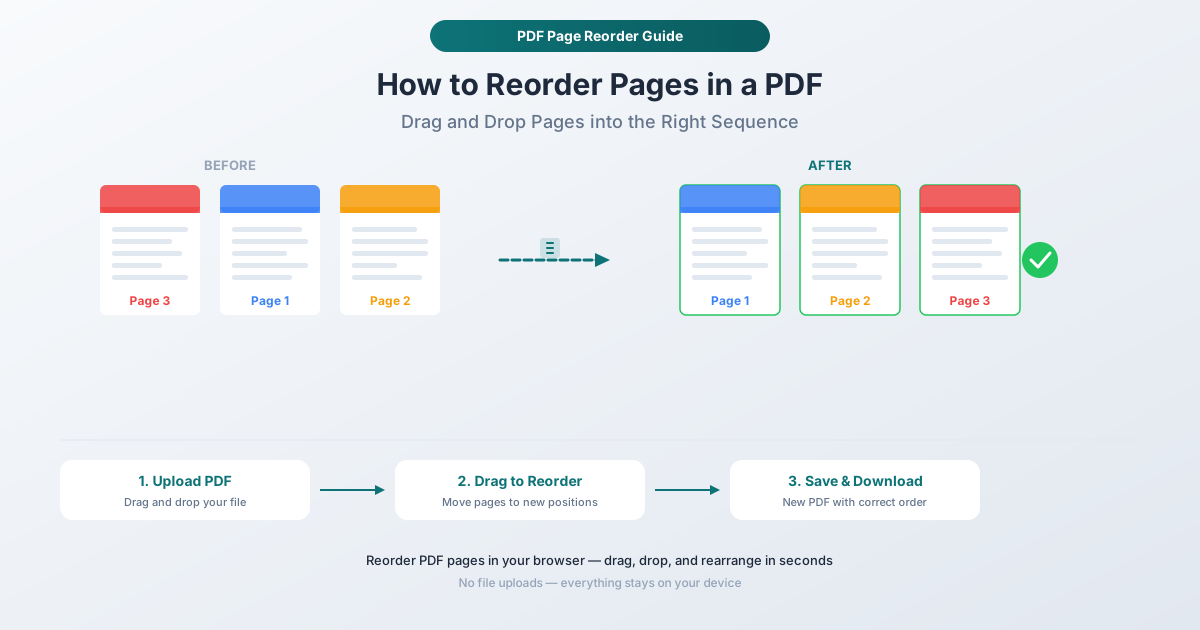
Step 4: Drag pages to their new positions. Click and drag any page thumbnail to a different position. The other pages shift automatically to accommodate the change. You can move one page at a time or rearrange multiple pages in sequence. The visual preview updates instantly so you always know exactly what order you're creating.
Step 5: Download the reordered PDF. Once your pages are in the correct order, click the action button. Your new PDF downloads with the pages in exactly the order you arranged them. The original file is unchanged.
Why This Approach Works Best
Visual confirmation. You see thumbnails of every page, so there's no guessing about what's on page 7 versus page 12. This matters when pages don't have obvious headers or section titles.
Drag-and-drop simplicity. No need to type page ranges or memorize commands. Just grab a page and move it where it belongs. If you change your mind, drag it again.
Instant feedback. The page order updates visually as you drag, so you can verify the arrangement before downloading. There's no "process and hope" - you see the result before committing.
Privacy by design. Everything runs in your browser. Your PDF isn't uploaded to any server. This is especially important when reordering pages in contracts, financial documents, HR paperwork, or anything containing sensitive information.
No quality loss. Reordering doesn't re-encode or recompress your content. Text stays sharp, images retain their resolution, and vector graphics remain crisp. The tool rearranges the internal page structure without touching the content itself.
Common Reorder Scenarios
Here are the specific situations where reordering pages solves the problem faster than any alternative.
Fixing a Reversed Scan
You scanned a 20-page document and the pages came out in reverse order. Instead of rescanning, open the PDF in the Reorder tool and flip the entire sequence. Select the last page and drag it to position one, or use the reverse function if available. A two-minute fix versus a twenty-minute rescan.
Moving an Appendix to the End
A merged document has the appendix stuck in the middle. Select the appendix pages and drag them to the end of the document. This is common after merging reports where a supporting section was treated as a standalone file and inserted in the wrong position.
Reorganizing a Report for a Different Audience
You have a complete report but need to reorder sections for a specific reader. The CFO wants financial tables first; the project manager wants the timeline summary up front. Reorder the pages to match the audience's priorities without creating a new document.
Putting a Cover Page First
You created a cover page separately and merged it, but it ended up as page two. A single drag operation puts it where it belongs.
Interleaving Pages from Two Sources
After merging two documents sequentially, you realize the pages should alternate - page 1 from document A, page 1 from document B, page 2 from document A, and so on. The drag-and-drop interface makes this interleaving straightforward, even if tedious for very long documents.
Tips for Efficient Page Reordering
Name Your Files Before Merging
If you're merging files and then reordering, save yourself a step by naming source files with numeric prefixes before merging: 01-cover.pdf, 02-executive-summary.pdf, 03-financial-data.pdf. Most merge tools sort alphabetically, so numbered prefixes ensure the right order from the start.
Use Thumbnails to Identify Pages
When page content isn't immediately obvious from a small thumbnail, look for distinguishing features: page numbers in corners, section headers, charts or images that you recognize, or different formatting styles between sections.
Reorder Before Adding Page Numbers
If you plan to add page numbers using PDFSub's Page Numbers tool, reorder first. Page numbers reflect the position of each page at the time they're added. Reordering after adding page numbers would leave you with numbers in the wrong sequence.
Combine with Other Operations
PDFSub's tools work well in sequence. A common workflow: merge several documents, delete unwanted pages (blank pages, duplicate cover sheets), reorder the remaining pages, and then add page numbers. Each step builds on the previous one.
Reorder vs. Other Page Operations
People sometimes confuse reordering with splitting, extracting, or deleting. Here's the difference.
| Operation | What It Does | Use When |
|---|---|---|
| Reorder | Changes the sequence of pages within a single PDF | Pages are all correct but in the wrong position |
| Split | Divides one PDF into multiple separate files | You need separate documents from a combined file |
| Extract | Pulls specific pages into a new PDF | You only need certain pages, not the whole document |
| Delete | Removes specific pages permanently | Pages shouldn't exist in the document at all |
| Merge | Combines multiple PDFs into one | You have separate files that belong together |
Reordering is the only operation that keeps all your pages and just changes their sequence. Nothing is added or removed - only rearranged.
Frequently Asked Questions
Can I reorder pages in a password-protected PDF?
You'll need to remove the password protection first. If you know the password, use PDFSub's Unlock PDF tool to remove it, then reorder the pages, and optionally re-encrypt with the Protect PDF tool afterward. If you don't know the password, the PDF can't be modified - that's the point of password protection.
Does reordering pages affect bookmarks or links within the PDF?
Bookmarks and internal links reference specific pages by their page number. When you reorder pages, these references may need updating. PDFSub handles this for most standard bookmark structures, but complex PDFs with JavaScript-driven navigation or custom link actions may require manual verification after reordering.
Is there a limit to how many pages I can reorder?
There's no hard page limit. The practical constraint is your device's memory, since processing happens in your browser. Documents with hundreds of pages work fine on modern computers and tablets. Very large PDFs (thousands of pages with high-resolution images) may take longer to generate thumbnails.
Can I reorder pages on my phone?
Yes. PDFSub runs in any modern mobile browser. The drag-and-drop interface works with touch - tap and hold a page thumbnail, then drag it to the new position. For documents with many pages, a tablet provides a more comfortable experience than a phone screen, but both work.
Will reordering reduce the quality of my PDF?
No. Reordering changes the internal page structure without touching the actual content. Text, images, vector graphics, annotations, and form fields all remain exactly as they were. There's no re-encoding, recompression, or quality degradation of any kind.
Start Reordering
Ready to fix your page order? Open the Reorder Pages tool and drag in your PDF. You'll see thumbnails of every page, and a few drag-and-drop moves later your document will be in the right sequence. Processing happens entirely in your browser - your file never leaves your device. No account required to get started, and PDFSub offers a 7-day free trial with full access to all tools.