How to Put Multiple PDF Pages Per Sheet (2-Up, 4-Up, N-Up)
Need to fit 2, 4, or more PDF pages on a single sheet? Here's how to create N-up layouts for printing, handouts, or paper savings.
You have a 40-page document that you need to print, but you don't need each page at full size. Maybe it's lecture slides for review, a reference manual you want in a compact format, or a draft you're proofreading and don't want to waste 40 sheets of paper on. The solution is N-up printing: arranging multiple PDF pages on a single sheet.
This is one of those features that's surprisingly hard to get right. Your printer driver might offer "pages per sheet," but the results are often unpredictable - different printers handle it differently, margins get swallowed, and page ordering can be wrong. Creating the N-up layout in the PDF itself, before sending it to the printer, gives you a consistent, predictable result that prints correctly on any printer.
Here's how to create 2-up, 4-up, 6-up, and 9-up PDF layouts - plus when each layout makes the most sense.
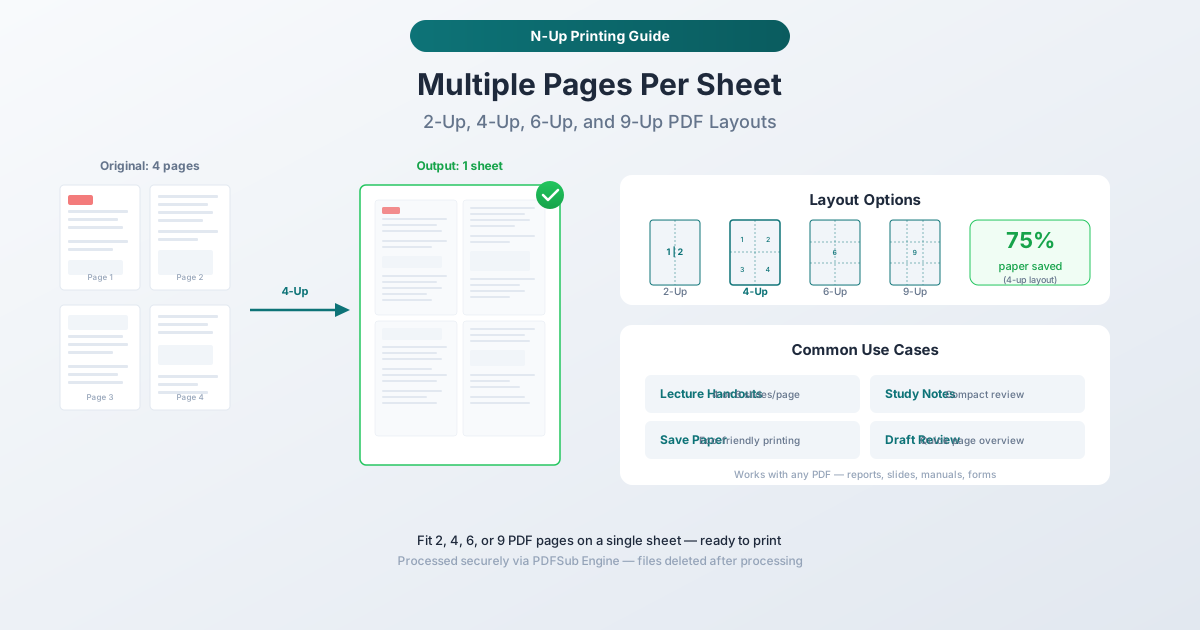
Understanding N-Up Layouts
"N-up" means arranging N pages on a single physical sheet. The term comes from the printing industry, where "2-up" means two pages per sheet, "4-up" means four, and so on.
2-Up (2 Pages Per Sheet)
Two pages arranged side by side on a single sheet. This is the most common layout for printed handouts and reference material. Each page retains about 70% of its original readability at standard text sizes.
Arrangement: Two pages in a single row - page 1 on the left, page 2 on the right (for landscape output) or page 1 on top, page 2 on bottom (for portrait output).
Paper savings: 50% - a 20-page document prints on 10 sheets.
Readability: Good. Standard 10-12pt text remains comfortable to read. Diagrams and charts are still clear. Fine print and footnotes may require squinting.
4-Up (4 Pages Per Sheet)
Four pages arranged in a 2x2 grid. This is the sweet spot for most people - significant paper savings while maintaining reasonable readability.
Arrangement: Pages arranged left to right, top to bottom in a 2x2 grid. Page 1 is top-left, page 2 is top-right, page 3 is bottom-left, page 4 is bottom-right.
Paper savings: 75% - a 40-page document prints on 10 sheets.
Readability: Acceptable for standard text. Each page is about 50% of its original size. 10-12pt text is readable but small. Charts and diagrams are visible but details may be hard to discern. Best for documents you're reviewing rather than reading word-by-word.
6-Up (6 Pages Per Sheet)
Six pages in a 2x3 grid (or 3x2, depending on orientation). This is the standard for PowerPoint handout printing - Microsoft's built-in "3 slides per page" and "6 slides per page" options produce similar layouts.
Arrangement: Pages in a 2-column, 3-row grid (portrait output) or 3-column, 2-row grid (landscape output).
Paper savings: ~83% - a 60-page document prints on 10 sheets.
Readability: Limited. Text smaller than 14pt becomes difficult to read. This layout works best for visual content - presentation slides, diagrams, photo pages - where you're recognizing shapes and layouts rather than reading fine text.
9-Up (9 Pages Per Sheet)
Nine pages in a 3x3 grid. Maximum density. Each page is about one-ninth of the sheet size.
Arrangement: Pages in a 3x3 grid, left to right, top to bottom.
Paper savings: ~89% - a 90-page document prints on 10 sheets.
Readability: Very limited. Only large text (18pt+) and prominent visual elements remain readable. This layout is primarily useful for getting a bird's-eye overview of a document's structure - seeing the flow of a presentation, the layout of a manual's sections, or the visual rhythm of a design document.
Which Layout Should You Use?
The right choice depends on what you're trying to accomplish.
| Purpose | Recommended Layout |
|---|---|
| Reading a document in compact form | 2-Up |
| Reviewing a draft or manuscript | 2-Up or 4-Up |
| Printing lecture/presentation handouts | 4-Up or 6-Up |
| Creating study notes to review | 4-Up |
| Getting a document overview | 9-Up |
| Saving paper for internal drafts | 4-Up |
| Printing a reference card | 2-Up |
| Creating meeting handout packets | 4-Up |
The Key Question: Do You Need to Read the Text?
If yes, stick with 2-up (comfortable reading) or 4-up (readable with effort). If you're using the printout for visual reference - recognizing pages, checking layout, reviewing slide order - 6-up or 9-up works fine.
How to Create N-Up Layouts with PDFSub
PDFSub's Pages Per Sheet tool handles the layout creation server-side using the PDFSub Engine. You upload a standard PDF and get back a new PDF with the N-up layout applied - ready to print on any printer.
Step-by-Step Instructions
Step 1: Open the tool. Navigate to pdfsub.com/tools/pages-per-sheet.
Step 2: Upload your PDF. Drag and drop the file or click to browse. The file uploads to PDFSub's secure processing servers.
Step 3: Choose your layout. Select 2-up, 4-up, 6-up, or 9-up. A preview shows how the pages will be arranged.
Step 4: Configure options. Set the output page size (Letter, A4, or other standard sizes), orientation (portrait or landscape), and page ordering (left-to-right or right-to-left for languages that read right-to-left).
Step 5: Generate and download. Click the generate button. The PDFSub Engine creates the N-up layout and returns the result as a new PDF. Print it directly or save it for later.
Choosing the Right Orientation
Portrait output works best when your source pages are portrait-oriented (standard documents, letters, reports). For 2-up, the pages stack vertically. For 4-up, you get a 2x2 grid that fills the page well.
Landscape output works best when your source pages are landscape-oriented (presentation slides, spreadsheets, widescreen content). For 2-up, the pages sit side by side. For 4-up, the 2x2 grid accommodates the wider page proportions.
General rule: If your source is portrait, output portrait. If your source is landscape, output landscape. This maximizes the size of each miniature page.
Common Use Cases
Lecture and Presentation Handouts
This is the most popular use case for N-up printing. Professors, trainers, and presenters create handouts with 4 or 6 slides per page. Students and attendees get a compact reference that's easy to annotate during the session.
Recommended layout: 4-up or 6-up for slides. For 4-up, each slide is large enough to see details. For 6-up, you fit more slides per page but sacrifice some readability. If the presentation includes text-heavy slides, lean toward 4-up.
Pro tip: Print 4-up with landscape output and leave wide margins for notes. Many attendees prefer this over 6-up because there's room to write next to each slide.
Draft Review and Proofreading
When reviewing a long document, printing the entire thing at full size wastes paper and creates an unwieldy stack. 4-up printing gives you a manageable packet that's still readable enough for proofreading. You can quickly flip through 100 pages of content in a 25-page printout, mark up problems, and return to the digital version for corrections.
Recommended layout: 4-up for text documents. 2-up if the text is small or you need to read every word carefully.
Saving Paper
Environmental consciousness, office supply budgets, or simply not wanting to carry a thick stack of paper - all good reasons to print multiple pages per sheet. For internal documents, drafts, and reference copies that don't need to look polished, 4-up is the practical sweet spot.
The math: A 100-page report printed 4-up uses 25 sheets instead of 100 - saving 75 sheets and 75% of the toner. Over a year of regular printing, this adds up to significant savings in paper, toner, and storage space.
Study and Exam Preparation
Students print lecture notes, textbook chapters, and study guides in N-up format to create compact review materials. Having an entire chapter on a few sheets makes it easy to carry, review on the go, and spread out for studying.
Recommended layout: 4-up for text-heavy study materials. Print double-sided to further reduce the number of sheets.
Document Overview and Storyboarding
Designers, writers, and project managers sometimes need to see the flow of an entire document at a glance - the visual rhythm of a magazine layout, the pacing of a presentation, or the structure of a report. 9-up printing shows the most pages per sheet, giving you a bird's-eye view of the document's structure.
Recommended layout: 9-up for visual overview. Don't expect to read text - this is for seeing patterns, layout consistency, and page flow.
Tips for Best Results
Use the Right Paper Size
If you're in North America, Letter size (8.5" x 11") is the standard. In most other countries, A4 (210mm x 297mm) is standard. Make sure the output paper size matches what your printer is loaded with - a mismatch can cause scaling issues or printing errors.
Print Double-Sided
If your printer supports duplex (double-sided) printing, enable it for N-up documents. A 4-up, double-sided printout of a 100-page document uses only 13 sheets - 87% paper savings.
Consider Borders
Adding thin borders around each miniature page makes it easier to visually separate the pages, especially with 6-up and 9-up layouts where the pages are close together. PDFSub's tool adds subtle borders by default, which you can toggle on or off.
Page Ordering for Bound Documents
If you're creating a booklet or bound handout, page ordering matters. Standard left-to-right, top-to-bottom ordering works for most cases. For right-to-left languages (Arabic, Hebrew, Farsi), switch the page ordering to right-to-left.
Why Not Just Use the Printer Driver?
Most printer drivers offer a "pages per sheet" option in the print dialog. It works, but it has several disadvantages:
Inconsistency across printers. Different printer drivers implement N-up differently. The same document printed on two different printers may have different page sizes, margins, and arrangements.
No preview. You don't see the result until it comes out of the printer. If something is wrong - wrong orientation, pages too small, incorrect ordering - you've already wasted the paper.
Limited control. Printer drivers typically offer basic 2-up and 4-up. Custom layouts, specific page ordering, and margin control are rarely available.
Not portable. If you create the N-up layout in the PDF itself, you can share that file with anyone and they'll print it correctly on any printer. If you rely on the printer driver, each person needs to configure their own settings.
Creating the N-up layout in the PDF gives you a predictable, portable result that you can preview before printing and share with others.
Frequently Asked Questions
Does N-up printing reduce quality?
No. The source pages are scaled down to fit the smaller area, but the PDF resolution remains unchanged. When printed, the quality is limited by the printer's DPI and the physical size of each miniature page - text rendered at a small physical size may be harder to read, but it's as sharp as the printer can produce.
Can I create N-up layouts from a presentation file?
If your presentation is already exported as a PDF, yes - upload the PDF and choose your layout. If it's still in PowerPoint or Google Slides format, export it to PDF first, then use the N-up tool. PowerPoint's built-in "Handout" print layout is another option, but it offers less control over arrangement and formatting.
What happens if my page count isn't divisible by N?
The last sheet will have blank spaces where the remaining pages would go. For example, a 10-page document in 4-up layout produces three sheets: two full sheets (4 pages each) and one partial sheet with 2 pages and 2 blank spaces.
Can I mix page orientations in the same document?
If your source PDF has a mix of portrait and landscape pages, the N-up tool handles them within the same layout. Each miniature page is scaled to fit within its allocated space on the grid, preserving its original orientation. This works well for documents with occasional landscape-oriented charts or tables among portrait text pages.
Does this work for booklet printing?
N-up layout and booklet imposition are different things. N-up puts pages in reading order on each sheet - page 1, 2, 3, 4 on sheet 1. Booklet imposition reorders pages so that when the sheets are folded and stapled, the pages appear in the correct order. For booklet creation, use a dedicated booklet imposition tool rather than N-up.
Summary
N-up printing is a straightforward way to save paper, create compact handouts, and produce manageable printouts of long documents. The key decisions are simple:
| Layout | Pages Per Sheet | Paper Savings | Best For |
|---|---|---|---|
| 2-Up | 2 | 50% | Readable compact copies |
| 4-Up | 4 | 75% | Handouts, drafts, study notes |
| 6-Up | 6 | 83% | Presentation handouts |
| 9-Up | 9 | 89% | Document overview |
For most people, 4-up is the right choice - it saves 75% of the paper while keeping text readable enough for review. Use 2-up when you need to actually read the content comfortably, and 6-up or 9-up when you're working with visual content or just need an overview.
Ready to create an N-up layout? Try PDFSub's Pages Per Sheet tool - upload your PDF, choose your layout, and get a print-ready file in seconds.