How to Merge PDF Files: 3 Free Methods
Need to combine multiple PDFs into one document? Here are three free methods to merge PDF files - from browser-based tools to built-in Mac software - with step-by-step instructions for each.
You have five separate PDFs that need to be one document. Maybe it's a real estate closing package with the purchase agreement, inspection report, title search, mortgage documents, and disclosure forms. Maybe it's a quarterly report that exists as four separate monthly exports. Or maybe you just need to combine your resume and cover letter into a single file before submitting a job application.
Whatever the reason, merging PDFs is one of the most common document tasks - and one of the most frustrating when you don't have the right tool. This guide covers three free ways to merge PDF files, with step-by-step instructions, honest assessments of each method's limitations, and tips for handling tricky merge scenarios.
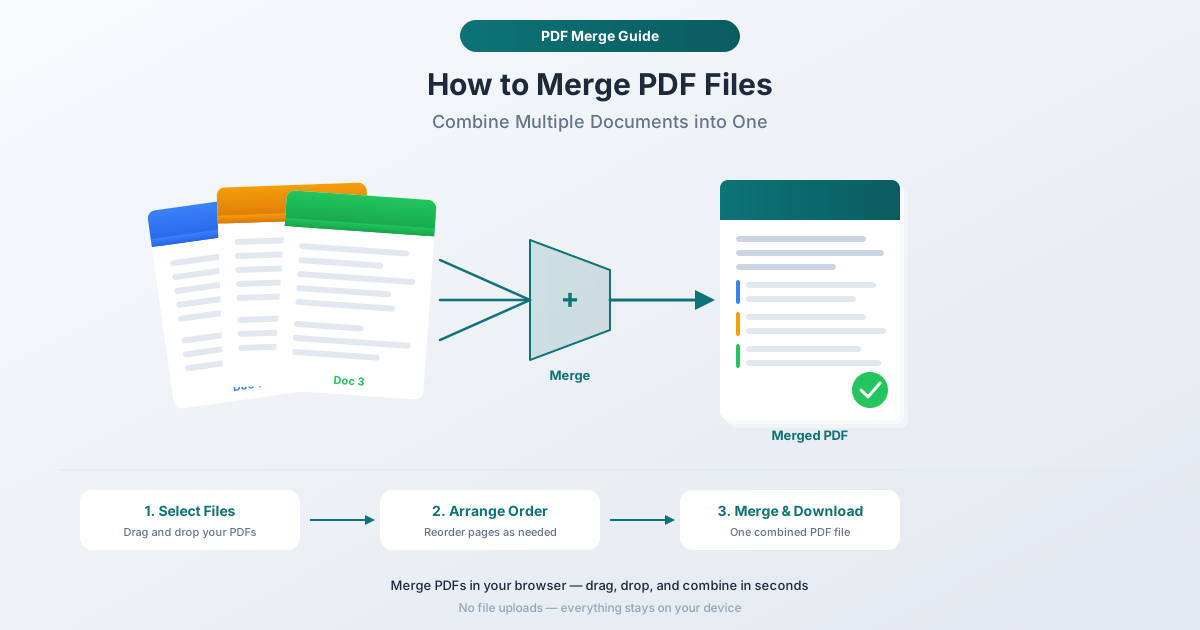
Why Merge PDFs? Common Use Cases
Before diving into methods, here's why people merge PDFs in the first place. If any of these sound familiar, you're in the right place.
Document Submission
Many applications - mortgage applications, insurance claims, college admissions, visa applications, grant proposals - require all supporting documents in a single PDF. Uploading five separate files when the form only has one upload button is a problem that merging solves instantly.
Creating Unified Reports
Financial reports, project updates, and board meeting packages often start as separate documents created by different people or exported from different systems. Merging them into a single PDF with a logical page order creates a professional, easy-to-navigate document.
Compiling Contracts and Legal Packages
Legal work generates enormous quantities of separate documents: the main agreement, exhibits, schedules, amendments, signature pages, and certificates. A merged PDF keeps everything together, makes it easier to reference specific sections, and ensures nothing gets lost when the package changes hands.
Organizing Records
Tax season means gathering W-2s, 1099s, receipts, and mortgage interest statements. Merging these into a single "2025 Tax Documents" PDF is simpler than managing 30 individual files - and much easier to send to your accountant.
Combining Scanned Pages
If you scanned a multi-page document one page at a time, you end up with individual PDFs for each page. Merging them recreates the complete document.
Method 1: PDFSub Merge PDF Tool (Recommended)
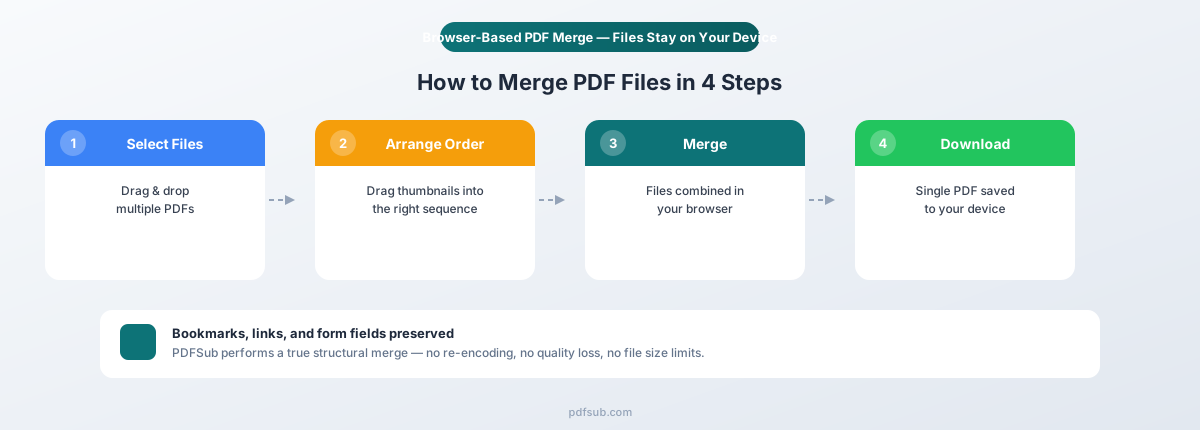
PDFSub's Merge PDFs tool is the fastest and most private way to combine multiple PDF files. It processes everything directly in your browser - your files never leave your device, and a 7-day free trial lets you get started without committing.
Step-by-Step Instructions
Step 1: Open the Merge PDFs tool. Go to pdfsub.com/tools/merge. No software to install - start with a 7-day free trial.
Step 2: Upload your PDF files. Drag and drop multiple PDF files into the upload area, or click to browse your computer. You can upload as many files as you need - there's no artificial limit on the number of documents.
Step 3: Reorder your files. Once uploaded, your files appear in a list. Drag and drop them into the order you want them to appear in the merged document. The first file in the list becomes the first pages of your merged PDF, the second file follows, and so on. Take a moment to verify the order - it's much easier to reorder now than to re-merge later.
Step 4: Merge. Click the merge button. The tool combines all your files into a single PDF. For most documents, this takes just a few seconds.
Step 5: Download. Your merged PDF is ready to download. The original files are unchanged - merging creates a new file.
Why This Method Is Best
Privacy by design. The merge operation happens entirely in your browser. Your PDF files are never uploaded to a server. This matters when you're working with sensitive documents - financial records, legal contracts, medical documents, tax filings, or anything containing personal information. There's nothing to trust because there's nothing to transmit.
No file size limits. Unlike many online tools that cap uploads at 10MB or 25MB, PDFSub handles large files. Multi-hundred-page documents, high-resolution scans, PDFs with embedded images - they all work.
Preserves document integrity. Bookmarks, internal links, form fields, and annotations from your original PDFs are preserved in the merged output. You won't end up with a merged document where all the clickable links and table of contents entries have disappeared.
Works on any device. Because it runs in the browser, it works on Windows, Mac, Linux, Chromebooks, and even tablets. No software installation required.
Reorder before merging. The drag-and-drop reordering interface lets you arrange files in exactly the right order before combining them. This sounds simple, but it's a feature that built-in operating system tools often lack.
Free to try. PDFSub offers a 7-day free trial with full access to all tools, including Merge PDFs. That's enough time to handle whatever merge project brought you here - and to explore the full suite of PDF tools.
Method 2: Preview on Mac (Built-In and Free)
If you're on a Mac, you already have a PDF merge tool installed. Preview - the default PDF and image viewer in macOS - can combine PDFs using its thumbnail sidebar. No downloads, no accounts, no internet connection required.
Step-by-Step Instructions
Step 1: Open the first PDF in Preview. Double-click the PDF file, or right-click and select Open With > Preview. If Preview isn't your default PDF viewer, use the right-click method.
Step 2: Show the thumbnail sidebar. Go to View > Thumbnails (or press Cmd+Opt+2). A sidebar appears on the left showing thumbnail images of each page.
Step 3: Select where to insert the second PDF. In the thumbnail sidebar, click on the page thumbnail after which you want the second document to appear. If you want the second PDF to appear at the end, click the last page thumbnail.
Step 4: Insert the second PDF. Go to Edit > Insert > Page from File. Select the second PDF file. Its pages are inserted into the document after the page you selected in Step 3.
Step 5: Repeat for additional files. If you're merging more than two PDFs, repeat Steps 3 and 4 for each additional file. Select the insertion point in the thumbnail sidebar, then insert the next file.
Step 6: Rearrange pages if needed. You can drag page thumbnails up and down in the sidebar to reorder individual pages. This is useful if the documents ended up in the wrong order or if you need to interleave pages from different sources.
Step 7: Save the merged file. This is the critical step - and where most people make a mistake. Go to File > Export as PDF to save the merged document as a new file with a new name. Do NOT use File > Save (Cmd+S), because that overwrites the original first PDF with the merged version. If you accidentally save over the original, the only way to recover it is from a backup.
Limitations of Preview
Easy to overwrite the original. As mentioned, pressing Cmd+S saves the merged document over the first PDF you opened. This has tripped up countless Mac users. Always use Export as PDF to save as a new file.
No batch operations. You can only insert one PDF at a time. If you're merging 10 documents, that means repeating the insert process 10 times. For large merge jobs, this becomes tedious quickly.
No drag-and-drop multi-file merge. You can drag PDF icons from Finder onto the thumbnail sidebar, but the behavior is unreliable and varies between macOS versions.
Limited reordering. You can drag individual page thumbnails, but you can't move a block of pages at once. If you inserted a 50-page document in the wrong spot, you'd drag 50 thumbnails one by one - or start over.
Mac only. If you work across platforms, this method doesn't translate.
No preservation guarantees. Complex PDFs with form fields, JavaScript actions, or embedded multimedia may not merge correctly. Simple text-and-image PDFs are fine.
Method 3: Online Merge Tools (General Category)
A quick web search for "merge PDF" returns dozens of free online tools. They all follow the same pattern: upload your PDFs to a website, click merge, download the result. They work, but they come with significant trade-offs you should understand before using them.
How They Typically Work
- Upload your files. You drag and drop or select PDF files from your computer. The files are uploaded to the service's servers.
- Arrange the order. Most tools let you reorder the files before merging.
- Click merge. The server combines the files and generates a download link.
- Download the merged PDF. You download the result and (hopefully) the service deletes your files from their servers.
Privacy Concerns
When you upload a PDF to an online merge tool, your files exist on someone else's servers. For a recipe collection, that's probably fine. For financial statements, legal contracts, medical records, or tax documents, it's a real risk.
Most services claim they delete files after a short period - usually one hour. But you have no way to verify that. You're trusting that their servers are secure, that deleted files are actually purged from all backups, and that no one has access to uploaded documents. Some privacy policies explicitly state that uploaded files may be used for "service improvement."
Under regulations like GDPR, HIPAA, and the FTC Safeguards Rule, uploading client documents to third-party servers creates compliance obligations. For accountants handling client financial data, IRS regulations impose criminal penalties for unauthorized disclosure of tax return information.
File Size Limits
Free tiers almost always impose file size limits - commonly 10MB, 25MB, or 50MB per file. This sounds generous until you're working with scanned documents (often 5–15MB per page) or image-heavy presentations. A 30-page scanned contract can easily exceed 100MB.
Other Limitations
- Speed depends on your internet connection. Uploading and downloading large files takes time. A browser-based tool that processes locally doesn't have this bottleneck.
- Requires internet access. If you're working offline, online tools are useless.
- Inconsistent quality. Some online tools re-compress images during the merge, reducing visual quality. Others strip metadata, bookmarks, or form fields.
- Aggressive upselling. Many free tools limit merges to 2–3 per day or add watermarks, then push you toward a paid plan.
When Online Tools Make Sense
Online merge tools are reasonable for low-stakes, non-sensitive documents when you don't have access to a better option. Merging a few pages of publicly available information, combining non-confidential school assignments, or joining files that don't contain personal data - these are fine use cases for a generic online tool.
For anything involving sensitive, confidential, or regulated information, use a method where your files stay on your device.
Common Merge Scenarios and Tips
Merging straightforward text PDFs is easy. The challenges show up when you're working with mixed document types, different page formats, or protected files. Here's how to handle the most common tricky scenarios.
Merging Scanned Documents with Digital PDFs
It's common to have a mix of digitally-created PDFs (from Word, Excel, or other software) and scanned PDFs (from a physical scanner or phone camera). They merge fine in terms of combining the files, but the result can be inconsistent in appearance.
Tips:
- Scanned pages are images, so they tend to have larger file sizes than digital pages. If the merged file is too large, consider compressing the PDF after merging.
- Page quality can vary. Scanned pages may look slightly blurry or have visible scan artifacts next to crisp digital pages. There's no fix for this short of rescanning at a higher resolution.
- If you need to search for text in the merged document, the scanned pages won't be searchable unless you run OCR (optical character recognition) on them first. PDFSub's OCR tool can add a searchable text layer to scanned pages.
Combining PDFs with Different Page Sizes or Orientations
Letter (8.5 x 11"), A4, legal, and landscape pages can all coexist in a single merged PDF. Most viewers handle mixed sizes gracefully on screen.
Tips:
- Printing is where issues arise. Set your printer to "Fit to Page" or "Auto-size" to avoid cropping or unexpected scaling.
- If you need uniform page sizes, use PDFSub's Change Page Size tool to standardize all pages before or after merging.
Merging Password-Protected PDFs
If any of your source PDFs are password-protected, you'll need to remove the protection before merging. Most merge tools - including built-in ones like Preview - cannot open or process password-protected files.
Tips:
- If you know the password, open the PDF and remove the protection first. In Preview on Mac, go to File > Export as PDF and uncheck the "Encrypt" option. In Adobe Acrobat, go to File > Properties > Security and set the security method to "No Security."
- PDFSub's Unlock PDF tool can remove password protection if you have the password - processing happens in your browser.
- If you don't know the password, you cannot merge the file. This is by design - PDF encryption exists to prevent unauthorized access.
Reordering Pages Before or After Merging
Sometimes you need more control than just ordering entire documents. Maybe you need to intersperse pages from different files, remove specific pages from one document before merging, or rearrange individual pages in the final output.
Tips:
- Before merging: Extract only the pages you need from each source PDF, then merge the extracted portions. PDFSub's Extract Pages tool lets you select specific pages to save as a new PDF.
- After merging: Use a page reorder tool to rearrange individual pages in the merged document. PDFSub's Reorder Pages tool provides a drag-and-drop interface for this.
- Remove unwanted pages: If the merged PDF has pages you don't need (cover pages, blank pages, duplicate pages), use a Delete Pages tool to remove them without re-merging.
Merging a Large Number of Files
When you're combining 20, 50, or 100+ files, efficiency matters.
Tips:
- Name files with a numbering prefix (e.g.,
001-cover-letter.pdf,002-resume.pdf). Most merge tools sort alphabetically, so numbered prefixes ensure the right order. - Upload all files at once. PDFSub supports multi-file batch upload.
- After merging, add page numbers using PDFSub's Page Numbers tool for easy reference.
Merge PDF for Specific Professions
Different professions have different merge needs. Here's how the task plays out in common professional contexts.
Real Estate
Real estate closings involve 50–100 pages across dozens of documents: the purchase agreement, title commitment, inspection reports, appraisal, mortgage documents, and closing disclosure. Merge them into a single PDF in logical order and add page numbers for a professional closing package. Many title companies now require this format for electronic closings.
Legal
Attorneys compile document packages for court filings, due diligence, and regulatory submissions. Merge documents in the order specified by the court or deal checklist. Add Bates numbers or page numbers for easy reference. For court filings, verify the merged PDF meets electronic filing requirements - some courts have specific page size or formatting rules.
Tax Preparation
Tax professionals gather W-2s, 1099s, K-1s, mortgage interest statements, donation receipts, and prior-year returns. Create one merged PDF per client containing all source documents, ordered by form type. This becomes the permanent record for that tax year - far easier to manage than dozens of individual files.
Finance and Accounting
Accountants and bookkeepers merge financial statements, bank reconciliations, audit workpapers, and client deliverables into organized packages.
Best practice: Merge supporting documents in the order they're referenced in the workpaper index or deliverable checklist. When merging bank statements for reconciliation, keep them in chronological order and verify that no months are missing before starting.
Frequently Asked Questions
Is there a maximum file size for merging PDFs?
With PDFSub, there's no hard file size limit - the constraint is your device's available memory since processing happens in the browser. In practice, this means you can merge files totaling several hundred megabytes without issues on most modern computers. Online tools typically cap individual file sizes at 10–50MB on free tiers.
Is there a page limit for merged PDFs?
No practical limit. The PDF specification supports millions of pages, and merged documents with thousands of pages work fine. The real constraint is file size and how quickly your PDF viewer can render the document.
Does merging preserve form fields?
It depends on the tool. PDFSub preserves form fields (text inputs, checkboxes, dropdowns) from the original PDFs in the merged output. Preview on Mac has inconsistent behavior with form fields - simple forms usually survive, but complex forms with JavaScript validation or calculated fields may not. Online tools vary widely.
Can I merge specific pages from different PDFs instead of entire files?
Yes. The most efficient approach is to extract just the pages you need from each source PDF first, then merge the extracted portions. With PDFSub, use the Extract Pages tool to pull specific pages from each file, then use the Merge tool to combine them. This avoids merging entire documents and then deleting the pages you don't need.
Can I merge PDFs on my phone or tablet?
Yes, if you use a browser-based tool. PDFSub runs in any modern browser, including mobile browsers on iOS and Android. Upload files, reorder, merge, and download - the same workflow as on desktop.
Does merging PDFs reduce quality?
It shouldn't. A proper merge combines the internal structures of the source PDFs without re-encoding or re-compressing content. Text stays as text, images remain at their original resolution, and vector graphics keep their precision. If you notice degradation, the tool is likely re-processing content unnecessarily - switch to one that performs a true structural merge.
Can I merge PDFs with different orientations (portrait and landscape)?
Yes. Each page retains its original orientation in the merged file, and PDF viewers rotate the display accordingly as you scroll. This is valid per the PDF specification and works in all standard viewers.
How do I merge PDFs in a specific order?
In PDFSub, drag and drop the file thumbnails into your preferred order before clicking merge. In Preview on Mac, the insertion order determines the page order. For large batches, naming files with numeric prefixes (001, 002, 003...) before uploading ensures they sort correctly.
Is it safe to merge PDFs containing sensitive information?
It depends on the tool. With PDFSub, merging happens in your browser - files never leave your device. With online tools, files are uploaded to external servers, creating privacy and compliance risks. For sensitive documents, use a tool that processes locally.
Can I undo a merge?
Merging creates a new file - it doesn't alter the originals. You can always re-merge in a different order. The exception is Preview on Mac, where pressing Cmd+S overwrites the original. Always use Export as PDF in Preview.
Which Method Should You Use?
Here's a quick comparison to help you decide:
| Feature | PDFSub | Preview (Mac) | Online Tools |
|---|---|---|---|
| Platform | Any (browser-based) | Mac only | Any (browser-based) |
| Privacy | Files stay on your device | Files stay on your device | Files uploaded to servers |
| File size limit | No hard limit | No hard limit | Typically 10–50MB (free) |
| Multi-file upload | Yes | One at a time | Usually yes |
| Reorder before merge | Drag-and-drop | Manual page dragging | Usually yes |
| Preserves bookmarks | Yes | Inconsistent | Varies |
| Preserves form fields | Yes | Inconsistent | Varies |
| Offline use | Yes (after page loads) | Yes | No |
| Cost | 7-day free trial | Free (included with Mac) | Free tier with limits |
For most people, PDFSub is the best choice - it combines the privacy of local processing with the convenience of a browser-based tool, works on any platform, handles large files, and preserves document features that other methods can lose.
If you're on a Mac and merging two simple PDFs, Preview works - just remember to use Export as PDF instead of Save.
If your documents are non-sensitive and you don't mind uploading them to a third-party server, online tools are adequate for occasional use.
Start Merging
Ready to combine your PDFs? Open the Merge PDFs tool and drag in your files. Processing happens in your browser - your documents never leave your device. No account required to get started, and PDFSub offers a 7-day free trial with full access to all tools.