How to E-Sign PDFs Without Expensive Software
You don't need DocuSign, Adobe Sign, or any paid software to legally sign a PDF. Here are free and low-cost ways to add your signature to any document.
Someone emails you a PDF that needs your signature. A lease agreement. A freelance contract. An NDA. A permission slip for your kid's field trip. You open it and think: do I really need to pay $25/month for DocuSign just to put my name on this?
No. You don't.
Electronic signatures are legally binding in the United States under federal law, and you have multiple free options for adding your signature to any PDF. This guide covers them all - from the quickest browser-based approach to built-in tools on your Mac, phone, and Google account.
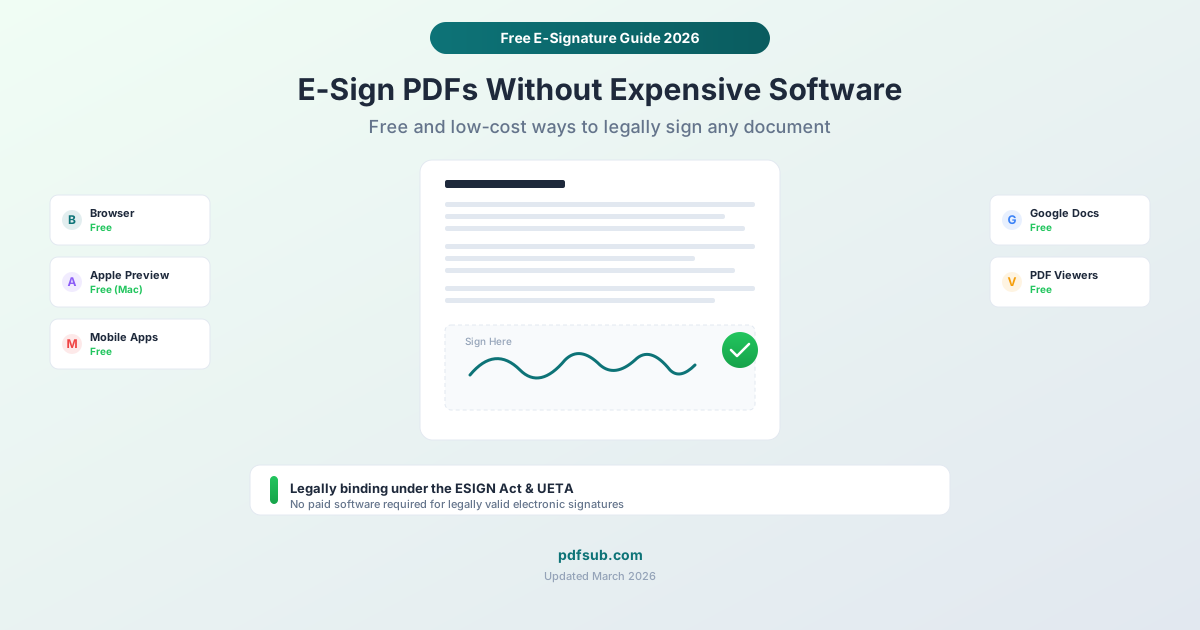
First: Yes, Free E-Signatures Are Legally Binding
Before we get into the tools, let's address the concern that stops most people: "Is a free e-signature actually legal?"
Yes. Here's why.
The ESIGN Act (Electronic Signatures in Global and National Commerce Act) was signed into U.S. federal law in 2000. It establishes that:
An electronic signature is "an electronic sound, symbol, or process, attached to or logically associated with a contract or other record and executed or adopted by a person with the intent to sign the record."
The UETA (Uniform Electronic Transactions Act) provides the same framework at the state level and has been adopted by 49 U.S. states plus the District of Columbia.
What this means in practice: whether you draw your signature with a $300/month enterprise tool or with your finger on a free mobile app, the electronic signature carries the same legal weight as a wet-ink signature for the vast majority of business and personal transactions.
The legal requirements are:
- Intent to sign. You intended to sign the document (you weren't tricked or coerced).
- Consent to electronic process. Both parties agree to conduct business electronically.
- Association with the record. The signature is attached to or associated with the specific document.
- Record retention. Both parties can access and retain the signed document.
There are exceptions - wills, certain real estate deeds, court orders, and a few other document types still require wet-ink signatures in some jurisdictions. But for contracts, NDAs, invoices, consent forms, and the vast majority of documents people sign in daily life, electronic signatures are fully legal.
The tool doesn't determine legality. Intent does.
Method 1: PDFSub - Free Browser-Based E-Signature
Cost: 7-day free trial with full access Works on: Any device with a web browser Privacy: Your document never leaves your device - processed entirely in the browser
This is the fastest option if you have a PDF that needs a signature right now.
How it works:
- Go to pdfsub.com and open the E-Sign PDF tool
- Upload your PDF (it stays in your browser - not uploaded to a server)
- Choose your signature method: draw with your mouse/trackpad, type your name, or upload an image of your signature
- Click where you want to place the signature on the document
- Add a date if needed
- Download the signed PDF
The entire process takes about 30 seconds. Signup takes another minute - then the 7-day free trial gives you full access to sign as many documents as you need.
When to use PDFSub:
- You need to sign a document quickly and don't want to create an account anywhere
- You're handling sensitive documents and don't want to upload them to a cloud server
- You also need other PDF tools (Merge PDFs, Compress PDF, Redact PDF, etc.) - PDFSub has 98+ tools in one place
Limitations:
- PDFSub is designed for signing your own documents. You can't send a document to someone else for their signature with tracking and reminders - that requires a dedicated e-signature platform like SignNow or PandaDoc.
Method 2: Apple Preview - Built Into Every Mac
Cost: Free (included with macOS) Works on: Mac only Privacy: Fully offline - everything happens on your machine
If you're on a Mac, you already have a surprisingly capable PDF signature tool. Apple Preview has supported e-signatures since macOS Mojave, and it works well.
How it works:
- Open the PDF in Preview (right-click the file and choose "Open With > Preview")
- Click the Markup toolbar button (it looks like a pen tip)
- Click the Signature button
- Create your signature: draw on your trackpad, use your iPhone/iPad camera to capture a handwritten signature, or sign and hold it up to your Mac's camera
- Click where you want to place the signature
- Resize and position it
- Save the file (Command + S)
Tips for Apple Preview signatures:
- Preview stores your signatures, so you only create them once. Future documents take seconds.
- Use the trackpad option for the most natural-looking signature.
- The iPhone/iPad camera capture is excellent - sign on paper with a dark pen, hold it up to your device, and Preview captures it cleanly.
Limitations:
- Mac only. No Windows or Linux support.
- No date or text field options - you'll need to use the text tool separately.
- Can't send documents for others to sign.
Method 3: Adobe Fill & Sign - Free Mobile App
Cost: Free Works on: iOS and Android Privacy: Cloud-based (documents are processed through Adobe's servers)
Adobe offers a free mobile app called Adobe Fill & Sign (now part of Adobe Acrobat Reader) that handles basic PDF signatures without a subscription.
How it works:
- Download Adobe Acrobat Reader (free) from your app store
- Open a PDF in the app
- Tap the pencil icon, then "Fill & Sign"
- Tap where you want to add your signature
- Draw your signature or type it
- Save and share the signed document
When to use Adobe Fill & Sign:
- You receive a document on your phone and need to sign it immediately
- You prefer a well-known brand name for peace of mind
- You need to fill out form fields in addition to signing
Limitations:
- The free version is functional but Adobe pushes hard for the paid subscription ($19.99/month for Acrobat Pro)
- Documents are processed through Adobe's cloud, which may be a concern for sensitive documents
- The app experience on mobile is good; the desktop free version is more limited
Method 4: Google Docs - Free With a Google Account
Cost: Free Works on: Any device with a web browser Privacy: Documents are stored in Google Drive
If you have a Google account, you can sign PDFs through Google Docs - though the process is less elegant than the other options.
How it works:
- Upload the PDF to Google Drive
- Right-click and open with Google Docs
- Google converts the PDF to an editable document (this may affect formatting)
- Insert your signature: go to Insert > Drawing > New, then draw your signature using the scribble tool
- Position the signature where it needs to go
- Download as PDF (File > Download > PDF Document)
When to use Google Docs:
- You're already in the Google ecosystem and don't want to use another tool
- The PDF is simple (mostly text, minimal formatting)
- You need to make text edits in addition to signing
Limitations:
- Google Docs converts PDFs to its own format, which often destroys the original layout. Tables break, images shift, fonts change. For complex PDFs, the result can be unusable.
- The signature drawing tool is clunky compared to dedicated e-signature tools
- The workflow is slower than alternatives (upload, convert, draw, export)
Method 5: Built-In PDF Viewers and OS Tools
Cost: Free Works on: Varies by platform
Both Windows and many Linux distributions include basic PDF annotation capabilities that can handle signatures.
Windows (Microsoft Edge):
- Open the PDF in Microsoft Edge (it's the default PDF viewer on Windows)
- Click "Draw" in the toolbar
- Sign using your mouse, trackpad, or stylus
- Save the file
iOS (Markup):
- Open the PDF in Files or Mail
- Tap the Markup button
- Tap the "+" button, then "Signature"
- Draw your signature and place it
Android:
Most Android PDF viewers include basic annotation. Google Drive's built-in PDF viewer supports drawing annotations that work as signatures.
Limitations:
- These built-in tools are basic - they work for putting a signature on a page, but lack features like typed signatures, form filling, or date stamps.
- Edge's drawing tool is imprecise with a mouse.
Choosing the Right Method
Here's a quick decision framework:
Fastest option: PDFSub browser tool - 7-day free trial, no download, 30-second workflow
Best for Mac users: Apple Preview - built in, stores signatures, polished experience
Best for phone signing: Adobe Fill & Sign - free app, good touch interface
Already in Google? Google Docs works for simple PDFs, but be aware of formatting issues
Need to also edit the PDF? PDFSub (98+ tools) or Adobe Fill & Sign (limited free features)
Sensitive documents? PDFSub (browser-based, no upload) or Apple Preview (fully offline)
What About Paid E-Signature Tools?
Paid tools like DocuSign ($25+/month), Adobe Sign ($19.99+/month), and Dropbox Sign ($15+/month) exist for a reason. They're designed for sending documents to other people for signature, with features like:
- Sending documents to multiple signers in sequence
- Automatic reminders for unsigned documents
- Audit trails with timestamps and IP addresses
- Template libraries for frequently used documents
- CRM integrations (Salesforce, HubSpot)
- API access for embedding signatures in your app
If you regularly send contracts, proposals, or agreements that require other people's signatures with tracking and accountability, a paid e-signature tool is worth the investment.
But if you just need to sign a document yourself - which is what most people need most of the time - you don't need any of that. The free methods above are legally valid, functionally sufficient, and cost nothing.
Tips for Better E-Signatures
Regardless of which tool you use, a few tips will make your e-signatures look more professional:
Create your signature once and save it. Most tools let you store your signature for reuse. Take time to make it look good the first time.
Use a stylus or trackpad when possible. Mouse-drawn signatures look shaky. A trackpad or stylus produces a more natural result.
Keep a high-resolution image of your signature. Sign on white paper with a dark pen, photograph it in good lighting, and crop it. This gives you a clean signature image you can use anywhere.
Include the date. Many documents require a date next to the signature. Most tools let you add text - use it.
Save the signed document as a new file. Don't overwrite the original unsigned PDF. Keep both versions for your records.
Frequently Asked Questions
Can a free e-signature be used in court?
Yes. The legal validity of an electronic signature comes from the ESIGN Act and UETA, not from the tool used to create it. Courts look at intent to sign, consent to electronic process, and the signature's association with the record. The tool is irrelevant to legal standing. Free and paid tools produce equally valid signatures.
What types of documents can't be e-signed?
Most documents can be legally e-signed. The exceptions under the ESIGN Act include: wills, codicils, and testamentary trusts; certain family law matters (adoption, divorce); court orders; cancellation notices for utility services, insurance, or credit agreements secured by a primary residence; and product recalls. If your document falls outside these categories, an electronic signature is legally valid.
Is it safe to sign sensitive documents online?
It depends on the tool. Tools that process documents in your browser (like PDFSub) never upload your file to a server, making them as private as working on your own computer. Cloud-based tools (like Google Docs or Adobe) process your document on their servers, which means your data passes through a third party. For highly sensitive documents, choose a browser-based or offline tool.
Do I need to include a date with my e-signature?
There's no universal legal requirement to date your signature, but many documents include a date line for good reason: it establishes when you signed. Most e-signature tools automatically include timestamps in their metadata. For documents where the date matters (contracts, agreements), add the date next to your signature.
Can I sign a PDF on my phone?
Yes. Every method in this guide works on a phone either directly or through a mobile browser. Adobe Fill & Sign is the best dedicated mobile app. PDFSub works in any mobile browser. iOS has built-in Markup tools. Most Android PDF viewers support basic drawing annotations. You can sign a PDF on your phone in under a minute.