How to Remove or Edit PDF Metadata (Author, Title, Hidden Data)
PDFs contain hidden metadata - author name, creation date, software used, even GPS coordinates. Here's how to view, edit, or strip it before sharing.
Every PDF you create or edit carries hidden information - metadata that describes who made it, when, with what software, on which operating system, and sometimes much more. This information is invisible when viewing the document normally, but anyone can access it in seconds through File > Properties in any PDF viewer.
Most of the time, metadata is harmless. But when you're sharing documents externally - with clients, opposing counsel, the public, or anonymous recipients - metadata can reveal information you didn't intend to share. Your full name and email address. Your company's internal software environment. Draft revision history showing how many times the document was edited. Creation timestamps that might contradict a stated timeline. Even GPS coordinates if the document contains photos taken on a phone.
This guide covers what metadata is hiding in your PDFs, why it matters, and how to either edit it to show what you want or strip it entirely before sharing.
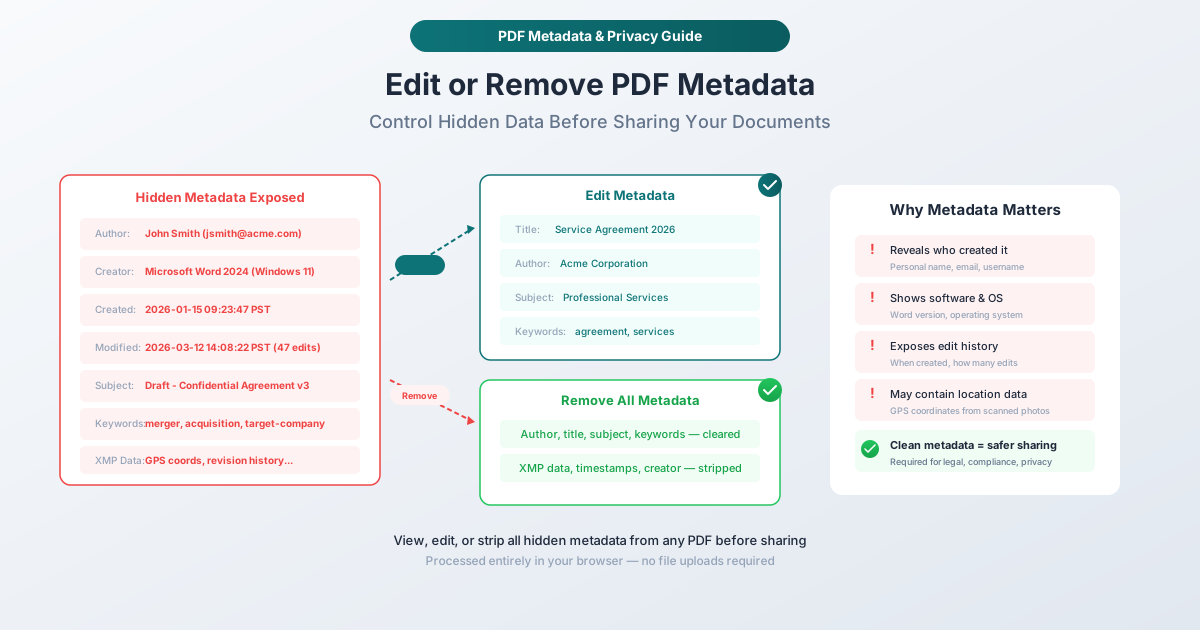
What Metadata Is Inside Your PDF
PDF metadata falls into two categories: the basic document properties (visible in any PDF viewer's "Properties" dialog) and the extended XMP metadata (a more detailed XML block stored inside the file).
Basic Document Properties
These are the standard fields that every PDF can contain:
Title: The document's title. Often auto-filled from the filename or the first heading in the source document. Sometimes left blank, sometimes revealing an internal working title (like "DRAFT - Merger Agreement v3 - DO NOT DISTRIBUTE").
Author: The person or organization that created the document. This is typically pulled from the user profile of whatever software created the PDF. If you created a Word document on your personal computer, this is probably your full name as registered with Microsoft Office.
Subject: A description of the document's topic. Usually blank, but some document management systems populate it automatically.
Keywords: Tags associated with the document. Occasionally populated by document management systems or manually by the author. Can reveal classification information ("confidential," "restricted," "internal-only") or topic categorization.
Creator: The application used to create the source document. Examples: "Microsoft Word 2024," "Google Docs," "Adobe InDesign 2026," "LibreOffice 7.6." This reveals what software your organization uses.
Producer: The application or library that generated the PDF. This is often different from the Creator - Word might be the creator, but the PDF might be produced by "Microsoft Print to PDF" or a specific PDF library. This reveals technical infrastructure details.
Creation Date: When the PDF was first created. Includes a precise timestamp - date, time, and timezone. If you claim a document was created on March 1 but the metadata shows January 15, that inconsistency could be problematic in legal or compliance contexts.
Modification Date: When the PDF was last modified. Combined with the creation date, this shows the document's lifecycle. A document created in January and modified 47 times through March tells a story about the editing process.
Extended XMP Metadata
XMP (Extensible Metadata Platform) is a more detailed metadata format embedded as XML inside the PDF. It can contain:
- Document history: A log of every save, edit, and conversion the document went through
- Contributor information: Names and identifiers of everyone who touched the document
- Rights management: Copyright declarations, usage restrictions, licensing terms
- Custom properties: Any key-value pair that software or workflows have embedded
- Thumbnail image: A preview image of the first page, embedded in the metadata
Image-Level Metadata (EXIF)
If your PDF contains photos (especially from phones), those photos may carry their own EXIF metadata:
- GPS coordinates: Where the photo was taken - down to a few meters of accuracy
- Camera information: Device model, lens, settings
- Date and time: When the photo was captured
- Orientation and dimensions: Original image properties
This is particularly sensitive. A PDF that includes a photo taken at your home address carries your GPS coordinates in the EXIF data.
When Metadata Matters
Legal Document Sharing
Law firms routinely scrub metadata before sharing documents with opposing counsel. Metadata can reveal:
- When a document was actually created (versus when it's claimed to have been)
- How many revisions were made (suggesting negotiation strategy)
- Who else contributed (revealing team composition)
- What software was used (potentially relevant for authenticity)
Many legal malpractice claims have involved metadata that should have been stripped but wasn't. It's considered a basic professional responsibility in legal practice.
Public Document Release
When organizations release documents publicly - regulatory filings, annual reports, press releases, public records responses - metadata should be clean. A government agency releasing a public document shouldn't reveal the individual employee's name, their personal software license, or their computer's timezone.
Sensitive Business Documents
Contracts, proposals, and financial documents shared between companies can inadvertently reveal information through metadata. A proposal's creation date might show you prepared it before the client's official RFP was published (suggesting inside knowledge). The author field might reveal that an outsourced contractor - not your claimed in-house team - prepared the work.
Privacy and Personal Safety
For individuals, metadata can be a safety concern. Documents shared online or with strangers shouldn't contain your full name, email, physical location (via GPS in embedded photos), or any personal identifiers. This is particularly relevant for whistleblowers, journalists' sources, victims of harassment, and anyone who needs to share documents without revealing their identity.
GDPR and Data Protection Compliance
Under GDPR and similar regulations, personal data includes names and identifiers in document metadata. If you're sharing documents that contain metadata with personal information, you may be processing personal data without a legal basis. Stripping metadata before sharing is a simple compliance measure.
Edit Metadata vs. Remove Metadata
You have two options, and the right choice depends on your situation.
Edit Metadata
Editing lets you replace metadata values with the information you want to show. Instead of your personal name, set the author to your company name. Instead of "DRAFT - Merger v3," set the title to "Service Agreement 2026." Instead of revealing your software stack, set the creator to a generic value.
When to edit: When the document should have metadata - just not the current values. Professional documents benefit from having a proper title, a corporate author, and relevant keywords. Editing lets you control the narrative while keeping the metadata structure intact.
Remove Metadata
Removing strips all metadata fields to blank or default values. The document retains no information about who created it, when, or how. This is the nuclear option - thorough and irreversible.
When to remove: When any metadata is a liability. Legal document sharing, public records release, anonymous document sharing, and situations where you simply want zero metadata footprint. When in doubt, remove everything.
How to Edit PDF Metadata with PDFSub
PDFSub's Edit Metadata tool runs in your browser. Your PDF is processed locally - the file never leaves your device.
Step-by-Step Instructions
Step 1: Open the tool. Navigate to pdfsub.com/tools/edit-metadata.
Step 2: Upload your PDF. Drag and drop the file or click to browse. The PDF loads in your browser.
Step 3: View current metadata. The tool displays all metadata fields currently in the document - title, author, subject, keywords, creator, producer, creation date, and modification date.
Step 4: Edit fields. Click on any field to modify its value. Change the author to your organization name, update the title to something appropriate, add or remove keywords, or adjust dates.
Step 5: Save. Download the modified PDF with your updated metadata.
How to Remove PDF Metadata with PDFSub
PDFSub's Remove Metadata tool strips all metadata from the document, also running entirely in your browser.
Step-by-Step Instructions
Step 1: Open the tool. Navigate to pdfsub.com/tools/remove-metadata.
Step 2: Upload your PDF. Drag and drop the file or click to browse.
Step 3: Remove. Click the remove button. The tool strips all document properties, XMP metadata, and EXIF data from embedded images.
Step 4: Download. The cleaned PDF downloads with all metadata removed.
What Gets Removed
The removal process strips:
- All document properties (title, author, subject, keywords, creator, producer)
- All timestamps (creation date, modification date)
- All XMP metadata (editing history, contributor info, custom properties)
- EXIF data from embedded images (GPS coordinates, camera info, capture dates)
- Thumbnail images embedded in metadata
- Custom metadata fields added by document management systems
What Stays
The visible document content - text, images, layout, annotations, form fields - is completely unchanged. Removing metadata only affects the hidden information layer; the document itself looks and functions identically.
Checking Your PDF's Metadata
Before editing or removing, you should know what's already in there. Here are ways to check.
In Any PDF Viewer
Open the PDF and look at the document properties:
- Adobe Acrobat/Reader: File > Properties > Description tab
- Preview (Mac): Tools > Show Inspector > General tab
- Chrome/Edge browser: Open the PDF, click the properties icon
This shows the basic metadata fields. It doesn't show the full XMP metadata block.
Using PDFSub
Upload the PDF to PDFSub's Edit Metadata tool and it displays all metadata fields - including XMP data and embedded image metadata that basic viewers don't show.
Building a Metadata Hygiene Workflow
Rather than cleaning metadata as an afterthought, build it into your document workflow.
Before External Sharing
Make it a checklist item: before any document goes to an external party, run it through metadata removal or editing. This takes seconds and eliminates an entire category of information leakage.
Template Documents
If your organization creates documents from templates, set the template metadata to appropriate values (company name as author, generic creator, etc.). This way, every new document starts with clean metadata rather than inheriting the template creator's personal information.
After Merging PDFs
When you merge multiple PDFs from different sources, the resulting file inherits metadata from the source files - sometimes combining author names, creation dates, and software identifiers from multiple documents. Clean the metadata after any merge operation.
After Scanning
Scanned documents carry scanner-specific metadata (device model, firmware version, scanning settings). If you're distributing scanned documents externally, strip this metadata to avoid revealing your equipment details.
Frequently Asked Questions
Will removing metadata change how my PDF looks?
No. Metadata is invisible information stored alongside the document content. Removing it has zero effect on the document's appearance, text, images, formatting, or functionality. The only change is in the hidden properties - what you see when you check File > Properties.
Can removed metadata be recovered?
No. Once metadata is stripped from a PDF, it's gone. The removal process overwrites the metadata blocks in the file - there's no undo or recovery mechanism. Always keep a copy of the original file if you might need the metadata later.
Does metadata affect file size?
Minimally. Basic metadata (title, author, dates) is a few hundred bytes. Extended XMP metadata with editing history can be a few kilobytes. Embedded thumbnail images in metadata can be 20-50 KB. For a typical document, removing metadata saves less than 100 KB - negligible compared to the document content.
Is metadata the same as document properties?
Document properties are a subset of metadata. "Document properties" typically refers to the basic fields visible in the Properties dialog (title, author, subject, keywords, dates). "Metadata" is a broader term that includes document properties plus XMP data, image EXIF data, editing history, and custom fields. When people say "remove metadata," they usually mean all of it - not just the visible properties.
Can I selectively remove some metadata but keep other fields?
Yes. PDFSub's Edit Metadata tool lets you modify individual fields. You can clear the author and creator while keeping the title and keywords, for example. If you want complete removal with no decisions, use the Remove Metadata tool instead. Most people either edit specific fields or remove everything - partial removal is less common but fully supported.
Summary
PDF metadata is hidden information that can reveal who created a document, when, with what software, and sometimes where. For most internal documents, this doesn't matter. For documents shared externally - with clients, opposing counsel, the public, or anonymous recipients - metadata can be a privacy and security liability.
| Action | When to Use | What Changes |
|---|---|---|
| Edit Metadata | Professional documents that should have controlled metadata | Specific fields updated to chosen values |
| Remove Metadata | Sensitive sharing, legal, compliance, privacy | All hidden data stripped completely |
| Do Nothing | Internal documents, trusted recipients | Nothing - existing metadata stays |
The general rule: if the document is going outside your organization, clean the metadata. It takes seconds and eliminates an entire category of unintentional information disclosure.
Ready to clean your PDFs? Edit metadata to control what's shown, or remove metadata to strip everything - both tools run in your browser with no file uploads.