How to Delete Pages from a PDF Online (Free)
Need to remove a page from a PDF? Here's how to delete specific pages - free, in your browser, without affecting the rest of the document.
There's a blank page in the middle of your contract. Or the scanned document has a test page from the copier mixed in. Or your vendor sent a 40-page PDF and you only need to share the first 12 - minus the cover sheet that has their internal reference numbers on it.
Deleting pages from a PDF is one of those tasks that sounds trivial but trips people up because PDF files aren't designed to be casually edited. You can't just open a PDF and press delete like you would in a word processor. You need a tool that understands PDF structure and can cleanly remove pages without breaking the rest of the document.
This guide covers how to delete pages from a PDF using PDFSub's browser-based tool, common scenarios where page deletion is the right move, and practical tips for getting clean results.
When to Delete Pages from a PDF
Page deletion is the right tool when specific pages shouldn't be in the document. Here are the most common situations.
Removing Blank Pages
Blank pages creep into PDFs constantly. Scanners add them when they detect a sheet on both sides but one side is empty. Printers insert blank pages between sections for double-sided printing. Word processors add them at section breaks. Whatever the cause, blank pages in a digital PDF serve no purpose and make the document look unprofessional.
Removing Cover Sheets and Fax Pages
Scanned documents often start with a fax cover sheet, a printer separator page, or a copy machine test page. These are artifacts of the scanning process, not part of the actual document. Delete them before sharing or archiving.
Removing Sensitive Information Before Sharing
You have a complete internal report, but the last three pages contain salary data that shouldn't go to the external auditor. Or a contract has an appendix with pricing that's irrelevant to the recipient. Deleting those pages creates a clean document you can share without worry.
Trimming Downloaded Documents
You downloaded a PDF from a website and it includes pages of ads, disclaimers, or irrelevant appendices. Delete the pages you don't need and keep only the content that matters.
Fixing Merge Mistakes
After merging several PDFs, you realize one of the source files was included by mistake, or a document was duplicated. Rather than re-merging from scratch, delete the extra pages.
How to Delete Pages with PDFSub
PDFSub's Delete Pages tool lets you select and remove specific pages from any PDF. Everything happens in your browser - your file is never uploaded to a server.
Step-by-Step Instructions
Step 1: Open the Delete Pages tool. Go to pdfsub.com/tools/delete. No installation needed - start with a 7-day free trial.
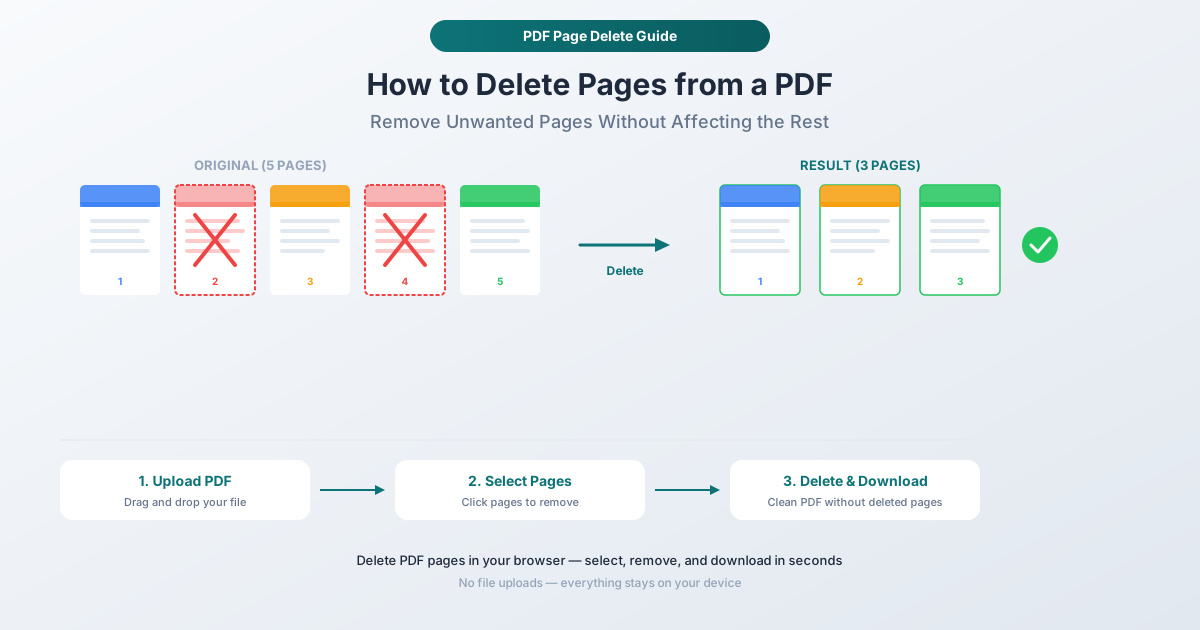
Step 2: Upload your PDF. Drag and drop your file into the upload area, or click to browse. The tool loads your document and generates thumbnail previews of every page.
Step 3: Select pages to delete. Click on the thumbnail of any page you want to remove. Selected pages are visually marked so you can clearly see what will be deleted. Click again to deselect if you change your mind. You can select as many pages as needed - one, several, or dozens.
Step 4: Preview and confirm. Before deleting, review your selections. The thumbnails make it easy to verify you're removing the right pages. This preview step prevents accidental deletion of important content.
Step 5: Delete and download. Click the action button. The tool creates a new PDF with the selected pages removed. Download your clean document. The original file remains unchanged - deletion creates a new file, it doesn't modify the source.
Why Browser-Based Deletion Matters
Your file stays private. When you delete pages from a PDF that contains client data, financial information, legal documents, or personal records, the last thing you want is that file sitting on someone else's server. PDFSub processes everything locally in your browser. No upload, no server storage, no privacy risk.
No software to install. You don't need Adobe Acrobat, a desktop application, or a browser extension. The tool runs directly in your web browser on any device - Windows, Mac, Linux, Chromebook, or tablet.
Preserves document quality. Deleting pages doesn't re-encode the remaining content. Text stays as text, images keep their resolution, and the file size drops proportionally to the removed content. There's no hidden recompression that degrades quality.
Common Deletion Patterns
Delete a Single Page
The simplest case. You know exactly which page needs to go - maybe it's a blank page at the end, or a duplicate page in the middle. Click the thumbnail, delete, download. Done in seconds.
Delete Multiple Scattered Pages
Pages 3, 7, and 15 all need to go. Click each thumbnail to select them, then delete all at once. This is faster than deleting one at a time, and the remaining pages are automatically renumbered in sequence.
Delete a Range of Pages
You need to remove pages 20 through 35 from a 50-page document. Select the entire range by clicking each thumbnail (or use a range selector if available). The resulting PDF will have pages 1-19 and 36-50, renumbered as pages 1-30.
Delete Everything Except a Few Pages
If you need pages 5, 6, and 7 from a 30-page PDF, consider using PDFSub's Extract Pages tool instead. Extracting three pages is faster than deleting twenty-seven. Both operations get you to the same result - a new PDF with only the pages you want - but extraction is more efficient when you're keeping fewer pages than you're removing.
Delete vs. Extract vs. Split: Choosing the Right Tool
These three tools overlap in what they can accomplish, but each is optimized for a different intent.
| Tool | Best For | Result |
|---|---|---|
| Delete Pages | Removing a few unwanted pages from a document | One PDF with specific pages removed |
| Extract Pages | Pulling specific pages out into a new file | One new PDF with only the selected pages |
| Split PDF | Dividing a document into multiple parts | Multiple PDFs from one source document |
Rule of thumb: If you're removing pages, use Delete. If you're keeping pages, use Extract. If you're dividing a document into sections, use Split.
Tips for Clean Page Deletion
Always Preview Before Deleting
It's easy to miscount pages, especially in long documents. The thumbnail preview exists for exactly this reason - use it. Verify that the pages you selected are actually the ones you want to remove. A page that looks blank in a small thumbnail might have a small but important note or footer.
Check for Linked Content
Some PDFs have a table of contents or internal links that reference specific page numbers. Deleting pages shifts the numbering of every subsequent page. If your PDF has a clickable table of contents, the links may point to wrong pages after deletion. For documents where internal navigation matters, consider recreating the table of contents after deleting pages.
Consider File Size
Deleting pages reduces file size proportionally. A 10MB PDF with 20 pages becomes roughly 5MB after deleting half the pages (assuming pages are similar in size). If your goal is to reduce file size specifically, PDFSub's Compress PDF tool is more effective - it optimizes images and internal structures without removing content.
Combine with Other Operations
A practical workflow for cleaning up a messy document: upload the PDF, delete unwanted pages, then use the Reorder Pages tool to fix the sequence of remaining pages, and finally add page numbers with the Page Numbers tool. Each operation builds on the last.
Save the Original
Since PDFSub creates a new file rather than modifying the original, you always have a backup. But it's still good practice to keep the original file until you've verified the edited version is exactly right. Recovering deleted pages from the original is trivial; recovering them from memory is not.
Frequently Asked Questions
Does deleting pages from a PDF reduce the file size?
Yes. Each page contributes to the overall file size - text content, embedded images, fonts used on that page, and internal metadata. When you remove a page, that data is removed from the file. Pages with large images or complex graphics contribute more to file size than text-only pages, so deleting image-heavy pages produces a more noticeable size reduction.
Can I undo a page deletion?
PDFSub creates a new file rather than modifying your original. Your original PDF is untouched, so you can always go back to it. If you need a different set of pages deleted, upload the original again and make different selections.
Will deleting pages break form fields on other pages?
Form fields on remaining pages are preserved. If a form field spans multiple pages (which is uncommon), deleting one of those pages may affect the form behavior. For most standard PDF forms, deleting unrelated pages has no impact on form functionality.
Can I delete pages from a scanned PDF?
Yes. The deletion tool works with any PDF regardless of how it was created. Scanned PDFs (where each page is essentially an image) work exactly the same as digitally-created PDFs. Select the pages, delete, download.
Is there a limit to how many pages I can delete?
You can delete as many pages as you want, as long as at least one page remains. A PDF must have at least one page - you can't create an empty PDF by deleting everything. If you need to delete all pages, you don't need the file at all.
Start Deleting
Ready to clean up your PDF? Open the Delete Pages tool and upload your file. Select the pages you don't need, verify with the thumbnail preview, and download your clean document. Everything happens in your browser - your file never leaves your device. No account required to get started, and PDFSub offers a 7-day free trial with full access to all tools.