How to Convert Word to PDF Online
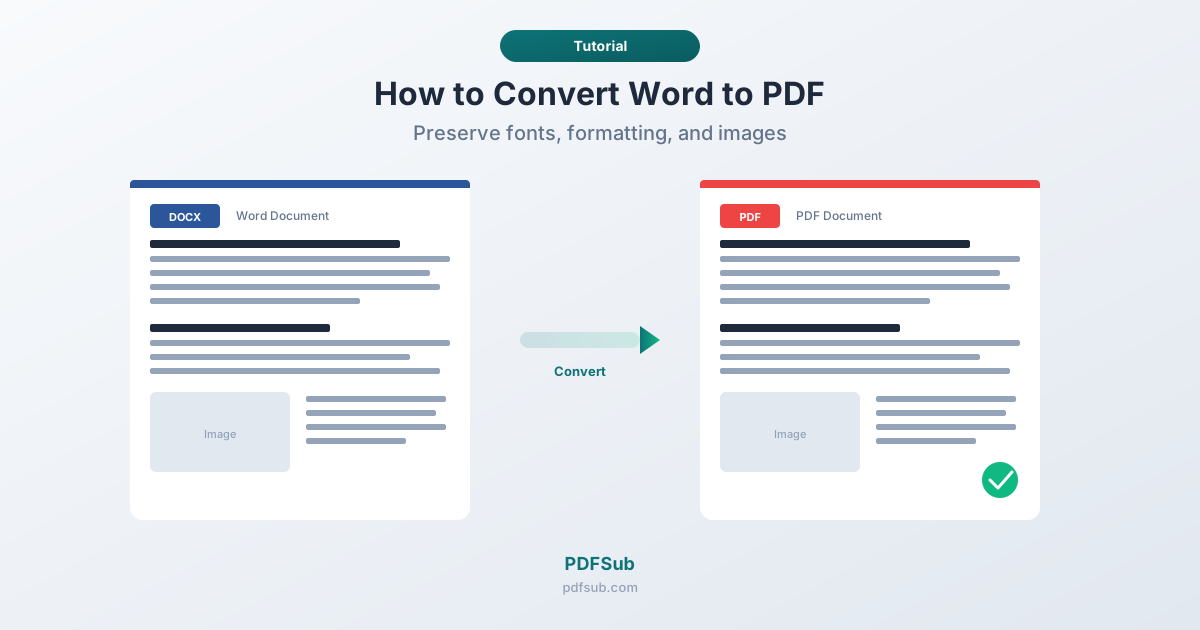
Need to turn a Word document into a PDF? Here's how to convert DOCX to PDF online - preserving fonts, formatting, and images.
You wrote a report in Word. It looks great on your screen. Then you email it to a client, and the fonts are wrong, the margins shifted, and a table broke across pages in the worst possible way.
This is the number-one reason people convert Word to PDF: predictable formatting. A PDF looks the same on every device, every operating system, and every screen size. No surprises.
Why Convert Word to PDF?
Universal compatibility. Everyone can open a PDF. Not everyone has Word - especially on phones or Linux machines. PDFs open in any browser on any platform.
Formatting preservation. Word documents depend on installed fonts and the version of Word. A DOCX created in Word 2024 on Windows might render differently on Mac. PDFs lock in the exact layout.
Professional presentation. Sending a .docx says "draft." Sending a .pdf says "final." PDFs also prevent accidental edits.
Font embedding. Proper conversion embeds fonts in the file, so the document looks correct even if the recipient doesn't have your fonts installed.
Method 1: PDFSub (Online)
The fastest option if you don't have Word installed.
- Go to PDFSub's Word to PDF converter
- Upload your
.docor.docxfile - The file is processed server-side by the PDFSub Engine in a secure, isolated environment
- Download your converted PDF
PDFSub handles headers, footers, tables, images, bullet lists, page breaks, custom margins, and embedded fonts. Works on any device - including phones and tablets.
Your file is processed in isolation and automatically deleted after conversion.
Method 2: Microsoft Word (Desktop)
On Windows: Click File > Save As, choose PDF from the dropdown, and click Save.
On Mac: Click File > Save As, select PDF from the format dropdown, and click Export.
Word's built-in export handles most documents well. A few things to watch:
- Custom fonts might not embed if the font license restricts it
- Track changes and comments are included by default - accept or reject all changes first
- Use File > Print Preview before exporting to check page breaks
Method 3: Google Docs
- Open the document in Google Docs (upload the DOCX if needed)
- Click File > Download > PDF Document (.pdf)
Google Docs works for simple documents but has limitations. Complex layouts, custom styles, and fonts not available in Google's library may not survive the conversion. For precise formatting - proposals, resumes, legal documents - use Word or PDFSub instead.
Tips for Better Conversions
Check your fonts. Standard fonts like Arial, Calibri, and Times New Roman always embed correctly. Decorative fonts may have licensing restrictions.
Use Word's built-in styles. Documents formatted with proper Heading 1, Heading 2, and Body Text styles convert better than manual formatting. Styles also create a clickable table of contents in the PDF.
Remove personal metadata. Word documents contain author names and revision history. Go to File > Info > Check for Issues > Inspect Document to review before converting.
DOC vs. DOCX. The newer DOCX format produces better PDF output. If you have old .doc files, open them in Word and re-save as .docx before converting.
Frequently Asked Questions
Can I convert Word to PDF without Microsoft Word?
Yes. PDFSub's Word to PDF converter handles the conversion server-side - no software needed. Any device with a browser works. Google Docs can also convert DOCX files, though with some formatting limitations.
Does converting to PDF preserve hyperlinks?
In most cases, yes. Both Word's export and PDFSub preserve clickable hyperlinks. Some free online converters strip links, so always test the output.
Can I convert a password-protected Word document?
You need to remove the password first. Open in Word, enter the password, go to File > Info > Protect Document, and remove protection. Then convert normally.
How do I keep custom fonts in the PDF?
Word embeds fonts automatically if the license allows. PDFSub also embeds fonts during conversion. Most commercial fonts permit embedding; some free or decorative fonts may not.
Is it safe to convert sensitive documents online?
With PDFSub, your file is processed in a secure, isolated environment and automatically deleted after conversion. Nothing is stored. For maximum caution, Word's built-in export processes everything locally with no network access.
Converting Word to PDF is a small task that makes a big difference. Whether you use PDFSub for a quick online conversion or Word's built-in export, the result is a professional document that looks exactly as you intended.