How to Convert WEBP to JPG or PNG Online (Free)
Downloaded a web image in WEBP format but need JPG or PNG? Here's how to convert WEBP files instantly - free, in your browser.
You right-click an image on a website, hit "Save As," and the file is photo.webp. You try to upload it to a form, send it in an email, or open it in an older application - and it doesn't work. The software doesn't recognize the format. Or maybe you need to edit the image in a tool that doesn't support WEBP. Or you just want a JPG because that's what everyone else uses.
WEBP is everywhere on the web now, but the rest of the world hasn't fully caught up. Converting WEBP to JPG or PNG is a quick fix - and you can do it entirely in your browser, for free, without uploading the file to anyone's server.
This guide explains what WEBP is, why you might need to convert, and how to do it instantly.
What Is WEBP?
WEBP is an image format developed by Google. It was designed to make web pages load faster by producing smaller file sizes than traditional formats like JPG and PNG - without a visible loss in quality.
Here's how it stacks up:
| Format | Compression | Transparency | Animation | Typical Use |
|---|---|---|---|---|
| JPG | Lossy | No | No | Photos, web images |
| PNG | Lossless | Yes | No | Graphics, logos, screenshots |
| GIF | Lossless (limited colors) | Yes | Yes | Simple animations |
| WEBP | Both lossy and lossless | Yes | Yes | Everything above |
WEBP is essentially a Swiss Army knife format. It can do lossy compression (like JPG), lossless compression (like PNG), support transparency (like PNG), and even animation (like GIF) - all in a single format with smaller file sizes.
So why would you ever want to convert away from it?
Why Convert WEBP to JPG or PNG?
Despite its technical advantages, WEBP has compatibility gaps that make conversion necessary in plenty of real-world situations.
Software Compatibility
Many applications - especially older desktop software, email clients, and image editors - don't support WEBP natively. If you're working with software that was last updated before 2020, there's a good chance it won't open WEBP files. Even some modern tools have spotty WEBP support.
Social Media and Platform Requirements
Some social media platforms, form upload fields, and content management systems only accept JPG or PNG. If you're uploading a profile photo, submitting a document with attached images, or adding images to a platform with strict format requirements, you'll need to convert first.
Printing
Print shops and printing software almost universally expect JPG, PNG, or TIFF. WEBP is a web-first format - the print world largely hasn't adopted it. If you're sending images to be printed, convert them to a universally accepted format.
Sharing with Others
When you send an image to someone else, you want them to be able to open it without any friction. JPG and PNG are the safest choices - they work on every device, every operating system, and every image viewer. WEBP might cause confusion for less technical recipients.
Editing Workflows
Professional photo editing workflows are built around JPG, PNG, TIFF, and RAW formats. While major editors now support WEBP, some plugins, batch processing scripts, and automation tools don't. Converting to a standard format before editing avoids compatibility issues downstream.
WEBP to JPG vs. WEBP to PNG: Which Should You Choose?
The answer depends on what the image is and how you'll use it.
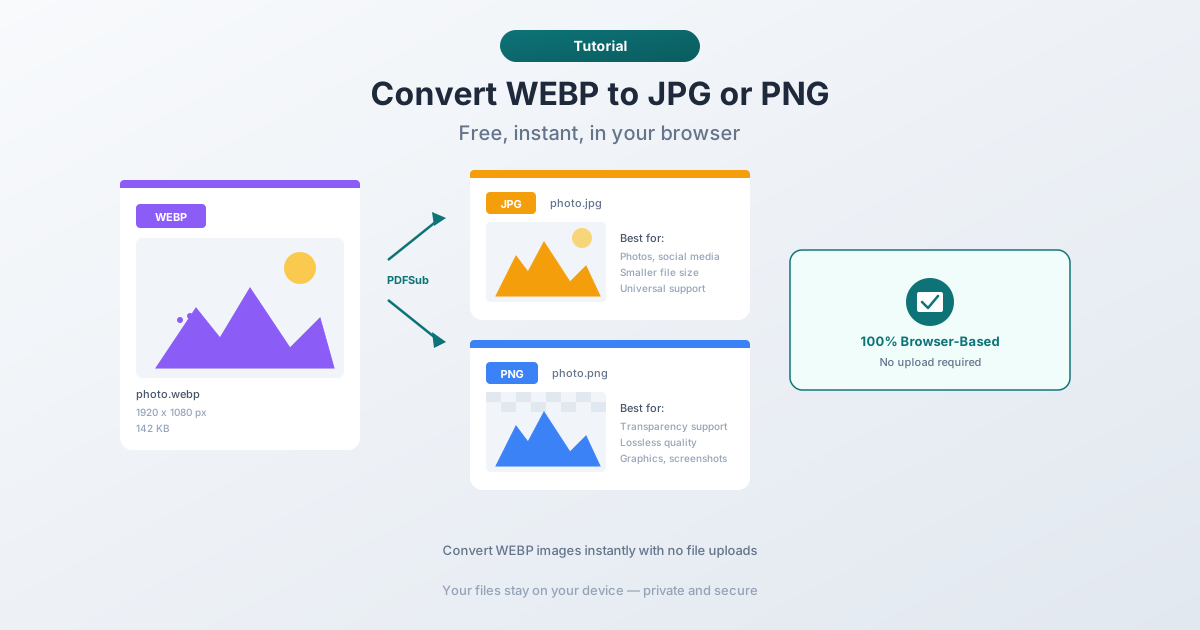
Choose JPG When:
- The image is a photograph - JPG was designed for continuous-tone photographic images. It compresses them efficiently with minimal visible quality loss.
- File size matters - JPG files are typically 30-50% smaller than PNG for the same image. If you're uploading somewhere with file size limits, JPG is usually the better choice.
- You don't need transparency - JPG doesn't support transparent backgrounds. If your image has a transparent background in WEBP format, converting to JPG will fill that transparency with a solid color (usually white).
- It's going to social media - most social platforms handle JPG well, and the smaller file size means faster uploads.
Choose PNG When:
- The image has transparency - logos, icons, and graphics with transparent backgrounds need PNG to preserve that transparency. JPG can't do it.
- The image is a graphic, screenshot, or illustration - these types of images have sharp edges, text, and flat colors. PNG handles them perfectly with lossless compression. JPG would introduce visible compression artifacts (fuzzy edges, color blotches around text).
- Quality is paramount - PNG uses lossless compression, meaning no data is lost. The image you get is pixel-identical to the original. JPG sacrifices some quality for smaller size.
- You'll be editing the image further - if you plan to make edits, start with PNG. Every time you save a JPG, it recompresses and loses a tiny bit more quality. PNG doesn't have this problem.
Quick rule of thumb: Photos go to JPG. Everything else goes to PNG.
How to Convert WEBP to JPG or PNG with PDFSub
PDFSub's WEBP converter runs entirely in your browser. Your image file never leaves your device - there's no upload to a remote server. This makes it fast, private, and works even without a reliable internet connection (once the page is loaded).
Step 1: Open the Converter
Go to PDFSub's WEBP to JPG/PNG converter. You can also find it through the tools directory by searching for "WEBP."
Step 2: Upload Your WEBP File
Drag and drop your WEBP file onto the upload area, or click to browse your files. The image loads instantly because it's processed locally in your browser - there's no upload wait time.
Step 3: Choose Your Output Format
Select whether you want JPG or PNG output. If you're not sure which to pick, refer to the guidance above: photos go to JPG, graphics and transparent images go to PNG.
Step 4: Download
Click convert and download your new file. The conversion happens in milliseconds. Your original WEBP file remains unchanged.
That's it. No account required, no watermarks, no file size limits beyond what your browser can handle.
Batch Converting Multiple WEBP Files
If you have a folder full of WEBP images to convert, doing them one at a time works but isn't the most efficient approach. Here are some strategies:
Use PDFSub's batch mode. You can upload multiple WEBP files at once and convert them all in a single operation. This is the fastest approach for most people.
Browser-based is still private. Even in batch mode, your files stay in your browser. Nothing is uploaded to a server. This is important if the images contain sensitive content - personal photos, screenshots of private information, or proprietary graphics.
Quality Considerations
When Converting to JPG
JPG uses lossy compression, which means some image data is discarded to reduce file size. For photographs, this is barely noticeable - the human eye can't easily detect the removed data. But for images with sharp edges, text, or flat colors, JPG compression can produce visible artifacts.
PDFSub uses a high-quality JPG compression setting by default, which preserves excellent visual fidelity while still achieving good file size reduction.
When Converting to PNG
PNG uses lossless compression - no data is lost. The output image is pixel-identical to the WEBP source (assuming the WEBP was also lossless). The tradeoff is larger file sizes, especially for photographs. A photo that's 200 KB as WEBP might be 500 KB as JPG and 2 MB as PNG.
For graphics, logos, and screenshots, PNG file sizes are very reasonable because the compression algorithm handles flat colors and repetitive patterns efficiently.
Transparency Handling
If your WEBP image has a transparent background:
- Converting to PNG preserves the transparency perfectly.
- Converting to JPG replaces the transparency with white (or another solid color). This is a limitation of the JPG format, not the conversion tool.
If transparency matters, always choose PNG.
WEBP in the Wild: Why You Keep Running Into It
If it feels like you're seeing more WEBP files than you used to, you're right. Here's why:
Web performance optimization. Google created WEBP to make the web faster. A typical WEBP image is 25-35% smaller than an equivalent JPG. For websites with hundreds of images, this translates to faster page loads and lower bandwidth costs. Most modern websites now serve WEBP images by default.
Browser adoption is complete. Every major browser - Chrome, Firefox, Safari, Edge - supports WEBP. This removed the last barrier to adoption on the web side. There's no longer a reason for websites to serve JPG or PNG to browsers.
Content delivery networks default to WEBP. CDNs like Cloudflare, AWS CloudFront, and others automatically convert images to WEBP when the requesting browser supports it. Website owners often don't even know their images are being served as WEBP - the CDN handles it transparently.
"Save Image As" gives you WEBP. When a website serves WEBP images, that's what your browser saves. Even if the original image was uploaded as a JPG, the version your browser downloads might be WEBP because the server or CDN converted it on the fly.
This is why you'll keep needing to convert WEBP to JPG or PNG. The web runs on WEBP, but the rest of the computing ecosystem doesn't - yet.
Frequently Asked Questions
Is converting WEBP to JPG free?
Yes. PDFSub's WEBP converter is included in the 7-day free trial - no watermarks, no file size limits. The conversion runs entirely in your browser, so there's no server processing cost.
Does converting WEBP to JPG reduce image quality?
There is a slight quality reduction when converting to JPG because JPG uses lossy compression. For photographs, the difference is virtually imperceptible. For graphics with sharp text or edges, you might notice minor artifacts - in that case, convert to PNG instead (which is lossless).
Can I convert animated WEBP files?
Animated WEBP files are similar to GIFs - they contain multiple frames. Converting an animated WEBP to a static JPG or PNG will capture only the first frame. If you need to preserve the animation, you'd need to convert to GIF or another animated format.
Is my file uploaded to a server during conversion?
No. PDFSub's WEBP converter runs entirely in your browser using client-side processing. Your file never leaves your device. You can verify this by disconnecting from the internet after the page loads - the conversion still works.
Why can't I just rename the file from .webp to .jpg?
Renaming the file extension doesn't change the file's contents. A WEBP file renamed to .jpg is still a WEBP file internally - most software will either refuse to open it or display an error. Proper conversion decodes the WEBP data and re-encodes it in the target format (JPG or PNG), producing a genuinely different file that software can read correctly.
WEBP is a great format for the web, but it creates friction everywhere else. When you need JPG or PNG - for compatibility, printing, sharing, or editing - a quick conversion solves the problem in seconds. No software to install, and your files stay private on your device.
Convert your WEBP files at pdfsub.com/tools/webp-to-jpg.