How to Convert TIFF to PDF Online
Need to convert TIFF images to PDF? Here's how - preserving multi-page TIFFs, high resolution, and lossless quality.
TIFF has been the gold standard for high-quality images since the 1980s. It's the format you'll find in scanned document archives, medical imaging systems, engineering blueprints, and professional photography workflows. The problem is that almost nobody can casually open a TIFF file. Send a multi-page TIFF to a colleague and there's a good chance they'll stare at a "file not supported" message.
PDF solves that. It preserves the image quality, handles multi-page documents natively, and opens on every device without special software. Converting TIFF to PDF is one of those small steps that makes a big difference in how your files actually get used.
Why Convert TIFF to PDF?
TIFF and PDF overlap in some ways - both support multi-page documents, both handle high resolution, and both are used in professional contexts. But they serve different audiences.
Sharing and Distribution
TIFF is a specialist format. Most people don't have software that handles it well. Windows Photo Viewer can open single-page TIFFs but struggles with multi-page files. Web browsers don't support TIFF at all. PDF, on the other hand, opens in every browser, every operating system, and every mobile device.
Multi-Page Document Handling
Multi-page TIFFs are common in scanning workflows - a 50-page document gets saved as a single TIFF file with 50 frames. While this is efficient for archiving, it's awkward for viewing. Not all image viewers support multi-page TIFF navigation. Converting to PDF gives you proper page-by-page navigation with thumbnails, bookmarks, and page numbers.
Scanned Document Archives
If you've digitized paper records - invoices, contracts, medical records, engineering drawings - those scans are often stored as TIFF. Converting them to PDF makes the archive searchable (with OCR), easier to distribute, and compatible with document management systems.
Medical and Legal Compliance
Many industries that originally standardized on TIFF for imaging are now moving toward PDF for distribution. Medical imaging systems export TIFF but share results as PDF. Legal document systems accept PDF for filing. Converting TIFF to PDF bridges these workflows.
Print Preparation
TIFF files are excellent for print production, but PDF is the standard submission format for most print shops. Converting your TIFF images to PDF before sending them to a printer ensures they arrive in the expected format with the correct page dimensions.
Method 1: Convert Online with PDFSub (Recommended)
The fastest path from TIFF to PDF. Works in your browser, handles multi-page TIFFs, and preserves image quality.
Step by step:
- Go to PDFSub's TIFF to PDF tool
- Upload your TIFF file - drag and drop or click to browse
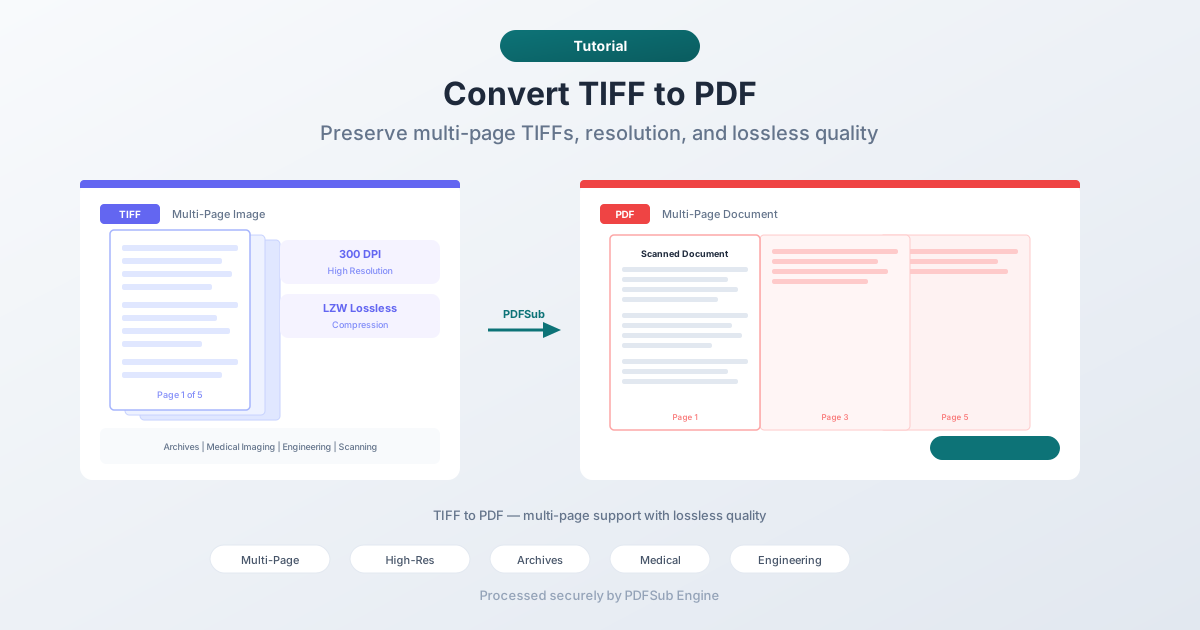
- Multi-page TIFFs are automatically detected and each frame becomes a PDF page
- The file is processed by PDFSub Engine in a secure, isolated environment
- Download the converted PDF
What to expect:
- Multi-page TIFFs produce multi-page PDFs - one page per TIFF frame
- Image resolution is preserved at the original DPI
- Both compressed and uncompressed TIFFs are supported
- Large TIFF files (100+ MB) are handled without issues
- CMYK and RGB color spaces are preserved
Best for: Quick conversions, multi-page TIFFs, and anyone who doesn't want to install software.
Method 2: Use Preview on macOS
If you're on a Mac, Preview can handle the conversion natively.
Step by step:
- Open the TIFF file in Preview
- If it's a multi-page TIFF, all pages appear in the sidebar
- Go to File > Export as PDF
- Choose a save location and click Save
Limitations:
- macOS only
- Limited control over PDF settings (page size, compression)
- Very large TIFFs may be slow to process
- No batch conversion for multiple separate TIFF files
Best for: Mac users with occasional single-file conversions.
Method 3: Use a Desktop Image Editor
Software like GIMP (free, cross-platform) or Adobe Photoshop can open TIFFs and export to PDF.
Step by step:
- Open the TIFF file in your image editor
- For multi-page TIFFs, import all pages/frames
- Export or Save As PDF
- Adjust compression and quality settings as needed
Limitations:
- Requires installing and learning desktop software
- Multi-page TIFF support varies by application
- Overkill for simple format conversion
Best for: Users who already work in image editing software and need fine control over output quality.
Understanding TIFF: Why It's Still Used
TIFF (Tagged Image File Format) has survived for four decades because it does one thing exceptionally well: store images without quality loss. Unlike JPEG, which compresses by discarding data, TIFF supports lossless compression (LZW, ZIP) or no compression at all.
This makes TIFF the preferred format for:
- Document scanning - flatbed scanners and production scanners default to TIFF for archival-quality output
- Medical imaging - radiology and pathology systems store images in TIFF for diagnostic accuracy
- Engineering and architecture - CAD drawings and blueprints are often exported as high-resolution TIFF
- Professional photography - studios shoot in RAW but archive final images as TIFF for print production
- Government archives - the US National Archives and Library of Congress use TIFF for digitization projects
The tradeoff is file size. A single page scan at 300 DPI can be 25 MB as an uncompressed TIFF. A 100-page scanned document can easily exceed 1 GB. Converting to PDF with appropriate compression reduces file size significantly while maintaining visual quality.
Multi-Page TIFF: What You Need to Know
Multi-page TIFF is one of the format's most useful (and most confusing) features. A single .tiff file can contain dozens or even hundreds of image frames, each representing a page.
This is how most production scanners work. You feed a stack of paper through the scanner, and it produces one TIFF file with every page inside. It's efficient for storage but problematic for sharing - most people don't know how to navigate a multi-page TIFF.
When you convert a multi-page TIFF to PDF:
- Each TIFF frame becomes one PDF page
- The page order is preserved
- The original resolution of each frame is maintained
- You get a standard document that anyone can open and navigate
If your TIFF contains a mix of color and grayscale pages (common in scanned documents), the converter handles each page according to its color space.
Tips for Best Results
- Check the DPI before converting. If your TIFF was scanned at 600 DPI and you only need screen viewing, the PDF will be unnecessarily large. Some converters let you downsample during conversion.
- Verify multi-page order. Open the TIFF in an image viewer first and confirm the pages are in the correct sequence. It's easier to fix the order before conversion.
- Consider compression. If file size matters, look for a converter that applies PDF compression. A 500 MB uncompressed TIFF archive can become a 50 MB PDF without visible quality loss.
- Keep the original. TIFF to PDF is typically a one-way workflow. The PDF is for distribution; keep the TIFF as your archival master copy.
FAQ
Does TIFF to PDF conversion lose image quality?
Not with a good converter. The image data is embedded in the PDF at the original resolution. If the converter applies JPEG compression inside the PDF, there may be minor quality reduction - but this is controllable. Lossless PDF compression preserves the image data exactly.
Can I convert multiple separate TIFF files into one PDF?
Yes. Most online tools and desktop applications let you upload multiple TIFF files and combine them into a single multi-page PDF. This is useful when you have individual page scans that need to become one document.
How long does conversion take for large TIFF files?
For files under 50 MB, conversion typically takes a few seconds. Larger files (100+ MB) may take 10-30 seconds depending on the number of pages and whether compression is applied. Multi-page TIFFs with hundreds of frames take longer due to the frame extraction process.
Will the PDF be searchable?
Not automatically. TIFF to PDF conversion embeds the images - the text in scanned documents becomes picture data, not searchable text. To make the PDF searchable, you'd need to run OCR (Optical Character Recognition) on the converted PDF as a separate step.
What TIFF compression formats are supported?
PDFSub handles all common TIFF compression types: uncompressed, LZW, ZIP/Deflate, JPEG, PackBits, and CCITT (fax compression used in black-and-white document scans).
Wrapping Up
TIFF remains the right format for archiving and high-quality imaging. But when it's time to share, distribute, or submit those images, PDF is what people expect. The conversion preserves your image quality while making the files universally accessible.
Try PDFSub's TIFF to PDF converter for a quick conversion - upload, convert, download. Multi-page TIFFs are handled automatically.