How to Convert Text to PDF (Including Markdown)
Need to turn a plain text file or Markdown document into a professional PDF? Here's how - with formatting, code blocks, and clean typography.
Plain text files and Markdown documents are everywhere. README files, project documentation, meeting notes, configuration logs, code snippets, personal journals. They're lightweight, portable, and easy to write. But when you need to share them professionally - print them, email them, or include them in a report - plain text doesn't cut it.
PDF gives text documents a polished presentation layer. Proper fonts, margins, page numbers, and for Markdown files, rendered headings, bold text, lists, code blocks, and tables. Converting text to PDF turns raw content into something you can hand to anyone.
This guide covers converting both plain text (.txt) and Markdown (.md) files to PDF, what to expect from each, and tips for the best output.
Plain Text to PDF: The Basics
A plain text file is exactly what it sounds like - unformatted characters with no styling information. No bold, no italics, no headings. Just text, line breaks, and spaces.
When you convert plain text to PDF, the converter:
- Wraps the text to fit the page width
- Applies a default font (usually a clean sans-serif or monospace font)
- Sets margins and page dimensions
- Paginates the content across multiple pages if needed
- Outputs a PDF that looks like a neatly typed document
The result is clean and readable. It won't be designed - there are no headings, sections, or emphasis marks. But for meeting notes, log files, code output, or any content where the text itself is what matters, plain text to PDF works perfectly.
Markdown to PDF: Formatted Output
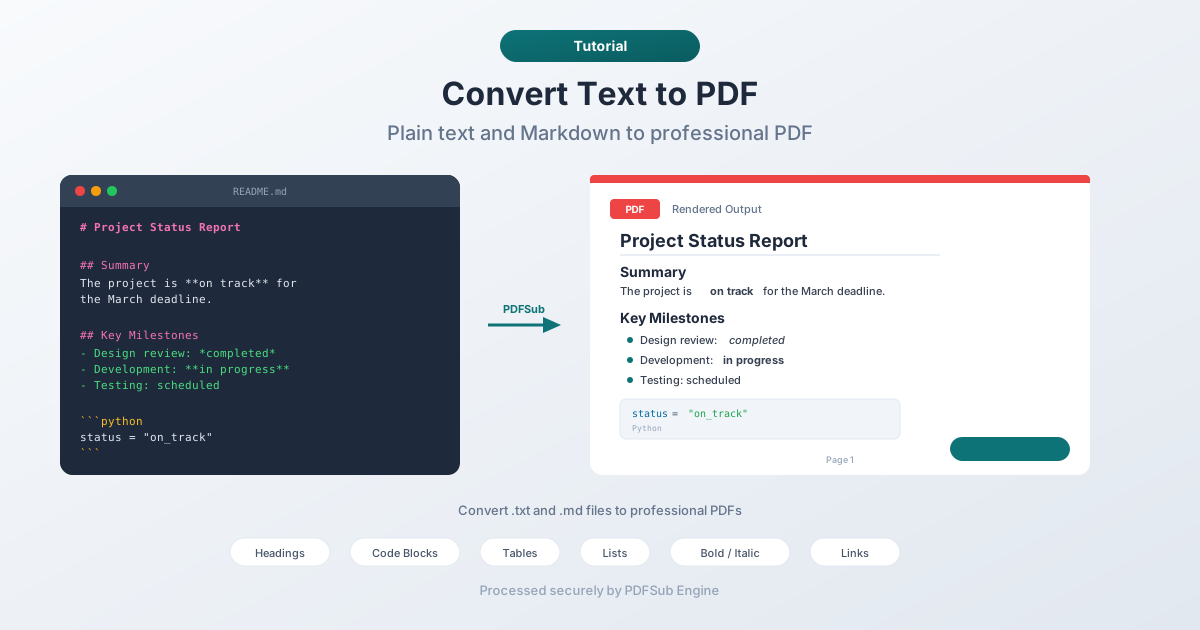
Markdown is where things get interesting. Unlike plain text, Markdown has structure - headings, bold, italics, links, lists, code blocks, tables, and block quotes. A good converter renders all of this into properly formatted PDF output.
Here's what Markdown formatting becomes in the PDF:
| Markdown | PDF Output |
|---|---|
# Heading 1 |
Large, bold heading |
## Heading 2 |
Medium heading |
**bold text** |
Bold text |
*italic text* |
Italic text |
- list item |
Bulleted list |
1. numbered item |
Numbered list |
`inline code` |
Monospace styled text |
| Code blocks (triple backticks) | Syntax-highlighted code box |
> block quote |
Indented quote block |
[link](url) |
Clickable hyperlink |
| Pipe tables | Formatted table with borders |
This makes Markdown to PDF especially useful for technical documentation, project READMEs, meeting minutes, and any content that benefits from structure without requiring a word processor.
How to Convert Text or Markdown to PDF (Step by Step)
Method 1: PDFSub (Online, Recommended)
For plain text:
- Go to PDFSub's Text to PDF tool
- Upload your .txt file
- The file is processed by PDFSub Engine in a secure, isolated environment
- Download the formatted PDF
For Markdown:
- Go to PDFSub's Markdown to PDF tool
- Upload your .md file
- PDFSub Engine renders the Markdown - headings, lists, code blocks, tables, and all
- Download the professionally formatted PDF
Both tools handle the conversion server-side with clean typography and proper page layout.
Method 2: VS Code (Desktop, for Developers)
If you already use Visual Studio Code, you can convert Markdown to PDF with extensions:
- Install a Markdown PDF extension from the VS Code marketplace
- Open your .md file in VS Code
- Open the command palette (Ctrl+Shift+P / Cmd+Shift+P)
- Run the "Markdown: Export to PDF" command
- Save the PDF
This approach gives you a preview of the rendered Markdown before converting. Good for iterating on the formatting.
Method 3: Pandoc (Command Line, for Power Users)
Pandoc is a universal document converter that handles Markdown to PDF through a typesetting engine:
pandoc document.md -o document.pdfPandoc produces high-quality typographic output but requires installation and a typesetting engine. It's the most customizable option but has the steepest learning curve.
Use Cases
Project Documentation
README files, architecture docs, API references, changelogs. These are almost always written in Markdown. Converting to PDF makes them shareable with non-technical stakeholders who don't have a Markdown viewer.
Meeting Notes
Whether you take notes in plain text or Markdown, converting to PDF creates a clean record you can share, archive, or print. Markdown notes with headings, action items (checklists), and bold emphasis for key decisions convert into professional-looking minutes.
Code Documentation
Markdown code blocks with syntax highlighting convert into nicely formatted code samples in PDF. This is useful for code reviews, training materials, or documentation packages that need to include code snippets.
Academic and Research Notes
Research notes, literature summaries, and study materials written in Markdown convert cleanly to PDF for printing or submission. Tables, citations (as block quotes), and structured headings all render properly.
Personal Archives
Journals, recipes, travel notes, reading logs. If you write in plain text or Markdown, converting to PDF creates a printable, archivable version. A year of daily journal entries in a single PDF makes for a satisfying personal archive.
Configuration and Log Records
System configuration files, deployment logs, debug output. Converting these to PDF creates a snapshot you can attach to incident reports, share with support teams, or archive for compliance.
Tips for Better PDF Output
For Plain Text
- Clean up line breaks. If your text has hard line breaks at column 80 (common in terminal output), the PDF will preserve them. For wrapped prose, remove hard breaks so the converter can reflow text to fit the page.
- Use consistent spacing. Double-space between paragraphs if you want visual separation. The converter won't add paragraph spacing unless there's a blank line.
- Choose a readable font. If the tool lets you pick a font, sans-serif (like Arial or Helvetica) works well for body text. Monospace (like Courier) works better for code or log output.
For Markdown
- Use proper heading hierarchy. Start with
#for the document title,##for main sections,###for subsections. Don't skip levels (going from#directly to###). - Format code blocks correctly. Use triple backticks with a language identifier for syntax highlighting. For example,
```pythonfor Python code,```jsonfor JSON. - Keep tables simple. Complex tables with merged cells or nested content may not render cleanly. Stick to simple rows and columns.
- Preview before converting. Open your Markdown in a previewer (GitHub, VS Code, or any Markdown app) to verify the formatting before generating the PDF.
- Use blank lines. Markdown is sensitive to blank lines. Missing blank lines before lists, headings, or code blocks can break the formatting.
Plain Text vs. Markdown: Which Should You Convert?
If your content is already in plain text and you just need a PDF for sharing or printing, convert it as-is. Don't spend time adding Markdown formatting unless the structure genuinely helps the reader.
If your content has structure - headings, lists, code, emphasis - and you're not already using Markdown, it's worth the minimal effort. Markdown syntax is intuitive:
# Project Status Report

## Summary
The project is **on track** for the March deadline.

## Key Milestones
- Design review: *completed*
- Development: **in progress**
- Testing: scheduled for next week

## Notes
> Client requested an additional feature - see email thread from Feb 28.
This takes about 30 seconds of extra formatting effort and produces a dramatically better PDF than the same content as plain text.
FAQ
Can I convert a .txt file with special characters?
Yes. PDFSub Engine handles UTF-8 encoding, which covers virtually all characters - accented letters, symbols, CJK characters, emoji, and more. Special characters in your text file will appear correctly in the PDF.
Does Markdown to PDF support syntax-highlighted code blocks?
Yes. When you specify a language after the opening triple backticks (like ```python or ```javascript), the converter applies syntax highlighting with appropriate colors for keywords, strings, comments, and other language elements.
Can I customize fonts and margins?
This depends on the tool. PDFSub's converter uses clean, professional defaults optimized for readability. For full customization (custom fonts, margins, headers, footers), desktop tools like Pandoc offer extensive configuration options.
How large a text file can I convert?
PDFSub handles text and Markdown files up to several megabytes. A typical book-length manuscript (100,000 words) is about 600 KB as plain text - well within limits. Extremely large log files (100+ MB) may need to be split before conversion.
Does the converter handle Markdown tables?
Yes. Pipe-style Markdown tables (using | characters and - for headers) are rendered as formatted tables with borders, header styling, and proper cell alignment in the PDF output.
Wrapping Up
Converting text and Markdown to PDF is one of the simplest document transformations - and one of the most useful. Plain text gets proper margins and fonts. Markdown gets rendered headings, code blocks, tables, and formatted text. Either way, you go from raw content to a shareable, printable PDF in seconds.
For plain text, try PDFSub's Text to PDF tool. For Markdown with full formatting, use PDFSub's Markdown to PDF tool. Both are processed by PDFSub Engine with clean typography and professional layout.