How to Convert SVG to PDF Online (Free)
Need your SVG as a PDF for print, email, or embedding? Here's how to convert SVG to PDF online - with methods for designers, developers, and everyone else.
You have an SVG file - a logo, a diagram, an infographic, or a set of icons - and you need it as a PDF. The client wants a print-ready file. The print shop requires PDF format. Or you need to embed a vector graphic into a report without losing quality.
This guide covers three methods for converting SVG to PDF, with honest assessments of when each one works best.
What Is SVG?
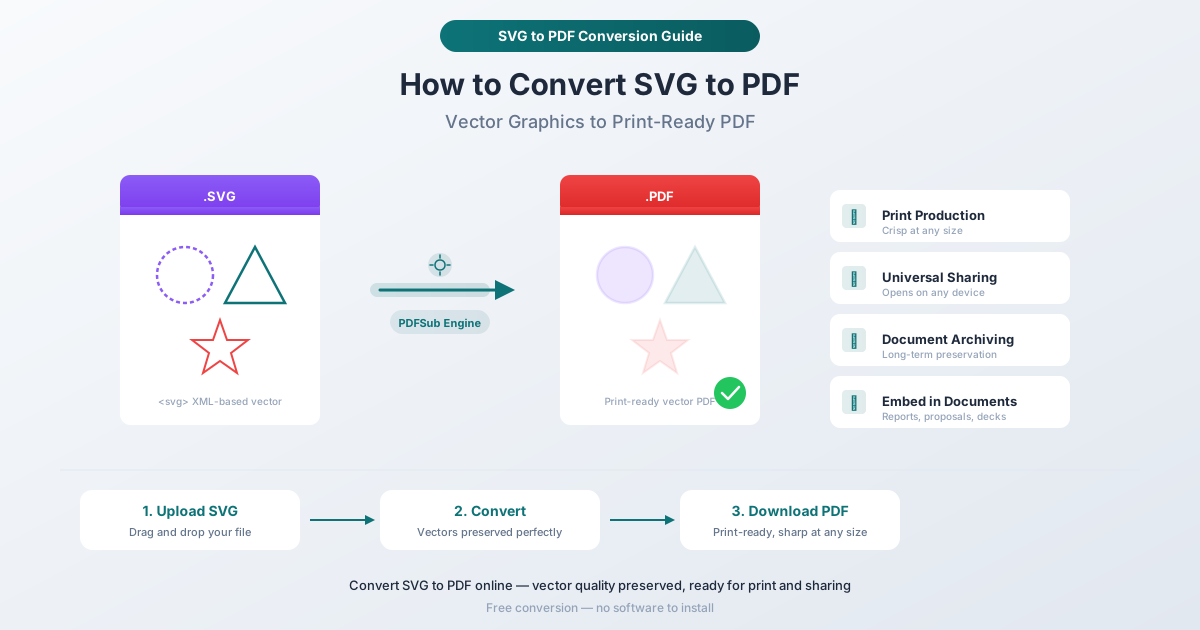
SVG stands for Scalable Vector Graphics. Unlike raster formats like PNG or JPEG that store images as pixel grids, SVG uses XML markup to describe shapes, paths, and text mathematically. A circle in an SVG isn't thousands of colored pixels - it's a mathematical definition: center point, radius, color.
This means vector graphics scale infinitely without losing quality. Zoom into a PNG at 400% and you see blurry pixels. Zoom into an SVG at 400% and every edge stays sharp.
SVG is the standard for web graphics, UI icons, logos, and data visualizations. But not everyone can open one - email an SVG to a client and they might see raw XML code instead of your graphic. That's where PDF comes in.
Why Convert SVG to PDF?
Print production. Print shops universally accept PDF. A well-converted SVG-to-PDF preserves every vector path, so the output prints crisply at any size - from a business card to a billboard.
Universal sharing. Every operating system has a built-in PDF viewer. SVG files require a browser or vector editor. PDF removes all friction when sharing with non-technical recipients.
Embedding in documents. Reports, proposals, and contracts often need diagrams or graphics embedded within them. A vector PDF preserves quality in a way that pasting a screenshot never will.
Archiving. PDF is a stable format with an ISO archival standard (PDF/A). For long-term preservation of branding assets or technical drawings, PDF is a safer bet than SVG, which can render differently depending on installed fonts and viewer software.
Consistent appearance. SVG rendering varies between browsers - font availability, CSS interpretation, and filter support all differ. A PDF locks in the exact appearance regardless of where it's opened.
Method 1: PDFSub Online Converter (Recommended)
PDFSub's SVG to PDF tool is the fastest way to convert SVG files to PDF. The PDFSub Engine handles the conversion server-side, preserving vector paths, fonts, gradients, and transparency - producing a true vector PDF, not a rasterized image stuffed inside a PDF wrapper.
Step-by-Step
Step 1: Go to pdfsub.com/tools/svg-to-pdf. No software to install - start with a 7-day free trial.
Step 2: Drag and drop your SVG into the upload area, or click to browse.
Step 3: Click convert. The PDFSub Engine generates a vector PDF in seconds.
Step 4: Download your PDF. Paths stay as paths, text stays as text, and everything scales cleanly at any resolution.
Why This Method Is Best
True vector output. The conversion preserves vector data rather than rasterizing your graphic - critical for print production.
Handles complex SVGs. Gradients, transparency, clipping paths, embedded fonts - the PDFSub Engine handles features that simpler converters struggle with.
No software to install. Works in any browser on any device.
7-day free trial. PDFSub offers a 7-day free trial with full access to all tools, including the SVG to PDF converter. The All-In-One plan is $20/user/mo (annual) or $25/user/mo (monthly) after the trial.
Method 2: Design Software (Illustrator, Figma, Inkscape)
If you already work in a vector design application, you can open your SVG and export as PDF directly.
Adobe Illustrator: Open the SVG, go to File > Save As, select Adobe PDF. Choose Press Quality for print or Smallest File Size for email. Best for designers who want precise control over bleed, color profiles, and compression.
Figma: Import your SVG, select the frame, then File > Export > PDF. Best for teams already working in Figma.
Inkscape: Open the SVG, go to File > Save As, choose PDF. This free, open-source editor offers options for font embedding and converting text to paths. Best for anyone who wants a free desktop option.
The tradeoff: All three work well but require installation, software familiarity, and multiple steps. If you don't already have one open, an online converter is faster.
Method 3: Browser Print-to-PDF
Open your SVG in any browser, press Ctrl+P (Windows/Linux) or Cmd+P (Mac), and select Save as PDF.
This is free and requires nothing beyond a browser, but it has real limitations:
- Page sizing. The browser wraps your SVG in a printed page with margins. Your graphic may not fill the page correctly or may get cropped.
- Font substitution. Missing fonts get replaced with defaults, changing your typography.
- Headers and footers. Browsers add URLs, page numbers, and dates by default. Easy to forget to disable.
- No quality control. You can't specify color profile, resolution, or font embedding.
This works in a pinch for simple graphics, but for print or client work, use a proper converter.
Quality Considerations
Not all SVG-to-PDF conversions are equal. Here's what to watch for.
Vector vs. raster output. The most important factor. A true vector PDF scales infinitely. A rasterized PDF embeds a bitmap image that degrades when zoomed or printed large. To verify: zoom to 400% - if edges stay sharp, it's a proper vector conversion.
Font handling. Fonts should be embedded in the PDF or converted to outlines (vector paths). If neither happens, the PDF viewer substitutes a default font and your typography changes.
Transparency and gradients. Some converters flatten transparency or rasterize gradient regions. A quality converter preserves these as native PDF objects.
Batch Conversion
If you have multiple SVG files - an icon set, logo variations, or a series of diagrams - PDFSub supports batch conversion. Upload multiple SVGs and convert them all at once, saving time on design deliverables, icon libraries, and technical documentation.
Frequently Asked Questions
Does SVG to PDF conversion lose quality?
Not if the converter preserves vector data. A proper conversion maintains the same mathematical paths and curves - no quality loss at any zoom level or print size.
Can I convert SVG to PDF on my phone?
Yes. PDFSub's converter works in any mobile browser at pdfsub.com/tools/svg-to-pdf.
Is the converted PDF editable?
If vector data is preserved, the PDF contains editable paths and text that can be modified in Illustrator or Inkscape. Text converted to outlines preserves shapes but can't be edited as text.
What about SVGs with embedded images?
A good converter preserves embedded raster images at their original resolution while keeping vector elements as true vectors.
Convert Your SVG to PDF
If you have an SVG that needs to be a PDF - for print, for a client, for a report, or for archiving - PDFSub's SVG to PDF converter handles it in seconds. Upload your file, get a vector PDF back. No software to install, and your vector quality stays intact.