How to Convert RTF to PDF Online
Need to turn a Rich Text Format file into a PDF? Here's how to convert RTF to PDF - preserving formatting, fonts, and images.
You received an .rtf file as an email attachment, exported a document from an old system, or downloaded a file from a government website. Now you need to share it, submit it, or archive it - and the recipient expects PDF.
RTF (Rich Text Format) has been around since 1987. It was designed as a cross-platform document format before PDF existed. It still shows up in legal workflows, legacy systems, and anywhere that basic formatted text needs to work across different word processors. But in today's world, PDF is the universal standard for sharing documents. Converting RTF to PDF is a quick step that makes your files universally accessible.
What Is RTF?
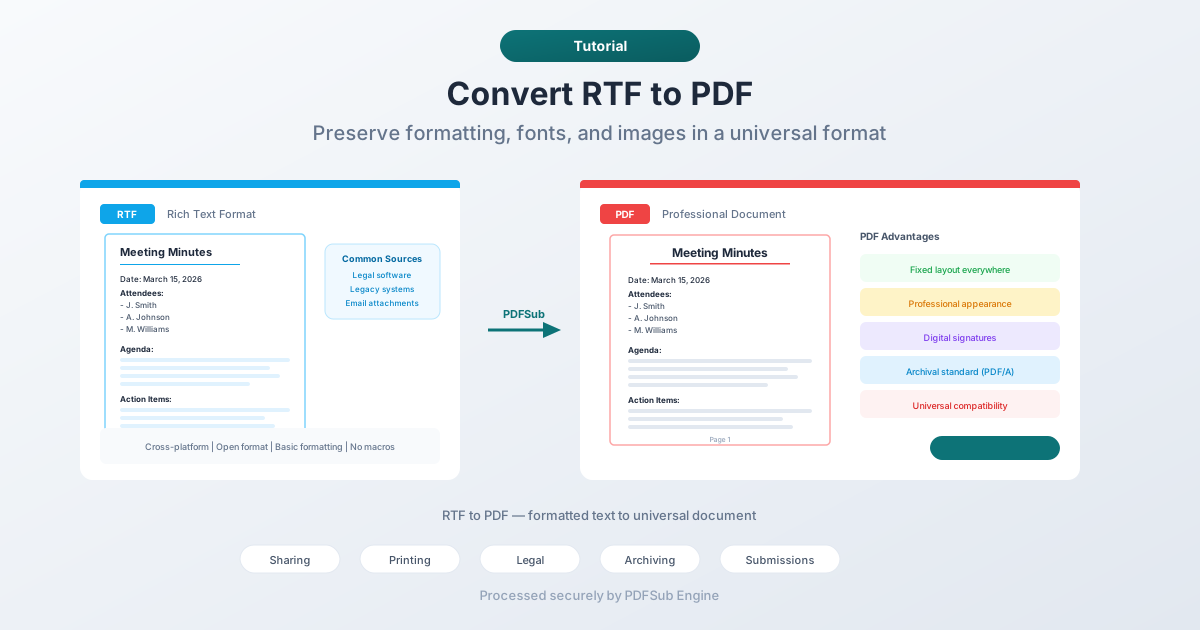
Rich Text Format is a document file format developed by Microsoft in the late 1980s. Unlike plain text (.txt), RTF supports formatting - bold, italic, underline, fonts, colors, tables, and embedded images. Unlike Word's .docx format, RTF is an open specification that virtually every word processor can read.
You'll encounter RTF files in:
- Legal software - many case management systems export documents as RTF for cross-platform compatibility
- Legacy systems - older databases and enterprise applications use RTF for formatted output
- Government forms - some agencies distribute fillable templates in RTF format
- Email attachments - RTF is sometimes used as a safer alternative to .docx for email
- Cross-platform sharing - when someone needs to share a formatted document that works on Windows, macOS, and Linux without assuming specific software
RTF is functional but dated. It doesn't support modern features like embedded fonts, advanced typography, page-level layout control, or form fields. That's where PDF picks up.
Why Convert RTF to PDF?
Universal Compatibility
Anyone can open a PDF. Not everyone can easily open an RTF file. While most word processors handle RTF, many people don't know that - they see an unfamiliar extension and assume they can't open it. PDF removes all confusion.
Fixed Layout
RTF is a flowing format - the document's appearance changes depending on the viewer's software, fonts, and settings. The same RTF file can look different in Word, LibreOffice, and TextEdit. PDF locks the layout. What you see is what the recipient sees.
Professional Appearance
PDF documents look polished and intentional. RTF documents can look different on every computer. When submitting contracts, proposals, reports, or formal correspondence, PDF signals professionalism.
Digital Signatures
PDF supports digital signatures and is accepted by courts, government agencies, and business systems. RTF does not support digital signatures. If your document needs to be signed electronically, PDF is the required format.
Archiving
PDF/A is an ISO standard for long-term document preservation. RTF has no archival standard. If you need to store documents for years or decades, converting to PDF (or PDF/A) ensures future readability.
Method 1: Convert Online with PDFSub (Recommended)
No software needed. Upload your RTF file and download a PDF.
Step by step:
- Go to PDFSub's RTF to PDF tool
- Upload your RTF file - drag and drop or click to browse
- The file is processed by PDFSub Engine in a secure, isolated environment
- Download the converted PDF
What to expect:
- Text formatting (bold, italic, underline, fonts) is preserved
- Tables maintain their structure and alignment
- Embedded images carry over to the PDF
- Page margins and spacing are respected
- Headers and footers are preserved
Best for: Quick conversions without installing anything.
Method 2: Open in a Word Processor and Export
Any word processor that opens RTF can export to PDF.
Microsoft Word:
- Open the RTF file in Word
- Go to File > Save As (or Export)
- Select PDF as the format
- Save
LibreOffice Writer (Free):
- Open the RTF file in LibreOffice Writer
- Go to File > Export as PDF
- Adjust settings if needed
- Export
Google Docs:
- Upload the RTF to Google Drive
- Open it with Google Docs
- Go to File > Download > PDF Document
- Download the PDF
Limitations:
- Requires software installation (except Google Docs)
- Formatting may shift slightly between word processors
- Extra steps compared to direct conversion
Best for: Users who need to review or edit the document before converting.
Method 3: Use macOS Preview or Quick Look
On macOS, you can print any RTF file to PDF using the system print dialog.
Step by step:
- Open the RTF file in TextEdit (double-click it)
- Go to File > Print
- Click the "PDF" dropdown in the bottom-left corner
- Select "Save as PDF"
- Choose a save location and click Save
Best for: Mac users who want a quick conversion without opening a browser.
RTF Formatting: What Carries Over
RTF supports a specific set of formatting features. Here's what you can expect in the converted PDF:
Preserved Reliably
- Character formatting - bold, italic, underline, strikethrough, superscript, subscript
- Font family and size - the converter maps RTF fonts to PDF-compatible fonts
- Colors - text color and background/highlight colors
- Paragraphs - alignment (left, center, right, justified), indentation, spacing
- Lists - numbered and bulleted lists
- Basic tables - simple table structures with borders and cell formatting
- Page setup - margins, page size, orientation
May Vary
- Embedded images - most converters handle them, but positioning may shift slightly
- Complex tables - tables with merged cells, nested tables, or unusual formatting may not convert perfectly
- Custom fonts - if the RTF references a font that isn't available on the conversion system, a substitute font is used
Not Supported in RTF (So Not in PDF Either)
- Embedded videos or audio
- Interactive form fields
- Digital signatures
- Advanced page layout (columns, text wrapping around images)
Tips for Best Results
- Open and review the RTF first. Make sure the document looks correct before converting. Fix any formatting issues in a word processor before conversion.
- Check font rendering. If the RTF uses uncommon fonts, the PDF may substitute them. Verify that the output text looks correct.
- Verify tables. If the RTF contains tables, check the PDF to make sure columns align and content didn't overflow cells.
- Test with the recipient's requirements. If you're submitting the PDF to a specific system (e-filing, document portal), verify it meets their requirements for file size, page dimensions, and PDF version.
FAQ
Does RTF to PDF conversion change the content?
No. The text, formatting, and structure are preserved. The conversion changes the container format, not the content. What changes is the visual consistency - the PDF will look the same on every device, while the RTF might have looked different depending on the viewer.
Can I convert multiple RTF files to PDF at once?
Batch conversion depends on the tool. Desktop word processors handle one file at a time. Some online tools support batch uploads. If you have many RTF files to convert, look for a tool with batch capability.
Why do some RTF files look different in different programs?
RTF is a flowing format. The rendering depends on available fonts, default margins, and how the word processor interprets the RTF specification. This inconsistency is one of the main reasons to convert to PDF - the layout becomes fixed.
Is RTF still used?
Yes, though less than in the past. RTF persists in legal software (many case management systems export RTF), legacy enterprise systems, and contexts where a lightweight, cross-platform formatted document is needed. It's gradually being replaced by PDF and DOCX but remains common enough that RTF to PDF conversion is a regular need.
Can I convert PDF back to RTF?
Yes. PDFSub offers a PDF to RTF converter for the reverse conversion. Keep in mind that the round-trip isn't perfect - PDF's fixed layout doesn't map directly to RTF's flowing format, so some positioning may shift.
Wrapping Up
RTF served its purpose as a cross-platform document format, and it still shows up in plenty of workflows. When you need to share, submit, or archive an RTF document in a universally accepted format, converting to PDF is the clear path forward.
The conversion preserves your formatting and gives you a document that looks the same on every screen, every device, and every printer.
Try PDFSub's RTF to PDF converter - upload your RTF file and get a clean PDF in seconds.