How to Convert PDF to Text (Extract All Text)
Need just the text from a PDF - no formatting, no images, just words? Here's how to extract plain text from any PDF.
Sometimes you don't need the fonts, the layout, the colors, or the images. You just need the words. Converting PDF to plain text strips away everything visual and gives you raw text - paragraphs, headings, and data in their simplest form.
This is one of the most common PDF operations, and one of the most misunderstood. People expect to get perfect text from any PDF, but the reality depends on how the PDF was created. Digital PDFs with real text content produce excellent results. Scanned documents with no embedded text produce nothing - because there's no text to extract.
This guide covers when text extraction works, when it doesn't, and the best tools for the job.
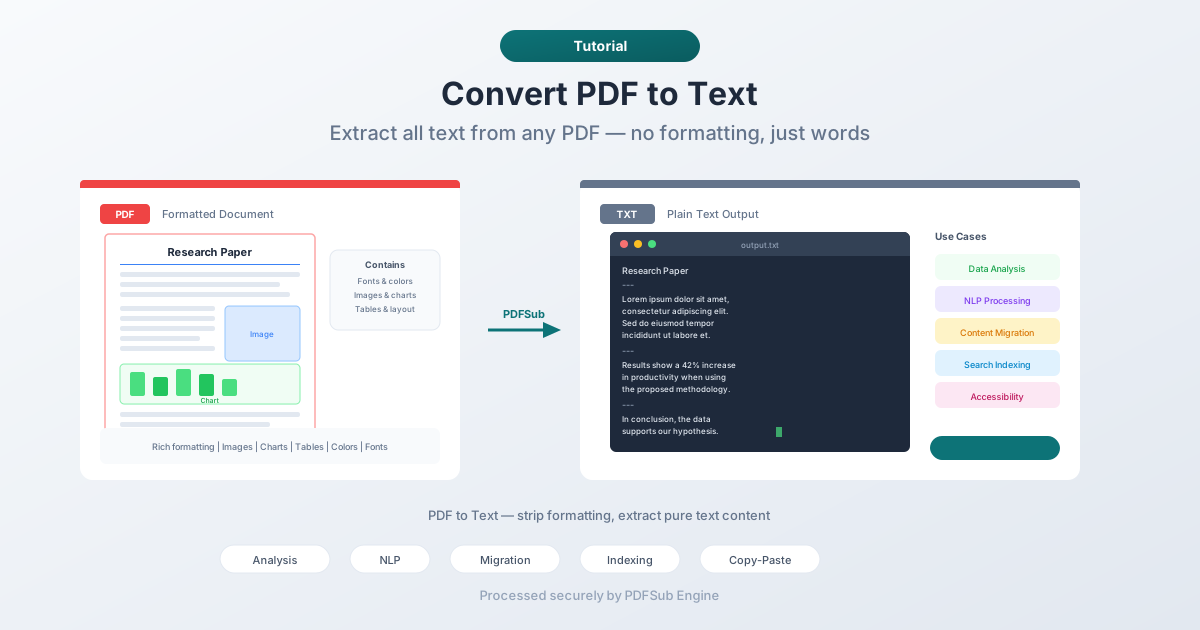
Why Extract Text from PDF?
Data Analysis
You have a PDF report with numbers you need to analyze in a spreadsheet or script. Extracting the text gives you raw data you can parse, filter, and process. Researchers, analysts, and data scientists frequently extract text from PDF papers and reports as the first step in their workflow.
Natural Language Processing (NLP)
If you're building or training an NLP model, processing customer feedback, or running sentiment analysis, you need plain text input. PDF is a common source format for documents, but NLP pipelines need .txt files. Text extraction bridges the gap.
Content Migration
Moving content from one system to another - a CMS, a knowledge base, a database - often starts with extracting text from existing PDFs. You don't need the layout; you need the words in a format your destination system can import.
Search and Indexing
Building a searchable archive of PDF documents requires extracting the text content. Search engines and full-text search systems index plain text. Extracting text from your PDFs makes them searchable without opening each file individually.
Accessibility
Converting PDF to plain text can make content more accessible. Screen readers work with plain text reliably. Braille displays render plain text directly. For accessibility workflows, stripping a document down to its text content removes visual barriers.
Quick Copy-Paste
Sometimes you just want to grab a few paragraphs from a PDF and paste them into an email, a document, or a chat message. Text extraction gives you clean text without the formatting artifacts that often come from copying directly out of a PDF viewer.
Method 1: Convert Online with PDFSub (Recommended)
Upload a PDF, download a .txt file with all extracted text.
Step by step:
- Go to PDFSub's PDF to Text tool
- Upload your PDF file - drag and drop or click to browse
- The file is processed by PDFSub Engine in a secure, isolated environment
- Download the extracted text file
What to expect:
- All text content from every page is extracted
- Page breaks are indicated by line breaks or page markers
- Text follows the reading order of the PDF
- Tables are extracted as tab or space-separated values
- Images are skipped (no alt text or descriptions)
- Headers and footers are included in the output
Best for: Quick extraction when you need all text from a PDF without installing software.
Method 2: Copy from Your PDF Viewer
The simplest approach for small amounts of text.
Step by step:
- Open the PDF in any PDF viewer (browser, Preview, Adobe Reader)
- Select the text you want (click and drag, or Ctrl/Cmd+A for all text)
- Copy (Ctrl/Cmd+C)
- Paste into your text editor
Limitations:
- Multi-column layouts produce jumbled text (columns interleave)
- Tables copy as unstructured text
- Headers and footers mix with body text
- Special characters may not copy correctly
- Doesn't work with scanned/image PDFs
Best for: Grabbing a paragraph or two from a simple, single-column PDF.
Method 3: Use Command-Line Tools
For developers and technical users who need to extract text programmatically or in batch.
Options:
- On macOS or Linux, various command-line PDF tools can extract text
- Python scripts with PDF parsing libraries
- Shell scripts for batch processing
Best for: Developers building text extraction into automated workflows.
Digital PDFs vs. Scanned PDFs
This is the critical distinction for text extraction.
Digital (Text-Based) PDFs
These are PDFs created from digital sources - exported from Word, generated by software, saved from a web page. The text in these PDFs is stored as actual character data. You can select it, search it, and extract it.
How to tell: Open the PDF and try to click and drag to select text. If the text highlights and you can copy it, it's a digital PDF. Text extraction will work perfectly.
Scanned (Image-Based) PDFs
These are PDFs created by scanning paper documents. Each page is a photograph of the paper - an image, not text. There are no characters to extract because the PDF contains only pixel data.
How to tell: Try to select text. If nothing highlights, or if clicking selects the entire page as an image, it's a scanned PDF. Standard text extraction will produce an empty file.
What About Scanned PDFs?
To get text from scanned PDFs, you need OCR (Optical Character Recognition). OCR analyzes the image, identifies letter shapes, and converts them to text characters. It's a separate process from text extraction - and it introduces the possibility of errors, since the software is interpreting images rather than reading stored text.
PDFSub's text extraction handles digital PDFs. For scanned documents that need OCR, look for tools specifically designed for OCR processing.
Text Extraction Quality
The quality of extracted text depends on several factors.
Reading Order
PDFs don't store text in reading order. Text elements are positioned at specific coordinates - the viewer assembles them visually. The extractor has to reconstruct reading order from spatial positions. Simple single-column documents reconstruct easily. Multi-column layouts, sidebars, and text boxes can produce confusing output.
Tables
Tables in PDF are a collection of independently positioned text elements - not semantic table structures. The extractor attempts to recognize tabular patterns and separate columns with tabs or spaces. Simple tables work well. Complex tables with merged cells, rotated text, or nested structures may produce messy output.
Special Characters
Mathematical symbols, diacritics, ligatures, and non-Latin scripts may or may not extract correctly depending on how the PDF encodes them. Well-structured PDFs with proper Unicode mappings produce clean output. PDFs with custom font encodings may produce garbled characters.
Hyphenation
PDFs often hyphenate words at line breaks. Some extractors rejoin hyphenated words; others preserve the hyphen and line break. If you're processing the text programmatically, you may need to handle hyphen rejoining in your pipeline.
Tips for Best Results
- Test with a small PDF first. Extract text from a few pages and verify the quality before processing a 500-page document.
- Check for scanned content. If your PDF is a mix of digital text and scanned pages, the extraction will produce text from digital pages and blank output from scanned pages.
- Post-process the output. For data analysis or NLP work, clean the extracted text - remove headers/footers, fix hyphenation, handle encoding issues.
- Use the right tool for the job. If you need structured data from tables, consider a table extraction tool rather than plain text extraction. If you need text from scanned documents, use OCR.
FAQ
What's the difference between PDF to Text and OCR?
PDF to Text extracts text that's already stored as character data in the PDF. It reads what's there. OCR looks at images of text and interprets them as characters. If your PDF has selectable text, you need text extraction. If your PDF is scanned images, you need OCR.
Can I extract text from a password-protected PDF?
If the PDF has a permissions password that restricts copying (but allows viewing), some tools can still extract text. If the PDF has an open password that prevents viewing entirely, you'll need to enter the password first.
Does text extraction preserve formatting?
No - that's the point. Plain text extraction gives you the words without formatting. If you need formatting preserved, convert to DOCX or RTF instead. Text extraction is specifically for when you want raw, unformatted content.
How do I handle multi-column PDFs?
Multi-column PDFs are the trickiest case for text extraction. The extractor may interleave columns or process them correctly - it depends on the tool and the PDF's internal structure. If you get jumbled output, try a different extraction tool or convert to a format that handles columns better (like DOCX).
Can I extract text from just specific pages?
Some tools let you specify a page range for extraction. If the tool doesn't support page selection, extract all text and then cut the output to the pages you need. Page markers in the output help identify where each page begins.
Wrapping Up
PDF to text extraction is fast, simple, and useful for a wide range of workflows - data analysis, NLP, content migration, search indexing, and plain old copy-paste. The key is starting with a digital PDF that has real text content.
For scanned documents, you need OCR. For digital PDFs, text extraction gives you clean output in seconds.
Try PDFSub's PDF to Text tool - upload your PDF and download the extracted text instantly.