How to Convert PDF to SVG Online
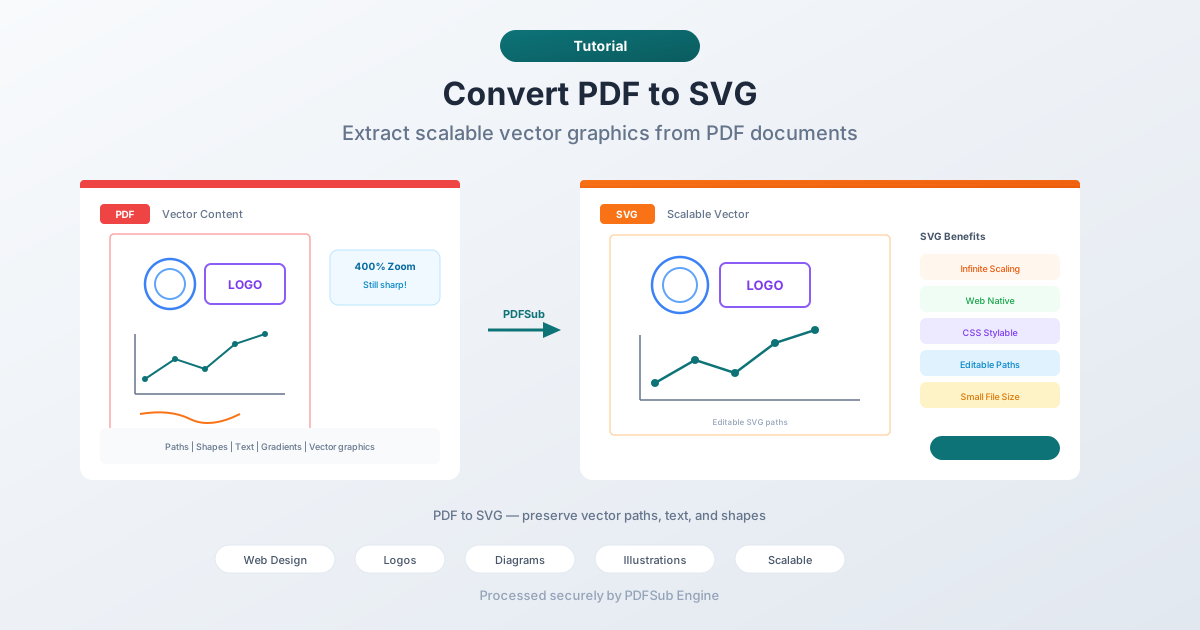
Need a PDF as a scalable vector graphic for web or design work? Here's how to convert PDF to SVG - preserving vector paths, text, and shapes.
You have a logo, diagram, or illustration locked inside a PDF. You need it as an SVG for a website, a design tool, or a presentation where it needs to scale to any size without getting blurry. PDF to SVG conversion extracts the vector content and gives you a format that's native to the web and works in every design tool.
But there's a catch - the quality of the output depends entirely on what's inside the PDF. If the PDF contains real vector graphics (paths, shapes, text outlines), you'll get a clean, scalable SVG. If the PDF contains rasterized images, you'll get an SVG wrapper around a pixel image, which defeats the purpose.
This guide explains when PDF to SVG conversion works well, when it doesn't, and the best methods for doing it.
Why Convert PDF to SVG?
Web Embedding
SVG is a first-class citizen on the web. You can embed SVGs directly in HTML, style them with CSS, animate them with JavaScript, and they render crisply at any resolution on any screen. If you have a chart, diagram, or logo in a PDF that needs to go on a website, SVG is the right output format.
Design Tool Editing
SVG files open in Adobe Illustrator, Figma, Sketch, Inkscape, and every other vector design tool. Converting a PDF to SVG lets you edit individual paths, change colors, modify shapes, and rework the design - something you can't do easily with a PDF.
Resolution Independence
SVG graphics scale infinitely without quality loss. A 100x100 SVG looks identical at 10,000x10,000. This makes SVG ideal for logos, icons, and illustrations that need to appear at different sizes - from a favicon to a billboard.
Smaller File Size for Simple Graphics
For simple vector content (logos, icons, line art), SVG files are often smaller than equivalent PDFs. The SVG format is also text-based (XML), which means it compresses well with gzip - important for web delivery.
Accessibility
SVG supports semantic elements - titles, descriptions, and ARIA attributes. A properly structured SVG is more accessible to screen readers than a PDF graphic. Converting to SVG lets you add accessibility features that aren't available in PDF.
Method 1: Convert Online with PDFSub (Recommended)
Upload a PDF, download an SVG. Each page becomes a separate SVG file.
Step by step:
- Go to PDFSub's PDF to SVG tool
- Upload your PDF file - drag and drop or click to browse
- The file is processed by PDFSub Engine in a secure, isolated environment
- Download the converted SVG file(s)
What to expect:
- Vector elements (paths, shapes, lines) are converted to SVG paths
- Text may be converted to outlines (paths) for visual accuracy
- Each PDF page produces a separate SVG file
- Colors, gradients, and stroke styles are preserved
- Rasterized content (photos, scanned elements) is embedded as images within the SVG
Best for: Quick conversions, especially for logos, diagrams, and illustrations.
Method 2: Use Inkscape (Free Desktop Tool)
Inkscape is a free, open-source vector graphics editor that handles PDF import natively.
Step by step:
- Download and install Inkscape from inkscape.org
- Go to File > Open and select your PDF
- Choose which page to import (Inkscape imports one page at a time)
- The PDF content appears as editable vector objects
- Go to File > Save As and select SVG as the format
- Save the SVG file
Advantages:
- You can edit the imported vectors before saving
- Handles complex vector content well
- Free and open-source
- Available on Windows, macOS, and Linux
Limitations:
- Imports one page at a time - no batch multi-page conversion
- Can be slow with very complex PDFs
- Learning curve for first-time users
Best for: Users who need to edit the vector content after conversion.
Method 3: Use Adobe Illustrator (Paid)
Illustrator opens PDFs natively and can export to SVG.
Step by step:
- Open the PDF in Adobe Illustrator
- Select the page to import
- Edit if needed
- Go to File > Export > Export As
- Select SVG as the format
- Configure SVG settings (fonts, decimals, responsive)
- Save
Best for: Design professionals who already have Illustrator and need precise SVG output with specific settings.
Vector vs. Raster: The Quality Question
This is the most important thing to understand about PDF to SVG conversion.
When It Works Beautifully
If the PDF was created from vector sources - logos designed in Illustrator, charts generated by software, diagrams drawn in design tools, CAD exports, or text-based documents - the PDF contains real vector data. Converting this to SVG produces clean, infinitely scalable output with individual editable paths.
You'll know the PDF contains vectors if you can zoom in to extreme levels and the content stays sharp. Edges remain crisp, text stays smooth, and curves are perfect at any magnification.
When It Doesn't Work As Well
If the PDF contains rasterized content - photos, scanned documents, screenshots, or images - the converter wraps those pixel images in an SVG container. You get an SVG file, but it's functionally an image file. Zooming in reveals pixels, and you can't edit individual shapes.
PDFs often contain a mix of both. A report might have vector text and shapes alongside rasterized photos. The converter preserves each element in its native form - vectors become SVG paths, images become embedded raster data.
How to Check
Before converting, zoom into the PDF at 400-800%. Look at the edges of text and shapes:
- Sharp edges at high zoom = vector content = will produce excellent SVG
- Blurry/pixelated edges at high zoom = raster content = SVG won't add value over PNG
SVG Output Considerations
Text Handling
PDF text can be converted to SVG in two ways:
- As editable text - SVG
<text>elements with font references. The text is selectable and searchable, but requires the font to be available on the viewer's system. - As outlined paths - SVG
<path>elements that trace the letter shapes. Visually perfect but not editable or searchable as text.
Most converters default to outlines for visual accuracy. If you need editable text, check your converter's settings.
File Size
Complex PDFs with many paths, gradients, and effects can produce large SVG files. A detailed technical diagram might generate an SVG that's several megabytes. If file size matters (especially for web use), consider:
- Simplifying paths with an SVG optimization tool
- Removing hidden layers or unnecessary elements
- Using SVGZ (gzip-compressed SVG) for web delivery
Browser Compatibility
All modern browsers render SVG natively. However, very complex SVGs with thousands of paths, heavy filter effects, or deeply nested groups may render slowly in browsers. If performance is a concern, simplify the SVG after conversion.
Tips for Best Results
- Start with a vector-origin PDF. The output quality is determined by the input quality. Vector PDFs produce vector SVGs.
- Convert single pages. If you only need one page from a multi-page PDF, extract that page first or select it during conversion.
- Optimize the SVG for web. If the SVG is going on a website, run it through an optimizer like SVGO to reduce file size and clean up unnecessary attributes.
- Check the output in a design tool. Open the SVG in Inkscape or Figma to verify that paths are correct, colors are accurate, and the structure makes sense.
FAQ
Will the SVG be editable?
Yes, if the PDF contains vector content. Shapes, paths, and lines become individual SVG elements that you can select, move, recolor, and modify in any vector design tool. Rasterized content (photos) will be embedded as non-editable images.
Can I convert a multi-page PDF to SVG?
Yes. Each page is converted to a separate SVG file. Since SVG doesn't have a "page" concept like PDF, there's no multi-page SVG - you'll get one SVG per page.
How does text appear in the converted SVG?
It depends on the converter's approach. Text may appear as outlined paths (visually accurate, not editable as text) or as SVG text elements (editable, but requires matching fonts). Most converters use outlines by default.
Can I convert an SVG back to PDF?
Yes. PDFSub offers an SVG to PDF converter that handles the reverse conversion. SVG to PDF round-trips are generally cleaner than the initial PDF to SVG conversion because SVG is inherently vector.
Is PDF to SVG conversion useful for scanned documents?
Not really. Scanned documents are raster images. Converting them to SVG just wraps the scan in an SVG container - you don't get vector paths or editable content. For scanned documents, PDF to PNG or PDF to JPEG is more appropriate.
Wrapping Up
PDF to SVG conversion is powerful when the source PDF contains real vector content. Logos, diagrams, charts, and illustrations convert beautifully into clean, scalable, editable SVG files perfect for the web and design tools.
The key is understanding your source material. Vector in, vector out. Raster in, raster out (just in a different wrapper).
Try PDFSub's PDF to SVG converter - upload your PDF and get scalable vector output in seconds.