How to Convert PDF to RTF Online
Need to edit a PDF in a basic text editor? Here's how to convert PDF to Rich Text Format - compatible with virtually every word processor.
You have a PDF you need to edit, but you don't have Word or a full-featured PDF editor. Maybe you're on a shared computer with only WordPad, or you need to paste formatted text into an older system that accepts RTF but not DOCX. Or maybe the system you're importing into specifically requires .rtf files.
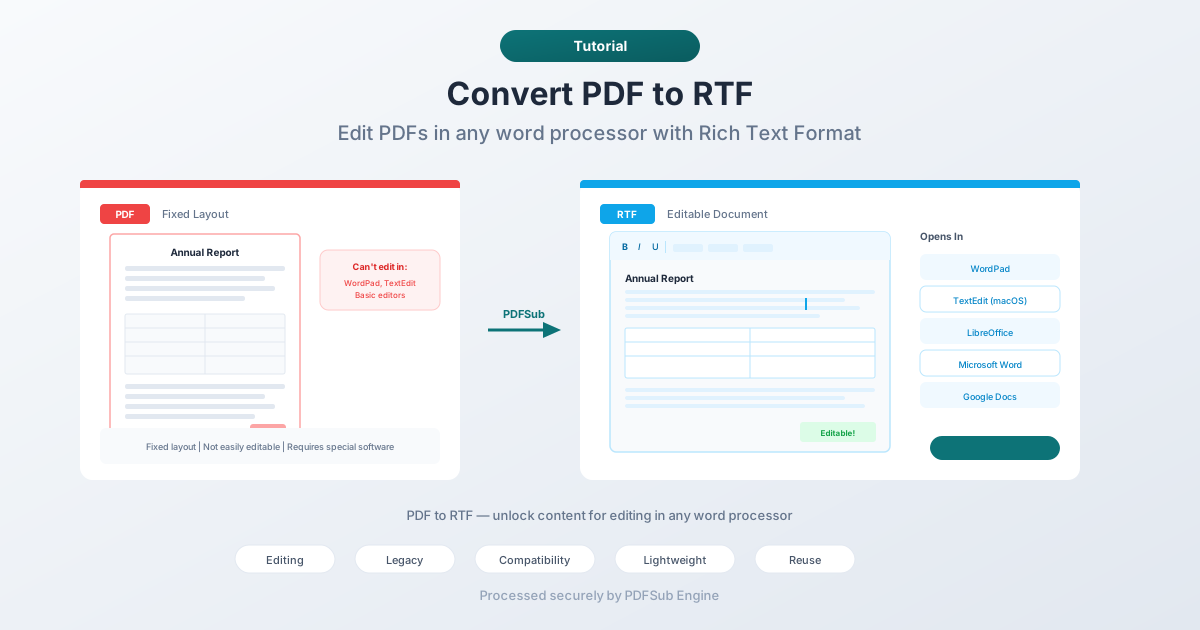
RTF (Rich Text Format) is the lowest common denominator of formatted documents. Every word processor on every operating system can open it - Word, LibreOffice, Google Docs, TextEdit, WordPad, and dozens of others. Converting PDF to RTF gives you editable text with basic formatting intact, in a format that works everywhere.
Why Convert PDF to RTF?
Editing Without Specialized Software
Not everyone has Adobe Acrobat or Microsoft Word. But everyone has a basic text editor that handles RTF. WordPad comes pre-installed on every Windows machine. TextEdit opens RTF natively on macOS. LibreOffice Writer is free and handles RTF perfectly. Converting to RTF gives you an editable document without requiring paid software.
Legacy System Compatibility
Some enterprise systems, databases, and older applications specifically accept RTF for formatted text input. Legal document management systems, medical records software, and government filing portals sometimes require or prefer RTF format. If the system asks for RTF, you need to convert.
Lightweight Format
RTF files are simple and small compared to DOCX. An RTF file is essentially plain text with formatting codes - no embedded macros, no XML structures, no ZIP containers. This makes RTF files fast to open, easy to parse, and less likely to trigger security warnings in email filters.
Cross-Platform Consistency
While RTF rendering can vary slightly between applications, it's more consistent across platforms than many alternatives. The same RTF file opens reliably on Windows, macOS, and Linux. When you need a formatted document that works on every computer without specific software requirements, RTF is a practical choice.
Content Extraction for Reuse
Sometimes you just need the text and basic formatting from a PDF - not the exact layout. Converting to RTF strips away the fixed-position layout and gives you flowing text that you can copy, paste, restructure, and reuse in other documents.
Method 1: Convert Online with PDFSub (Recommended)
Upload a PDF, download an RTF file. No software installation needed.
Step by step:
- Go to PDFSub's PDF to RTF tool
- Upload your PDF file - drag and drop or click to browse
- The file is processed by PDFSub Engine in a secure, isolated environment
- Download the converted RTF file
What to expect:
- Text content and basic formatting are preserved
- Fonts, sizes, bold, italic, and colors carry over
- Paragraph structure and alignment are maintained
- Tables are reconstructed as RTF tables
- Images are embedded in the RTF
- Complex layouts may simplify to flowing text
Best for: Quick conversions when you need an editable document from a PDF.
Method 2: Use LibreOffice (Free Desktop Tool)
LibreOffice can open PDFs and export to RTF.
Step by step:
- Open LibreOffice Writer
- Go to File > Open and select your PDF
- LibreOffice imports the PDF as an editable document
- Go to File > Save As
- Select "Rich Text Format (.rtf)" from the format dropdown
- Save the file
Limitations:
- LibreOffice's PDF import treats each page as a drawing, not flowing text
- The result may have text boxes rather than flowing paragraphs
- Editing can be awkward because of the layout interpretation
Best for: Users who already have LibreOffice and need basic editing capability.
Method 3: Use Google Docs
Google Docs can open PDFs and export to RTF.
Step by step:
- Upload the PDF to Google Drive
- Right-click the file and select "Open with > Google Docs"
- Google Docs converts the PDF to an editable document
- Go to File > Download > Rich Text Format (.rtf)
- Download the RTF file
Limitations:
- Formatting accuracy varies, especially with complex layouts
- Images may not transfer
- Tables may lose structure
- Requires a Google account and internet connection
Best for: Quick conversions when you're already in the Google ecosystem.
What Gets Preserved (And What Doesn't)
PDF to RTF conversion involves translating a fixed-layout format into a flowing-text format. Here's a realistic breakdown.
Preserved Well
- Body text - paragraphs, headings, and flowing text content
- Character formatting - bold, italic, underline, font sizes, and colors
- Lists - bulleted and numbered lists
- Simple tables - basic tables with clear cell boundaries
- Images - embedded pictures (positioning may shift)
Partially Preserved
- Multi-column layouts - columns are linearized into a single text flow
- Headers and footers - may become body text rather than proper header/footer elements
- Complex tables - merged cells, nested tables, and unusual formatting may break
- Fonts - the converter maps PDF fonts to RTF font references, but exact font matching depends on what's installed on the viewing computer
Lost in Conversion
- Exact page positioning - PDF places elements at precise coordinates; RTF uses flowing text
- Form fields - interactive PDF forms become static text in RTF
- Annotations - comments, highlights, and markup don't transfer
- Digital signatures - RTF doesn't support signatures
- Bookmarks and internal links - PDF navigation features don't exist in RTF
When RTF Beats DOCX
You might wonder why you'd convert to RTF instead of DOCX. Here are the scenarios where RTF is the better choice:
- The recipient only has WordPad. WordPad opens RTF but not DOCX.
- The target system requires RTF. Some legacy systems specifically need .rtf files.
- You want maximum compatibility. RTF works in every word processor on every platform - no exceptions.
- Security concerns. RTF can't contain macros, so it's less likely to be flagged by email security filters.
- Simplicity. RTF is a flat file - no ZIP container, no XML, no embedded metadata. It's as simple as a formatted document gets.
For everything else, DOCX is typically the better choice. It supports more features, produces better-looking documents, and is the standard format for modern word processing.
Tips for Best Results
- Start with a text-based PDF. If you can select text in the PDF by clicking and dragging, it's a digital PDF and will convert well. If you can't select text, it's a scanned image and you'll need OCR first.
- Expect layout changes. The RTF will have the same content as the PDF, but the layout will be different. Fixed-position elements become flowing text. This is normal and expected.
- Review and clean up. After conversion, open the RTF in a word processor and fix any formatting issues - extra line breaks, misaligned tables, font substitutions.
- Keep the original PDF. The PDF is your visual reference. Keep it alongside the RTF so you can compare them.
FAQ
Can I edit the RTF file in WordPad?
Yes. WordPad comes pre-installed on every Windows computer and opens RTF files natively. You can edit text, change formatting, and save the file. WordPad doesn't support advanced features like tables or embedded images well, but basic text editing works perfectly.
Will the RTF file look exactly like the PDF?
No. PDF uses fixed-position layout (every element has exact coordinates on the page). RTF uses flowing text. The content is preserved, but the visual arrangement will differ. Think of it as the same ingredients arranged on a different plate.
Can I convert a scanned PDF to RTF?
Not directly. Scanned PDFs contain images of pages, not extractable text. You'd need to run OCR first to convert the scanned images into text, then convert the resulting PDF to RTF.
How large can the PDF be?
PDFSub handles standard document sizes. For very large PDFs (hundreds of pages), the conversion may take longer, but the process is the same. If you only need specific pages, consider extracting those pages first and converting just the portion you need.
Can I convert RTF back to PDF?
Yes. PDFSub offers an RTF to PDF converter that handles the reverse direction. The round-trip is generally clean for text-heavy documents.
Wrapping Up
PDF to RTF conversion gives you editable text from a locked-down document, in a format that works on every computer with every word processor. It's the practical choice when you need to edit content, import into legacy systems, or share with people who don't have specialized software.
The output won't be a visual clone of the PDF - it's the same content restructured for editing rather than display. Open the RTF, make your edits, and save or re-export as needed.
Try PDFSub's PDF to RTF converter - upload your PDF and get an editable RTF file in seconds.