How to Convert PDF to PNG (High Quality)
Need a PDF page as an image? Here's how to convert PDF to PNG - with options for resolution, quality, and individual page selection.
You have a PDF and you need an image. Maybe it's a chart for a slide deck. Maybe it's a page to embed on a website. Maybe you need a document thumbnail.
Whatever the reason, getting the quality right matters. A blurry chart in a presentation or a pixelated image on a website makes your work look unprofessional.
Here's how to convert PDF pages to high-quality PNG images, with control over resolution and page selection.
Why Convert PDF to PNG?
Presentations. You need a chart or diagram from a PDF in your slide deck. A PNG gives you control over resolution - much better than a screenshot.
Social media. PDFs can't be posted directly. Convert the relevant page to PNG for sharing.
Web content. Embedding a PDF page as an image loads faster and works across all browsers without a viewer plugin.
Thumbnails. Document management systems need image previews of PDF files.
Email. Include a visual from a PDF directly in the email body. Inline images work; inline PDFs don't.
Method 1: PDFSub
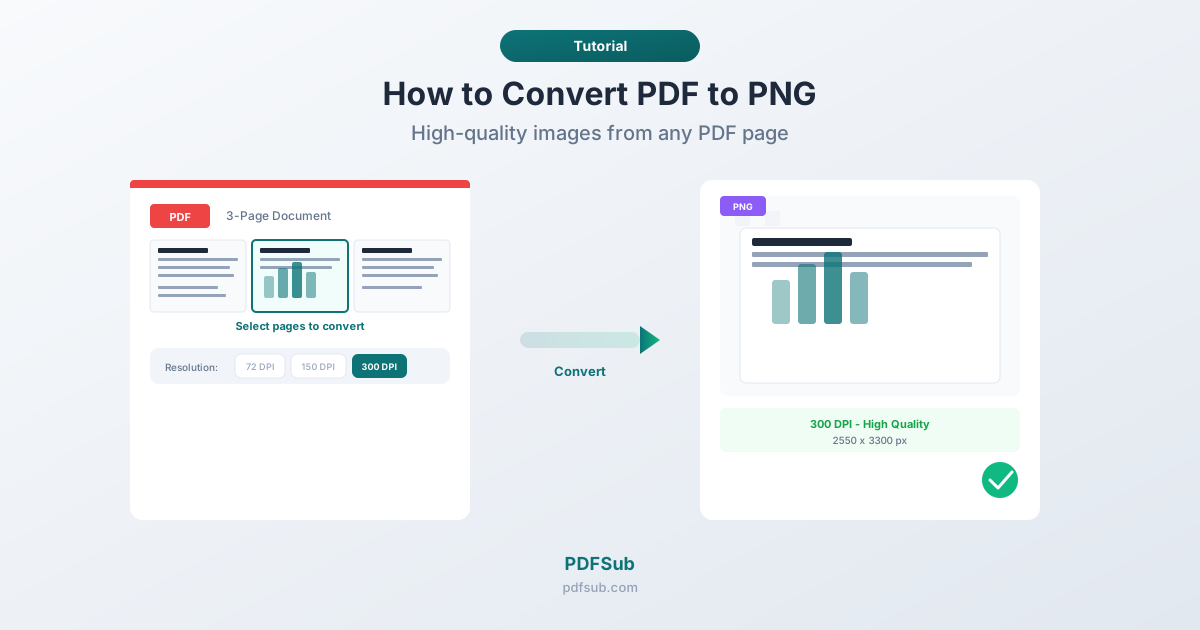
PDFSub's PDF to PNG tool produces high-resolution images from any PDF page.
- Go to PDFSub's PDF to PNG converter
- Upload your PDF file
- The file is processed server-side by the PDFSub Engine in a secure, isolated environment
- Choose which pages to convert (all pages or specific ones)
- Download individual PNGs or get all pages as a ZIP
Method 2: macOS Preview
- Open the PDF in Preview
- Click File > Export
- Set format to PNG
- Choose resolution (increase from default 72 DPI for higher quality)
- Click Save
This exports the current page only. For multiple pages, you need to repeat for each one.
Method 3: Screenshot (Quick and Dirty)
Open the PDF in your browser, zoom to the desired level, and take a screenshot (Windows: Win+Shift+S, Mac: Cmd+Shift+4). Fast but produces screen-resolution output - fine for casual use, not for print or professional work.
Understanding Resolution (DPI)
Resolution is the single most important setting. It determines sharpness and file size.
| DPI | Pixel Size (Letter page) | Best For |
|---|---|---|
| 72 | ~612 x 792 px | Screen thumbnails |
| 150 | ~1275 x 1650 px | Good screen quality, basic print |
| 300 | ~2550 x 3300 px | Print quality (standard) |
| 600 | ~5100 x 6600 px | Archival, professional design |
For presentations: 150-200 DPI. Good projected quality without huge files.
For web: 72-150 DPI. Higher resolution increases file size without visible benefit on most screens. For retina displays, 144 DPI works well.
For print: 300 DPI. The industry standard for sharp text and clean graphics.
PNG vs. JPG
| Factor | PNG | JPG |
|---|---|---|
| Text quality | Excellent (lossless) | Compression artifacts around text |
| File size | Larger | Smaller |
| Transparency | Supported | Not supported |
| Charts/diagrams | Perfect rendering | Slight artifacts on sharp edges |
| Photos | Larger files | Ideal for photos |
Use PNG for anything with text, charts, or diagrams. The lossless compression preserves sharp edges that JPG would blur.
Use JPG when the PDF is mostly photographs and file size matters more than perfect quality.
Selecting Pages
Single page. Convert just the page you need - a cover page, a chart on page 7, or a specific diagram. No need to process the entire document.
Page range. Convert pages 3-8 from a 50-page document. More efficient than converting all 50 and deleting the rest.
All pages. For document thumbnails or complete archives. Output is typically a ZIP of numbered PNG files.
Tips for Better Conversions
Match DPI to your use case. Don't default to 300 DPI for everything. A web thumbnail at 300 DPI is unnecessarily large.
Check output at actual size. View the PNG at 100% zoom. An image can look fine as a thumbnail but blurry at full size.
Use PNG for text-heavy pages. JPG compression creates visible artifacts around text characters.
Crop after conversion. If you only need part of a page, convert at high resolution and crop afterward. This gives better results than trying to capture just a region.
Watch file sizes for web. A 300 DPI PNG of a full page can be 5-10MB. For web use, reduce DPI to 72-150 or compress the PNG after conversion.
Frequently Asked Questions
What resolution should I use?
It depends on the use case. Screen viewing: 72-150 DPI. Presentations: 150-200 DPI. Print: 300 DPI. Archival: 600 DPI. Higher DPI means larger files, so match resolution to actual needs.
Can I convert a multi-page PDF to PNG?
Yes. PDFSub converts each page to a separate PNG file. You can convert all pages or select specific ones. When converting all pages, the output is delivered as a ZIP of numbered files.
Why does my PNG look blurry?
Most likely low resolution. If you converted at 72 DPI, the image will be blurry at large sizes or when printed. Reconvert at 150 DPI (screen) or 300 DPI (print). Also ensure you're working from the original PDF, not a JPG that was previously converted from the PDF.
Does converting to PNG preserve selectable text?
No. A PNG is a raster image - all content becomes pixels. Text cannot be selected, copied, or searched. Keep the PDF for text access and use the PNG for visual purposes.
Is there a page limit?
PDFSub handles PDFs up to the limits of your subscription plan. For very long documents, consider converting only the pages you need rather than all of them.
Converting PDF to PNG bridges document workflows with visual workflows. Getting the resolution right makes the difference between a professional result and a blurry mess.