How to Convert PDF to Image Online (JPG, PNG, TIFF)
Need PDF pages as images? Here's how to convert PDF to JPG, PNG, or TIFF - choose resolution, format, and which pages to convert.
You need a PDF page as an image. Maybe you're embedding a chart in a slide deck, posting a document to social media, or inserting a diagram into a website. The PDF is sitting there, locked in its format, and you need it as a JPG, PNG, or TIFF that any application can use.
This comes up constantly. Designers extract pages for presentations. Teachers convert worksheets into images for Google Classroom. Real estate agents turn listing sheets into social media posts. Developers need document thumbnails for their apps. The PDF is great for its purpose - reliable, consistent rendering across devices - but images are what the rest of the digital world expects.
This guide covers how to convert PDF pages to images, which format to choose, what resolution settings matter, and how to handle multi-page documents efficiently.
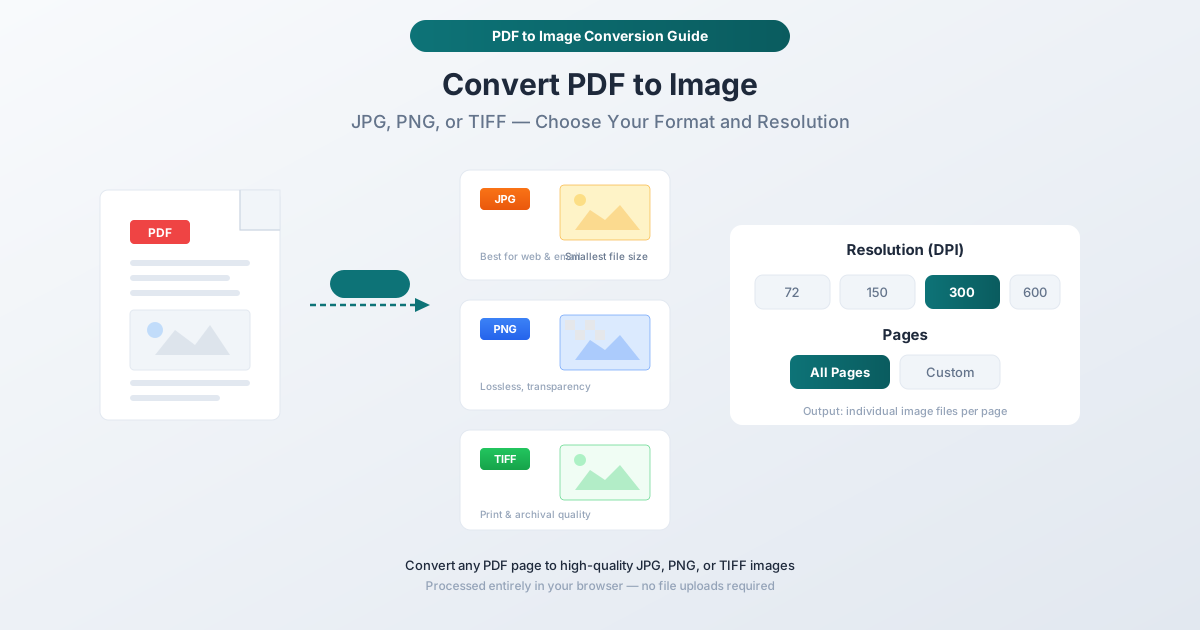
Choosing the Right Image Format
The format you choose affects file size, quality, and what you can do with the resulting image. Here's what matters.
JPG (JPEG)
JPG is the default choice for most situations. It produces the smallest file sizes, works everywhere, and handles photographs and complex graphics well. The tradeoff is that JPG uses lossy compression - it discards some image data to achieve smaller files. At high quality settings (90%+), the loss is invisible to the eye. At lower settings, you may notice artifacts around text edges and sharp lines.
Best for: Social media posts, email attachments, web embedding, presentations, any situation where file size matters and pixel-perfect text rendering doesn't.
Not ideal for: Documents with fine text you need to zoom into, images requiring transparency, or archival purposes where quality preservation is critical.
PNG
PNG uses lossless compression - no quality is lost, period. The resulting files are larger than JPG (typically 3-5x), but every pixel is preserved exactly. PNG also supports transparency, which matters if you need to overlay the image on different backgrounds.
Best for: Screenshots, text-heavy documents, diagrams with sharp lines, images needing transparency, any situation where you plan to edit or crop the image further.
Not ideal for: Large batches where storage space is a concern, or photographs where the extra file size provides no visible benefit.
TIFF
TIFF is the professional format used in publishing, archiving, and print production. It supports lossless compression, CMYK color spaces, high bit depth, and multiple pages in a single file. TIFF files are typically the largest of the three formats.
Best for: Print production, professional publishing, archival storage, any workflow that requires maximum quality and color fidelity.
Not ideal for: Web use (browsers don't display TIFF natively), email (files are too large), or general sharing.
Quick Comparison
| Format | Compression | File Size | Transparency | Best For |
|---|---|---|---|---|
| JPG | Lossy | Smallest | No | Web, social, email |
| PNG | Lossless | Medium | Yes | Text docs, diagrams, editing |
| TIFF | Lossless | Largest | Yes | Print, archival, publishing |
Understanding Resolution (DPI)
Resolution determines how sharp and detailed the output image will be. It's measured in DPI (dots per inch), and the setting you choose has a dramatic impact on both quality and file size.
72 DPI - Screen Viewing
This is web resolution. A standard letter-size page at 72 DPI produces an image around 612 x 792 pixels - adequate for on-screen viewing but too low for printing or zooming. File sizes are the smallest at this setting.
Use when: Creating thumbnails, embedding in websites where bandwidth matters, or generating quick previews.
150 DPI - Good Balance
The sweet spot for most use cases. A letter-size page at 150 DPI produces a 1275 x 1650 pixel image - sharp enough for presentations, clear when viewed full-screen, and printable at reasonable quality on office printers. File sizes are moderate.
Use when: Creating presentation slides, sharing documents via chat or email, or printing on standard office printers.
300 DPI - Print Quality
Professional print resolution. A letter-size page at 300 DPI produces a 2550 x 3300 pixel image - suitable for commercial printing, large-format displays, and archival storage. File sizes are substantial (4-8x larger than 150 DPI).
Use when: Professional printing, large poster displays, archival purposes, or situations where readers will zoom in to examine fine details.
600 DPI - Maximum Detail
Used for extremely fine detail - engineering drawings, architectural plans, medical imaging, or documents with tiny text. File sizes at 600 DPI are enormous (a single page can be 20-40 MB as PNG). Rarely necessary for typical document conversion.
Use when: Technical drawings with fine line work, documents with very small text, or source material for further high-resolution processing.
How to Convert PDF to Image with PDFSub
PDFSub's PDF to Image tool runs entirely in your browser. Your PDF never leaves your device - conversion happens locally using your computer's processing power.
Step-by-Step Instructions
Step 1: Open the tool. Go to pdfsub.com/tools/pdf-to-image. No account is required for basic conversions.
Step 2: Upload your PDF. Drag and drop the file or click to browse. The PDF loads instantly in the browser.
Step 3: Choose your format. Select JPG, PNG, or TIFF from the format dropdown. JPG is selected by default.
Step 4: Set the resolution. Choose your DPI setting. 150 DPI is the default and works for most situations. Bump to 300 DPI if you need print quality.
Step 5: Select pages. Convert all pages, or specify a page range (e.g., pages 1-3, or just page 5). For large documents, converting only the pages you need saves processing time.
Step 6: Convert and download. Click the convert button. For multi-page conversions, you'll receive a ZIP file containing one image per page.
Tips for Best Results
Text-heavy documents: Use PNG at 150+ DPI. The lossless compression preserves crisp text edges that JPG sometimes blurs.
Photos and mixed content: JPG at 150 DPI gives you the best balance of quality and file size.
Single page for a presentation: PNG at 300 DPI ensures the image looks sharp when projected on a large screen.
Batch conversion: When converting a 50+ page document, use JPG at 150 DPI to keep the total download manageable. A 100-page document at 300 DPI PNG could easily exceed 500 MB.
Converting Single Pages vs. All Pages
Sometimes you need one specific page. Other times you need the entire document as individual images. Both scenarios have different considerations.
Single Page Conversion
This is the simpler case. You're usually extracting a specific chart, diagram, or page to use in another context. Select the page number, choose your format and resolution, and convert. The output is a single image file.
Tip: If you're extracting a chart or diagram that occupies only part of a page, convert at 300+ DPI and then crop the image in any image editor. Starting with higher resolution gives you more flexibility when cropping.
All Pages Conversion
Converting every page produces one image file per page - typically named with the page number (page-1.jpg, page-2.jpg, etc.). For documents with more than a few pages, the images are bundled into a ZIP file.
File size planning: A 20-page document at 150 DPI produces roughly:
- JPG (quality 90): 1-3 MB per page, 20-60 MB total
- PNG: 3-8 MB per page, 60-160 MB total
- TIFF: 5-15 MB per page, 100-300 MB total
For large documents, JPG at 150 DPI is usually the most practical choice unless you specifically need lossless quality.
Page Range Conversion
If you need pages 5 through 12 out of a 50-page document, use the page range selector rather than converting all pages and deleting what you don't need. This saves processing time and avoids creating dozens of unused files.
Common Use Cases
Embedding in Presentations
PowerPoint and Google Slides accept JPG and PNG images. For best results, use PNG at 300 DPI - the lossless quality ensures text remains sharp when projected on a large screen. If the presentation file size is a concern, switch to JPG at 150 DPI.
Posting to Social Media
Most social platforms require JPG or PNG images. Instagram, LinkedIn, and Twitter/X all have their own compression, so uploading at ultra-high resolution is pointless - the platform will recompress it. 150 DPI JPG is ideal for social media sharing.
Creating Website Thumbnails
For document thumbnails on a website, low resolution is fine - 72 DPI keeps the file size small and the page loads fast. Use JPG for photographs and mixed content, PNG for text-heavy documents where readability matters even at thumbnail size.
Archiving Documents as Images
Some archival workflows require images rather than PDFs. Use TIFF at 300 DPI for archival purposes - it provides lossless quality and is widely supported by document management systems. Some institutions specifically require TIFF for long-term storage.
Inserting in Word or Google Docs
Word documents accept JPG and PNG. Use PNG at 150 DPI for documents with text you want to remain readable. Keep in mind that embedding high-resolution images inflates the Word file size - a 20-page PDF converted to 300 DPI PNG and inserted into Word could make the document 100+ MB.
Troubleshooting Common Issues
Blurry Output
If your converted image looks blurry, the resolution is too low. Increase the DPI setting. Text that looks fine at 150 DPI may appear soft at 72 DPI, especially when zoomed in.
Huge File Sizes
Reduce the DPI, switch to JPG, or convert fewer pages. A single 300 DPI PNG of a graphics-heavy page can be 10+ MB. If the image is destined for screen viewing, 150 DPI JPG will look nearly identical at one-fifth the file size.
Text Looks Jagged
This is common with JPG at lower quality settings. The lossy compression creates artifacts around sharp text edges. Switch to PNG for pixel-perfect text rendering, or increase the JPG quality setting.
Color Looks Different
PDF uses the document's embedded color profile. The output image uses sRGB by default, which is the standard for screens. If colors appear different, it's usually because the source PDF uses a CMYK color space designed for print. For print production work, use TIFF, which preserves the original color profile.
Frequently Asked Questions
Does converting PDF to image reduce quality?
It depends on your settings. At 300 DPI with PNG (lossless) format, the output is visually identical to the PDF - every detail is preserved. At lower resolutions or with JPG compression, some quality is traded for smaller file sizes. The key is choosing appropriate settings for your use case - 150 DPI JPG is more than enough for screen viewing, while archival work demands 300+ DPI TIFF.
Can I convert a password-protected PDF to an image?
You'll need to unlock it first. If you know the password, enter it when prompted, or use PDFSub's Unlock PDF tool to remove the protection. Once unlocked, the PDF converts to images like any other file.
How many pages can I convert at once?
PDFSub handles multi-page documents of any length. For very large documents (100+ pages), the conversion runs page by page and bundles the results into a ZIP download. Processing time scales linearly - expect roughly one to two seconds per page at 150 DPI.
Is it safe to convert PDFs to images online?
PDFSub's PDF to Image tool runs entirely in your browser. Your PDF is never uploaded to a server - the conversion happens locally on your device. This means your documents remain private by design, which matters for sensitive contracts, financial reports, or confidential materials.
What's the difference between "PDF to Image" and "Extract Images from PDF"?
They do fundamentally different things. "PDF to Image" renders each PDF page as a complete image - text, graphics, backgrounds, everything - as if you took a screenshot of the page. "Extract Images from PDF" pulls out only the embedded image files (photos, logos, charts) from inside the PDF, at their original resolution, without the surrounding text and layout. Use "PDF to Image" when you need the full page. Use "Extract Images" when you need the individual pictures.
Summary
Converting PDF to image is straightforward once you know which settings to use:
| Scenario | Recommended Format | Recommended DPI |
|---|---|---|
| Social media / web | JPG | 150 |
| Presentations | PNG | 300 |
| Email / chat sharing | JPG | 150 |
| Print production | TIFF | 300 |
| Archival storage | TIFF | 300 |
| Website thumbnails | JPG | 72 |
| Further image editing | PNG | 300 |
The general rule: use JPG for sharing (smallest files, universal compatibility), PNG for quality (lossless, supports transparency), and TIFF for professional/archival work (maximum fidelity).
Ready to convert? Try PDFSub's PDF to Image tool - it runs in your browser, supports all three formats, and gives you full control over resolution and page selection.