How to Convert PDF to HTML Online
Need to turn a PDF into a web page? Here's how to convert PDF to HTML - preserving text, links, and basic formatting for web publishing.
PDF locks content into a fixed layout. That's perfect for printing and sharing, but it's a dead end for the web. Search engines can index PDF text, but they can't style it, make it responsive, or integrate it into your site's design. Visitors have to download a file instead of reading in their browser.
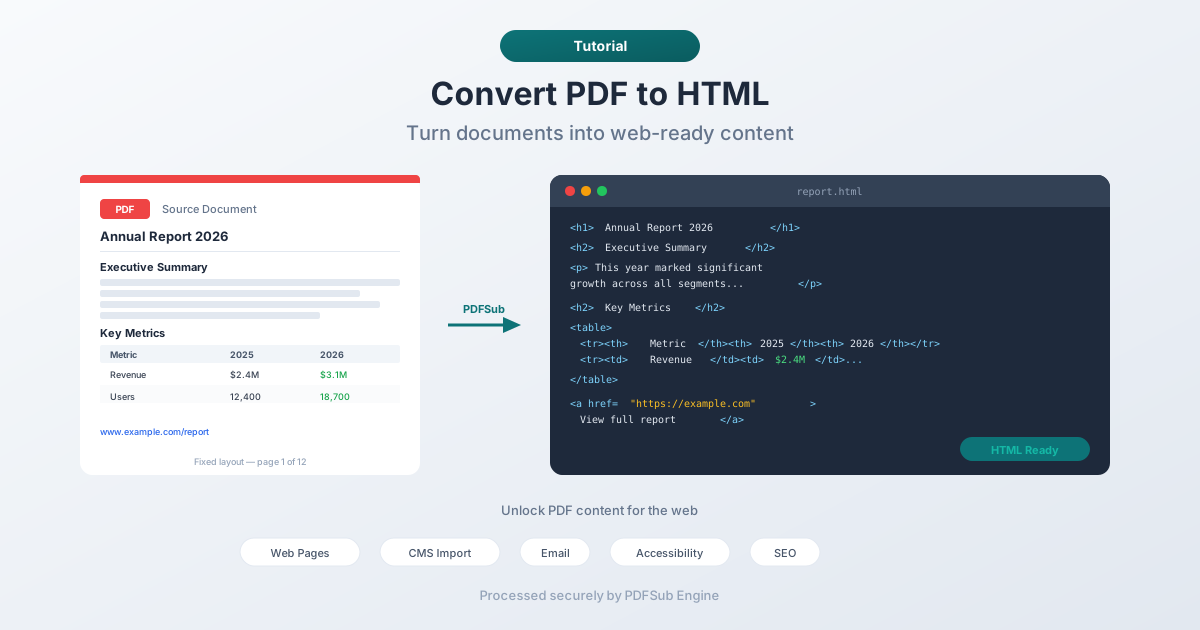
Converting PDF to HTML unlocks that content. Text becomes selectable, searchable, and styleable. Links become clickable. The content can live on your website, in your CMS, in an email, or anywhere HTML goes.
This guide covers why you'd convert PDF to HTML, how to do it, what to expect from the output, and how to handle common challenges.
Why Convert PDF to HTML?
Web Publishing
The most common reason. You have a report, brochure, manual, or document in PDF format and you want it as a web page. HTML loads faster, works on mobile, integrates with your site navigation, and lets visitors read without downloading anything.
Email Content
Many email builders accept HTML content. Converting a PDF flyer, newsletter, or announcement to HTML lets you embed the content directly in an email instead of attaching a PDF file that recipients might not open.
CMS Import
Content management systems (WordPress, Drupal, Squarespace, Ghost) work with HTML. Converting your PDF content to HTML makes it easy to paste into a CMS editor and publish as a blog post, page, or knowledge base article.
Accessibility
PDFs can be accessibility nightmares - especially scanned documents, image-heavy layouts, or files without proper tag structure. HTML with semantic markup (headings, paragraphs, lists, alt text) is inherently more accessible. Screen readers, text-to-speech tools, and browser zoom all work better with HTML.
Content Repurposing
You have a whitepaper, case study, or guide in PDF. Converting to HTML lets you break it into blog posts, landing page sections, FAQ entries, or documentation pages. The content stays the same; the presentation changes.
Search Engine Optimization
While search engines can index PDF text, HTML pages rank better. They have proper meta tags, heading structure, internal links, and responsive design signals. Converting important PDF content to HTML and publishing it as web pages improves discoverability.
How to Convert PDF to HTML (Step by Step)
Step 1: Upload Your PDF
Go to PDFSub's PDF to HTML tool and upload your document. The file is sent to PDFSub Engine for processing in a secure, isolated environment.
Step 2: Convert
PDFSub Engine analyzes the PDF structure - text blocks, headings, paragraphs, links, images - and generates HTML that represents the content. The conversion runs server-side and typically completes in a few seconds.
Step 3: Download the HTML
Download the resulting HTML file. Open it in a browser to preview the output. The HTML contains the text content with basic formatting preserved.
Step 4: Integrate
Use the HTML as-is, or copy the content into your CMS, email builder, or web project. You may need to adjust styling to match your site's design - the converted HTML provides the structure and content, while your site's CSS handles the visual presentation.
What to Expect from the Output
PDF to HTML conversion is a translation between fundamentally different formats. PDF uses absolute positioning (every character has exact x,y coordinates on a fixed-size page). HTML uses document flow (content flows top-to-bottom, left-to-right, wrapping to fit the viewport).
This means the conversion output depends heavily on the source document:
Simple, Text-Heavy PDFs (Best Results)
Documents with straightforward layouts - linear text, headings, paragraphs, simple lists - convert very well. The HTML output preserves the content structure accurately, and the text is clean and ready for web use.
Examples: articles, reports, manuals, policies, guides, essays.
PDFs with Tables (Good Results, Some Cleanup May Be Needed)
Tables convert to HTML <table> elements. Simple tables with clear headers and consistent columns translate well. Complex tables with merged cells, nested tables, or irregular column widths may need minor cleanup.
Multi-Column Layouts (Mixed Results)
Two-column or three-column layouts (like newsletters or brochures) are challenging. The converter needs to determine reading order - which column comes first? - and linearize the content into a single HTML flow. Most converters do a reasonable job, but you should verify the reading order.
Image-Heavy and Design-Forward PDFs (Requires Manual Work)
PDFs that are essentially graphic design pieces - marketing brochures, infographics, visually complex flyers - don't convert well to HTML. The visual design relies on precise positioning that HTML doesn't replicate. For these, you're better off recreating the design in HTML/CSS from scratch or using the PDF as a reference.
Scanned PDFs (Limited)
If the PDF is a scanned image (no selectable text), the converter can't extract text content. You'd need OCR (Optical Character Recognition) first to convert the scanned image into actual text, then convert that text to HTML.
Cleaning Up the Output
Converted HTML rarely matches your site's styling out of the box. Here's how to handle common cleanup tasks:
Applying Your Site's Styles
The converted HTML provides semantic structure - headings, paragraphs, lists, tables. Your site's CSS should handle most of the visual styling automatically if the HTML uses proper elements. If the converter outputs <h1>, <h2>, <p>, and <ul> tags, your existing stylesheets will format them.
Removing Extra Formatting
Some converters add inline styles for font sizes, colors, or positioning that match the original PDF. These may conflict with your site's design. Stripping inline styles and relying on your CSS classes produces cleaner results.
Fixing Line Breaks
PDFs break lines at fixed column widths. The converter might preserve these line breaks, creating short, choppy lines in the HTML. Remove hard breaks within paragraphs so the text flows naturally at any viewport width.
Handling Images
Images from the PDF are typically extracted and embedded or referenced separately. Verify that image paths are correct, add alt text for accessibility, and adjust sizing for responsive layouts.
Checking Links
Hyperlinks in the PDF should carry over to the HTML as <a> tags. Verify that URLs are correct and that internal document links (like table of contents entries) still function or are updated to work in the web context.
Alternative Approaches
Copy-Paste
For short documents, the simplest approach: open the PDF, select all text, copy, and paste into your CMS or HTML editor. You'll lose formatting, but for a few paragraphs of content, manual formatting in the CMS is faster than running a conversion tool.
PDF Embed
If you don't need the content as HTML - you just want visitors to view the PDF on your website - embed the PDF directly. Most modern browsers render PDFs inline. This preserves the original layout perfectly but doesn't give you the SEO, accessibility, or styling benefits of HTML.
Manual Recreation
For design-heavy documents where conversion quality isn't sufficient, recreating the content in HTML/CSS gives the best results. It's more work, but you get pixel-perfect control over the web presentation.
Tips for Best Results
- Start with a well-structured PDF. PDFs created from Word, Google Docs, or other text editors produce better HTML than PDFs created from design tools or scanned documents.
- Check the reading order. Multi-column and complex layouts may reorder content. Read through the HTML to verify the text flows correctly.
- Plan for styling. The conversion gives you content and basic structure. Your CSS handles the visual design. Don't expect the HTML to look like the PDF - expect it to contain the same content in a web-friendly format.
- Test on mobile. One major advantage of HTML over PDF is responsive design. After converting, verify the content reads well on mobile devices.
- Add metadata. The converted HTML won't have SEO meta tags, Open Graph data, or other web-specific metadata. Add these when publishing.
FAQ
Will the HTML look exactly like the original PDF?
No, and that's by design. PDF uses fixed positioning for a specific page size. HTML uses fluid layout that adapts to any screen. The content will be the same - text, headings, links, images - but the presentation will follow HTML/CSS rules rather than the PDF's fixed coordinates. This is actually a benefit for web publishing.
Can I convert a scanned PDF to HTML?
Not directly. A scanned PDF contains images of text, not actual text characters. You need OCR (Optical Character Recognition) first to extract the text, then you can convert the extracted text to HTML. PDFSub offers OCR tools that can handle this workflow.
How does the converter handle PDF forms?
Form fields in the PDF (text inputs, checkboxes, dropdowns) may be converted to their HTML equivalents, but the behavior depends on the converter. For functional web forms, you'll likely need to recreate the form logic in HTML - form validation, submission handling, and backend processing don't transfer from PDF.
Is the conversion secure?
Yes. PDFSub Engine processes your file in a secure, isolated environment. The file is processed for conversion and not stored permanently. The resulting HTML is returned to you for download.
Can I convert multiple PDFs at once?
For batch conversion, you'd process each PDF individually. If you have many PDFs to convert, consider whether the content warrants individual conversion or whether a different approach (like a PDF viewer widget on your site) would be more efficient.
Wrapping Up
PDF to HTML conversion bridges the gap between print-oriented documents and the web. For text-heavy documents with clear structure, the conversion is straightforward and the results are excellent. For complex layouts, expect some cleanup work.
The key insight: you're not trying to replicate the PDF's appearance in HTML. You're extracting the content and giving it a web-native format that's searchable, accessible, responsive, and styleable.
Try PDFSub's PDF to HTML converter to turn your PDF content into web-ready HTML.