How to Convert Images to PDF Online (Free)
Need to turn photos or images into a PDF? Here's how to convert JPG, PNG, or other images to PDF - combine multiple images into one document.
You took photos of a receipt. Or you scanned a stack of documents. Or you have screenshots for a report. Whatever the case, you've got image files and you need them in a PDF.
Converting images to PDF is one of the most common document tasks - and because PDFSub handles this entirely in your browser, your files never leave your device.
Why Convert Images to PDF?
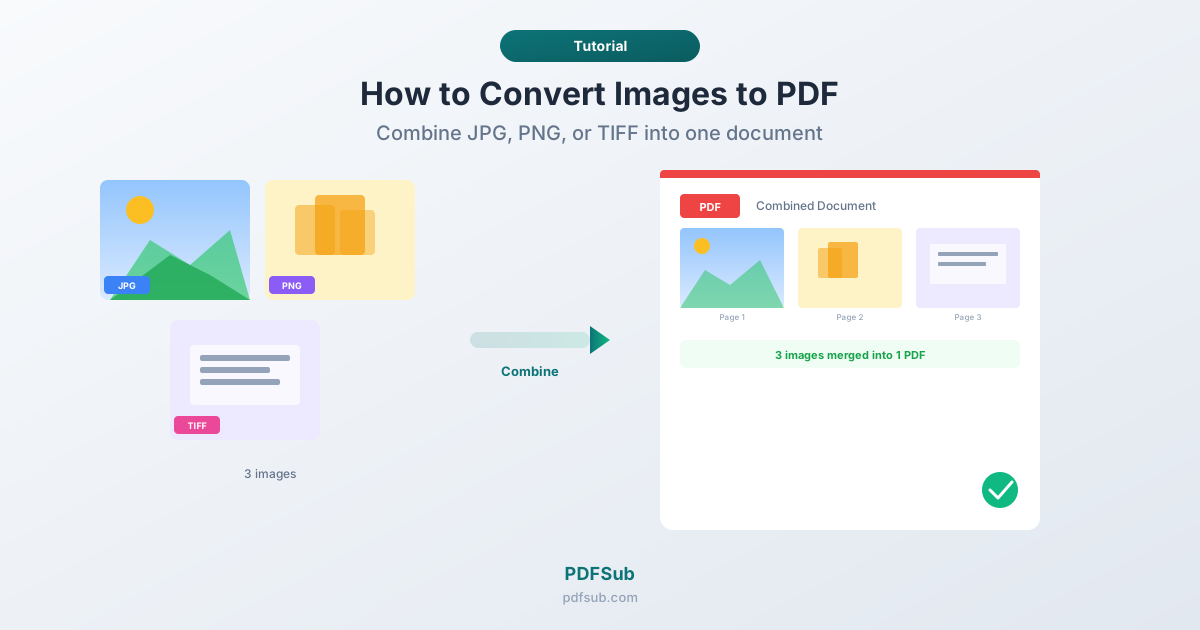
Combine multiple images into one file. Instead of attaching 15 separate JPGs to an email, combine them into a single PDF.
Create proper documents from scans. Photos of receipts, contracts, or ID documents are more professional as PDFs than raw image files.
Universal compatibility. PDFs open on every device. While most devices view images too, PDF is preferred for formal documents and record-keeping.
Preserve quality. PDFs store images losslessly, meaning no quality loss during conversion.
Method 1: PDFSub (Free, Browser-Based)
PDFSub's Image to PDF tool runs entirely in your browser. Your images are never uploaded to any server.
- Go to PDFSub's Image to PDF converter
- Upload one or more images - drag and drop, or click to browse
- Reorder images if needed (drag to rearrange)
- Click Convert to generate the PDF
- Download the combined PDF
Supported formats: JPG/JPEG, PNG, TIFF, WEBP, BMP, GIF, HEIC
Because this runs in your browser, it's ideal for sensitive documents like receipts, medical records, or identification. Nothing leaves your device.
Method 2: Built-In OS Tools
Windows: Right-click the image(s), click Print, select Microsoft Print to PDF, choose layout, and click Print.
macOS: Open images in Preview, select all in the sidebar, click File > Export as PDF.
iPhone/iPad: Select photos, tap Share > Print, pinch outward on the preview to create a PDF, then share or save.
Single Image vs. Multiple Images
Single image becomes a single-page PDF. Common for scanned documents, screenshots, or design mockups.
Multiple images combine into a multi-page document. Great for:
- Receipt collections - multiple receipts into one expense report
- Photo reports - property inspections, construction progress
- Document scanning - pages of a physical document assembled into a proper PDF
- Portfolios - design samples or photography combined into one document
Order matters. PDFSub lets you drag images to reorder them before conversion.
Image Quality and Formats
The PDF quality depends on your input images:
| Format | Compression | Best For |
|---|---|---|
| JPG/JPEG | Lossy | Photos, scanned documents |
| PNG | Lossless | Screenshots, text-heavy images |
| TIFF | Lossless | High-quality scans |
| WEBP | Lossy or lossless | Web images |
| HEIC | Lossy | iPhone photos |
PNG is best for text. If your image contains text (screenshots, scanned docs), PNG preserves sharp edges. JPG creates fuzzy artifacts around text characters.
Resolution matters. 300 DPI images produce sharp, print-quality pages. Phone cameras typically capture at high enough resolution for any use case.
Tips for Better Conversions
Crop before converting. Remove unnecessary borders and empty space for a cleaner document.
Straighten scanned documents. A tilted page in a PDF looks unprofessional. Use your phone's photo editor or a scanning app to correct perspective.
Use consistent orientation. If some images are landscape and others portrait, the PDF will have mixed page orientations. Rotate to a consistent orientation first.
Watch file sizes. A PDF with 50 high-resolution photos can exceed 100MB. Reduce image resolution before converting if file size matters. 150 DPI is sufficient for screen viewing; 300 DPI for printing.
Use a scanning app for documents. Scanning apps automatically correct perspective, enhance contrast, and crop to document edges - dramatically better than raw photos.
Frequently Asked Questions
Is PDFSub's Image to PDF converter really free?
Yes. The tool processes everything in your browser - no server involved, no watermark. It's part of PDFSub's suite of browser-based tools, with a 7-day free trial to get started.
Do my images get uploaded to a server?
No. PDFSub's Image to PDF tool runs entirely in your browser. Nothing is uploaded, stored, or transmitted. This makes it safe for sensitive documents.
Can I combine different image formats in one PDF?
Yes. You can mix JPG, PNG, TIFF, WEBP, and other formats in a single conversion. Each image becomes one page regardless of format.
What's the maximum number of images I can convert?
The practical limit depends on your device's available memory. For most use cases - receipts, documents, screenshots - you won't hit any limit. Very large batches of high-resolution photos may need to be processed in smaller groups.
How do I control the page order?
After uploading, drag and drop images to rearrange the order in PDFSub. The arrangement in the tool matches the page order in the PDF. When using other methods, rename files with numerical prefixes (01_, 02_, 03_) to ensure correct sorting.
Converting images to PDF should be quick and painless. Whether it's a single receipt or a folder of scanned documents, the result is a clean, organized, universally viewable PDF.
Try PDFSub's Image to PDF converter - free, browser-based, and your files never leave your device.