How to Convert HTML to PDF Online
Need to save a web page or HTML file as a PDF? Here's how to convert HTML to PDF - preserving layout, links, and styling.
Web pages disappear. Articles get taken down. Pricing pages change. Terms of service get updated without notice. If you've ever gone back to find a page that no longer exists, you know the frustration.
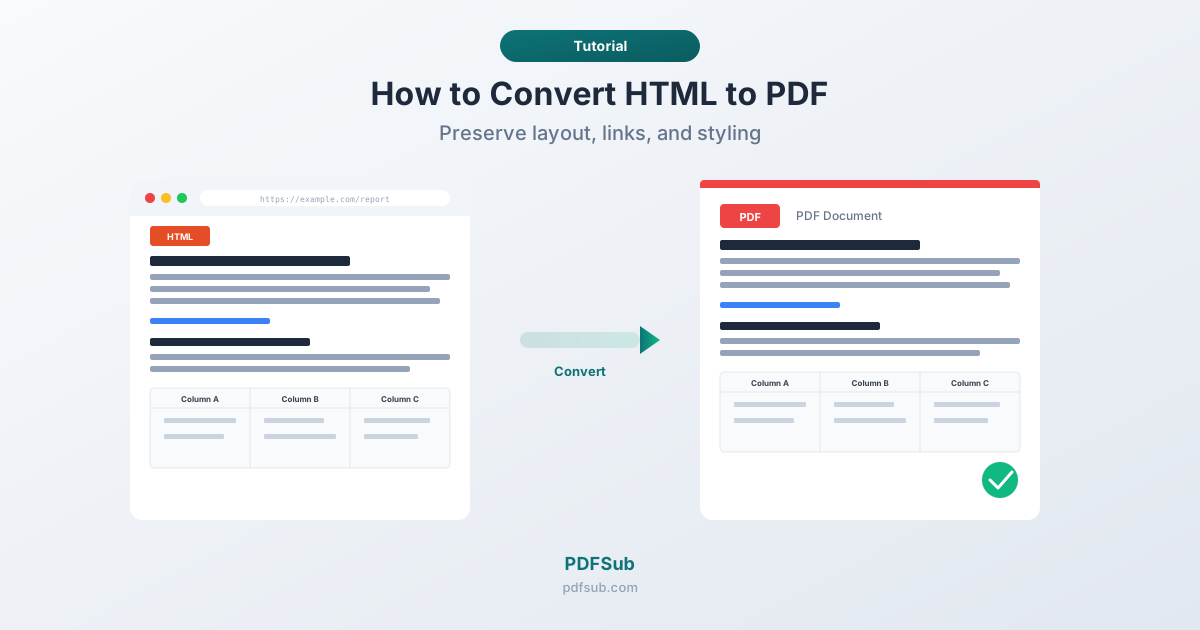
Converting HTML to PDF captures a web page or HTML file as a permanent document. The layout, text, images, and links are preserved in a single file you can read offline, share, print, or archive indefinitely.
Why Convert HTML to PDF?
Permanent archiving. Web content is temporary. A PDF is a frozen snapshot that preserves content exactly as it appeared.
Offline access. Convert an article or recipe to PDF and read it anywhere - no internet needed.
Professional reports. Many reporting systems generate HTML output. Converting to PDF creates polished, distributable documents.
Legal documentation. A PDF of a web page preserves content with metadata, making it more suitable for records than screenshots.
Clean printing. Browser print-to-PDF produces cleaner output than printing a web page directly, especially with Reader Mode enabled.
Method 1: PDFSub (Online)
PDFSub's HTML to PDF converter processes your file server-side using the PDFSub Engine, producing a high-fidelity PDF with full CSS support.
- Go to PDFSub's HTML to PDF converter
- Upload your
.htmlfile - The file is processed by the PDFSub Engine in a secure, isolated environment
- Download your converted PDF
The engine renders HTML with flexbox, grid, custom fonts, and modern CSS. Best for HTML files saved from websites, HTML reports from applications, and email templates.
Method 2: Browser Print-to-PDF
Every modern browser can "print" a web page to PDF.
Chrome/Edge: Press Ctrl+P (or Cmd+P), set Destination to Save as PDF, adjust margins and scale, click Save.
Firefox: Press Ctrl+P, select Save to PDF, click Save.
Safari: Click File > Export as PDF.
Pro tip: Use the browser's Reader Mode before printing. It strips navigation, ads, and sidebars, leaving just the article content for a much cleaner PDF.
Method 3: Save and Convert
For more control:
- Save the web page as HTML (Ctrl+S, choose Webpage, Complete)
- Upload the saved
.htmlfile to PDFSub's HTML to PDF converter - Download the PDF
This lets you edit the HTML before converting - removing sections, fixing layout, or adding content.
What Gets Preserved
| Element | Preserved? | Notes |
|---|---|---|
| Text content | Yes | Fully preserved |
| CSS styling | Mostly | Print stylesheets take precedence if defined |
| Images | Yes | External images need network access during conversion |
| Hyperlinks | Yes | Clickable in the PDF |
| Tables | Yes | Including borders and styling |
| Videos | No | Placeholder or first frame only |
| Interactive elements | No | Dropdowns and tabs are frozen |
| JavaScript content | Depends | PDFSub Engine renders JS; browser captures current state |
| Forms | Flattened | Fields become static text |
Use Cases
Archiving web content. Save articles, documentation, or research as PDFs. Especially important for academic citations and compliance.
Saving receipts. Online purchase confirmations and booking receipts are often web pages, not downloadable PDFs. Print-to-PDF captures them.
Generating reports. Business dashboards and analytics tools that output HTML can be converted to distributable PDF reports.
Documentation snapshots. API docs and help articles change over time. A PDF preserves the version you're working with.
Legal evidence. Terms of service and pricing pages change without notice. A timestamped PDF provides evidence of what was published.
Tips for Better Conversions
Enable background graphics. Browsers exclude background colors by default when printing to PDF. In Chrome's print dialog, check Background graphics.
Try Reader Mode first. Stripping navigation and ads before converting produces a much cleaner PDF.
Handle page breaks in your own HTML. Use page-break-before: always; or break-before: page; in CSS to control where pages split. Use page-break-inside: avoid; on tables and images.
Watch for responsive layouts. Pages render at a specific width for PDF. You may get the mobile layout instead of desktop. Try landscape orientation or a wider paper size if this happens.
Check the output. HTML-to-PDF can produce unexpected results with complex layouts. Always scroll through the PDF before sharing.
Frequently Asked Questions
Can I convert a live web page URL directly to PDF?
PDFSub's tool accepts HTML files, not URLs directly. For live pages, use your browser's print-to-PDF (Ctrl+P > Save as PDF) - this is actually the most reliable method since it renders exactly what you see. Alternatively, save the page as HTML first and upload to PDFSub.
Does the conversion preserve clickable links?
Yes. Both PDFSub and browser print-to-PDF maintain hyperlink functionality. External URLs remain clickable. Internal anchor links (within the same page) may not work in the PDF.
Why does my PDF look different from the web page?
Common causes: print stylesheets change the layout, responsive design renders differently at PDF page width, background colors are excluded by default, or JavaScript-loaded content wasn't captured. Make sure the page is fully loaded before converting.
Can I convert HTML emails to PDF?
Yes. Save the email as HTML (most email clients support this), then upload to PDFSub or open in a browser and use print-to-PDF. HTML emails use table-based layouts that may look different outside the email client's width constraints.
Can I batch convert multiple HTML files?
Yes. PDFSub's Batch Convert tool can process multiple HTML files at once, converting each to a separate PDF.
Web content is temporary. A PDF is permanent. Whether you're archiving an article, saving a receipt, or generating a report, converting HTML to PDF gives you a reliable document that looks the same today and years from now.