How to Convert HEIC to JPG or PNG Online (Free)
iPhone photos in HEIC format but need JPG or PNG? Here's how to convert HEIC files instantly - free, in your browser.
You take a photo on your iPhone, email it to a colleague, and they reply: "I can't open this file." Or you try to upload a photo to a website - a job application, a real estate listing, a product marketplace - and the form rejects it with "unsupported file format." You look at the file extension: .heic. What is that, and why can't anything open it?
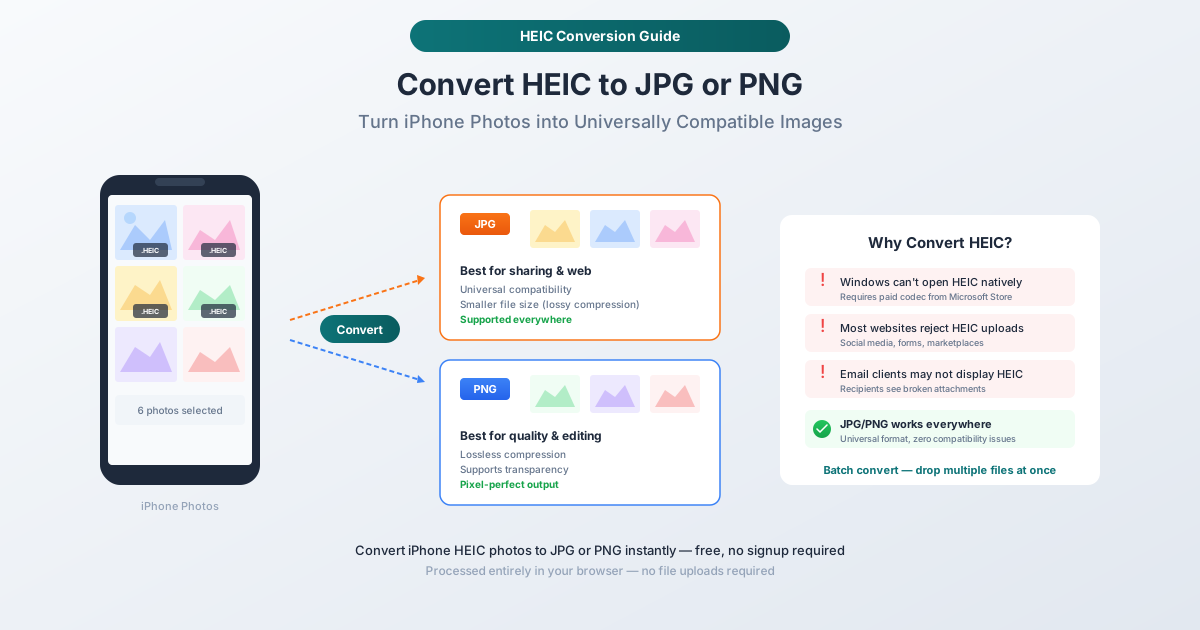
This has been one of the most common tech frustrations since 2017, when Apple switched the default iPhone photo format from JPG to HEIC. Every year, hundreds of millions of people take photos in a format that large portions of the digital world still can't handle natively. Windows PCs require a paid codec. Many websites reject HEIC uploads. Email clients sometimes can't display HEIC attachments. Social media platforms may silently fail when you try to post one.
The fix is simple: convert HEIC to JPG or PNG. It takes seconds, preserves your photo quality, and gives you a file that works everywhere. Here's everything you need to know.
What Is HEIC (and Why Does Apple Use It)?
HEIC stands for High Efficiency Image Container. It's based on the HEIF (High Efficiency Image Format) standard, which uses the same compression technology as modern video codecs (H.265/HEVC). Apple adopted it as the default photo format starting with iOS 11 in September 2017.
Why Apple Chose HEIC
The technical advantages are significant:
50% smaller files at the same quality. A typical iPhone photo that would be 3-4 MB as a JPG is only 1.5-2 MB as HEIC. For a phone with thousands of photos, this saves gigabytes of storage.
Better color depth. HEIC supports 16-bit color depth, compared to JPG's 8-bit. This means smoother gradients, more accurate colors, and better dynamic range - particularly noticeable in sunset photos and scenes with subtle color variations.
Modern features. HEIC supports transparency (like PNG), multiple images in a single file (Live Photos, burst shots), depth maps (Portrait Mode), and non-destructive editing data. JPG supports none of these.
The Compatibility Problem
Despite its technical superiority, HEIC has a massive adoption problem. It's been almost a decade since Apple introduced it, and support is still spotty:
Windows: Requires installing the "HEIF Image Extensions" from the Microsoft Store (free) and the "HEVC Video Extensions" (previously $0.99, now free). Many users don't know about these or don't have permission to install them on managed corporate devices.
Web browsers: Chrome, Firefox, Safari, and Edge have added HEIC support in recent versions, but many websites and web applications still only accept JPG and PNG uploads.
Social media: Most platforms accept HEIC uploads now, but some older platforms, forums, and marketplace sites still reject them.
Email: Some email clients display HEIC attachments correctly, but many don't - and recipients on older systems see broken attachments.
Professional software: While Photoshop and Lightroom handle HEIC, many simpler editing tools, presentation builders, and document creation tools do not.
The bottom line: HEIC is technically superior but practically inconvenient when you need to share photos outside the Apple ecosystem.
JPG vs. PNG: Which Should You Convert To?
Both formats solve the compatibility problem, but they serve different purposes.
Convert to JPG When:
- You're sharing photos - JPG is the universal image format. Every device, browser, and application supports it.
- File size matters - JPG produces smaller files than PNG for photographs. A HEIC photo that's 2 MB converts to roughly 3-4 MB as JPG, but would be 8-15 MB as PNG.
- You're uploading to websites - Almost every web form accepts JPG. It's the format most services expect.
- The photo is a regular photograph - JPG's lossy compression is optimized for photographic content. At high quality settings (90%+), the quality loss is invisible to the human eye.
Convert to PNG When:
- You need lossless quality - PNG preserves every pixel exactly. No data is discarded during compression.
- The image has text - Screenshots, document photos, or images with overlaid text render more crisply in PNG. JPG compression can blur text edges.
- You need transparency - If the original HEIC has transparency (rare for photos, but possible), PNG preserves it. JPG doesn't support transparency.
- You'll edit the image further - PNG is a better source format for editing because it doesn't introduce compression artifacts. Each time you save a JPG, quality degrades slightly.
For Most People
JPG is the right choice 90% of the time. You're converting because you need compatibility, and JPG gives you the smallest files with universal support. Only choose PNG if you have a specific need for lossless quality or transparency.
How to Convert HEIC to JPG/PNG with PDFSub
PDFSub's HEIC to JPG/PNG tool runs entirely in your browser. Your photos are never uploaded to a server - the conversion happens locally on your device.
Step-by-Step Instructions
Step 1: Open the tool. Go to pdfsub.com/tools/heic-to-image. No account is required.
Step 2: Drop your HEIC files. Drag and drop one or more HEIC files into the upload area, or click to browse. You can select multiple files for batch conversion.
Step 3: Choose your output format. Select JPG or PNG. For JPG, you can adjust the quality slider - 90% is the default and recommended setting.
Step 4: Convert. Click the convert button. Each file is processed in your browser. Conversion is fast - typically under a second per photo.
Step 5: Download. Download individual converted files, or grab them all as a ZIP if you converted multiple photos.
Batch Conversion
Got 50 vacation photos to convert? Drop them all at once. The tool processes them sequentially and bundles the output for easy download. This is dramatically faster than converting one at a time.
Changing Your iPhone Settings
If you'd rather avoid HEIC entirely, you can change your iPhone's camera format to shoot JPG natively.
Switch to JPG on iPhone
- Open Settings
- Scroll down to Camera
- Tap Formats
- Select Most Compatible (this switches from HEIC to JPG)
The tradeoff: your photos will take up roughly twice as much storage space on your phone. For most people with 128 GB or more of storage, this isn't a problem. For phones with 64 GB storage and large photo libraries, it might matter.
Automatic Transfer Conversion
There's a middle-ground option: keep shooting in HEIC (for the space savings) but have your iPhone automatically convert to JPG when sharing.
- Open Settings
- Scroll down to Photos
- Under "Transfer to Mac or PC," select Automatic
With this setting, your iPhone stores photos as HEIC locally but converts them to JPG when you AirDrop, email, or transfer via USB. This works well for direct transfers but doesn't help when you're uploading files from your photo library to a website.
Understanding HEIC Files on Different Platforms
Mac
macOS has supported HEIC natively since High Sierra (2017). Preview, Photos, and most Mac applications open HEIC files without any additional software. If you only share photos with other Mac users, HEIC works fine.
Windows
Native HEIC support in Windows is limited. Windows 10 and 11 can display HEIC thumbnails in File Explorer if the HEIF codec is installed, and the Photos app can open HEIC files with the codec. But many Windows applications - including older versions of popular image viewers and editors - can't handle HEIC.
Android
Android added HEIC support in Android 10 (2019). Most modern Android phones can open HEIC files, but older devices and some third-party gallery apps may not support it.
Linux
HEIC support in Linux varies by distribution and desktop environment. GNOME's image viewer (Eye of GNOME) added support in recent versions. KDE's Gwenview may require additional libraries. Command-line tools like ImageMagick support HEIC with the right backend installed.
Quality Considerations
HEIC to JPG Quality
Converting from HEIC to JPG involves re-encoding the image. HEIC uses one compression algorithm (HEVC-based), and JPG uses another. At a quality setting of 90-95%, the visual difference between the original HEIC and the converted JPG is imperceptible to the naked eye.
At quality settings below 80%, you may start to notice JPG compression artifacts - slight blockiness in areas of smooth gradients, minor blurring around sharp edges. For sharing on social media or via email, quality levels of 85-90% are perfectly adequate.
HEIC to PNG Quality
This conversion is truly lossless - the PNG output preserves every pixel of the decoded HEIC image. The resulting files are larger (3-5x compared to JPG), but no quality is lost in the process. This is the right choice when you need exact pixel preservation.
Metadata Preservation
HEIC files contain EXIF metadata - camera settings, date/time, GPS location, and other data. When converting to JPG or PNG, this metadata is preserved by default. If you want to strip metadata for privacy (removing GPS coordinates, for example), you can combine the conversion with PDFSub's metadata editing tools.
Frequently Asked Questions
Does converting HEIC to JPG reduce photo quality?
At the default quality setting (90%), the quality loss is invisible to the human eye in normal viewing. JPG compression artifacts only become noticeable at quality settings below 80%, or when zooming into the image at extreme magnification. For sharing photos via email, social media, or websites, JPG at 90% quality is indistinguishable from the HEIC original.
Can I convert HEIC files on my phone?
Yes. PDFSub's converter runs in any modern mobile browser - Safari on iPhone, Chrome on Android. No app installation required. Open the tool in your browser, select your HEIC files from the Photos app, and convert directly on your phone.
Is HEIC better than JPG?
Technically, yes - HEIC produces smaller files at the same quality, supports 16-bit color, and has features like transparency and depth maps that JPG lacks. Practically, JPG remains more useful because of its universal compatibility. HEIC is the better storage format; JPG is the better sharing format. The ideal approach is to keep originals in HEIC and convert to JPG only when sharing.
Will I lose my Live Photos when converting to JPG?
Yes. A Live Photo is stored as a HEIC image plus a short video clip. Converting to JPG extracts only the still image - the video component is discarded. If you want to preserve the Live Photo functionality, keep the original HEIC file.
Can I batch convert hundreds of HEIC files at once?
Yes. PDFSub's converter handles batch conversions - drop all your files at once and download the converted results as a ZIP. Processing happens in your browser, so speed depends on your device. A modern laptop can convert hundreds of photos in a few minutes.
Summary
HEIC is Apple's efficient photo format that offers better compression and color depth than JPG, but suffers from widespread compatibility issues outside the Apple ecosystem. Converting to JPG (for sharing) or PNG (for lossless quality) takes seconds and solves the compatibility problem completely.
| Scenario | Convert To | Quality Setting |
|---|---|---|
| Sharing via email | JPG | 90% |
| Uploading to websites | JPG | 90% |
| Posting on social media | JPG | 85-90% |
| Image editing workflow | PNG | Lossless |
| Print production | PNG or TIFF | Lossless |
| Archival storage | PNG | Lossless |
For most people, the workflow is: take photos in HEIC (smaller files on your phone), convert to JPG when you need to share (universal compatibility). Keep the originals in HEIC as your archival copies.
Ready to convert? Try PDFSub's HEIC to JPG/PNG converter - it's free, runs in your browser, and handles batch conversions. No signup required.