How to Clean Up a Scanned PDF (Remove Noise, Straighten Pages)
Scanned PDFs look messy - skewed pages, speckled backgrounds, faded text. Here's how to clean them up for a professional, readable result.
You scanned a stack of documents, and the result looks... rough. Pages are slightly tilted. The white backgrounds have a yellowish tinge with speckles and spots. Text that was perfectly sharp on paper looks faded and fuzzy on screen. Dark shadows creep along the edges where the page didn't sit flat on the scanner glass.
This is the reality of scanning. Even good scanners with careful operators produce imperfect results. Paper shifts during feeding. Flatbed scanners pick up every speck of dust. Older documents have yellowed paper, faded ink, and physical damage that the scanner faithfully reproduces. The result is a PDF that's technically functional but looks unprofessional and can be difficult to read.
Cleaning up a scanned PDF transforms these messy scans into clean, professional documents - with straight pages, white backgrounds, crisp text, and no border artifacts. Better still, clean scans produce dramatically better results if you later run OCR to make the text searchable and selectable.
Here's how to clean up your scanned PDFs, what each cleanup step does, and when to pair cleanup with OCR.
Why Scanned PDFs Need Cleanup
Understanding what creates the mess helps you know which cleanup steps matter most for your documents.
Skew (Tilted Pages)
When paper feeds through a document scanner at even a slight angle - half a degree is enough to be noticeable - the resulting image is tilted. This happens with every automatic document feeder (ADF) to some extent. The human eye is surprisingly sensitive to skew - a page tilted just one degree looks obviously crooked, making the document feel sloppy and unprofessional.
Skew also wreaks havoc on OCR accuracy. OCR engines expect text to run in horizontal lines. When the entire page is rotated, the text detection algorithms struggle to identify line boundaries, leading to jumbled words, missed characters, and broken paragraphs.
Noise (Speckles and Dots)
Scanner noise comes from multiple sources: dust on the scanner glass, paper texture captured at high resolution, electrical noise in the scanner's sensor, and artifacts from the scanning optics. The result is random dots and speckles scattered across the page - most visible on white backgrounds but present throughout the image.
Noise is especially problematic in white margins and between text lines, where it creates visual clutter. For OCR, noise dots can be misinterpreted as punctuation, diacritical marks, or parts of characters - a common source of OCR errors.
Faded Text
Over time, ink fades. Laser prints hold up well, but inkjet prints, photocopies, and carbon copies fade significantly. Even relatively recent documents can have uneven print density - darker where the toner was fresh, lighter where it was running low.
Faded text is hard to read on screen and prints poorly. It also reduces OCR accuracy because the algorithms need clear contrast between text and background to identify characters reliably.
Dark Borders and Shadows
When a page doesn't cover the entire scanner surface - or when a book's spine creates a shadow - the scan captures dark borders and shadow regions. These are purely artifacts of the scanning process and serve no purpose in the document. They waste toner when printed and make the document look like a photocopy of a photocopy.
Uneven Background
Paper isn't perfectly white. Older documents have yellowed. Recycled paper has a grayish tinge. Some documents have colored paper. When scanned, these background variations are captured as pixel data - adding megabytes to the file size while contributing nothing to readability.
The Four Cleanup Steps
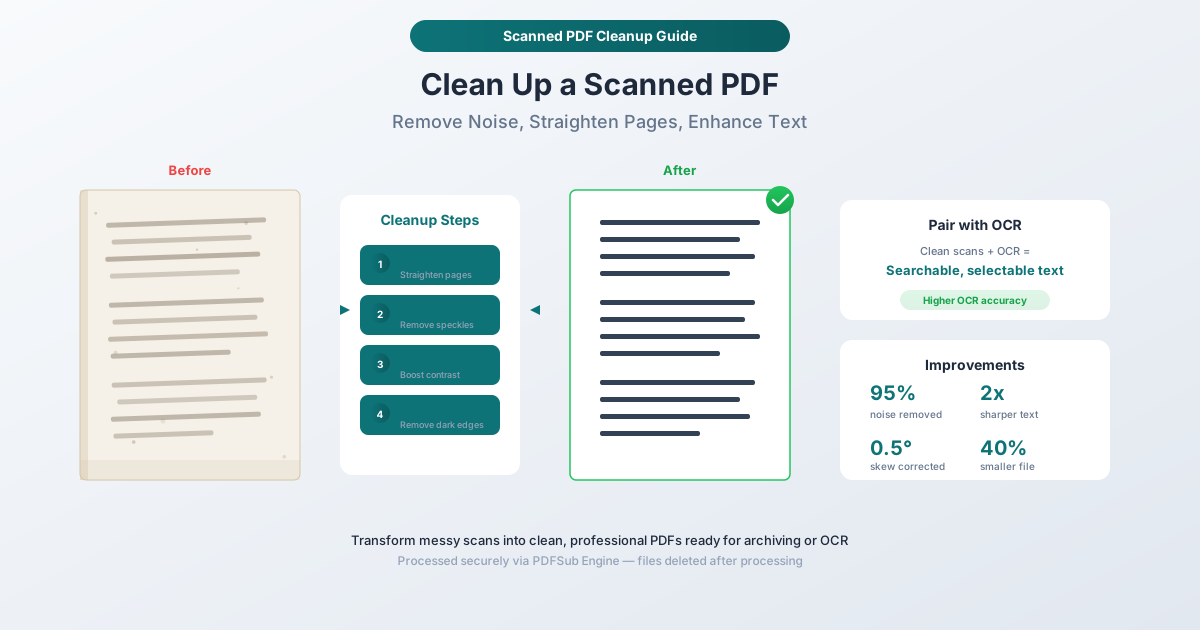
PDFSub's Clean Scanned PDF tool processes documents through four cleanup stages, each targeting a specific type of scanning artifact.
Step 1: Deskew (Straighten Pages)
Deskewing detects the dominant text angle on each page and rotates the image to make text perfectly horizontal. The algorithm analyzes the distribution of dark pixels (text) across the page, determines the angle of rotation needed, and applies it with sub-degree precision.
Most pages need correction of 0.3 to 2 degrees. The process is automatic - you don't need to specify the angle. Each page is analyzed and corrected independently, so a document where page 3 is tilted left and page 7 is tilted right gets both corrections applied correctly.
What you'll notice: Text lines that looked slightly diagonal become perfectly horizontal. The improvement is immediately visible and makes the document look significantly more professional.
Step 2: Denoise (Remove Speckles)
Denoising identifies and removes small isolated marks that aren't part of the document content. The algorithm distinguishes between noise (random small dots) and actual content (text, lines, images) based on size, shape, and context.
The key challenge is removing noise without damaging fine details like periods, commas, decimal points, and diacritical marks. PDFSub's cleanup engine uses adaptive thresholding that considers the surrounding context - a small dot in the middle of a white margin is noise, while a small dot at the end of a sentence is a period.
What you'll notice: The backgrounds become cleaner, margins look crisper, and the overall document appears less "grainy." On heavily noisy scans, the improvement is dramatic.
Step 3: Enhance Contrast
Contrast enhancement increases the difference between text (dark) and background (light). This makes faded text more readable and creates a cleaner visual separation between content and background.
The enhancement is adaptive - it adjusts intensity based on the local image characteristics. A page section with bold text gets less enhancement than a section with light, faded text. This prevents already-dark text from becoming bloated blobs while bringing faded text up to readable contrast.
What you'll notice: Text appears sharper and blacker. Faded portions become readable. The background appears brighter and more uniform.
Step 4: Clean Borders (Remove Dark Edges)
Border cleaning detects and removes the dark regions around the edges of scanned pages - shadows from the scanner lid, black bars from pages smaller than the scan area, and shadow artifacts from book spines.
The algorithm identifies the page content boundary and replaces everything outside it with clean white space. This removes border artifacts while preserving content that extends to the edge of the page (like headers, footers, or margin notes).
What you'll notice: Dark edges disappear. The page has clean, uniform margins. Printed output no longer has distracting borders.
How to Clean a Scanned PDF with PDFSub
Step-by-Step Instructions
Step 1: Open the tool. Navigate to pdfsub.com/tools/clean-scan.
Step 2: Upload your scanned PDF. Drag and drop the file or click to browse. The PDF uploads to PDFSub's secure processing servers.
Step 3: Select cleanup options. Choose which cleanup steps to apply. All four are enabled by default, but you can disable any step if needed. For most scanned documents, all four steps produce the best results.
Step 4: Process. Click the cleanup button. The PDFSub Engine processes each page through the selected steps. Processing time depends on the number of pages and their resolution - expect roughly 2-3 seconds per page.
Step 5: Review and download. Preview the cleaned pages to verify the results. Download the clean PDF.
When to Customize the Cleanup Steps
Disable deskew if your scans are already perfectly aligned (e.g., from a professional document scanner with good alignment) or if the document contains angled content that should stay angled (like diagonal watermarks).
Disable denoising if the document contains very fine detail that might be mistaken for noise - stippled artwork, halftone photographs, or documents with intentionally textured backgrounds.
Reduce contrast enhancement if the original scan has good contrast already. Over-enhancement can make text appear thicker than intended.
Disable border cleaning if the document has content that extends to the very edge of the page, or if the dark borders contain useful information (like crop marks or registration marks).
Pairing Cleanup with OCR
One of the most compelling reasons to clean up scanned PDFs is the dramatic improvement in OCR accuracy. OCR engines work by analyzing the shapes of characters against a database of known letterforms. Anything that degrades the character shapes - noise, skew, low contrast, or border artifacts - degrades OCR accuracy.
The Accuracy Improvement
Cleaning up a scanned PDF before running OCR typically improves character recognition accuracy by 5-15 percentage points. On a heavily noisy or skewed scan, the improvement can be even more dramatic.
- Skew correction alone can improve OCR accuracy by 3-8%. OCR engines expect horizontal text lines - even slight skew causes word segmentation errors.
- Noise removal prevents false character detection. Random dots in margins aren't misidentified as letters or punctuation.
- Contrast enhancement helps the OCR engine distinguish characters from background, particularly with faded or light text.
The Recommended Workflow
For the best results, clean the scan first, then run OCR:
- Upload the scanned PDF to PDFSub's Clean Scanned PDF tool
- Download the cleaned version
- Upload the cleaned PDF to PDFSub's OCR tool
- Download the searchable, selectable PDF
This two-step process produces better results than running OCR directly on a messy scan.
Common Scenarios
Office Document Scans
The most common case: contracts, letters, forms, and reports scanned on an office multifunction printer. These typically need all four cleanup steps - the ADF introduces skew, the scanner adds noise, and documents scanned face-down on the flatbed have border shadows.
Book and Magazine Pages
Scanning bound materials creates unique artifacts: the curved page near the spine produces distortion and shadow, pages may be slightly skewed from the binding angle, and the thick spine creates a dark band along one edge. Border cleaning and deskew are particularly important for these scans.
Historical and Archival Documents
Old documents have yellowed paper, faded ink, foxing (brown spots from aging), and physical damage. Contrast enhancement is the most impactful step for these documents - it brings faded text back to readability. Denoise carefully on historical documents, as some visual artifacts may be historically significant.
Receipts and Thermal Prints
Thermal paper (used in receipt printers) fades rapidly and scans poorly. The text is often light gray rather than black, and the paper develops a mottled appearance. Aggressive contrast enhancement and denoising work well for thermal prints since there's rarely any fine detail to preserve.
Multi-Page Forms
Government forms, tax documents, and application packets often have pre-printed boxes, lines, and shading that complicate cleanup. The cleanup engine handles these well - the pre-printed elements are large enough to survive denoising, and deskew aligns the entire form correctly.
Frequently Asked Questions
Will cleanup change the content of my document?
No. Cleanup only affects the visual quality of the scanned image - it straightens, removes noise, enhances contrast, and cleans borders. It doesn't add, remove, or modify any text or content. The information on the page remains exactly the same.
Can I clean up a PDF that isn't scanned?
The cleanup tool is designed for scanned PDFs - documents where each page is a raster image. It won't harm a non-scanned PDF, but the cleanup steps are specifically designed for scanning artifacts and won't meaningfully improve a PDF created from digital sources (like a Word export).
How much does cleanup reduce file size?
It varies, but cleanup typically reduces file size by 20-40%. Noise removal eliminates thousands of unnecessary pixels per page. Border cleaning removes large dark regions. Contrast enhancement can improve compression efficiency by creating more uniform backgrounds. A 50-page scanned document that was 80 MB might come down to 50-60 MB after cleanup.
Does cleanup work on color scans?
Yes. All four cleanup steps work on color, grayscale, and black-and-white scans. Color scans benefit particularly from background normalization and border cleaning. The contrast enhancement is applied in a way that preserves color information while improving text readability.
Can I undo the cleanup if I don't like the result?
The cleanup produces a new file - your original PDF is never modified. If the cleanup isn't satisfactory, simply go back to your original file. For this reason, always keep the original scan alongside the cleaned version.
Summary
Cleaning up scanned PDFs is a four-step process that transforms messy scans into professional documents:
| Step | What It Fixes | Impact |
|---|---|---|
| Deskew | Tilted pages | Straight, professional appearance |
| Denoise | Speckles and dots | Clean backgrounds, clearer text |
| Enhance | Faded, low-contrast text | Readable, printable output |
| Clean borders | Dark edges and shadows | Uniform margins, no artifacts |
Each step is independent and can be toggled on or off. For most scanned documents, running all four steps produces the best result. The cleaned output is smaller in file size, more professional in appearance, and produces dramatically better OCR results if you later need searchable text.
Ready to clean your scans? Try PDFSub's Clean Scanned PDF tool - upload your scanned PDF and get a clean, professional result in seconds.