How to Chat with a PDF: Ask Questions to Any Document
What if you could ask your PDF a question and get an instant answer? Here's how to chat with any document using AI - contracts, reports, research papers, and more.
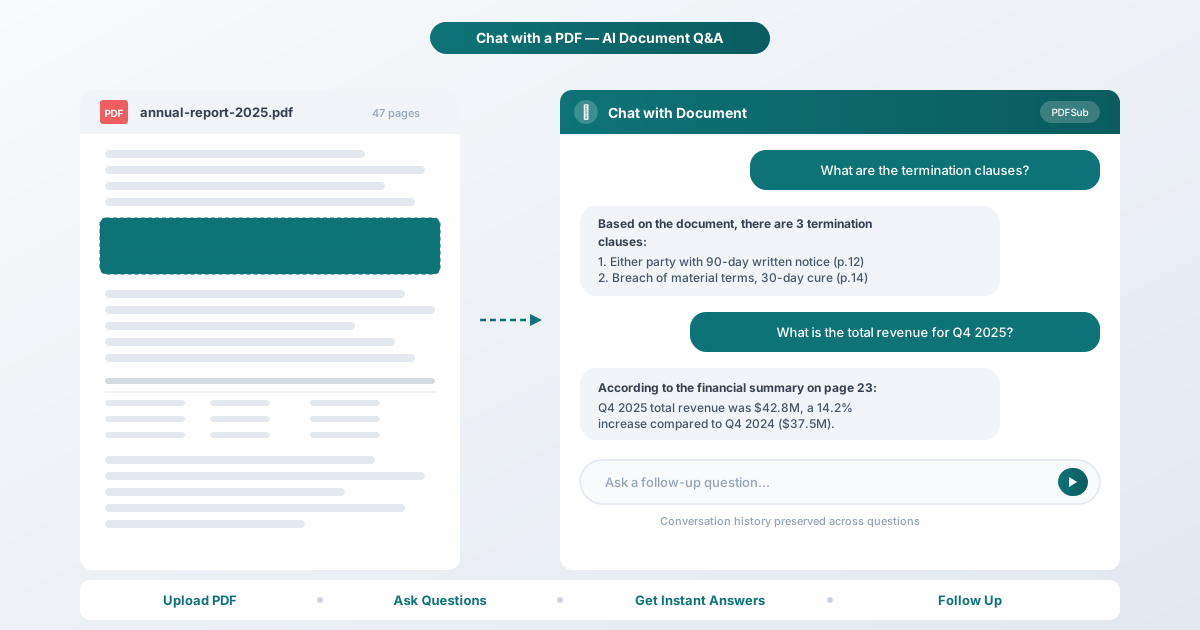
Imagine you have a 200-page contract open on your screen. Somewhere in those pages is the exact termination clause your client asked about ten minutes ago. You could scroll through every section, scanning headers and subheadings, hoping you remember which page it was on. Or you could type "What are the termination clauses?" and get the answer in three seconds, with page references.
That is what chatting with a PDF means. And it changes how you work with documents.
What "Chat with a PDF" Actually Means
AI reads your entire document and builds an understanding of its contents: the structure, the data, and the relationships between sections. Then you ask questions in plain English (or any of 130+ supported languages), and the AI answers based specifically on what the document says.
This is different from a general AI chatbot. A general chatbot draws answers from its training data. A document chat tool is grounded in your specific file. It answers from the document, not from general knowledge. If the answer is not in the PDF, it tells you that rather than guessing.
The practical result: you get specific, verifiable answers instead of generic summaries. Because the AI processes the full document at once, it can connect information across sections -- a financial figure from page 7 with the footnote on page 43 that explains it.
How PDFSub's Chat Tool Works
PDFSub's Chat tool is built into the Studio workspace alongside 98+ other document tools. Here is what happens when you use it.
Text extraction comes first. When you upload a PDF, the tool extracts the text content. Digital PDFs produce fast, highly accurate extraction. Scanned or image-based PDFs use AI-powered processing to read the content.
The AI reads the full document. Your extracted text is sent to the AI along with your question. The model processes the entire document -- not just a few pages -- so it can reference any section when answering.
Conversation history is preserved. Each follow-up question includes the context of your previous questions and answers. You can drill down into specifics, ask for clarification, or explore related topics without re-explaining what you are looking for.
Answers are grounded in the document. The AI references specific sections and data points from your file. You are getting answers drawn from the document you uploaded, not from general knowledge.
Step-by-Step: Chatting with a PDF on PDFSub
-
Open PDFSub Studio. Navigate to pdfsub.com and open the Studio workspace.
-
Select the Chat tool. Choose "Chat with PDF" from the tool list, or navigate directly via the tools page.
-
Upload your PDF. Drag and drop your file, or click to browse. Any standard PDF works -- contracts, reports, research papers, manuals, financial documents.
-
Ask your first question. Be specific: "What is the liability cap in Section 7?" will give you a better answer than "Tell me about Section 7."
-
Review the answer. The AI returns an answer grounded in the document's content, referencing specific sections or data points.
-
Follow up. The conversation history means each question builds on the last. Ask "What is the total revenue?" then follow up with "How does that compare to the previous year?"
-
Continue as needed. Each follow-up uses AI credits, but the cost per question is modest.
The Best Questions to Ask Your PDF
Not all questions work equally well. Here are the types that produce the best results.
Specific Factual Questions
The answer exists somewhere in the document, and you need it found.
- "What is the effective date of this agreement?"
- "What was the net profit margin in Q3?"
- "How many participants were in the study?"
Summarization Requests
Condense sections or the entire document into digestible points.
- "Summarize the key findings in the conclusion."
- "What are the main risks identified in this report?"
- "Give me a bullet-point overview of the methodology."
Comparison and Analysis
Connect information across different sections.
- "How did revenue in Q4 compare to Q1?"
- "What are the differences between the two pricing tiers described?"
Data Extraction
Pull specific numbers, dates, names, or terms.
- "List all the deadlines mentioned in this contract."
- "What are the payment terms?"
- "Extract all company names referenced in this filing."
Questions That Don't Work Well
Understanding the limits helps you get better results.
Opinion and judgment calls. "Is this a good contract?" requires subjective judgment. Instead, ask "What obligations does this contract place on the buyer?"
Speculation beyond the document. "Will revenue grow next year?" is not answerable from a historical report. The AI tells you what the document says about projections, not what will actually happen.
Information not in the document. If the PDF does not contain the answer, the AI will tell you -- which means you can trust that answers come from the source material, not hallucinated data.
Complex calculations. The AI can extract numbers and do basic comparisons, but it is not a spreadsheet. For complex financial modeling, extract the data and use a dedicated tool.
Use Cases by Profession
Legal Professionals
Contracts, briefs, and regulatory filings are dense by design. Document chat lets you cut through the density -- find specific clauses, identify obligations and penalty provisions, compare terms across sections, and pull defined terms with their meanings.
Researchers and Academics
Research papers pack methodology, results, and context into lengthy documents. Chat lets you extract methodology details, find specific statistical results, identify acknowledged limitations, and understand how findings relate to cited prior work -- without reading every page.
Business and Finance
Annual reports, earnings calls, and financial statements contain the numbers that drive decisions. Extract revenue and growth figures, find management commentary on specific segments, identify risk factors, and pull data points for presentations.
HR and Operations
Policy manuals and compliance documents answer questions employees ask daily. Find specific policies for remote work or expense reimbursement, identify reporting requirements, and locate training obligations -- all by citing the source document directly.
Tips for Better Results
Be specific. "What does Section 4.2 say about indemnification?" outperforms "Tell me about indemnification." The more precise your question, the more precise the answer.
Use follow-up questions. Start broad, then narrow down. Ask "What are the key financial metrics?" then follow with "What drove the increase in operating expenses?"
Digital PDFs work best. PDFs created from Word or Excel contain clean, extractable text. Scanned documents still work but digital PDFs produce faster, more accurate results.
One topic per question. Rather than combining three questions into one, split them up. Each answer will be more complete and focused.
Ask the AI to cite sources. "Where in the document does it mention the 90-day notice period?" will point you to the relevant section for verification.
AI Credits and Pricing
PDFSub's Chat tool uses AI credits. Each question consumes credits based on document length and question complexity.
PDFSub offers a 7-day free trial so you can try Chat before committing. The All-In-One plan is $20/user/mo (annual) or $25/user/mo (monthly) and includes 500 AI credits per user plus access to all 98+ tools -- summarization, translation, data extraction, bank statement conversion, and more. You are not paying for a single feature; you are getting a full document workspace.
For current pricing details, visit pdfsub.com/pricing.
Frequently Asked Questions
What types of PDFs can I chat with?
Any standard PDF works -- contracts, reports, research papers, manuals, financial statements, and legal filings. Digital PDFs (created from Word or Excel) produce the best results. Scanned PDFs also work, though processing takes slightly longer.
Is my document kept private?
PDFSub processes many operations directly in your browser, meaning the file never leaves your device. For AI-powered features like Chat that require server processing, your document is processed securely and is not stored permanently. Your files are not used to train AI models.
How many questions can I ask per document?
There is no hard limit on the number of questions per conversation. Each question consumes AI credits based on document length and question complexity. As long as you have credits available, you can continue asking questions and following up.
Does the Chat tool work with languages other than English?
Yes. PDFSub supports 130+ languages. You can upload a document in any language and ask questions in any language -- they do not need to match. For example, you can upload a document in German and ask questions in English, and the AI will respond in English based on the German source text.
How is this different from using ChatGPT or Claude to read a PDF?
General AI chatbots accept PDF uploads but are not optimized for document workflows. PDFSub's Chat tool is integrated into a workspace with 98+ other tools. After chatting, you can extract tables, translate sections, summarize, or convert -- all without leaving the platform.
Do scanned or image-based PDFs work?
Yes. PDFSub's AI processes visual content to read scanned documents. Results are best when the scan is clear and high-resolution. Blurry or low-quality scans may produce less accurate answers.
Ready to try it? Upload a PDF to PDFSub's Chat tool and ask your first question. A 7-day free trial gives you full access so you can see how it handles your documents before you decide if it fits your workflow.