How to Change PDF Page Size (Letter, A4, Custom)
Need to resize a PDF from A4 to Letter - or any other size? Here's how to change PDF page size online, with common presets and custom dimensions.
You receive a PDF from a colleague overseas. You hit print. The output is wrong - text cut off at the edges, content shifted oddly, margins uneven. The document was created on A4 paper (the standard everywhere outside North America), and your printer is loaded with US Letter. Or maybe you're sending a report to an international client and need to convert your Letter-sized PDF to A4 so it prints cleanly on their end.
Page size mismatches are one of the most common PDF headaches, and they're surprisingly easy to fix once you know where to look. This guide covers three ways to change PDF page size, explains the differences between common paper sizes, and walks through the scenarios where resizing matters most.
Common PDF Page Sizes
Before resizing anything, it helps to know what you're working with. Here are the page sizes you'll encounter most often:
| Size | Dimensions (in) | Dimensions (mm) | Common Use |
|---|---|---|---|
| US Letter | 8.5 x 11 | 215.9 x 279.4 | Standard in US, Canada, Mexico |
| A4 | 8.27 x 11.69 | 210 x 297 | Standard in Europe, Asia, most of the world |
| US Legal | 8.5 x 14 | 215.9 x 355.6 | Legal documents, contracts (US) |
| A3 | 11.69 x 16.54 | 297 x 420 | Spreadsheets, architectural drawings |
| A5 | 5.83 x 8.27 | 148 x 210 | Booklets, flyers, pocket-sized documents |
The difference between Letter and A4 is subtle but consequential. A4 is slightly narrower (by about 6 mm) and slightly taller (by about 18 mm). That small difference is enough to cause clipped content, misaligned margins, and printing errors when the page size doesn't match the paper in the tray.
Method 1: PDFSub Change Page Size Tool (Recommended)
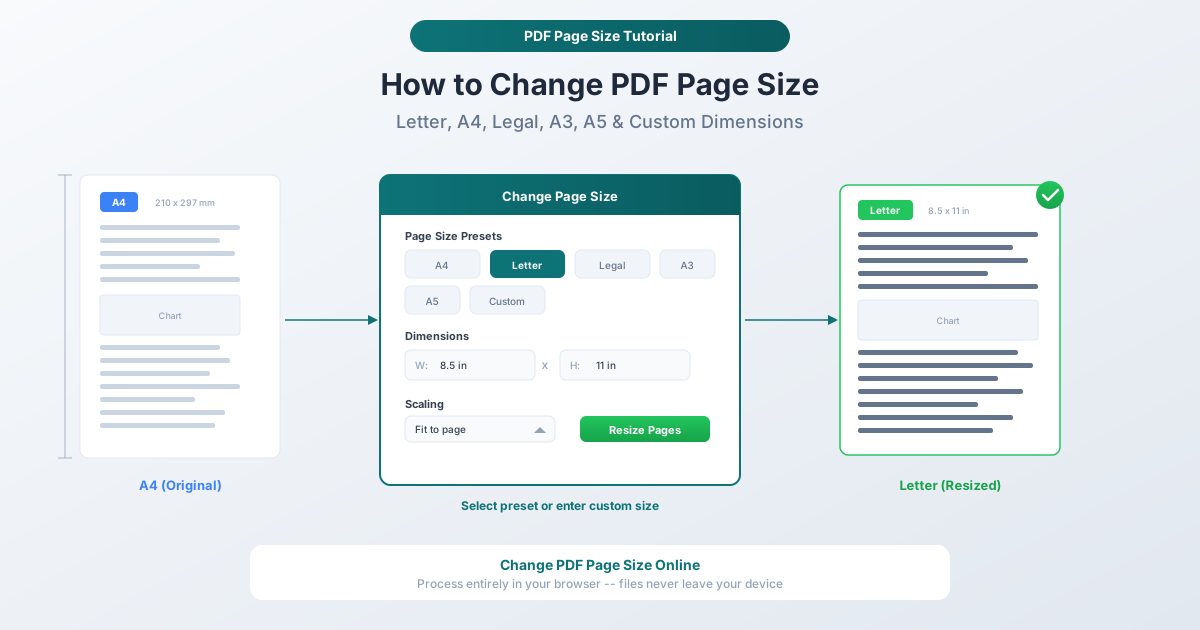
PDFSub's Change Page Size tool is the fastest way to resize PDF pages online. It runs entirely in your browser - your files never leave your device - and a 7-day free trial lets you get started without committing.
Step-by-Step Instructions
Step 1: Open the Change Page Size tool. Go to pdfsub.com/tools/change-page-size. No software to install.
Step 2: Upload your PDF. Drag and drop your file into the upload area, or click to browse. Multi-page documents are fully supported.
Step 3: Choose your target page size. Select from presets - Letter, A4, Legal, A3, A5 - or enter custom width and height values. You can specify dimensions in inches, millimeters, or points.
Step 4: Select a scaling option. Choose how content should fit the new page:
- Fit to page scales content proportionally so everything fits within the new dimensions without clipping.
- Actual size keeps content at its original dimensions and adjusts the page around it - useful when precise measurements matter (architectural drawings, engineering specs).
- Center on page places existing content in the middle of the new page size without scaling, adding margins where needed.
Step 5: Apply and download. Click the resize button. Your resized PDF downloads in seconds.
Why This Method Is Best
Privacy by design. Everything processes in your browser. Your PDF never touches a server. This matters for financial documents, legal files, HR records, and anything containing personal or sensitive data.
Presets and custom sizes. Standard sizes are one click away, but you can also enter any arbitrary dimensions for specialized formats - poster prints, custom booklets, or non-standard paper stocks.
Batch processing. All pages in the document resize at once, or you can target specific page ranges if your PDF has mixed sizes that need different treatment.
Works on any device. Browser-based means Windows, Mac, Linux, Chromebooks, and tablets. No installation, no admin permissions required.
Free to try. PDFSub offers a 7-day free trial with full access to all tools, including Change Page Size.
Method 2: Adobe Acrobat
Adobe Acrobat Pro can resize PDF pages, though the process is less straightforward than a dedicated tool.
- Open the PDF in Acrobat Pro.
- Go to Print Production > Preflight.
- Search for "Scale pages to specified size" or use the Set Page Boxes option under the Pages panel.
- Enter the target dimensions and choose scaling behavior.
- Save the modified PDF.
Acrobat's approach works but has drawbacks: it requires a paid subscription ($19.99/month for Pro), the feature is buried in the Preflight panel rather than presented as a simple tool, and the desktop application must be installed. For occasional page size changes, it's overkill.
Method 3: Print-to-PDF with a Different Paper Size
Every operating system has a built-in workaround: open the PDF in any viewer, choose "Print," select the target paper size, and print to a new PDF file.
On Windows:
- Open the PDF in any viewer (Edge, Chrome, or Adobe Reader).
- Press Ctrl+P to open the print dialog.
- Select "Microsoft Print to PDF" as the printer.
- Change the paper size to your target (Letter, A4, etc.).
- Click Print and save the new file.
On macOS:
- Open the PDF in Preview.
- Go to File > Print.
- Change the Paper Size in the dropdown.
- Click "PDF" in the bottom-left corner and choose "Save as PDF."
Limitations: This method re-renders the PDF through a print driver, which can alter font rendering, flatten form fields, remove bookmarks, and increase file size. It works in a pinch, but the output quality is lower than a dedicated resize tool that modifies page dimensions directly.
Letter vs. A4: Why the Difference Matters
US Letter (8.5 x 11 in) and A4 (210 x 297 mm) are close enough in size that people assume they're interchangeable. They're not.
A4 is taller and narrower. When you print an A4 document on Letter paper without scaling, the bottom 18 mm of content gets cut off. When you print a Letter document on A4 paper, you get extra white space at the bottom and slightly clipped margins on the sides.
Most software defaults to one or the other based on your system locale. A computer set to a US locale creates Letter-sized PDFs by default. A computer in Germany or Japan creates A4. This is why the mismatch happens so often - neither party realizes they're using different page sizes until someone prints.
Professional documents should match the recipient's standard. If you're sending a report to a European office, resize to A4. If a German colleague sends you a contract to print and sign, resize to Letter. It's a small detail that avoids the "something's wrong with this PDF" conversation.
Scaling Options Explained
When you change a page from one size to another, the content on the page has to go somewhere. The three main approaches:
Fit to page is the safest default. Content scales proportionally to fill the new page size without anything getting clipped. A 5% size difference between A4 and Letter is barely noticeable when fitted. Use this for most document conversions.
Actual size (no scaling) keeps every element at its original dimensions. The page boundary changes, but the content doesn't move or resize. This can result in clipped content if the new page is smaller, or extra white space if the new page is larger. Use this when exact measurements matter - blueprints, technical drawings, or print-ready designs where scaling would distort specifications.
Center on page is a hybrid: no scaling, but the content gets repositioned to the center of the new page. Useful when you're moving content to a larger page and want even margins on all sides.
Common Scenarios
US to international (or vice versa). The most frequent reason to change page size. Any cross-border document exchange - contracts, invoices, reports, presentations exported as PDF - benefits from resizing to the recipient's local standard.
Print preparation. Your document needs to print on a specific paper stock. Resizing the PDF to match the physical paper prevents the printer from auto-scaling or cropping unpredictably. This is especially important for documents with precise layouts like forms, certificates, or marketing materials.
Standardizing mixed-size documents. Some PDFs contain a mix of page sizes - a Letter-sized cover page followed by A4 content pages, or a landscape spreadsheet page mixed in with portrait text pages. Resizing standardizes everything to a single page size for consistent printing and viewing.
Creating booklets or custom formats. Resizing to A5 for a half-page booklet, or to a custom poster dimension for large-format printing. PDFSub's custom dimensions option handles any target size.
FAQ
Can I change PDF page size without losing quality?
Yes. Tools that modify page dimensions directly (like PDFSub's Change Page Size tool) adjust the page boundary and scale vector content without rasterization. Text remains searchable, fonts stay embedded, and images maintain their original resolution. The print-to-PDF workaround, by contrast, re-renders everything through a print driver and can degrade quality.
What's the difference between resizing and cropping a PDF?
Resizing changes the page dimensions and optionally scales the content to fit. Cropping hides or removes content outside a defined area without changing the remaining content's scale. If you need to remove margins, use Crop Pages. If you need to change from one paper size to another, use Change Page Size.
Can I resize just some pages in a multi-page PDF?
Yes. PDFSub lets you specify a page range, so you can resize specific pages while leaving others unchanged. This is useful for documents with mixed page sizes - for example, resizing only the landscape spreadsheet pages to match the portrait text pages.
How do I know what page size my PDF currently is?
Open the PDF in any viewer and check the document properties. In Adobe Reader, go to File > Properties and look at "Page Size." In Preview on macOS, go to Tools > Show Inspector. PDFSub also displays the current page dimensions when you upload a file.
Is A4 or Letter better for international documents?
A4 is the safer choice for international distribution. It's the standard in over 200 countries. Only the US, Canada, and a few other countries use Letter as the default. If you're unsure about your recipient's paper size, A4 is the more universally compatible option.
Does changing page size affect the file size?
Minimally. Adjusting page dimensions is a metadata-level change - the content itself stays the same. If you scale content, the file size stays roughly constant. The print-to-PDF method can increase file size because it re-renders the entire document, but a direct resize tool keeps the file compact.
Resize Your PDFs in Seconds
Page size mismatches don't have to mean reprinting, reformatting, or asking someone to resend. PDFSub's Change Page Size tool handles the conversion in your browser - pick a preset, adjust scaling, and download. No signup required to get started, and your files never leave your device.