How to Batch Convert Multiple Files to PDF
Need to convert a folder of Word docs, spreadsheets, or images to PDF? Here's how to batch convert multiple files at once - saving hours of repetitive work.
You have 20 Word documents that need to be PDFs by end of day. Or 50 images that need to go into individual PDF files. Or a mix of spreadsheets, presentations, and HTML files that all need converting.
Doing this one file at a time is painful. Open, convert, save, repeat. Twenty times. Batch conversion solves this - upload everything, click once, get all your PDFs.
Why Batch Convert?
Time savings. If converting one file takes 30 seconds, converting 20 files takes 10 minutes. Batch conversion does all 20 in one operation.
Consistency. One-at-a-time conversion might use different settings or tools across files. Batch processing applies the same settings to everything.
Fewer errors. Repetitive manual tasks lead to mistakes - skipped files, wrong versions, forgotten outputs. Batch processing eliminates this.
Scalable. Whether 5 files or 50, the workflow is the same: select, upload, convert, download.
Batch Convert with PDFSub
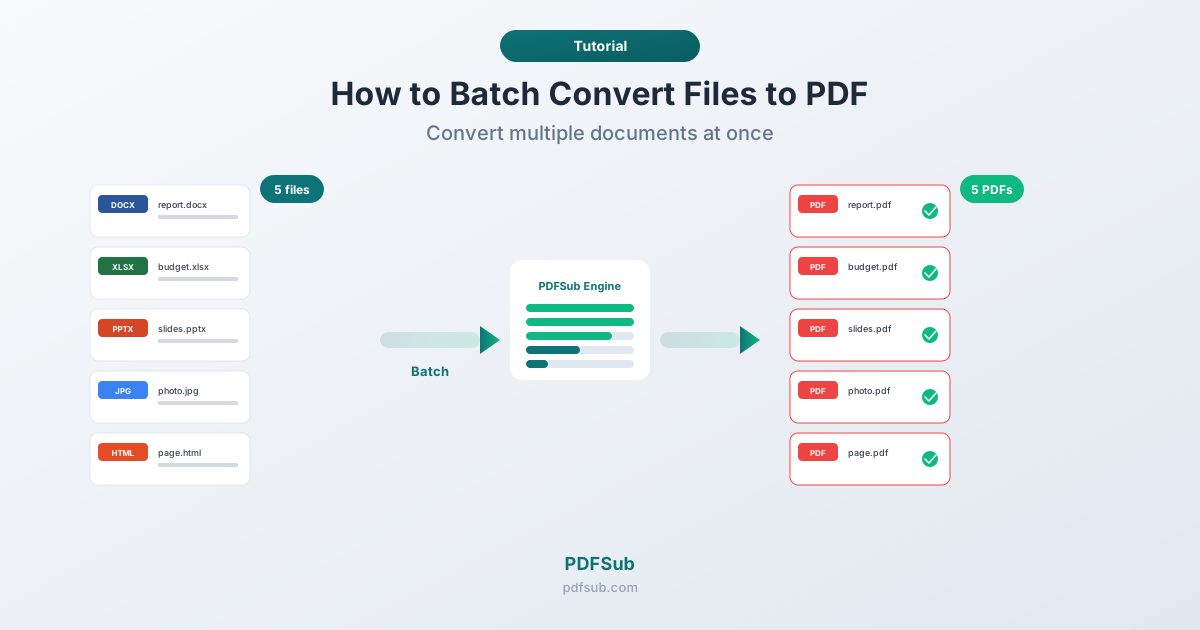
PDFSub's Batch Convert tool processes multiple files simultaneously using the PDFSub Engine.
- Go to PDFSub's Batch Convert tool
- Upload multiple files at once - drag and drop a selection, or click to browse
- Files are processed server-side by the PDFSub Engine in secure, isolated environments
- Download individual PDFs or get everything as a ZIP
Supported Formats
| Format | Extensions |
|---|---|
| Word | .doc, .docx |
| Excel | .xls, .xlsx |
| PowerPoint | .ppt, .pptx |
| Images | .jpg, .png, .tiff, .webp, .bmp |
| HTML | .html, .htm |
| Text | .txt |
| Markdown | .md |
Each file converts independently - a Word doc produces one PDF, a spreadsheet another. The output is a collection of individual PDFs, not one merged document.
Batch Limits by Plan
| Plan | Files Per Batch |
|---|---|
| Free / Basic | 3 files |
| Pro | 10 files |
| Business | 20 files |
For larger sets, run multiple batches back to back. Processing 60 files on Business takes three batches - still much faster than converting individually.
When to Use Batch Conversion
Standardizing formats. Your team uses a mix of Word, Google Docs exports, and other formats. Batch conversion standardizes everything to PDF in one pass.
Digitizing archives. Scanned a filing cabinet of documents? Batch convert the image files to proper PDFs that can be organized and searched.
Client deliverables. Project wraps up: final report (Word), budget (Excel), presentation (PowerPoint), and supporting images all need to be PDFs. Convert everything at once.
Recurring reports. Same set of reports every week or month? Export source files, batch convert, distribute.
Migration projects. Moving between document management systems often requires PDF conversion of entire file collections.
Batch Convert vs. Merge
These are different operations:
| Operation | Input | Output | Use Case |
|---|---|---|---|
| Batch Convert | Multiple files of any type | One PDF per input file | Converting a collection |
| Merge | Multiple PDFs | One combined PDF | Assembling one document |
Five Word documents batch-converted produce five PDFs. If you need them in a single PDF, batch convert first, then use Merge PDF to combine.
Handling Mixed File Types
Each file type has its own conversion characteristics:
Word documents convert most predictably. Rarely need post-conversion review.
Spreadsheets are trickiest. Wide spreadsheets may have columns cut off. Print area settings in the original file determine what appears. Check these more carefully.
Presentations convert slide-by-slide. Animations captured in final state. Speaker notes not included by default.
Images become single-page PDFs. Each image fills a page while maintaining aspect ratio.
HTML files are rendered with CSS styling. Quality depends on how self-contained the HTML is - external stylesheets and images need to be accessible.
Tips for Efficient Batch Conversion
Name files clearly. Output PDFs mirror input names - quarterly-report.docx becomes quarterly-report.pdf. Good naming upstream means good naming downstream.
Test one file first. Before batch converting 50 files, convert one individually and verify output quality. Catches formatting issues early.
Use ZIP downloads. Download output as a ZIP rather than clicking each PDF individually. Faster and ensures you don't miss files.
Prepare source files. Batch conversion can't fix source issues. Make sure Word docs have correct page sizes, spreadsheets have proper print areas, and images are at the right resolution before converting.
Watch total file sizes. Twenty PDFs can add up. If emailing the results, consider compression or a file-sharing service.
Frequently Asked Questions
What file types can I batch convert to PDF?
Word (.doc, .docx), Excel (.xls, .xlsx), PowerPoint (.ppt, .pptx), images (JPG, PNG, TIFF, WEBP, BMP), HTML (.html, .htm), plain text (.txt), and Markdown (.md). Each file becomes an individual PDF.
How many files can I convert at once?
Depends on your PDFSub plan: 3 files per batch on Free/Basic, 10 on Pro, 20 on Business. For larger sets, run multiple batches. Still much faster than one-at-a-time conversion.
Can I mix different file types in one batch?
Yes. Upload a Word document, a spreadsheet, an image, and an HTML file together. Each is converted independently using the appropriate method for its type. Output is one PDF per input file.
Is batch quality the same as individual conversion?
Yes. Batch conversion uses the same PDFSub Engine and processes as individual conversion. No quality difference - each file gets the same treatment.
Can I batch convert PDFs to other formats?
Batch Convert is for converting various formats to PDF. For converting PDFs to other formats (PDF to Word, PDF to Excel), use PDFSub's individual conversion tools for each target format.
Batch conversion turns repetitive, time-consuming work into a single operation. Whether standardizing documents, preparing deliverables, or processing an archive, converting everything at once is simply more efficient.