How to Auto-Crop a PDF (Remove White Borders Automatically)
PDF pages have too much white space around the content? Here's how to auto-crop - automatically detect and remove excess margins from every page.
You open a PDF and the content sits in the middle of the page, surrounded by an ocean of white space. Maybe it's an academic paper with two-inch margins. A scanned document where the scanner added borders. Presentation slides exported with massive gutters. Whatever the cause, the result is the same: wasted space, tiny content, and a frustrating reading experience.
Manual cropping is one option - you could open the file in a PDF editor and drag crop boxes on every page. But when you've got a 40-page document, that's not a real solution. You need auto-crop: a tool that detects where the content actually is on each page and removes the excess margins automatically.
This guide covers what auto-cropping does, how it differs from manual cropping, and how to do it in a few clicks with PDFSub.
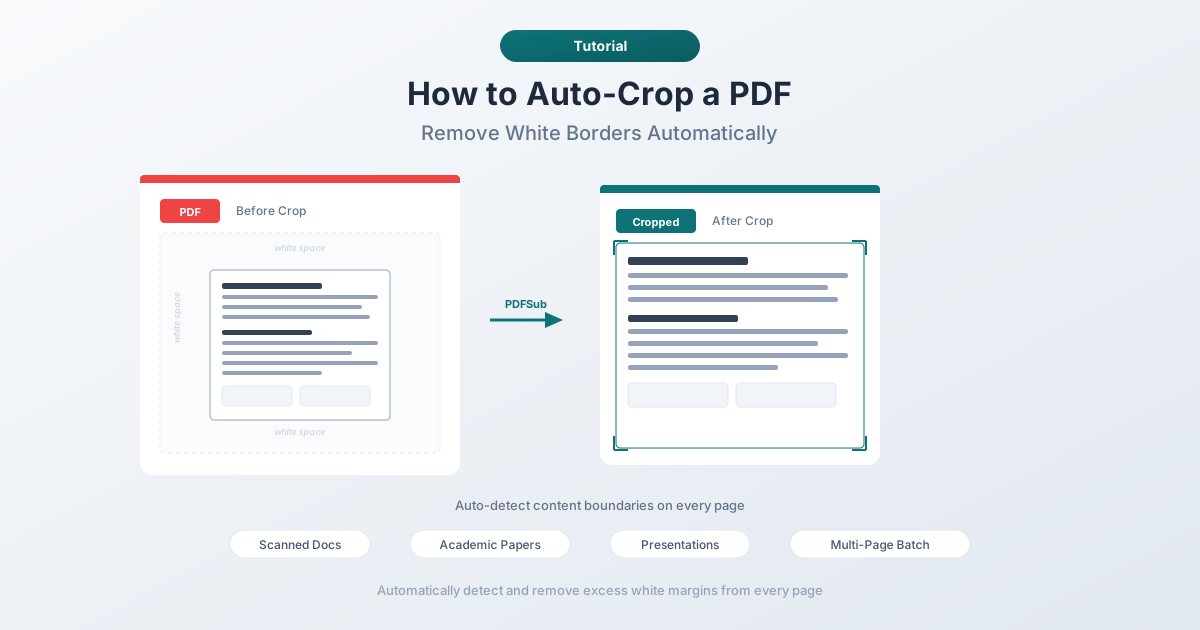
What Is PDF Auto-Cropping?
Auto-cropping is the process of automatically detecting the content boundaries on each page of a PDF and trimming the page to fit tightly around that content. Instead of manually specifying how much to cut from each side, the tool analyzes each page, finds where the text, images, and graphics actually are, and adjusts the page dimensions accordingly.
Think of it like the "trim" feature on a photo, but smarter. It doesn't just cut a fixed number of pixels from each edge - it examines the actual content on each page and determines the tightest possible bounding box.
This matters because PDF pages often have inconsistent margins. Page 1 might have a header that extends to the left edge while page 5 has a centered block of text with wide margins on both sides. Auto-crop handles each page individually, detecting the unique content boundaries for every page in the document.
Auto-Crop vs. Manual Crop: What's the Difference?
Both remove excess whitespace, but they work very differently.
Manual cropping requires you to specify the crop area yourself. You set margins (e.g., trim 1 inch from each side) or drag a crop rectangle on each page. This is fine for simple documents where every page has the same layout. But it falls apart when pages have varying content positions - you'll either crop too much (cutting off content) or too little (leaving whitespace).
Auto-cropping analyzes the actual content on each page and determines the optimal crop automatically. No guesswork, no per-page adjustments. Upload the file, click a button, and the tool figures out the rest.
| Feature | Manual Crop | Auto-Crop |
|---|---|---|
| Margin detection | You specify values | Automatic |
| Per-page analysis | You do it yourself | Handled by the tool |
| Speed for multi-page docs | Slow (page by page) | Fast (all pages at once) |
| Risk of cutting content | Higher | Lower |
| Handles varying layouts | Poorly | Well |
The bottom line: manual cropping is a precision tool for when you know exactly what you want. Auto-cropping is a productivity tool for when you want the whitespace gone and don't want to spend twenty minutes figuring out the right margins for each page.
Common Use Cases for Auto-Crop
Scanned Documents
Scanners are notorious for adding borders. Even when you carefully align the paper, the resulting PDF usually has uneven white strips on one or more sides. Scan a stack of receipts or letters and every page will have slightly different margins. Auto-crop handles this perfectly - each page gets analyzed independently, so uneven borders are no problem.
Academic Papers and Research Articles
Academic papers typically follow strict formatting requirements - often with 1-inch or larger margins on all sides. Great for printing and writing notes in the margins. Terrible for reading on a screen. Auto-cropping lets you reclaim that space, making the text larger and easier to read on tablets, laptops, or phones.
Presentation Slides Exported as PDFs
When you export a presentation to PDF, the slides often end up with significant borders. This is especially common when the slide aspect ratio doesn't match the PDF page size. Auto-crop removes the excess and makes your slides fill the page.
Legal and Government Documents
Many official documents have large margins to accommodate stamps, signatures, or filing notes. If you're just reading or archiving these documents digitally, those margins serve no purpose. Auto-crop gives you a cleaner, more compact file.
eBooks and Digital Reading
If you're loading PDFs onto an e-reader or reading on a tablet, margins eat into your already-limited screen real estate. Auto-cropping makes the text as large as possible within the screen dimensions, improving readability significantly.
How to Auto-Crop a PDF with PDFSub
PDFSub processes auto-crop operations server-side, which means it can handle large files and complex documents reliably. Here's how to use it:
Step 1: Open the Auto-Crop Tool
Go to PDFSub's Auto-Crop PDF tool. You can also find it by browsing the tools directory and searching for "crop."
Step 2: Upload Your PDF
Drag and drop your PDF file onto the upload area, or click to browse your files. There's no need to pre-process the file - just upload it as-is.
Step 3: Review Settings (Optional)
Before processing, you can review the crop settings. PDFSub detects content boundaries automatically, but you can adjust padding if you want a small buffer around the content rather than a razor-tight crop. A few points of padding often looks better than zero.
Step 4: Process and Download
Click the crop button and wait a few seconds. PDFSub analyzes every page, detects content boundaries, and produces a new PDF with the margins removed. Download the result and you're done.
The entire process typically takes just a few seconds, even for longer documents. The original file structure is preserved - text remains selectable, links stay clickable, and any embedded fonts or images are untouched. Only the page dimensions change.
Tips for Getting the Best Results
Add a small amount of padding. A PDF with zero margins can feel cramped. Adding 5-10 points of padding around the content gives the document a cleaner look without wasting significant space.
Check the first and last pages. Title pages and back pages often have different layouts than the main content. Make sure the crop looks good on these pages, not just the body text.
Be aware of annotations and form fields. If your PDF has annotations, comments, or interactive form fields near the edges, an aggressive auto-crop might clip them. Review the output to make sure nothing was lost.
Consider the final use case. If you're cropping for screen reading, tight margins are great. If you're cropping for printing, leave enough margin for your printer's non-printable area (typically 0.25 inches on each side).
Batch processing saves time. If you regularly work with documents that have excessive margins - like weekly reports from a particular source - set up a workflow. Upload, crop, download. It takes seconds once you know the tool.
How Auto-Crop Differs from Page Resizing
It's worth clarifying the difference between cropping and resizing, because they're often confused.
Cropping changes the visible area of the page. It trims the edges. The content stays the same size - there's just less empty space around it. Think of cutting the border off a photo print.
Resizing changes the page dimensions while scaling the content to fit. If you resize an A4 page to Letter, the content gets slightly scaled. Nothing is trimmed - everything is shrunk or stretched proportionally.
Auto-crop is purely a cropping operation. Your text, images, and graphics remain at their original size. Only the page boundaries move inward to hug the content.
Frequently Asked Questions
Does auto-cropping reduce file size?
Sometimes, but not dramatically. Cropping changes the page dimensions (the "media box" in PDF terms), but it doesn't necessarily remove data from the file. Image data that extends beyond the new crop boundary may still exist in the file - it's just not visible. That said, you may see a modest reduction in file size, especially for scanned documents where the white border contains actual image data.
Will auto-crop affect text selection or searchability?
No. Auto-cropping only changes the page boundaries. The text layer, fonts, and any OCR data remain intact. You can still select, copy, and search text exactly as before.
Can I auto-crop specific pages instead of the whole document?
Yes. PDFSub lets you specify which pages to crop. If your document has a cover page you want to leave untouched but body pages that need cropping, you can target just the pages that need it.
Does it work on scanned PDFs (image-based)?
Yes. Auto-crop works on both digital (text-based) PDFs and scanned (image-based) PDFs. For scanned documents, the tool analyzes the pixel content to find the boundaries of the scanned image. This is actually one of the most common use cases - scanners frequently add uneven white borders.
What if a page has content in the margins (like page numbers)?
Auto-crop detects all visible content, including headers, footers, and page numbers. If there's a page number in the bottom margin, the crop boundary will extend to include it. The tool doesn't distinguish between "main content" and "marginal content" - it finds the outermost edges of everything visible on the page.
PDF auto-cropping is one of those simple tools that saves a surprising amount of time. Instead of fighting with margins page by page, you upload the file, let the tool detect the content boundaries, and download a clean result. Whether you're cleaning up scanned documents, making academic papers readable on a tablet, or tightening up exported slides, auto-crop gets it done in seconds.
Try it yourself at pdfsub.com/tools/auto-crop-pdf.