How to Add a Watermark to a PDF Online (Free)
Need to mark a document as DRAFT, CONFIDENTIAL, or add your company logo? Here's how to add text or image watermarks to any PDF.
A contract goes out without a DRAFT watermark and someone signs the preliminary version. A confidential report circulates without any indication that it shouldn't be shared. A proposal is forwarded to a competitor because nothing on the document marked it as proprietary.
Watermarks exist to prevent these situations. They're a visual signal embedded on every page of a document that communicates its status, ownership, or sensitivity level. Whether you need to stamp DRAFT across a work-in-progress, mark a document CONFIDENTIAL before distribution, or overlay your company logo for branding, adding a watermark to a PDF takes just a few clicks.
This guide covers text watermarks, image watermarks, positioning and styling options, and practical scenarios where watermarks protect your documents and your business.
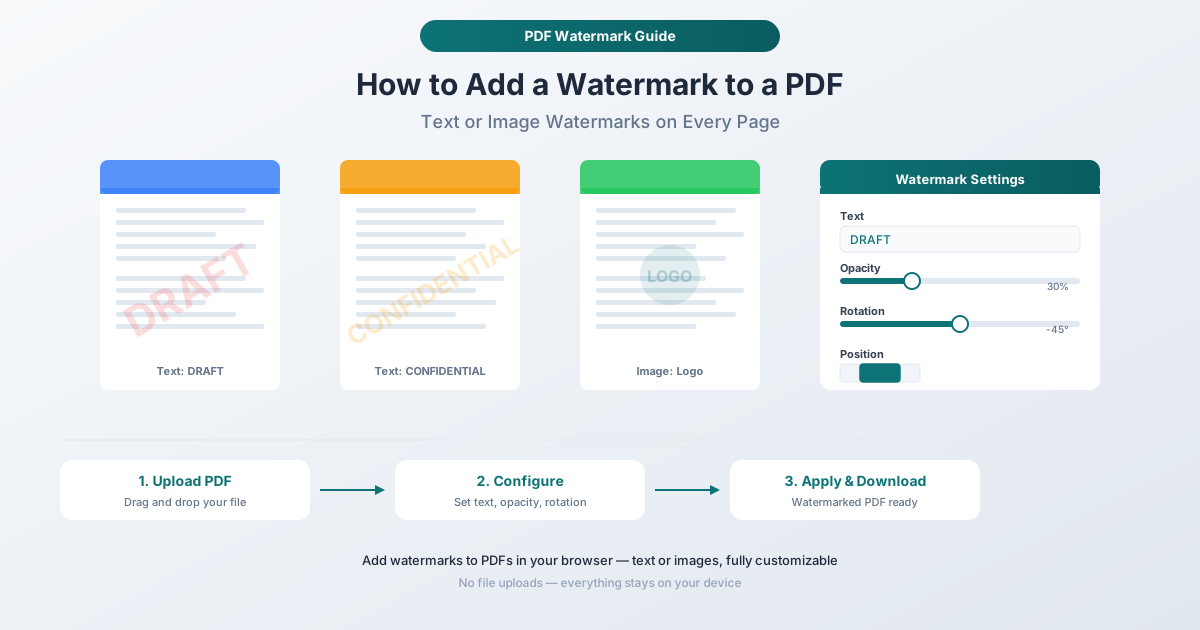
Types of PDF Watermarks
Text Watermarks
Text watermarks are the most common type. They stamp a word or phrase across each page - usually in a large, semi-transparent font angled diagonally. Common text watermarks include:
- DRAFT - indicates an incomplete or preliminary version
- CONFIDENTIAL - signals restricted distribution
- DO NOT COPY - discourages reproduction
- SAMPLE - marks a document as an example, not the final version
- VOID - indicates a document is no longer valid
- FOR REVIEW ONLY - limits the document's intended use
- [Company Name] - asserts ownership or origin
Text watermarks are effective because they're immediately visible, can't be mistaken for part of the document content, and communicate a clear message without requiring any additional explanation.
Image Watermarks
Image watermarks overlay a logo, seal, or graphic on each page. Common uses include:
- Company logos - branding on outgoing documents
- Official seals - government or institutional documents
- Signature images - approval indicators
- Custom graphics - any PNG or image that serves as a visual mark
Image watermarks are typically used for branding rather than status indication. They're more subtle than text watermarks and can be placed in corners or centers depending on the desired effect.
How to Add a Watermark with PDFSub
PDFSub's Watermark tool lets you add text or image watermarks to any PDF with full control over position, size, opacity, and rotation. The entire process happens in your browser - your document never leaves your device.
Step-by-Step Instructions
Step 1: Open the Watermark tool. Go to pdfsub.com/tools/watermark. No software to install - start with a 7-day free trial.
Step 2: Upload your PDF. Drag and drop your file into the upload area, or click to browse. The tool loads your document and shows a preview.
Step 3: Choose your watermark type. Select text or image. For text, type your watermark message (e.g., DRAFT, CONFIDENTIAL). For image, upload a PNG or JPG file of your logo or graphic.
Step 4: Customize the watermark. Adjust settings to get the look you want:
- Opacity - controls how transparent the watermark appears. Lower opacity (10-30%) creates a subtle background mark that doesn't obscure content. Higher opacity (50-80%) creates a more prominent, harder-to-ignore stamp.
- Rotation - angle the watermark diagonally (the classic -45 degree angle is most common), horizontally, or vertically.
- Position - place the watermark in the center of the page, in a corner, or along the top/bottom edge.
- Size - scale the watermark to fit your document. Larger sizes make the watermark more prominent; smaller sizes keep it subtle.
- Color - for text watermarks, choose a color. Red is traditional for DRAFT and CONFIDENTIAL. Gray works for subtle branding. Match your brand colors for company name watermarks.
Step 5: Preview the result. Check how the watermark looks on your actual document pages. Adjust settings if needed. The preview updates as you change parameters.
Step 6: Apply and download. Click the action button to apply the watermark to every page. Download your watermarked PDF. The original file remains unchanged.
Watermark Settings: Getting the Look Right
Opacity Matters More Than You Think
The most common mistake with watermarks is making them too opaque. A watermark at 80% opacity will obscure the text underneath, making the document difficult to read. For most purposes, 15-30% opacity is the sweet spot - visible enough to be noticed, transparent enough to not interfere with readability.
For DRAFT or CONFIDENTIAL stamps where visibility is critical, 25-35% works well. For company logo watermarks on client-facing documents, 10-20% keeps the branding subtle and professional.
The Classic Diagonal Angle
The standard watermark angle is -45 degrees (running from lower-left to upper-right). This angle is effective because it crosses the natural reading direction of horizontal text, making it immediately noticeable without requiring the reader to look for it. It also covers more of the page surface than a horizontal watermark.
That said, horizontal watermarks work well for shorter text placed at the top or bottom of the page. And vertical watermarks along the side margin can serve as a persistent but unobtrusive brand mark.
Positioning for Different Document Types
- Center of page - best for status watermarks (DRAFT, CONFIDENTIAL). Maximum visibility, unmistakable intent.
- Bottom-right corner - common for company logos. Professional and unobtrusive.
- Top of page - works for classification labels or document IDs.
- Bottom center - good for copyright notices or URL watermarks.
Common Watermark Scenarios
Sharing a Draft for Review
You've written a proposal, report, or contract and want feedback before finalizing it. Adding a DRAFT watermark ensures that anyone who receives the document understands it's a work-in-progress, not the final version. This is particularly important in regulated industries where preliminary documents could be mistakenly treated as official.
Marking Confidential Documents
Before emailing sensitive financial reports, strategic plans, or personnel documents, add a CONFIDENTIAL watermark. It won't physically prevent someone from sharing the document, but it creates a clear visual record that the recipient was informed of the document's sensitivity. In legal disputes about information leaks, a visible CONFIDENTIAL watermark is evidence that the recipient knew the document's status.
Branding Client Deliverables
Consulting firms, design agencies, and professional services companies often watermark client deliverables with their logo. This serves dual purposes: it brands the work (useful if the document circulates beyond the original client), and it signals that the document was produced by your organization.
Protecting Intellectual Property
When sharing sample work, case studies, or proprietary methodologies, a watermark discourages unauthorized reproduction. A DO NOT COPY or PROPRIETARY watermark makes it clear the content is owned and not freely available for reuse.
Document Version Control
In environments where multiple document versions circulate simultaneously, watermarks can indicate version status. DRAFT for in-progress, FOR REVIEW for pending approval, APPROVED for finalized, and SUPERSEDED or VOID for outdated versions.
Watermarks and Document Security
It's important to understand what watermarks do and don't protect against.
What Watermarks Do
- Communicate status - DRAFT, CONFIDENTIAL, APPROVED, etc.
- Assert ownership - company logos and names
- Discourage casual sharing - recipients know the document is restricted
- Create accountability - recipients can't claim ignorance of document status
- Deter simple copying - a visible watermark on photocopies signals the original was marked
What Watermarks Don't Do
- Prevent screenshots or photos - anyone can photograph their screen
- Prevent editing - someone with the right software can remove a watermark from a PDF
- Encrypt content - watermarks don't prevent access, they just add a visual layer
- Replace legal protections - a watermark alone doesn't create an enforceable confidentiality obligation
For actual document security - preventing unauthorized viewing, copying, or editing - use PDFSub's Password Protect tool to add AES-256 encryption. Watermarks and encryption work well together: encryption prevents access, and the watermark reminds authorized viewers of the document's status.
Tips for Professional Watermarks
Keep Text Short
One or two words is ideal for diagonal text watermarks. DRAFT works. "THIS IS A PRELIMINARY DRAFT VERSION NOT FOR DISTRIBUTION" across the page is unreadable and unprofessional.
Match Your Brand Colors
If you're using a company name watermark, use your brand's primary color at low opacity. A red ACME CORP watermark on a document with blue branding looks inconsistent.
Test on Different Page Types
A watermark that looks perfect on a text-heavy page might be invisible on a page with a large image or chart. Preview the watermark across multiple pages to ensure consistent visibility.
Consider the Print Version
If the document will be printed, test print a watermarked page. Watermarks that look right on screen sometimes print too dark or too light, depending on the printer settings and paper.
Frequently Asked Questions
Can I add a watermark to specific pages only?
PDFSub's watermark tool applies the watermark to all pages. If you need a watermark on specific pages only, extract those pages first with the Extract Pages tool, apply the watermark, then merge the watermarked pages back into the original document using the Merge tool.
Does adding a watermark increase the file size?
Minimally. Text watermarks add a trivial amount of data - typically a few kilobytes regardless of page count. Image watermarks add more, depending on the image size and resolution, but the increase is proportional to the image file size divided across pages (the image data is typically embedded once and referenced on each page).
Can someone remove my watermark?
Technically, yes. Someone with the right PDF editing software can remove or cover up a watermark. Watermarks are a deterrent and a visual communication tool, not a security mechanism. For actual protection, combine watermarks with password encryption.
Will the watermark cover up my document text?
Not if you set the opacity correctly. At 15-30% opacity, the watermark is visible but the underlying text remains fully readable. The preview feature lets you verify readability before applying.
Can I add both a text and image watermark to the same PDF?
Yes, by applying them sequentially. Add the text watermark first, download the result, then upload the watermarked PDF and add the image watermark. Each application is independent.
Start Adding Watermarks
Need to stamp DRAFT on a proposal or add your logo to a client deliverable? Open the Watermark tool and upload your PDF. Choose text or image, adjust opacity and position, preview the result, and download. Everything happens in your browser - your file never leaves your device. No account required to get started, and PDFSub offers a 7-day free trial with full access to all tools.