How to Add Page Numbers to a PDF Online (Free)
Merged documents without page numbers? Here's how to add page numbers to any PDF - choose position, format, and starting number. Free, in your browser.
You just merged five reports into a single PDF. Forty-seven pages, no page numbers. Someone asks you to "look at the table on page 12" during a call, and everyone scrolls blindly through the document. Or you print it, the pages scatter across your desk, and you're left guessing the order.
Page numbers are one of those things you don't think about until they're missing. This guide covers how to add them to any PDF for free, plus the formatting options that make your documents look professional.
Why Add Page Numbers?
Professional presentation. A 30-page proposal without page numbers looks unfinished. Numbering signals a document that was reviewed and finalized before distribution.
Navigation and reference. "See the analysis on page 14" only works if the document has page numbers. In meetings and reviews, page references are the fastest way to direct everyone to the same spot.
Legal requirements. Court filings and regulatory submissions almost universally require page numbers, often with specific formatting. Missing or incorrect numbering can result in rejected filings.
Academic standards. APA, MLA, and Chicago styles all specify page number position and format. A thesis with missing numbers won't pass format review.
Print safety. If a 50-page document gets shuffled at the printer, page numbers are the only way to reassemble it correctly.
Method 1: PDFSub Page Numbers Tool (Recommended)
PDFSub's Add Page Numbers tool processes entirely in your browser - your file never leaves your device - with full control over position, format, and starting number.
Step-by-Step Instructions
Step 1: Open the tool. Go to pdfsub.com/tools/page-numbers. No software to install.
Step 2: Upload your PDF. Drag and drop your file into the upload area, or click to browse.
Step 3: Choose your settings.
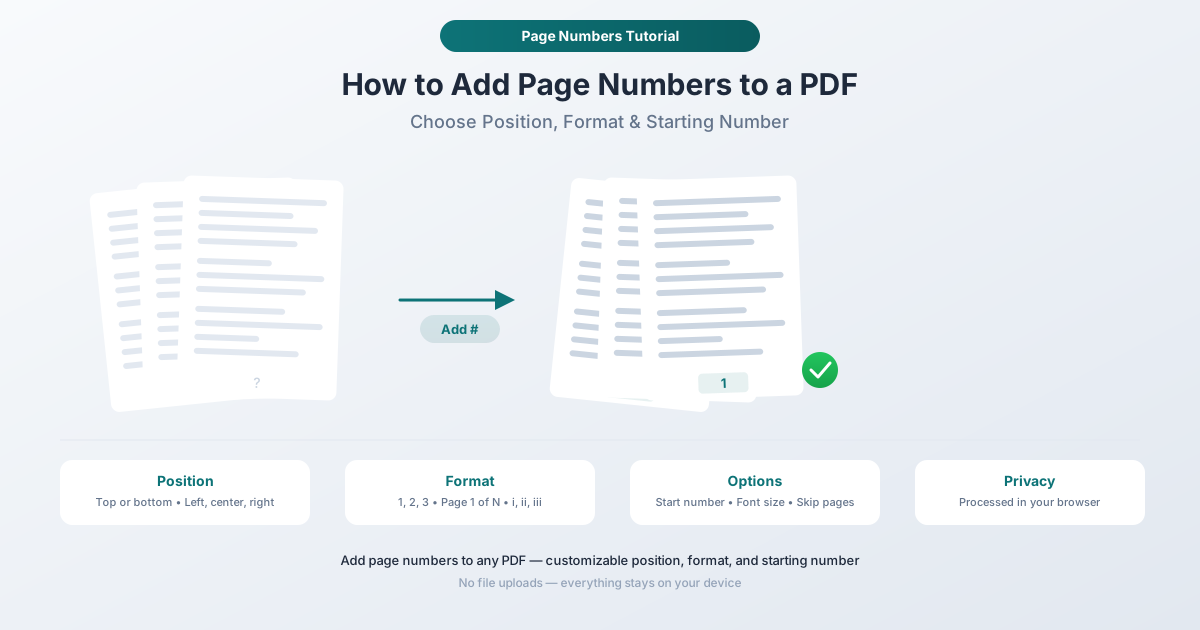
- Position - Bottom center, bottom left, bottom right, top center, top left, or top right.
- Format -
1, 2, 3(simple numeric),Page 1,Page 1 of N(great for contracts), ori, ii, iii(Roman numerals for front matter). - Starting number - Set to any value from 1 to 9,999. Useful when continuing numbering from a previous document.
- Font size - Adjustable from 6pt to 24pt.
- Skip first page - Leave the title or cover page unnumbered.
Step 4: Add page numbers. Click the button. The tool processes your PDF instantly.
Step 5: Download. Save your numbered PDF. The original file is unchanged.
Why This Method Is Best
Privacy. Everything runs in your browser. Your PDF is never uploaded to any server - critical for legal, financial, and medical documents.
Full formatting control. Six positions, four formats, adjustable font size, custom starting number, and a skip-first-page toggle. Most online tools only offer bottom center.
No limits. Large PDFs with hundreds of pages work without file size restrictions. Works on any device with a modern browser.
Free to try. PDFSub offers a 7-day free trial with full access to all tools. Cancel anytime.
Method 2: Adobe Acrobat
Acrobat Pro includes page numbering through its header and footer feature.
- Open your PDF in Acrobat Pro.
- Go to Edit > Header & Footer > Add.
- Click in the footer text area and click Insert Page Number.
- Optionally add surrounding text like
Pageandofwith Insert Page Count. - Adjust font, size, and page range, then click OK.
Limitations: Requires a paid subscription ($19.99+/month). The interface is complex with no live preview. Desktop application only.
Method 3: Microsoft Word (Before Converting to PDF)
If your document is still in Word format, add page numbers before exporting.
- Go to Insert > Page Number and choose a position.
- To skip the first page: Header & Footer > Different First Page.
- To change the starting number: Insert > Page Number > Format Page Numbers.
- Export: File > Save As > PDF.
Limitations: Only works before the PDF is created. Doesn't help with existing PDFs or merged documents from multiple sources. Formatting may shift during conversion.
Formatting Best Practices
General business documents. Bottom center, simple numeric, font size 10-12. Skip the first page if it has a cover. This is the safest default for proposals, reports, and internal documents.
Legal filings. Check the court's requirements - many specify exact position, font, and numbering style. For litigation document sets, Bates numbering (e.g., SMITH-000001) is the standard for discovery.
Academic papers. Follow your style guide. APA and MLA require top right. For theses, Roman numerals for front matter and Arabic numerals for the main body.
Contracts. Use Page 1 of N so all parties can verify completeness. If a contract shows "Page 7 of 22" and the recipient has only 20 pages, the gap is immediately visible.
Special Cases
Skip the first page. Toggle Skip first page in PDFSub to leave the title page unnumbered. The second page becomes page 1.
Continue from a previous document. Set the starting number to pick up where the last document ended. Volume 2 of a report can start at page 47 if Volume 1 ended at 46.
Bates numbering for legal. Bates numbers are unique sequential identifiers across an entire document collection (e.g., DEF-000001), distinct from regular page numbers. They ensure every page in a potentially thousands-of-pages discovery set can be uniquely referenced in depositions and at trial.
Different numbering for sections. Some documents need Roman numerals for front matter and Arabic numerals for the body. Split the PDF into sections, number each separately, then merge them back. PDFSub's Split, Add Page Numbers, and Merge tools handle this workflow.
Frequently Asked Questions
Can I add page numbers to a scanned PDF?
Yes. Page numbers are added as a new layer on top of existing content. It works regardless of whether the PDF contains digital text or scanned images.
Will adding page numbers change my document's layout?
No. Page numbers are placed in the margin area and don't shift existing text. If your document has content extending to the very edge of the page, choose a position on the opposite side to avoid overlap.
What's the difference between page numbers and Bates numbers?
Page numbers are sequential within a single document (1, 2, 3). Bates numbers are unique identifiers across an entire collection in legal proceedings, typically with a case-specific prefix and zero-padding (SMITH-000001).
Can I add page numbers to a password-protected PDF?
Remove the password first using PDFSub's Unlock PDF tool, then add page numbers to the unlocked file.
Do page numbers increase the file size?
Barely. Each page number adds a few bytes of text data - even on a 500-page document, the total increase is typically less than 50KB.
Start Adding Page Numbers
Ready to number your PDF? Open the Add Page Numbers tool and upload your file. Choose your position, format, and starting number. Everything processes in your browser and your document never leaves your device. No account required to get started, and PDFSub offers a 7-day free trial with full access to all tools.