How to Add Headers and Footers to a PDF
Need to add your company name, document title, or dates to every page? Here's how to add headers and footers to any PDF - with customizable position and formatting.
You've exported a financial report from your accounting software, but there's no company name on any page. You have a multi-page proposal, but no page numbers - so when someone prints it and the pages get shuffled, there's no way to put them back in order. You've compiled a legal filing, but the court requires every page to have the case number in the header and the date in the footer.
Headers and footers are the kind of document element you don't think about until they're missing. They provide critical context: who created the document, what it's called, when it was produced, and which page you're looking at. Without them, a stack of printed pages becomes an unorganized pile, and a digital document lacks professional polish.
This guide covers how to add headers and footers to any PDF, what content works best in each position, and practical scenarios where this simple addition makes your documents significantly more useful.
What Goes in a Header? What Goes in a Footer?
There's no strict rule, but conventions exist for a reason. Here's what typically goes where.
Common Header Content
- Company or organization name (left-aligned) - identifies who produced the document
- Document title (center-aligned) - says what the document is
- Date (right-aligned) - when the document was created or last updated
- Case number or reference ID - for legal, insurance, or project-specific documents
- Department name - for internal organizational documents
- Classification label - "Confidential," "Internal Only," "Public"
Common Footer Content
- Page numbers (right-aligned or center-aligned) - "Page 1 of 5" or just "1"
- Date or timestamp (left-aligned) - when the document was printed or generated
- Copyright notice - "(C) 2026 Acme Corp. All rights reserved."
- Disclaimer text - brief legal or regulatory text
- URL or website - directs readers to a web resource
- Version number - "v2.1" or "Rev. 3"
The Three-Column Layout
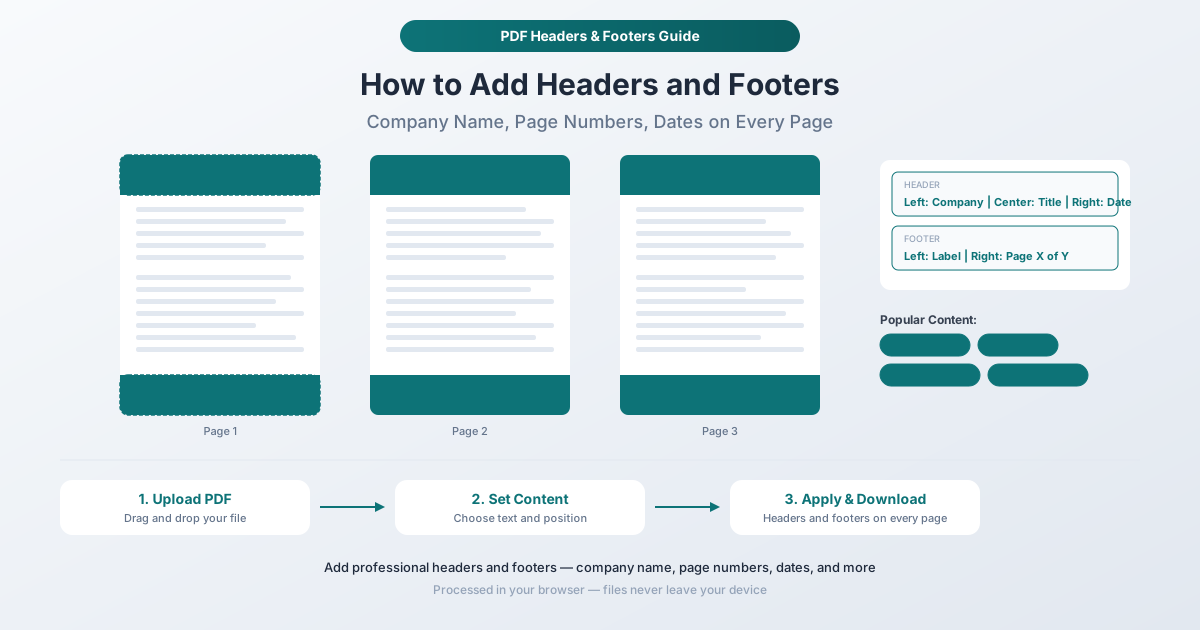
Most professional documents use a three-column layout for both headers and footers: left-aligned, center-aligned, and right-aligned text. This lets you include up to three pieces of information per line without overcrowding. For example:
Header: Acme Corp | Annual Report 2026 | March 15, 2026
Footer: Confidential | | Page 1 of 12
The center position can be left empty if you only need two elements.
How to Add Headers and Footers with PDFSub
PDFSub's Headers & Footers tool lets you add customizable text to the top and bottom of every page in your PDF. The process runs in your browser - your document stays on your device.
Step-by-Step Instructions
Step 1: Open the Headers & Footers tool. Go to pdfsub.com/tools/headers-footers. No software to install - start with a 7-day free trial.
Step 2: Upload your PDF. Drag and drop your file into the upload area, or click to browse. The tool loads your document and shows a preview.
Step 3: Configure your header text. Enter the text you want to appear at the top of each page. You can specify text for left, center, and right positions independently. Leave any position empty if you don't need text there.
Step 4: Configure your footer text. Enter text for the bottom of each page using the same left, center, and right positions. Common choices include page numbers, dates, and disclaimers.
Step 5: Adjust formatting. Set the font size, margins, and any other available styling options to match your document's aesthetics. The header and footer text should complement the existing document design, not clash with it.
Step 6: Preview the result. Check how the headers and footers look on your actual document pages. Verify that they don't overlap with existing content and that the positioning looks right across different page types.
Step 7: Apply and download. Click the action button to add headers and footers to every page. Download your updated PDF. The original file remains unchanged.
Page Numbering: The Most Common Use Case
Page numbers are, by far, the most requested header/footer content. Here's why they matter and how to get them right.
Why Page Numbers Matter
- Printed documents stay organized. When someone prints a 30-page report and drops it, page numbers are the only way to reassemble it correctly.
- References are possible. "See page 7" only works if pages have numbers. Meeting minutes, legal documents, and technical manuals constantly reference specific pages.
- Progress indication. "Page 3 of 20" tells the reader how far they are and how much remains.
- Professional expectation. Unnumbered pages in a business document look unfinished. Clients, regulators, and courts expect page numbers.
Page Number Formats
Different contexts call for different formats:
| Format | Example | Best For |
|---|---|---|
| Simple number | 1, 2, 3 | Short internal documents |
| Page X of Y | Page 1 of 12 | Reports, proposals, legal filings |
| Dashed | - 1 - | Academic papers, manuscripts |
| Section-page | 2-1, 2-2 | Technical manuals, multi-section reports |
Page Number Placement
- Bottom center - traditional for academic and literary documents
- Bottom right - most common for business documents
- Top right - common for legal filings and court documents
- Bottom outside - alternates left/right for double-sided printing (less common in digital documents)
If you only need page numbers without other header/footer content, PDFSub also offers a dedicated Page Numbers tool optimized specifically for that task.
Practical Scenarios
Preparing Reports for Distribution
A quarterly business report needs the company name in the header and page numbers in the footer. Without them, the document looks like an internal draft rather than a polished deliverable. Adding "Acme Corp" top-left, "Q4 2025 Financial Report" top-center, and "Page X of Y" bottom-right transforms it from a casual document into a professional one.
Court Filings and Legal Documents
Many courts require specific header/footer formatting. Case numbers, filing dates, attorney names, and Bates numbers are common requirements. Non-compliance can result in rejected filings - an expensive and time-consuming problem.
Internal Policies and Handbooks
Employee handbooks, safety procedures, and policy documents should include the organization name, document title, and a revision date. When policies change, the revision date in the header or footer immediately tells readers whether they're looking at the current version.
Academic Papers and Theses
Running headers (typically the author's last name or a shortened title) and page numbers are standard formatting requirements for academic submissions. Many style guides (APA, MLA, Chicago) specify exact header/footer formats.
Financial Statements
Financial documents distributed to investors, auditors, or board members should include the company name, the reporting period, and page numbers. For audit purposes, having this information on every page ensures individual pages can be identified and traced back to their source document.
Contracts and Agreements
Multi-page contracts benefit from having the agreement title, date, and page numbers on every page. This prevents disputes about whether a specific page belonged to the agreement and provides easy reference points during negotiations.
Tips for Professional Headers and Footers
Keep Content Brief
Headers and footers have limited space. A company name and a short document title work. A full company address, phone number, and mission statement in the header will crowd the page and push body content down.
Match the Document's Font Style
If your document uses a clean sans-serif font, the header and footer should match. A serif header on a sans-serif document (or vice versa) looks inconsistent. When possible, match the general style of the document's body text.
Use Consistent Formatting Across All Pages
Headers and footers should look identical on every page (except for the page number, obviously). Inconsistent formatting - different font sizes, varying positions, or missing headers on some pages - undermines the professional appearance you're trying to create.
Consider the First Page
Some documents intentionally omit headers and footers from the first page (which might be a cover page or title page). If your document has a cover page, consider whether the header/footer should appear on that page or start on page two.
Account for Existing Margins
If your PDF already has narrow margins, adding headers and footers may overlap with existing content. Check the preview carefully, especially on pages with content close to the top or bottom edges. Adjust margins or font size to prevent overlap.
Don't Duplicate Existing Headers
If the PDF already has headers or footers (from the original application that created it), adding another layer creates duplication. Check whether the document already has the information you're trying to add before proceeding.
Combining Headers/Footers with Other PDF Operations
A complete document preparation workflow might look like this:
- Merge multiple source documents into one PDF
- Delete any unwanted pages (blanks, duplicates, irrelevant sections)
- Reorder pages into the correct sequence
- Add headers and footers with company name, title, and page numbers
- Add a watermark if the document needs a DRAFT or CONFIDENTIAL stamp
- Protect with a password if the content is sensitive
Each step builds on the previous one, and all operations happen in your browser without uploading files.
Frequently Asked Questions
Can I add headers and footers to specific pages only?
The tool applies headers and footers to all pages in the PDF. If you need different headers on different pages, split the PDF into sections using the Extract Pages tool, apply different headers/footers to each section, then merge them back together.
Will headers and footers overlap with existing content?
They can if your document has content very close to the top or bottom edges. Use the preview feature to check before applying. If overlap occurs, adjust the margin settings to push the header/footer further from the page edge, or choose a smaller font size.
Can I add page numbers in "Page X of Y" format?
Yes. PDFSub supports automatic page numbering including the "Page X of Y" format where both the current page number and total page count are dynamically inserted. The total updates automatically based on the actual page count.
Do headers and footers increase the file size?
Negligibly. Text headers and footers add a few kilobytes to the total file size regardless of how many pages the document has. The text is rendered as vector data, which is extremely compact.
Can I remove headers and footers that I've added?
If you still have the original PDF (before adding headers and footers), simply use the original. Since PDFSub creates a new file rather than modifying the original, your unmodified source is still available. If you've lost the original, removing embedded headers/footers from a PDF is more complex and may require a different approach.
Start Adding Headers and Footers
Ready to polish your document? Open the Headers & Footers tool and upload your PDF. Enter your company name, document title, page numbers, or any text you need. Preview the result, then download your updated document. Everything happens in your browser - your file never leaves your device. No account required to get started, and PDFSub offers a 7-day free trial with full access to all tools.