How to E-Sign a PDF Without Printing
The print-sign-scan cycle wastes time, ink, and paper. Here's how to e-sign any PDF directly on your computer or phone - legally binding and free.
Someone sends you a PDF. A lease agreement, an NDA, an HR onboarding form, a permission slip for your kid's field trip. They need your signature. So you print the document, grab a pen, sign it, walk to the scanner, scan it back into a PDF, and email it back.
That workflow made sense in 2005. In 2026, it's the document equivalent of faxing a screenshot.
The print-sign-scan cycle costs you paper, ink, time, and a trip to a printer that may or may not be working. It also produces a worse result - a scanned PDF is larger in file size, lower in quality, and harder to search than the original. And if you signed in the wrong spot or the scanner cropped the page? Start over.
Electronic signatures eliminate every step between "receive PDF" and "send it back signed." No printer. No scanner. No pen. And they're legally binding in virtually every country that matters for business.
This guide covers three methods for e-signing PDFs, the legal framework that makes e-signatures valid, and best practices for signing documents electronically.
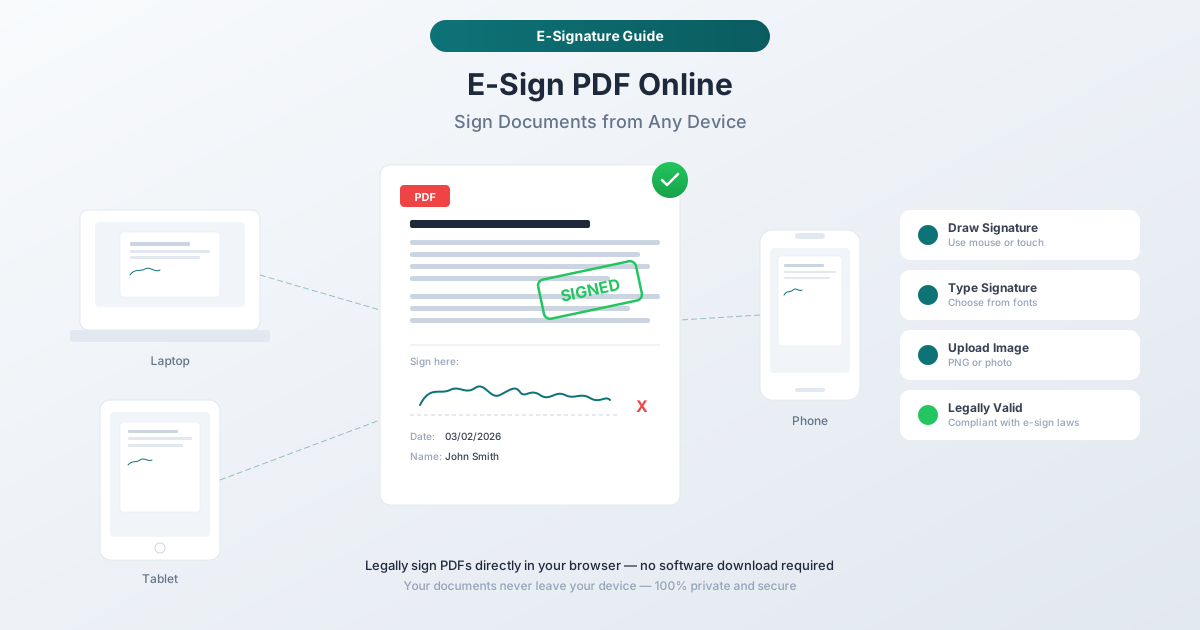
The Print-Sign-Scan Cycle Is Dead
Let's quantify why you should stop printing PDFs to sign them.
Time cost. The average print-sign-scan cycle takes 8 to 15 minutes - finding the printer, waiting for it to warm up, signing, scanning, naming the file, and emailing it back. An electronic signature takes under 60 seconds.
Financial cost. Printing costs $0.05-$0.15 per page. Negligible for one document, but businesses processing hundreds of signed documents monthly spend $500-$2,000 annually on printing alone - plus scanner maintenance and toner.
Quality cost. Every scan degrades the document. Text gets fuzzy, colors shift, file size balloons from kilobytes to megabytes. After two round trips through the print-scan cycle, the document looks like a photocopy of a photocopy.
Availability cost. You can't print-sign-scan from your phone, from a coffee shop, or at 11 PM when you finally get to that contract. Electronic signatures work anywhere you have a screen.
The print-sign-scan cycle persists out of habit. The legal and technical barriers to electronic signatures were removed years ago.
What Is an Electronic Signature?
An electronic signature is any electronic indication of intent to agree to or approve a document. That's deliberately broad. It includes:
- Drawing your signature on a screen with a mouse, trackpad, or stylus
- Typing your name in a signature field
- Uploading an image of your handwritten signature
- Clicking an "I agree" button or checking a consent box
- Using a digital certificate to cryptographically sign a document
The key legal concept is intent. An electronic signature is valid when the signer demonstrably intended to sign the document. The specific method - drawing, typing, clicking - is secondary to proving that intent.
This is not a new concept. Electronic signatures have been legally recognized in the United States since 2000, in the European Union since 2000 (with an updated framework since 2016), and in most other major economies for over a decade.
Legal Framework
Three pieces of legislation form the backbone of e-signature legality worldwide:
ESIGN Act (United States, 2000). The Electronic Signatures in Global and National Commerce Act establishes that electronic signatures carry the same legal weight as handwritten signatures for interstate and foreign commerce. A contract "may not be denied legal effect, validity, or enforceability solely because an electronic signature or electronic record was used in its formation."
UETA (United States, state-level). The Uniform Electronic Transactions Act, adopted by 49 states plus Washington D.C. and the U.S. Virgin Islands (New York has its own equivalent, the Electronic Signatures and Records Act), provides the state-level legal framework. UETA confirms that electronic records and signatures satisfy legal requirements for writings and signatures.
eIDAS (European Union, 2014/2016). The Electronic Identification, Authentication and Trust Services Regulation defines three tiers: simple electronic signatures (typing your name counts), advanced electronic signatures (uniquely linked to the signatory with tamper detection), and qualified electronic signatures (certificate-based, carrying the same legal weight as handwritten signatures across all EU member states). Most everyday document signing falls under simple or advanced and is valid without special infrastructure.
What You Can and Cannot E-Sign
Accepted for e-signature in most jurisdictions: Business contracts, NDAs, employment documents (offer letters, W-4s, benefits enrollment), lease agreements, purchase orders, invoices, insurance applications, tax forms (the IRS accepts e-signatures on many forms), permission slips, and bank applications.
Exceptions (vary by jurisdiction): Wills and testamentary trusts (most U.S. states still require wet signatures), certain real estate deeds, some court filings, notarized documents (remote online notarization is legal in many but not all states), and some powers of attorney.
When in doubt, consult a legal professional. For the vast majority of business documents, electronic signatures are fully valid.
Method 1: PDFSub E-Sign PDF (Recommended)
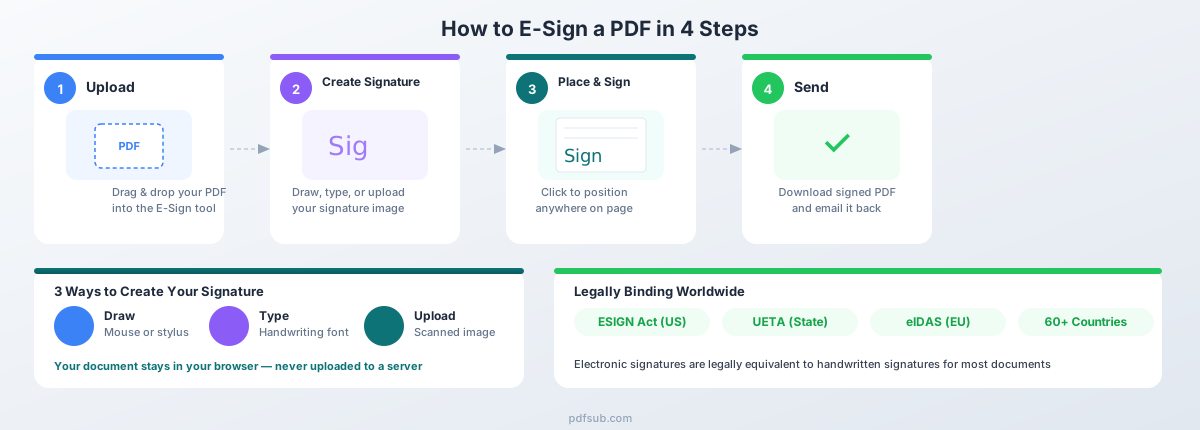
PDFSub's E-Sign PDF tool lets you add your signature to any PDF document directly in your browser. The document never leaves your device - everything is processed client-side.
Step-by-Step: How to E-Sign a PDF with PDFSub
Step 1: Upload your PDF. Open the E-Sign PDF tool and drag and drop your document, or click to browse. The PDF loads instantly in the browser preview.
Step 2: Create your signature. You have three options for creating your signature:
- Draw it. Use your mouse, trackpad, or stylus to draw your signature directly on screen. A drawing canvas appears where you can write naturally. If you don't like the result, clear it and try again.
- Type it. Type your name and PDFSub renders it in a handwriting-style font. This is the fastest option and produces a clean, consistent signature every time.
- Upload an image. If you already have a scanned image of your signature (PNG, JPG, or SVG), upload it directly. This gives you the most authentic-looking result.
Step 3: Place your signature on the document. Click where you want the signature to appear on the PDF. You can resize and reposition it until it sits exactly where you need it. Need to sign multiple pages? Place your signature on each page.
Step 4: Download the signed PDF. Click download and you get a finished PDF with your signature embedded directly in the document. The output is a standard PDF file - the recipient sees your signature just like any other content on the page.
Why PDFSub Works Well for E-Signing
Browser-based privacy. Your document is processed entirely in your browser. The PDF file never gets uploaded to any server. For sensitive documents - employment agreements, financial contracts, medical forms - this matters. You're not trusting a third-party server with your confidential documents.
No account required for basic use. You can e-sign a PDF without creating an account. Open the tool, upload, sign, download. PDFSub offers a 7-day free trial for full access to all tools including the E-Sign feature.
Works on any device. Desktop, laptop, tablet, or phone. Any modern browser. No software to install, no app to download. If you need to sign something from your phone at 10 PM, you can.
Add dates and initials. Beyond just your signature, you can add text annotations for dates, initials, and other fields that documents commonly require alongside a signature.
Reusable signatures. Once you create a signature, you can reuse it across multiple documents without recreating it every time.
Method 2: Preview on Mac
If you're on a Mac, the built-in Preview app includes a signature feature that works for simple signing needs.
How to E-Sign a PDF with Preview
Step 1: Open the PDF in Preview (it's the default PDF viewer on macOS).
Step 2: Click the Markup toolbar button (it looks like a pen tip inside a circle) in the toolbar, or go to View > Show Markup Toolbar.
Step 3: Click the Sign button in the Markup toolbar.
Step 4: Create your signature using one of two methods:
- Trackpad: Click "Trackpad," then use your finger to draw your signature on the trackpad. Click "Done" when finished.
- Camera: Click "Camera," then hold a signed piece of white paper up to your Mac's camera. Preview detects the signature and captures it.
- iPhone/iPad: If you have an iPhone or iPad nearby, you can draw your signature on the device and it transfers to Preview.
Step 5: Click on the document where you want to place the signature. Drag the corners to resize.
Step 6: Save the PDF (File > Save, or Command-S).
Limitations of Preview
- Single signer only. No workflow for routing documents to multiple signers.
- No date or initial fields. You can add text annotations separately, but there are no dedicated date-stamp or initials fields.
- Mac only. Not available on Windows, Linux, or mobile (though iOS has a similar feature in the Files app).
- No signature validation. The signature is a visual element only - no cryptographic verification or audit trail.
Preview is solid for signing a single document quickly on a Mac. For multiple signers, date fields, or cross-platform access, a dedicated tool works better.
Method 3: Adobe Acrobat Reader (Free)
Adobe Acrobat Reader - the free PDF viewer - includes a "Fill & Sign" feature that handles basic e-signing.
How to E-Sign a PDF with Adobe Acrobat Reader
Step 1: Open the PDF in Adobe Acrobat Reader (free download from Adobe's website).
Step 2: Click Fill & Sign in the right-side panel, or go to Tools > Fill & Sign.
Step 3: Click the Sign icon (pen nib) in the toolbar.
Step 4: Choose Add Signature or Add Initials.
Step 5: Create your signature by typing, drawing, or uploading an image. Adobe applies a handwriting-style rendering to typed signatures.
Step 6: Click on the document to place the signature. Resize and reposition as needed.
Step 7: Save the signed PDF.
Limitations of Adobe Acrobat Reader
- Requires an Adobe account. You need a free Adobe account to use Fill & Sign - one more login to manage.
- Upsell pressure. Adobe uses Reader as a funnel to Acrobat Pro ($22.99/month). Some features that look available are Pro-only.
- Desktop application required. The full Fill & Sign experience needs the desktop app. The mobile app behaves differently.
- File upload for cloud features. Collaborative signing (sending to others) uploads documents to Adobe's servers. Basic self-signing works locally.
Adobe Acrobat Reader is reasonable if you already have it installed. But starting from scratch, a browser-based tool avoids the download, account creation, and upsell prompts.
Electronic Signature vs. Digital Signature vs. Wet Signature
These three terms get used interchangeably, but they mean different things. Understanding the distinction matters when someone asks you to "digitally sign" a document.
Electronic Signature
What it is: Any electronic mark or process attached to a document that indicates intent to sign. This is the broadest category.
Examples: Typed name in a signature field, drawn signature on a touchscreen, uploaded signature image, clicked "I Agree" button, email confirmation of agreement.
Security level: Low to medium. Proves intent but doesn't cryptographically verify the signer's identity or detect tampering.
When to use: Most everyday business documents - contracts, NDAs, HR forms, lease agreements, permission slips. This is what 95% of people mean when they say "e-sign."
Digital Signature
What it is: A specific type of electronic signature that uses public key infrastructure (PKI) cryptography to verify the signer's identity and ensure the document hasn't been modified after signing.
How it works: The signer has a digital certificate issued by a Certificate Authority. A cryptographic hash of the document is encrypted with the signer's private key. If even a single character changes after signing, verification fails.
Security level: High. Provides authentication (who signed), integrity (document unchanged), and non-repudiation (signer can't deny signing).
When to use: Government filings, regulated industries, high-value contracts, and situations requiring tamper-detection. Costs $20-$500+/year for the certificate.
Wet Signature
What it is: A physical signature made with ink on paper. The original form of document signing.
Security level: Varies. Easy to forge, no tamper detection, no built-in audit trail. Authentication depends on witness testimony and handwriting analysis.
When to use: When legally required (wills in most states, some notarized documents, specific court filings) or when the other party insists on it.
Comparison Table
| Feature | Electronic Signature | Digital Signature | Wet Signature |
|---|---|---|---|
| Legal validity | Valid (ESIGN, UETA, eIDAS) | Valid (highest tier under eIDAS) | Valid |
| Identity verification | Low - based on email/intent | High - certificate-based | Low - visual comparison |
| Tamper detection | None | Cryptographic hash verification | None |
| Remote signing | Yes | Yes | No - requires physical presence |
| Cost | Free to low | $20-$500+/year for certificate | Free (plus printing/scanning costs) |
| Speed | Seconds | Seconds (after setup) | Minutes to days |
| Audit trail | Depends on tool | Built into certificate | Physical records only |
For most people reading this guide, an electronic signature is what you need. Digital signatures are for specialized use cases where cryptographic verification is required by regulation or policy.
Best Practices for E-Signing Documents
Use a Consistent Signature
Create one signature and use it everywhere. Consistency helps if a signature is ever questioned - a consistent electronic signature across dozens of documents is easier to authenticate than one that looks different every time.
If you have a personal signature and a business signature, create both once and reuse them. PDFSub and other e-sign tools let you save signatures for reuse.
Always Add the Date
Most signed documents need a date alongside the signature. A signature without a date creates ambiguity about when the agreement was made. Use the format expected by the other party - MM/DD/YYYY in the US, DD/MM/YYYY in Europe. When in doubt, write the month name (e.g., "March 2, 2026") to avoid ambiguity.
Keep Copies of Every Signed Document
Download the signed PDF immediately after signing. Don't rely on the other party to send the final version. Store signed documents where you can find them - a dedicated folder, cloud drive, or document management system. For tax documents, the IRS recommends retaining records for 7 years. Contracts should be kept for the duration plus 3-6 years.
Use Initials for Multi-Page Documents
For documents longer than a few pages, initial every page - not just the signature page. This prevents disputes about whether the signer agreed to all pages. Most e-sign tools support initials as a separate element from your full signature.
Verify Before You Sign
Read the document before signing. The ease of electronic signatures makes it tempting to click "sign" without reading. An electronic signature carries the same legal weight as a handwritten one - you're bound by what you sign. Pay special attention to arbitration clauses, auto-renewal terms, non-compete provisions, and liability limitations.
Confirm Receipt
After sending a signed document back, confirm the recipient received it. Email delivery is not guaranteed - messages get caught in spam filters and attachment size limits. A quick confirmation takes five seconds and prevents both parties from assuming the other has the signed copy.
Tips for Creating a Good Signature
Drawing on Screen
Mouse-drawn signatures tend to be shakier than pen signatures. That's fine - legal validity doesn't depend on aesthetics. For better results: use your whole arm (not just your wrist), go faster rather than slower (speed produces more natural strokes), and try multiple times. Most tools let you clear and redraw.
Using a Stylus or Tablet
A stylus on a tablet (iPad with Apple Pencil, Samsung Galaxy Tab with S Pen) produces the best drawn signatures. The pressure sensitivity closely replicates signing with a pen. If you sign frequently, create your signature once on a tablet and save the image for reuse.
Scanning a Handwritten Signature
If you want your electronic signature to look exactly like your handwritten one:
- Sign with a black felt-tip or gel pen on white paper (thicker strokes scan better).
- Photograph or scan it - a phone camera works fine with even lighting.
- Crop tightly around the signature.
- Optionally, remove the white background to create a transparent PNG.
- Save the image file somewhere accessible for reuse across documents.
Frequently Asked Questions
Is an e-signature legally binding?
Yes, in most cases. Under the ESIGN Act (US), UETA (US state-level), and eIDAS (EU), electronic signatures are legally equivalent to handwritten signatures for most documents. The key exceptions are wills (in most US states), certain real estate transactions, some court filings, and specific documents requiring notarization. For standard business contracts, HR documents, lease agreements, and most other everyday documents, e-signatures are fully legally binding.
Can I e-sign a document on behalf of someone else?
Only with proper legal authorization - power of attorney, authorized representative status, or explicit written permission. Signing someone else's name without authorization is forgery, whether electronic or handwritten. If signing as a representative, use a format like "Jane Smith, on behalf of John Smith" to make the relationship clear.
How do I handle a document that needs multiple signers?
Two approaches: sequential signing (sign your portion, save the PDF, send to the next signer) or parallel signing using a dedicated platform like DocuSign or Adobe Sign that routes the document to all signers in a workflow ($10-$50/month). For simple two-party contracts, sequential signing with a tool like PDFSub works perfectly - sign your copy, email it, and the other party adds their signature to the same document.
Can I revoke or withdraw an e-signature?
Not unilaterally. Once delivered to the other party, an e-signature - like a handwritten one - is binding. Both parties can agree to void or amend the contract. If you signed by mistake or under duress, the same legal remedies that apply to handwritten signatures apply here. The practical takeaway: read before you sign.
Is a typed name a valid signature?
Yes. Under both ESIGN and eIDAS, a typed name constitutes a valid electronic signature when there is demonstrable intent to sign. Typed signatures carry less evidentiary weight than a drawn or certificate-based signature, but they are legally valid for most purposes - they're already standard in email agreements and click-through contracts.
What if the other party doesn't accept e-signatures?
Ask if they'll accept a drawn signature on a PDF (some parties reject click-to-sign but accept this). Alternatively, use a digital signature with a certificate for higher assurance. As a last resort, print-sign-scan. For government filings, check whether the agency has updated its e-signature policy - many have expanded acceptance in recent years.
Do e-signatures work internationally?
Yes. Over 60 countries have enacted e-signature legislation. The ESIGN Act covers the US, eIDAS covers the EU (plus EEA countries), and most major economies - Canada, Australia, Japan, South Korea, Brazil, India, China, the UK - have their own laws. For cross-border contracts, both parties' jurisdictions need to recognize e-signatures, which is the case for the vast majority of international business transactions.
Summary
E-signing a PDF is straightforward with the right tool. Here's how the three methods compare:
| Method | Cost | Platform | Account Required | Privacy |
|---|---|---|---|---|
| PDFSub E-Sign | 7-day free trial | Any browser (all devices) | No (for basic use) | Document stays in your browser |
| Preview (Mac) | Free | macOS only | No | Local processing |
| Adobe Acrobat Reader | Free | Windows, Mac, mobile | Yes (Adobe account) | Local for self-signing |
For most people, PDFSub's browser-based E-Sign tool is the fastest path from "received a PDF" to "sent it back signed." No software to install, a 7-day free trial to get started, and your document never leaves your device.
The legal validity of electronic signatures is well-established. The ESIGN Act, UETA, and eIDAS collectively cover the United States, the European Union, and most major economies. For standard business documents - contracts, NDAs, employment forms, lease agreements - an electronic signature carries the same legal weight as ink on paper.
Stop printing PDFs to sign them. Your printer will thank you. Your scanner will thank you. And the next time someone sends you a contract at 11 PM, you'll have it signed and sent back before they finish brushing their teeth.