How to Compress PDF for Email (Under 25MB)
Your PDF is too large to email. Here's how to shrink it below Gmail and Outlook's 25MB limit - with step-by-step methods, compression tradeoffs, and quick wins for oversized files.
You click "Send" and nothing happens. Or worse - you get the bounce: "Attachment size exceeds the allowable limit." Your PDF report, contract, or presentation is too big to email.
This happens more often than you'd think. The average business professional sends 40 emails per day, and a significant chunk of those include attachments. Financial reports, signed contracts, scanned documents, slide decks exported as PDFs - these files routinely blow past email size limits. And when they do, you're stuck. The meeting starts in 20 minutes, and you need that file on the other end.
This guide covers exactly how to compress a PDF for email - step by step. We'll cover why PDFs get so large, three reliable methods for shrinking them, the tradeoffs you should understand before compressing, and what to do when compression alone isn't enough.
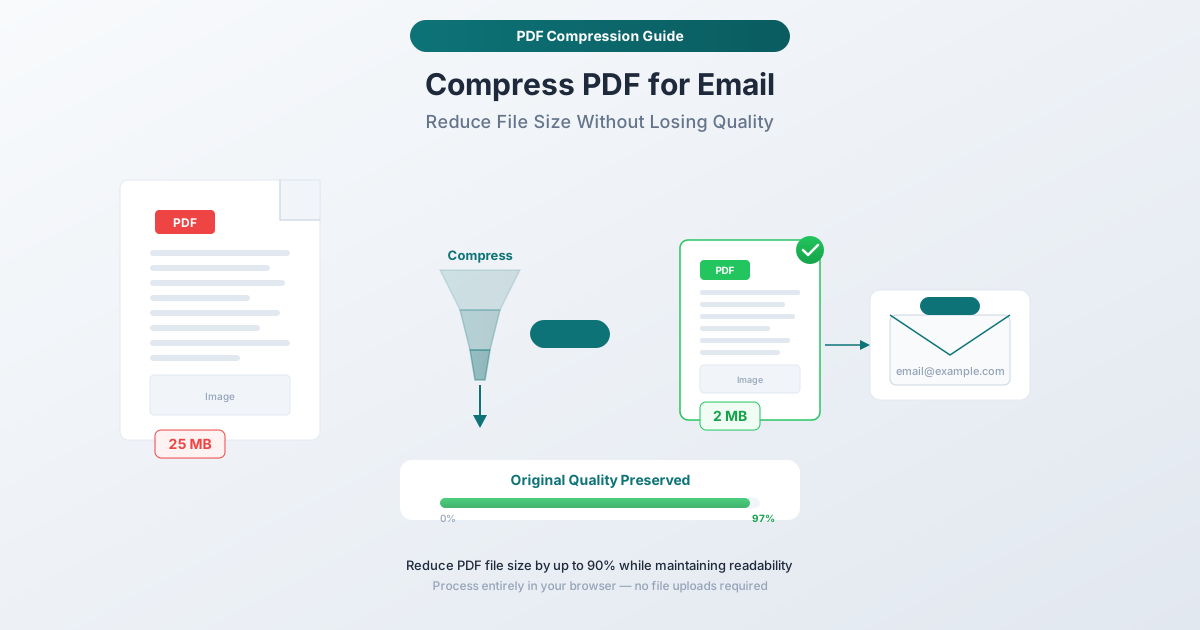
The Email Attachment Size Problem
Every major email provider enforces attachment size limits. Here's what you're working with:
| Email Provider | Maximum Attachment Size |
|---|---|
| Gmail | 25 MB |
| Outlook / Microsoft 365 | 25 MB |
| Yahoo Mail | 25 MB |
| Apple iCloud Mail | 20 MB |
| ProtonMail | 25 MB |
| Zoho Mail | 25 MB (free) / 40 MB (paid) |
That 25 MB ceiling looks generous until you realize it applies to the encoded size, not the raw file size. Email attachments are Base64-encoded for transmission, which inflates them by roughly 33%. A file that's 19 MB on your hard drive becomes about 25 MB in the email. So in practice, the real limit is closer to 18–19 MB for most providers.
It gets worse in corporate environments. Many organizations configure their mail servers with custom limits - often 10 MB or even 5 MB - to reduce bandwidth and storage costs. If you're emailing a client at a large bank, law firm, or government agency, there's a good chance their firewall will reject anything over 10 MB silently. You won't even get a bounce message. The email just disappears.
The bottom line: if your PDF is over 10 MB, you should compress it before emailing. If it's over 18 MB, you must.
Why PDFs Get So Large
Before compressing, it helps to understand what's eating up space inside your PDF. Not all large PDFs are created equal, and knowing the cause tells you how much compression is possible.
Embedded Images
This is the number one culprit. A single high-resolution photograph embedded in a PDF can be 5–15 MB on its own. Marketing brochures, real estate listings, insurance claim documents, and photo-heavy reports accumulate images quickly. Many PDF creators embed images at 300 DPI (dots per inch) or higher - appropriate for professional printing but wildly excessive for on-screen viewing or email.
A full-page 300 DPI color image is roughly 25 MB uncompressed. Even after JPEG compression, you're looking at 2–5 MB per page. A 20-page document with photos on every page? That's 40–100 MB before you add any text.
Embedded Fonts
PDFs embed fonts to ensure the document looks identical on every device. A standard PDF might embed 3–5 fonts, each adding 50–500 KB. But some design tools embed entire font families - every weight, style, and glyph - even if the document only uses a handful of characters. A single CJK (Chinese, Japanese, Korean) font with full glyph coverage can be 10–20 MB.
Merged PDFs are especially wasteful. If you combine 10 source files, each one may include its own copy of the same font - 10 copies of Arial adding megabytes of pure redundancy.
Metadata and Hidden Objects
PDFs accumulate invisible overhead: editing history (deleted content retained as unreferenced objects), thumbnail previews of every page, XML metadata from document management systems, and JavaScript in interactive forms. Individually small, these elements add up - especially in PDFs that have been edited multiple times or passed through enterprise workflows.
Scanned Pages
Scanned PDFs are the heaviest category. Each page is a full-page raster image - typically 2550 x 3300 pixels at 300 DPI. If scanned in color, a single page can be 5–10 MB. A 50-page scanned document easily reaches 100–200 MB. The irony is that the actual information on most scanned pages is simple text - a few kilobytes if stored as characters - but scanning captures every bit of paper texture, scanner noise, and white space as pixel data.
Layers and Annotations
Architectural drawings, engineering documents, and design files often use PDF layers (Optional Content Groups) to toggle visibility of different elements. Each layer adds its own set of drawing instructions and resources. Similarly, annotations - comments, highlights, markups, sticky notes - each carry their own data objects.
Method 1: PDFSub's Compress PDF Tool (Recommended)
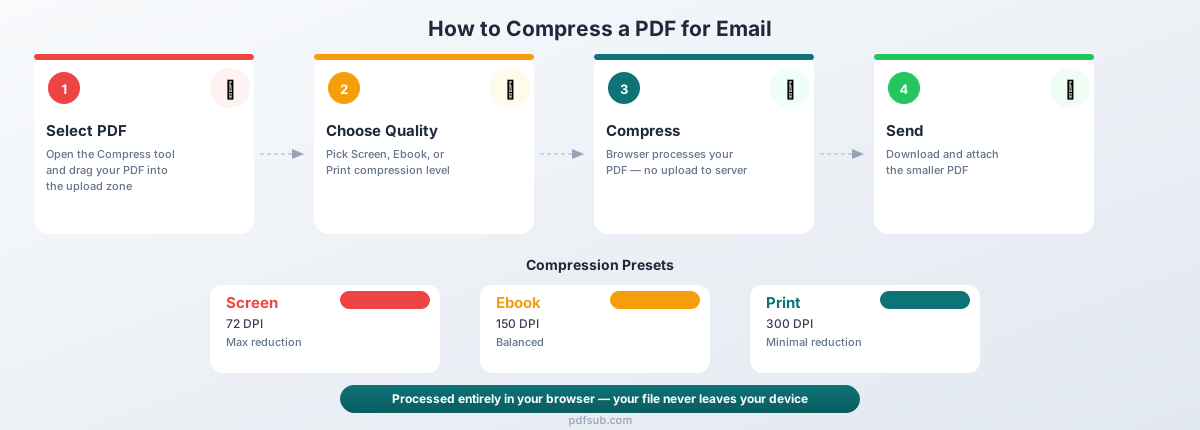
The fastest way to compress a PDF for email is PDFSub's Compress PDF tool. It runs in your browser, requires no software installation, and gives you control over the compression level.
Step-by-Step Instructions
Step 1: Open the tool. Navigate to pdfsub.com/tools/compress in any modern browser (Chrome, Firefox, Safari, Edge).
Step 2: Upload your PDF. Drag and drop your file into the upload area, or click to browse. There's no file size limit on the upload itself.
Step 3: Choose your quality level. PDFSub offers three compression presets:
- Screen - Maximum compression, smallest file size. Best for documents that will only be viewed on screens. Reduces images to 72 DPI. Ideal for emailing documents where recipients just need to read the content.
- Ebook - Balanced compression. Good image quality at 150 DPI with moderate file size reduction. The sweet spot for most email attachments - readable, printable at standard quality, and significantly smaller than the original.
- Print - Minimal compression, highest image quality. Keeps images at 300 DPI. Use this when the recipient needs to print the document at high quality, or when the PDF contains detailed charts and diagrams where visual fidelity matters.
Step 4: Compress. Click the compress button. Processing happens directly in your browser - your file is not uploaded to any server.
Step 5: Download. The compressed PDF downloads to your device. The tool shows you the original and compressed file sizes so you can verify the result is under your email limit.
Why This Method Works Best
Privacy. The compression happens client-side in your browser. Your PDF never leaves your device, which matters when you're compressing contracts, financial documents, medical records, or anything containing sensitive information.
Control. Three quality presets let you choose the right tradeoff. If "Ebook" doesn't shrink enough, drop to "Screen." If you need print quality, use "Print" and accept a larger file.
No software to install. Works on any operating system - Windows, Mac, Linux, ChromeOS - in any modern browser. No downloads, no plugins - start with a 7-day free trial.
No file size limits on processing. You can compress a 500 MB PDF. The processing time scales with file size, but there's no artificial cap.
PDFSub offers a 7-day free trial that includes the Compress PDF tool along with 98+ other PDF tools - merging, splitting, converting, and more.
Method 2: Preview on Mac
If you're on a Mac, Preview - the built-in PDF viewer - includes a basic compression option.
Step-by-Step Instructions
- Open the PDF in Preview (right-click the file, choose "Open With" > "Preview").
- Go to File > Export as PDF (not "Save As" - the export option gives you the filter).
- Click the "Quartz Filter" dropdown and select "Reduce File Size."
- Save the compressed file.
Limitations
Preview's "Reduce File Size" filter is a blunt instrument. It applies aggressive compression with no quality control - you can't choose a compression level. The results vary wildly:
- Text-heavy PDFs: Minimal size reduction (often less than 5%), since there are few images to compress.
- Image-heavy PDFs: Dramatic reduction (sometimes 80%+), but image quality drops severely. Photos become visibly blurry, and fine text in images becomes unreadable.
- Scanned documents: Significant size reduction, but the pages may become too low-resolution to read comfortably.
The lack of control is the core problem. Preview doesn't let you set a target DPI, choose JPEG quality, or selectively compress certain elements. It's all-or-nothing. For a quick-and-dirty reduction of a non-critical document, it works. For anything where readability matters, it's unreliable.
Preview also cannot batch-process files. If you have 10 PDFs to compress, you'll do each one individually.
Method 3: Adobe Acrobat Pro
Adobe Acrobat Pro offers the most granular compression controls available, through its "Optimize PDF" feature.
Step-by-Step Instructions
- Open the PDF in Adobe Acrobat Pro.
- Go to File > Save as Other > Optimized PDF.
- Click "Audit space usage" to see what's consuming space (images, fonts, metadata, etc.).
- Configure compression settings:
- Set image downsampling (e.g., 150 DPI for color images).
- Choose compression type (JPEG, JPEG2000, ZIP).
- Set quality level (Low, Medium, High, Maximum).
- Optionally discard embedded fonts, metadata, comments, or hidden content.
- Save the optimized file.
The Cost
Adobe Acrobat Pro requires a subscription - $22.99/month (annual) or $34.99/month (month-to-month). If you regularly work with PDFs professionally, the subscription may already be justified. But for occasional email compression, $23+/month is hard to rationalize. The free Adobe Acrobat Reader does not include the Optimize PDF feature.
Acrobat Pro shines when you need surgical precision - compressing images on specific pages while leaving others untouched, removing individual fonts, or discarding selective metadata. If your compression needs are highly specific, nothing else matches its granularity.
Understanding Compression Tradeoffs
PDF compression is fundamentally a tradeoff between file size and quality. Understanding this tradeoff helps you choose the right settings for each situation.
How PDF Compression Works
PDF compression targets different elements in different ways:
Image compression is where most savings come from. The process involves two steps: downsampling (reducing resolution - e.g., from 300 DPI to 150 DPI, cutting pixel count by 75%) and recompression (applying lossy JPEG or lossless ZIP compression). Downsampling is destructive - the original resolution cannot be recovered - but 150 DPI is more than adequate for on-screen viewing and standard printing.
Font subsetting replaces full font files with subsets containing only the characters actually used. A full Arial font might be 300 KB; a subset with just the characters in your document might be 20 KB. This is lossless.
Object stream compression consolidates internal PDF objects into compressed streams, typically saving 5–15% on text-heavy documents. Removing unused objects - deleted content remnants, duplicate resources, orphaned entries - also reduces size with zero impact on the visible document.
When Quality Loss Matters
Not every PDF deserves the same treatment:
- Contracts and legal documents: Text readability is critical. Use "Ebook" or "Print" quality. Most of the size comes from text rendering, so compression gains are modest anyway.
- Photo albums and marketing materials: Image quality is the whole point. Use "Print" quality or find non-compression alternatives (see below).
- Scanned tax forms and receipts: You need the content to be legible, but pixel-perfect reproduction isn't necessary. "Ebook" quality works well.
- Internal reports and memos: Nobody is framing these. "Screen" quality is usually fine.
- Presentations exported as PDF: Slide backgrounds and charts compress well at "Ebook" quality without visible degradation.
The Diminishing Returns Problem
Compression gets less effective as you apply it repeatedly. A PDF that's already been compressed won't shrink much further - images are at reduced resolution, fonts are subsetted, metadata is stripped. If your PDF was generated by a modern tool that applies compression by default, there may not be much fat left to trim.
Quick Wins for Oversized PDFs
Before running a PDF through a compressor, consider these targeted optimizations that often produce dramatic results.
Downscale Images from 300 DPI to 150 DPI
This single change can reduce a PDF's size by 50–75% for image-heavy documents. 300 DPI is designed for professional offset printing. For viewing on screens, printing on office printers, and emailing - 150 DPI is more than adequate. The only scenario requiring 300 DPI is professional print production.
Convert Color Images to Grayscale
A color image stores three channels (Red, Green, Blue) per pixel. A grayscale image stores one. Converting to grayscale reduces image data by roughly two-thirds. If your document contains photos that don't need color - receipts, text documents, black-and-white diagrams - grayscale conversion is essentially free savings.
Remove Embedded Fonts
If you're using common fonts like Arial, Times New Roman, or Helvetica, you can strip embedded fonts to save 50–500 KB per font. The risk is minimal for standard business documents - most systems have these fonts installed natively.
Strip Metadata and Unused Objects
PDF editors and merge operations leave behind invisible clutter: XMP metadata (author, editing history), deleted object remnants (pages removed from the tree but not the file), and duplicate resources (merged PDFs with multiple copies of the same font). A compression tool like PDFSub's Compress PDF handles all of this automatically as part of the compression process.
Flatten Form Fields and Annotations
Interactive form fields and annotations (comments, highlights, sticky notes) each carry their own object data and appearance streams. If the form is already filled out and you don't need the interactivity, flattening converts everything to static page content - often saving significant space.
Typical Compression Results by PDF Type
Compression results vary dramatically depending on what's inside the PDF. Here's what to realistically expect:
Scanned Documents: 50–80% Reduction
Scanned PDFs offer the most room for compression because each page is a full-resolution photograph. Downsampling from 300 DPI to 150 DPI and recompressing with modern JPEG encoding routinely halves the file size. For color scans converted to grayscale, reductions of 70–80% are common.
Example: A 50-page color-scanned contract at 300 DPI weighing 85 MB compresses to 15–25 MB at "Ebook" quality.
Image-Heavy Presentations: 40–70% Reduction
Exported PowerPoint decks, marketing PDFs, and reports with charts and photographs carry substantial image data. High-resolution slide backgrounds are particularly compressible because they contain large areas of similar color that JPEG handles efficiently.
Example: A 30-slide presentation exported as PDF at 45 MB compresses to 12–20 MB at "Ebook" quality.
Text-Heavy Documents: 10–30% Reduction
Legal contracts, academic papers, and pure-text reports have relatively little to compress. The text itself is already compact (a few bytes per character). Savings come from font subsetting, metadata removal, and object stream optimization - meaningful but modest.
Example: A 100-page text contract at 3.5 MB compresses to 2.5–3.0 MB. The percentage reduction is moderate, but the file was already small enough to email.
Already-Compressed PDFs: Minimal Reduction
If the PDF was generated by a modern tool (recent versions of Word, Google Docs, most web-based PDF creators), it likely already includes compressed images and subsetted fonts. Running it through a compressor may only shave off 5–10%, mostly from metadata and object optimization.
Example: A 12 MB PDF from Google Docs compresses to 10–11 MB. If you need it under 10 MB, you'll need to use more aggressive image downsampling or consider alternatives to compression.
When Compression Isn't Enough: Alternatives
Sometimes compression alone won't get your file under the email limit. Here are your options when even "Screen" quality compression leaves you over 25 MB.
Share via Cloud Link Instead of Attachment
Upload the PDF to Google Drive, OneDrive, Dropbox, or iCloud, and email a sharing link instead. This completely sidesteps the attachment limit - cloud services support files up to 5–15 GB. Most are free for individual files.
Tip for Outlook users: When you attach a file larger than 25 MB with a connected OneDrive account, Outlook automatically offers to upload it and insert a sharing link instead.
Split the PDF into Parts
If you need to send the actual file (not a link) and it's too large even after compression, split it into smaller parts:
- Use a PDF splitting tool to break the document into sections (e.g., pages 1–10, 11–20, 21–30).
- Compress each section individually.
- Send as multiple emails, clearly labeled: "Contract Part 1 of 3," "Contract Part 2 of 3," etc.
PDFSub's Split PDF tool handles this in your browser - upload once, define the split points, download the parts.
ZIP Compression
ZIP compression can shave off an additional 10–20% on text-heavy PDFs. Right-click the file and choose "Compress" (Mac) or "Send to > Compressed folder" (Windows). This won't help with image-heavy PDFs since JPEG data doesn't compress further, but for text PDFs hovering just above the limit, it might be enough.
Reduce Before Creating the PDF
If you control the source document, reduce the size before exporting. In Word or PowerPoint, compress images (Format > Compress Pictures) and set resolution to 150 DPI before exporting to PDF. For scanned documents, scan at 150 DPI instead of 300 DPI if print-quality reproduction isn't needed. Prevention is always more effective than cure - a document created at the right resolution will always look better than one compressed after the fact.
Frequently Asked Questions
Does compression reduce PDF quality?
It depends on the compression level and what's in the PDF. Text and vector graphics (charts, diagrams, logos) survive compression with no visible quality loss - they're resolution-independent. Images are where quality changes. At "Ebook" quality (150 DPI), most people cannot see a difference on screen. At "Screen" quality (72 DPI), images may appear softer when zoomed in, but are perfectly readable at normal viewing size. The trade-off is controllable: start with "Ebook" and only drop to "Screen" if you need further reduction.
Can I uncompress a compressed PDF to get the original back?
No. Lossy image compression (JPEG downsampling) permanently discards pixel data. Once an image is downsampled from 300 DPI to 150 DPI, the original pixels are gone. This is why you should always keep the original file and compress a copy. Lossless optimizations (font subsetting, metadata removal, object consolidation) are also not reversible in practice, though they don't reduce quality.
How do I know what's making my PDF so large?
A rough diagnostic usually works: if the PDF has many photos, images are the culprit. If it was scanned, each page is a full-page image. If it's a merged document from multiple sources, look for redundant fonts. Adobe Acrobat Pro users can use "Audit space usage" (File > Save as Other > Optimized PDF > Audit space usage) for a precise breakdown by category.
Can I compress a password-protected PDF?
You'll need to enter the password first. Most compression tools, including PDFSub, require the PDF to be unlocked before processing. If you know the password, open the document, remove the protection (or use PDFSub's Unlock PDF tool), then compress. The compressed file can be re-protected afterward if needed.
Is it safe to compress PDFs online?
Most online compressors upload your file to a remote server, which is a privacy concern for sensitive documents. PDFSub's Compress PDF tool runs in your browser - the PDF stays on your device for this editing operation.
What about compressing PDFs on a phone?
On both iOS and Android, browser-based tools like PDFSub work in mobile Safari and Chrome - no app installation needed. Avoid installing unknown PDF compression apps from app stores, as many request excessive permissions or inject ads and watermarks.
How small can I make a PDF?
It depends on the content. A single page of plain text with no images can be under 10 KB. A scanned color document will rarely compress below 50–100 KB per page without severe quality loss. For practical purposes, most multi-page business documents can be compressed to 1–5 MB with acceptable quality - well within email limits.
Summary
Compressing a PDF for email comes down to three decisions: what tool to use, what quality level to choose, and whether compression alone is enough.
| Method | Cost | Control | Privacy | Best For |
|---|---|---|---|---|
| PDFSub | 7-day free trial | Three quality presets | Browser-based, no upload | Most users - fast, private, good control |
| Preview (Mac) | Free | None | Local processing | Quick one-off compression, non-critical files |
| Adobe Acrobat Pro | $22.99+/month | Full granular control | Local processing | Power users who need surgical precision |
For most people, the workflow is straightforward:
- Try Ebook quality compression first - it handles 80% of cases.
- If still too large, switch to Screen quality.
- If still too large, consider splitting the PDF or sharing a cloud link instead.
The key is to always keep your original file and compress a copy. Compression is a one-way street for image quality - you can always re-compress from the original at a different quality level, but you can't undo compression after the fact.
Ready to compress your first PDF? Try PDFSub's Compress PDF tool - it's free to start, runs in your browser, and takes about 10 seconds.