Best Browser-Based PDF Editors (No Install Required) (2026)
Don't want to install software? Here are the best PDF editors that work entirely in your browser - on any device, any operating system.
PDFSub is best for:
- Users who want true client-side processing where files never leave the browser
- Chromebook and locked-down device users who need 98+ tools with zero installation
- Anyone who needs AI features (summarize, translate, chat) alongside browser-based editing
- Teams processing sensitive documents who want to avoid cloud-only editors
PDFSub is NOT best for:
- Users who need a full desktop PDF editor with offline capabilities
- Professionals requiring advanced inline text reflow editing (Sejda excels here)
- Casual users who only need 1-2 tasks per day and prefer a completely free tool
You are on a work laptop with no admin rights. Or a Chromebook. Or a friend's computer. Or an iPad without any PDF apps installed. You need to edit a PDF right now, and you cannot install software.
This is not an edge case. It is increasingly the norm. According to Statcounter, Chrome OS holds over 10% of the US education market. BYOD (bring your own device) policies mean employees regularly work on machines they do not control. Remote work means switching between devices is common. And the "I just need to do this one thing" moment hits everyone, usually at the worst possible time.
Browser-based PDF editors solve this. Open a tab, upload a file (or in some cases, process it right in the browser without uploading), make your changes, download the result. No installation. No compatibility worries. No "this requires Windows 10 or later" messages.
Here is an honest comparison of the best browser-based PDF editors available in 2026.
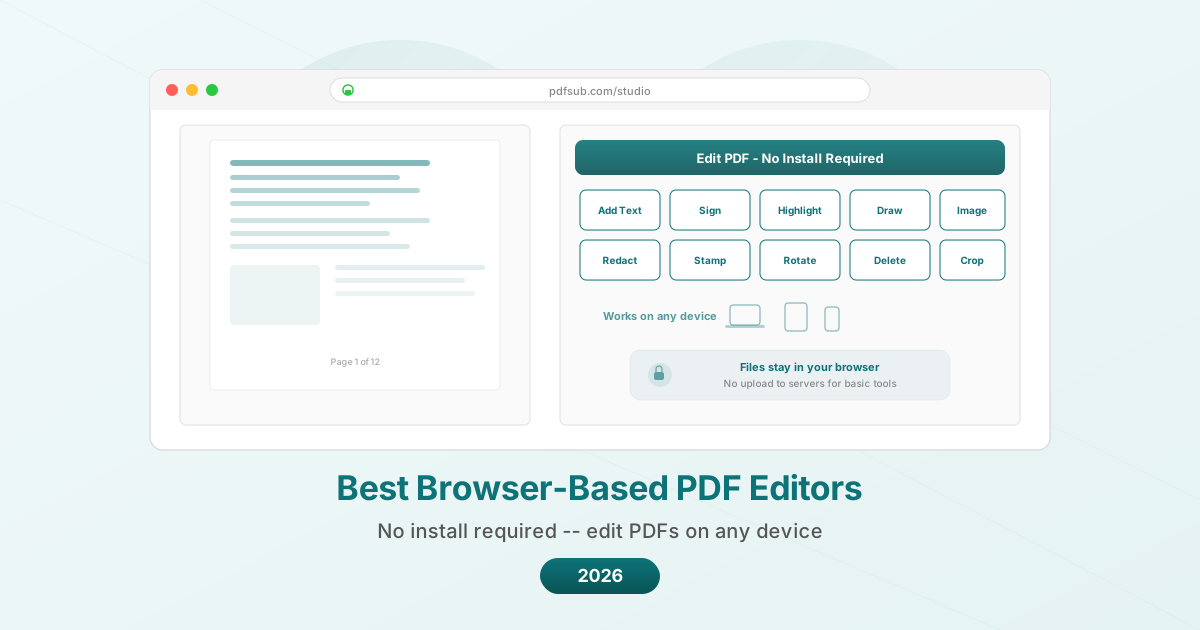
What "Browser-Based" Actually Means
Before comparing tools, it helps to understand that "browser-based" covers two very different architectures:
Server-side processing. You upload your PDF to the service's servers, the processing happens there, and you download the result. Your file leaves your device. The upside: server processing can handle heavier operations (OCR, AI analysis, complex conversions). The downside: privacy depends entirely on the service's data handling practices.
Client-side (in-browser) processing. The PDF is processed using JavaScript running in your browser. The file never leaves your device. The upside: maximum privacy. The downside: limited by your device's processing power, and some operations (like OCR or AI) require server-side processing by nature.
Most tools use server-side processing. A few, including PDFSub for basic operations, process files in the browser. The best tools are transparent about which operations happen where.
What to Evaluate
Operations available. Can you just annotate, or can you also merge, split, convert, compress, redact, and sign? "PDF editor" means different things to different tools.
Privacy model. Where does your file go? How long is it stored? Is it used to train AI models?
Free tier usability. How much can you actually do without paying? Two tasks per day is very different from unlimited basic operations.
Device compatibility. Does it work on your phone? On a tablet? On a Chromebook? On a slow laptop?
Speed. How long does an operation take? Server-based tools depend on internet speed and server load. Client-side tools depend on your device.
Output quality. Does the edited PDF maintain the original quality, or is it recompressed or degraded?
The 7 Best Browser-Based PDF Editors
1. PDFSub -- Best for Privacy (Client-Side Processing)
PDFSub processes basic PDF operations (Merge PDFs, Split PDF, Rotate PDF, Compress PDF, reorder pages, Add Watermark, and more) entirely in your browser. The file never leaves your device for these tasks. AI-powered features (Summarize PDF, Translate PDF, Chat with PDF, Extract Data) use encrypted server processing with automatic deletion.
Pricing: Free tier with limited operations. Plans at $20/user/mo (annual).
What you can do in-browser (client-side):
- Merge, split, rotate, reorder, and delete pages
- Compress PDFs
- Add watermarks and Page Numbers
- Password Protect and Unlock PDF
- View and annotate
- Add text, shapes, and drawings
- E-Sign PDF (draw, type, or upload signature)
- Extract Images
- Image to PDF
What requires server processing:
- AI summarization, translation, chat, and data extraction
- PDF to Word/Excel/PowerPoint conversion
- OCR for scanned documents
- Bank Statement Converter
Strengths:
- True client-side processing for basic operations
- 98+ tools in one platform
- AI-powered features for document analysis
- Works on any device with a modern browser
- No app to install or update
- 130+ language translation
Limitations:
- Requires a free account
- AI and conversion features use server processing
- No offline mode
- Free tier has usage limits
- SOC 2 Ready but not SOC 2 Type II certified
Best for: Users who prioritize privacy for basic PDF operations and want a comprehensive toolkit that includes AI features when needed. Ideal for users who work on shared or managed devices.
2. Smallpdf -- Best User Interface
Smallpdf is the most polished browser-based PDF tool available. Every operation feels smooth, the interface is intuitive, and the design is consistently clean across all tools.
Pricing: Free (2 tasks/day). Pro at $9/user/month (annual). Team at $7/user/month (annual).
What you can do:
- Edit PDF (add text, images, shapes, annotations)
- Merge, split, compress, rotate
- Convert to/from Word, Excel, PowerPoint, JPG
- E-sign
- Password-protect and unlock
- OCR (Pro only)
Strengths:
- Best-in-class user interface and experience
- Consistent design across all tools
- Google Drive and Dropbox integration
- 7-day free trial for Pro
- Desktop app available on Pro
Limitations:
- Only 2 free tasks per day (shared across all tools)
- Files are uploaded to servers (deleted after 1 hour)
- No AI features (no summarization, translation, or data extraction)
- No financial document processing
- Aggressive upsell on free tier
- OCR requires Pro subscription
Best for: Users who value a polished interface and only need 1-2 PDF operations per day for free. The best experience money can buy if you subscribe to Pro.
3. iLovePDF -- Best Free Tier Generosity
iLovePDF offers the most usable free tier among browser-based tools. You can do more per day without hitting a paywall than with any comparable service.
Pricing: Free with limits. Premium at $4/user/month. Business at $15/user/month.
What you can do:
- Edit PDF (add text, images, drawings)
- Merge, split, compress, rotate, organize
- Convert to/from Word, Excel, PowerPoint, JPG
- E-sign
- Watermark, page numbers, headers/footers
- Password-protect and unlock
- OCR (Premium)
- Batch processing (Premium)
Strengths:
- Most generous free tier of any comparable tool
- Lowest paid pricing at $4/month
- Desktop and mobile apps available
- Clean, organized interface
- Comprehensive tool selection
Limitations:
- Ads on free tier
- Files uploaded to servers
- No AI features
- No financial document processing
- File size limits on free tier
- Complex PDF editing (text reflow) not available
Best for: Budget-conscious users who need regular PDF editing for free or nearly free. The $4/month Premium plan is the lowest price for removing ads and adding OCR.
4. Sejda -- Best for Editing Existing Text
Sejda stands out for one feature that most browser-based tools lack: the ability to edit existing text in a PDF. Not just add new text -- but select existing words and change them.
Pricing: Free (3 tasks/day, 200-page limit, 50 MB max). Web Monthly at $7.50/month. Desktop+Web Annual at $63/year.
What you can do:
- Edit existing text directly in the PDF
- Add text, images, links, and shapes
- Merge, split, compress, rotate
- Convert to/from Word, Excel, JPG
- Fill and sign forms
- Whiteout (cover content with white rectangle)
- Add page numbers, headers, footers
- Crop pages
Strengths:
- Genuine text editing (select and modify existing text)
- Generous free tier (3 tasks/day, which is more than Smallpdf)
- Web week pass option ($5 for 7 days) -- great for one-time needs
- Good form filling capabilities
- Free for educators at K-12 schools and universities
Limitations:
- Files uploaded to servers
- No AI features
- No financial document tools
- 200-page limit on free tier
- Some font substitution when editing text
- Interface is functional but less polished than Smallpdf
Best for: Users who need to edit existing text in PDFs without installing desktop software. The web week pass ($5 for 7 days) is excellent for occasional heavy use.
5. PDF24 -- Best Completely Free Option
PDF24 offers every feature for free. No paid tier, no limits, no upsells. It is the rare tool that is genuinely, completely free without a catch.
Pricing: Free. Everything. Always.
What you can do:
- Edit PDF (add text, images, drawings)
- Merge, split, compress, rotate, organize
- Convert to/from many formats
- E-sign
- Watermark, page numbers
- Password-protect and unlock
- OCR
- Compare PDFs
- Redact content
- Create PDFs from scratch
Strengths:
- Everything is free with no usage limits
- No account required for most tools
- Surprisingly comprehensive feature set
- OCR included for free (rare)
- No ads despite being free
Limitations:
- Files uploaded to servers for processing
- No AI features
- No financial document tools
- Windows desktop app only (no Mac app)
- Interface is less polished than paid alternatives
- Support options are limited
Best for: Users who want unlimited free PDF editing and do not mind server-side processing. Hard to beat on price (there is no price).
6. Google Docs -- Best for Collaborative Editing
Google Docs is not marketed as a PDF editor, but it can open PDFs and convert them to editable Google Docs. For users already in the Google ecosystem, this is a natural workflow.
How to use it as a PDF editor:
- Upload PDF to Google Drive
- Right-click > Open with > Google Docs
- Edit the content
- File > Download > PDF or DOCX
Pricing: Free with a Google account.
What you can do:
- Convert PDF to editable document
- Edit text content
- Collaborate in real-time with others
- Add comments and suggestions
- Download as PDF, DOCX, or other formats
Strengths:
- Free and unlimited
- Real-time collaboration (multiple editors simultaneously)
- Commenting and suggestion mode for review
- Automatic saving
- Works on any device with a browser
- Google Workspace integration
Limitations:
- Destroys PDF formatting (converts to document format)
- Tables, columns, and images are often broken
- Not a true PDF editor (converts the format)
- Output PDF will look different from the input
- No merge, compress, or other PDF-specific operations
- Files are stored on Google's servers
- Scanned PDFs have limited OCR quality
Best for: Collaborative document review where the content matters more than the formatting. Not suitable when you need to maintain the original PDF layout.
7. DocHub -- Best for Forms and Signatures
DocHub specializes in document signing and form filling. The interface is designed around the workflow of receiving a document, filling it out, signing it, and sending it back.
Pricing: Free (3 documents/month, 3 signature requests). Pro at $8/user/month.
What you can do:
- Fill form fields
- Add signatures (draw, type, or upload)
- Add text, images, and drawings
- Highlight, strikethrough, and annotate
- Create reusable templates
- Send documents for signature
- Merge PDFs
Strengths:
- Excellent form-filling experience
- Send for signature capability (similar to DocuSign)
- Google Drive, Dropbox, and OneDrive integration
- Template system for repeated documents
- Clean, focused interface
Limitations:
- Free tier limited to 3 documents per month
- No compression, conversion, or format change tools
- No AI features
- No OCR
- No batch processing
- Limited PDF editing beyond annotation and form-filling
- Pro at $8/month is mid-range pricing for limited functionality
Best for: Users whose primary need is filling and signing PDF forms and sending them for signature. If forms and signatures are 80% of your PDF work, DocHub is purpose-built for that workflow.
Comparison Table
| Feature | PDFSub | Smallpdf | iLovePDF | Sejda | PDF24 | Google Docs | DocHub |
|---|---|---|---|---|---|---|---|
| Client-side processing | Basic ops | No | No | No | No | No | No |
| Free tasks/day | Limited | 2 | Generous | 3 | Unlimited | Unlimited | 3/month |
| Edit existing text | Limited | No | No | Yes | No | Yes (converts) | No |
| Merge/Split/Compress | Yes | Yes | Yes | Yes | Yes | No | Limited |
| AI features | Yes | No | No | No | No | No | No |
| OCR | Yes | Pro only | Premium | No | Yes (free) | Basic | No |
| E-sign | Yes | Yes | Yes | Yes | Yes | No | Yes |
| Send for signature | No | No | No | No | No | No | Yes |
| Format conversion | Yes | Yes | Yes | Yes | Yes | Limited | No |
| Financial tools | Yes | No | No | No | No | No | No |
| Offline mode | No | No | No | Desktop | Desktop (Win) | No | No |
| Starting price | $15/mo | $9/mo | $4/mo | $7.50/mo | Free | Free | $8/mo |
| Total tools | 98+ | ~20 | ~25 | ~15 | ~30 | N/A | ~10 |
The Privacy Question
For most everyday documents (meeting notes, marketing materials, public reports), server-side processing is fine. The services listed here are reputable companies with published privacy policies and data deletion practices.
For sensitive documents -- legal contracts, financial records, medical information, proprietary business data -- the processing location matters:
- Client-side (in-browser): PDFSub for basic operations. Files never leave your device.
- Local desktop apps: LibreOffice (free), Adobe Acrobat (paid), Foxit (paid). Not browser-based, but worth mentioning for privacy.
- Server with deletion policy: Most tools claim to delete files within 1-24 hours. Verify by reading the specific privacy policy.
If you regularly work with sensitive documents, choosing a tool with client-side processing or a clear, auditable deletion policy is worth the effort.
Chromebook Users: Your Best Options
Chromebooks deserve special mention because they can only run browser-based tools (and some Android apps). For Chromebook users:
- PDFSub -- Works fully in Chrome, client-side processing for basic operations
- PDF24 -- Unlimited free tools in the browser
- iLovePDF -- Generous free tier, also has an Android app
- Google Docs -- Built into ChromeOS, best integration
- Smallpdf -- Polished interface, but the 2-task limit is painful on a device with no alternatives
Frequently Asked Questions
Are browser-based PDF editors safe to use?
For reputable services, yes. The main security considerations are: does the tool use HTTPS (all listed tools do), does the service delete your files after processing (check each tool's privacy policy), and does the service use your documents to train AI models (most say they do not). For maximum safety, use tools that process files in your browser (like PDFSub for basic operations) so files never leave your device.
Can I edit a scanned PDF in my browser?
You need OCR (Optical Character Recognition) first to convert the scanned image to selectable text. PDFSub, PDF24, and Sejda offer OCR. Smallpdf and iLovePDF offer it on paid plans. Google Docs has basic OCR when you open a PDF through Google Drive. After OCR, you can edit the extracted text, though the formatting of the original scan may not be perfectly preserved.
Which browser-based editor works best on mobile?
All the tools listed here work in mobile browsers, but the experience varies. Smallpdf and iLovePDF have the most mobile-friendly web interfaces. PDFSub works well in mobile Safari and Chrome. Google Docs has a dedicated mobile app. Sejda's interface is functional but designed for desktop screens. For regular mobile PDF editing, an app (iLovePDF, Google Docs, or a dedicated PDF app) provides a better experience than a browser.
Can I use these tools offline?
Browser-based tools generally require an internet connection. Exceptions: Sejda offers a desktop app that works offline ($63/year). PDF24 has a Windows desktop app. If offline capability is critical, a desktop application (even a free one like LibreOffice) is more reliable than any browser-based tool.
What is the difference between a PDF editor and a PDF annotator?
An annotator adds layers on top of the PDF -- sticky notes, highlights, text boxes, drawings, stamps. The original content is not changed. An editor modifies the actual content -- changing existing text, replacing images, moving objects. Most free browser-based tools are annotators. Sejda is the notable exception, offering genuine text editing in the browser.
The Bottom Line
The best browser-based PDF editor depends on what you mean by "edit."
If you mean annotate, sign, and fill forms: DocHub or any tool on this list handles it well.
If you mean merge, compress, convert, and organize: PDFSub, iLovePDF, or PDF24 offer the broadest toolsets.
If you mean change existing text: Sejda is the standout for browser-based text editing.
If you mean the full package (editing, AI, translation, financial tools, privacy): PDFSub offers the most comprehensive browser-based toolkit.
If price is the deciding factor: PDF24 is free for everything. iLovePDF is $4/month for Premium. You can get a lot done without spending much.
Start with a free tier. Use it on a real document. If it handles what you need, stop looking. The best tool is the one that gets out of your way and lets you finish the task.
Try PDFSub's browser-based PDF editor at pdfsub.com/studio.