Best AI Handwriting-to-Text Converters (2026)
Need to digitize handwritten notes, recipes, or forms? Here are the best AI tools for converting handwriting to editable text.
PDFSub is best for:
- Users with handwritten PDFs who need AI vision-based conversion with bulk processing
- Professionals who want handwriting conversion plus 98+ other PDF tools in one subscription
- Multilingual handwriting recognition across 130+ languages
PDFSub is NOT best for:
- Quick single-photo captures - free phone tools like Google Lens or Apple Live Text are faster
- Stylus-based real-time handwriting input (dedicated apps like Pen to Print are built for this)
- Users who only need occasional handwriting conversion and would rather use a free phone tool than start a 7-day trial
We all have them -- notebooks full of meeting notes, handwritten recipes passed down through family, journal entries, to-do lists scribbled on legal pads, forms filled out by hand. The problem is that handwritten text is essentially trapped. You cannot search it, copy-paste it, or share it digitally without retyping every word.
AI handwriting recognition has improved dramatically in recent years. What used to require specialized hardware (like those old pen scanners from the 2000s) now works from a phone camera or a PDF upload. The technology is finally good enough to be practical for everyday use.
Here are the best tools for converting handwriting to editable text in 2026 -- from free phone camera options to dedicated PDF conversion tools.
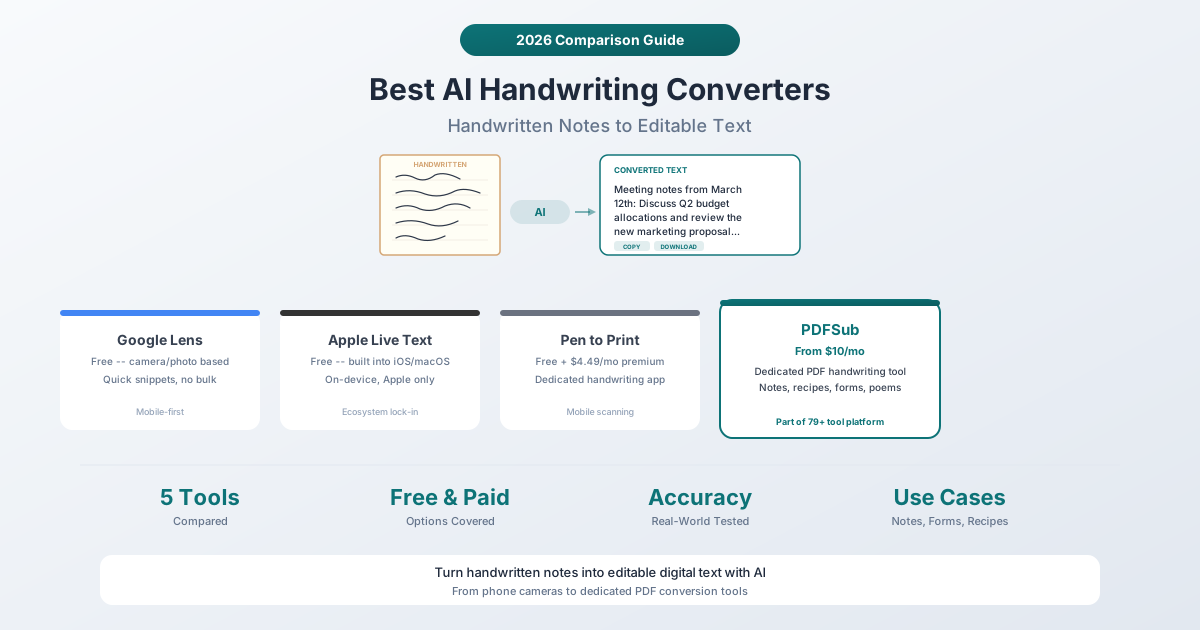
Quick Comparison
| Tool | Price | Platform | Bulk Support | PDF Input | Accuracy |
|---|---|---|---|---|---|
| Google Lens | Free | Android, iOS, Web | No | No | Good for print, fair for cursive |
| Apple Live Text | Free | iOS 15+, macOS | No | No | Good for print, fair for cursive |
| Microsoft OneNote | Free (with MS account) | All platforms | Sort of | No | Moderate |
| Pen to Print | Free + $4.49/mo | iOS, Android | Limited | No | Good, cursive-trained |
| PDFSub | $20/user/mo annual | Browser (any device) | Yes | Yes (dedicated) | Very good, AI vision |
1. Google Lens
Best for: Quick, free conversion of short handwritten text from photos.
Google Lens is the easiest entry point into handwriting recognition. Point your camera at handwritten text (or select a photo), and Google Lens identifies the text and lets you copy it. It is free, requires no account for basic use, and works on both Android and iOS.
How to use it: Open Google Lens (or the Google app), point at handwritten text, tap "Text," and select the text you want to copy. On desktop, you can upload images to Google Lens through Google Photos or Google Search.
Strengths:
- Completely free with no usage limits
- Works on any phone with a camera
- Fast -- results appear in seconds
- Good accuracy on neat handwriting and print
- Can translate handwritten text on the fly
Limitations:
- Works on individual photos only -- no batch processing
- Cannot process PDFs directly
- Accuracy drops significantly with messy cursive or unconventional handwriting
- No formatting preservation -- everything comes out as plain text
- No document-level processing (one photo at a time)
Best use case: You are at a restaurant and want to quickly digitize a handwritten recipe card. Snap a photo, copy the text, paste it into Notes.
2. Apple Live Text
Best for: Apple users who want seamless, on-device handwriting recognition.
Apple Live Text (introduced in iOS 15 and macOS Monterey) recognizes text in photos and lets you interact with it -- select, copy, translate, or look up. It works in the Camera app, Photos, Safari, and Quick Look.
How to use it: Open a photo with handwritten text in the Photos app. Tap the Live Text icon (the scan lines icon). Select the recognized text and copy it.
Strengths:
- Processed entirely on your device -- nothing is uploaded to Apple's servers
- Works across the Apple ecosystem (iPhone, iPad, Mac)
- Integrated into the OS -- no separate app needed
- Free with no usage limits
- Supports English, Chinese, French, Italian, German, Japanese, Korean, Portuguese, Spanish, and Ukrainian
Limitations:
- Apple devices only -- no Android or Windows support
- Like Google Lens, it works on individual images, not PDFs or multi-page documents
- No batch processing
- Accuracy varies with handwriting quality
- No export options -- just copy-paste
Best use case: You took a photo of whiteboard notes during a meeting and want to copy the text to an email.
3. Microsoft OneNote
Best for: People already using OneNote who want to search handwritten notes.
OneNote has a lesser-known feature: it can recognize handwriting within its own ink notes and make them searchable. If you take handwritten notes directly in OneNote (using a stylus on a tablet), the text becomes searchable. You can also insert images of handwritten text and use the "Copy Text from Picture" feature.
How to use it: Insert an image of handwritten text into a OneNote page. Right-click the image and select "Copy Text from Picture." OneNote uses its OCR engine to extract the text.
Strengths:
- Free with a Microsoft account
- Works on all platforms (Windows, Mac, iOS, Android, Web)
- Integrates with the Microsoft ecosystem (Teams, Outlook, OneDrive)
- Can search handwritten ink notes directly
Limitations:
- The OCR accuracy for handwriting is noticeably lower than Google Lens or Apple Live Text
- The "Copy Text from Picture" feature can be slow and sometimes misses text
- Not designed as a dedicated handwriting converter -- it is a note-taking app with OCR as a secondary feature
- No PDF input support
- Results can be messy with complex handwriting
Best use case: You already use OneNote for digital notes and want to make your old handwritten ink notes searchable.
4. Pen to Print
Best for: Regular handwriting conversion with a dedicated mobile app.
Pen to Print is one of the few apps specifically designed for handwriting-to-text conversion. It uses AI models trained specifically on handwritten text (including cursive), which gives it an accuracy edge over general-purpose tools.
Pricing: The free version includes basic conversions with ads and watermarks. The premium subscription is $4.49/month or $24.99/year and removes ads, adds batch processing, and provides higher accuracy models.
How to use it: Scan handwritten text with your phone camera or upload a photo. The app processes it and returns editable text that you can export to Word, PDF, or plain text.
Strengths:
- Purpose-built for handwriting, including cursive
- Trained specifically on handwritten text (not just general OCR)
- Supports batch scanning of multiple pages
- Export options: Word, PDF, text, clipboard
- Affordable premium plan
Limitations:
- Mobile-only (iOS and Android) -- no web or desktop version
- Cannot process existing PDFs directly (camera/photo input only)
- Accuracy still depends on handwriting legibility
- The free tier includes ads and watermarks
- Smaller company -- less reliable long-term support compared to Google or Apple
Best use case: You have a stack of handwritten meeting notes and want to convert them all to text files on your phone.
5. PDFSub Handwritten Conversion
Best for: Converting scanned handwritten documents (PDFs) to editable text with AI vision.
PDFSub's Handwritten Conversion tool is designed specifically for PDF documents containing handwritten content -- scanned notes, filled-out forms, handwritten recipes, business plans, poems, and calculations. It uses AI vision models to analyze the handwriting and convert it to structured, editable text.
Pricing: The All-In-One plan is $20/user/mo (annual) or $25/user/mo (monthly) and includes all 98+ tools. PDFSub is subscription-only - every plan includes a 7-day free trial with full access to the handwriting conversion feature. Cancel anytime in one click.
How it works: Upload a PDF containing handwritten content. The AI vision model analyzes the page images, recognizes the handwriting (even messy cursive), and returns clean, formatted text. The system can handle notes, lists, calculations, and free-form writing. It preserves the logical structure -- paragraphs stay as paragraphs, lists stay as lists.
Strengths:
- Works directly with PDF files (no need to take photos of photos)
- AI vision models handle cursive, print, and mixed handwriting
- Preserves document structure (paragraphs, lists, headings)
- Supports multiple document types: notes, recipes, forms, poems, business plans, calculations
- Part of a complete platform -- after converting, you can translate, merge, or format the result
- Browser-based -- works on any device including Chromebooks and tablets
- 130+ language support for handwritten text in different languages
Limitations:
- Requires an internet connection for AI processing (server-side)
- Subscription-only - the All-In-One plan is $20/user/mo (annual) or $25/user/mo (monthly) after the 7-day free trial (though you get 98+ other tools)
- Extremely illegible handwriting will still produce errors
- No mobile camera scanning -- you need to scan or photograph the document first and upload it as a PDF
Best use case: You have a stack of handwritten meeting notes that were already scanned to PDF and you need the full text extracted and organized.
Accuracy Reality Check
Let's be honest about the current state of handwriting recognition:
Neat print handwriting: All tools handle this well. Google Lens, Apple Live Text, Pen to Print, and PDFSub all achieve high accuracy on clearly written block letters.
Tidy cursive: Accuracy drops but remains usable. Pen to Print and PDFSub (which use models specifically trained or prompted for handwriting) tend to perform better than general-purpose tools. Google Lens and Apple Live Text can handle basic cursive but struggle with less common letter connections.
Messy handwriting: No tool handles this perfectly. If you cannot read your own handwriting, the AI probably cannot either. All tools will make errors on messy handwriting. The best tools (Pen to Print and PDFSub) will get 80-90% of the words right. General-purpose tools may get 60-70%.
Mixed content (text + diagrams + arrows): Most tools will try to extract everything as text, which produces nonsensical results for non-text elements. PDFSub's AI vision model is better at distinguishing text from drawings, but diagrams will still be described rather than extracted.
When to Use Each Tool
| Scenario | Best Tool |
|---|---|
| Quick photo of a handwritten note | Google Lens (free, instant) |
| Apple user wanting device-level text recognition | Apple Live Text (free, on-device) |
| Regular handwriting conversion on mobile | Pen to Print ($4.49/mo premium) |
| Searching old OneNote ink notes | Microsoft OneNote (free) |
| Converting scanned handwritten PDFs | PDFSub ($20/user/mo annual, AI vision) |
| Batch conversion of handwritten documents | PDFSub (PDF batch support) |
| Handwritten notes in non-English languages | PDFSub (130+ languages) |
Frequently Asked Questions
Can AI accurately read doctor's handwriting?
Honestly? Not reliably. Doctor's handwriting is notoriously difficult even for humans. AI handwriting recognition tools perform best on handwriting that a typical person could read. Very messy, abbreviated, or domain-specific handwriting (medical prescriptions, for example) will produce errors. If accuracy is critical, always proofread the AI output against the original.
Which tool is best for converting old family recipes?
If the recipes are written on paper and you want a quick digital copy, Google Lens or Apple Live Text are free and fast -- just photograph each recipe. If the recipes have already been scanned to PDF (or you want to scan a whole recipe book), PDFSub's Handwritten Conversion tool handles multi-page PDF documents and preserves the structure (ingredient lists, steps, notes).
Can these tools handle handwriting in languages other than English?
Google Lens supports many languages. Apple Live Text supports about 12 languages. Pen to Print primarily supports English with some other languages. PDFSub supports 130+ languages with automatic language detection, making it the broadest option for non-English handwriting conversion.
Is on-device processing better than cloud processing for handwriting recognition?
It depends on your priorities. On-device processing (Apple Live Text) keeps your documents private -- nothing leaves your phone. Cloud processing (PDFSub, Google Lens) can use more powerful AI models, which often means better accuracy, especially for difficult handwriting. If you are converting sensitive personal journals, on-device is more private. If you need the best accuracy on messy handwriting, cloud-based AI models typically perform better.
Can I convert handwritten math or equations?
Basic calculations (addition, subtraction, multiplication) are handled reasonably well by most tools. Complex mathematical notation (integrals, summations, matrices) is a different challenge. PDFSub's handwriting tool can handle calculations and will attempt to recognize mathematical expressions, but specialized math OCR tools exist for heavy mathematical content. For most business calculations written on paper, any of these tools will work.
The Bottom Line
The technology for handwriting-to-text conversion has reached a practical tipping point. For quick, casual conversions, free tools like Google Lens and Apple Live Text are genuinely useful. For dedicated, higher-accuracy conversion of PDF documents, PDFSub's Handwritten Conversion tool offers AI vision powered recognition as part of a complete document platform - the All-In-One plan is $20/user/mo (annual) with a 7-day free trial.
The best tool depends on your input format: phone camera (Google Lens, Apple Live Text, Pen to Print) vs. PDF documents (PDFSub). Start with the free phone tools to see if they meet your needs, or try PDFSub's 7-day free trial when you need better accuracy on PDF documents or batch processing.