แปลงใบแจ้งยอด TD Bank เป็น Excel (2026) - คู่มือฉบับสมบูรณ์ | PDFSub THAI TRANSLATION NEEDED HERE FOR TITLE AND EXCERPT AND TAGS AND META DESCRIPTION AND BODY__0 TO BODY__7. Please provide the Thai translation for the following content. I need it to be accurate, natural-sounding, and optimized for Thai search engines. Please ensure all instructions and critical rules are followed. Thank you! "Convert TD Bank Statements to Excel (2026)" "Step-by-step guide to converting TD Bank checking, savings, and credit card statement PDFs into Excel, CSV, or QBO format." ["Tutorial", "TD Bank", "Bank Statements", "Excel"] "Convert TD Bank statement PDFs to Excel, CSV, or QBO. Covers Beyond Checking, Convenience Checking, Simple Savings, credit cards, and cross-border accounts." "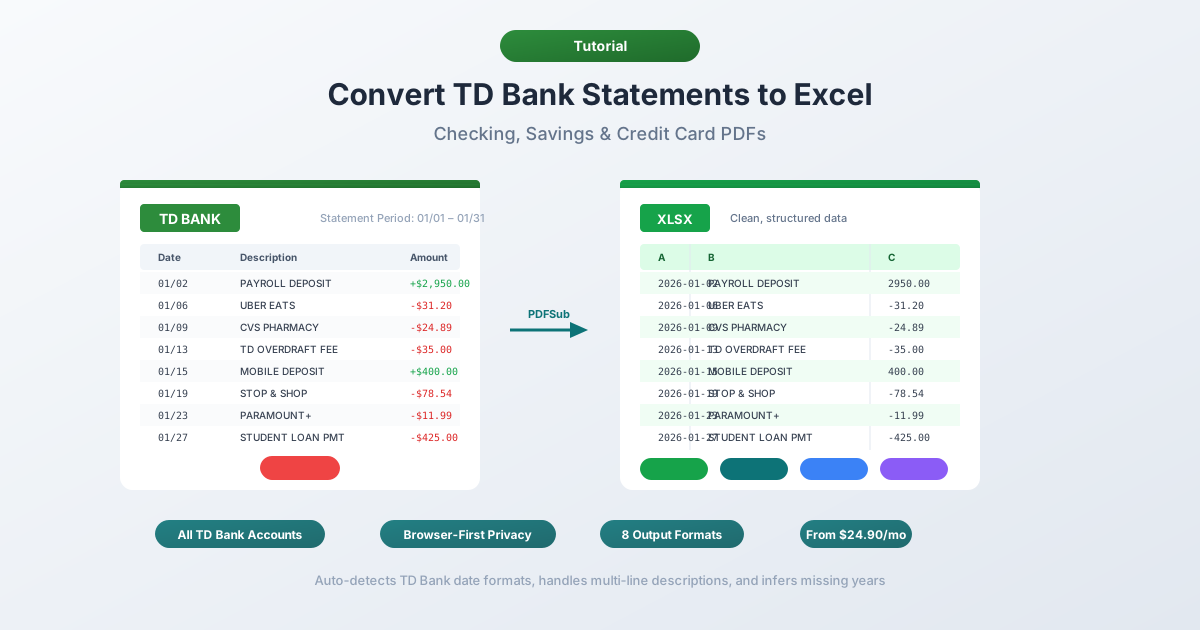\n\nYou've got a TD Bank statement PDF and you need the data in a spreadsheet. Maybe you're reconciling client accounts, categorizing expenses for tax season, or building a cash flow analysis. Whatever the reason, TD Bank doesn't give you a direct path from statement to spreadsheet.\n\nTD Bank is the U.S. subsidiary of Toronto-Dominion Bank — the second-largest bank in Canada — and holds roughly $382 billion in assets, placing it firmly in the top 10 among U.S. banks. Branding itself \"America's Most Convenient Bank,\" TD Bank dominates the East Coast corridor from Maine to Florida, operating over 1,100 locations it calls \"stores\" rather than branches. Millions of customers bank with TD, and every one of them gets statements as PDFs. No Excel option, no CSV version of the official statement.\n\nIf you've tried selecting text in a TD Bank PDF and pasting it into Excel, you already know how that goes — dates, descriptions, and dollar amounts all crammed together with no column separation. Here's how to actually get your TD Bank statement data into Excel, with methods that work for checking, savings, and credit card accounts.\n\n---" "## What TD Bank Gives You (And What It Doesn't)\n\nBefore converting anything, it helps to understand what TD Bank actually offers.\n\n**PDF statements** — available through TD Bank Online Banking under Statements & Documents. These are the official statements matching what you'd receive in the mail. PDF format only, no alternative.\n\n**Activity downloads** — available through the Account Activity section. TD Bank offers CSV downloads for recent transaction activity. Sounds like it should solve the problem, right?\n\nNot quite. The activity download has real limitations:\n\n- **Only ~18 months of history** — far less than the full archive of PDF statements\n- **No QBO export** — TD Bank doesn't offer native QuickBooks (QBO) format downloads\n- **Not official statements** — missing opening/closing balances, fee summaries, interest breakdowns, and account summary information\n- **Simplified descriptions** — the CSV abbreviates transaction descriptions compared to the PDF\n- **Date range restrictions** — you may need to download in chunks depending on transaction volume\n\nSo if you need data older than 18 months, need the complete statement, need QBO format, or need to match official records for auditing — the PDF is your only option.\n\n---" "## Method 1: Use a Bank Statement Converter (Recommended)\n\nThe fastest and most accurate method is a specialized bank statement converter — a tool designed specifically to extract transaction data from bank statement PDFs.\n\nUnlike generic PDF-to-Excel tools, bank statement converters understand the structure of financial documents. They know that TD Bank checking statements use a 3-column layout with Posting Date, Description, and Amount (a single signed column rather than separate debit/credit columns). They handle multi-line descriptions, section-based transaction grouping, and TD Bank's particular formatting quirks.\n\n### Step-by-Step with PDFSub\n\n1. **Download your TD Bank statement** — Log into tdbank.com → Statements & Documents → select the statement period → download PDF\n2. **Go to [PDFSub's Bank Statement Converter](/tools/bank-statement-converter)**\n3. **Upload the TD Bank PDF** — drag and drop or click to browse\n4. **Review the extracted data** — PDFSub shows you the transactions before you download, so you can verify accuracy\n5. **Choose your format** — Excel (XLSX), CSV, QBO (QuickBooks), OFX (Xero), or any of 8 supported formats\n6. **Download** — click Download or use \"Download All\" for a ZIP with every format\n\n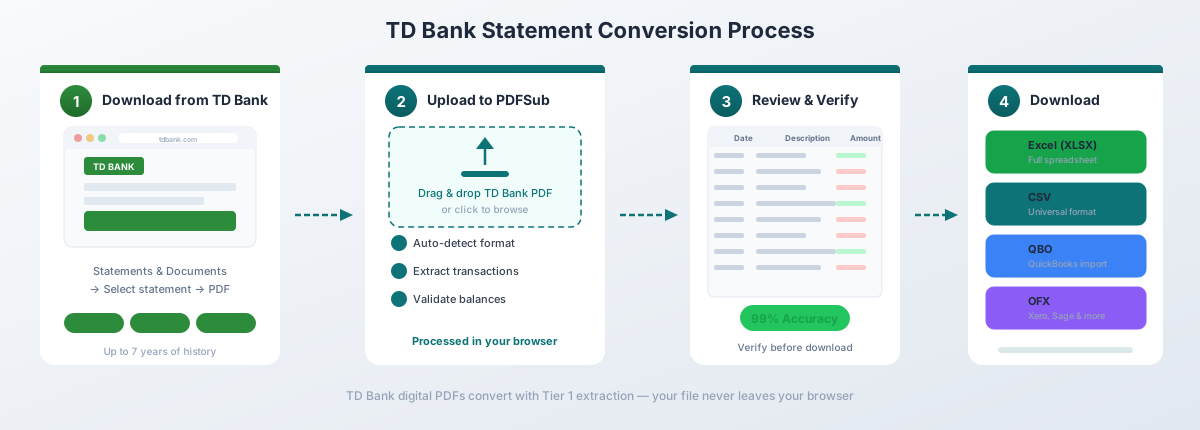\n\nFor TD Bank's digital PDFs (downloaded directly from Online Banking), PDFSub's Tier 1 extraction handles the conversion entirely in your browser — the file never leaves your device. This matters when you're working with sensitive financial data.\n\n**Why this works well for TD Bank specifically:**\n- Auto-detects TD Bank's 3-column layout and correctly interprets the single signed Amount column (negative for debits, positive for credits)\n- Handles TD Bank's multi-line transaction descriptions — Zelle transfers, Venmo payments, and wire transfers often span 2–3 lines with reference numbers and recipient details\n- Recognizes section headers like \"Electronic Deposits\" and \"Electronic Withdrawals\" and skips them rather than treating them as transactions\n- Works with all TD Bank account types — Beyond Checking, Convenience Checking, Simple Savings, and credit cards\n- Exports to QBO format for direct QuickBooks import — filling the gap left by TD Bank's lack of native QBO export\n\nBank statement conversion starts at $29/month (Business plan + BSC add-on, 500 pages) with a 7-day free trial.\n\n---" "## Method 2: TD Bank's Built-In Activity Download\n\nIf you only need recent transactions (not the full statement), TD Bank's native CSV export is the quickest option.\n\n### How to Download\n\n1. Log into tdbank.com\n2. Navigate to your account\n3. Click on \"Account Activity\" or \"Transactions\"\n4. Set the date range for the transactions you need\n5. Look for the download or export option and select CSV format\n6. Open the downloaded file in Excel\n\n### What You Get\n\nTD Bank's CSV includes basic transaction data:\n\n| Column | Description |\n|--------|------------|\n| Date | Transaction date (MM/DD/YYYY) |\n| Description | Merchant or transaction detail |\n| Amount | Signed amount (negative for debits) |\n\n### Limitations to Watch For\n\n**The ~18-month history cap.** TD Bank's activity downloads only cover roughly 18 months — shorter than Chase (~24 months) and far less than the multi-year PDF statement archive.\n\n**No QBO format.** If you need QBO files for QuickBooks, you'll need to convert the PDF or use a third-party tool to transform the CSV.\n\n**Not the official statement.** The CSV is a transaction feed — no opening/closing balances, fee breakdowns, or interest charges. If you need these for accounting or audit, you need the PDF.\n\n**Abbreviated descriptions.** The CSV uses shorter descriptions than the PDF, which includes full multi-line detail with reference numbers.\n\nThis method works for quick personal finance tracking of recent activity. For anything more comprehensive, convert the PDF.\n\n---" "## Method 3: Copy-Paste from PDF (Not Recommended)\n\nYou can try selecting text in a TD Bank PDF and pasting it into Excel. Here's what actually happens:\n\nEverything lands in a single column. Dates, descriptions, and amounts get smashed together. A transaction that looks clean in the PDF — with Posting Date, Description, and Amount neatly separated — becomes a wall of text fragments in Excel with no column separation.\n\nYou *can* try Excel's Text to Columns feature (Data tab → Text to Columns) to split it apart, but:\n\n- TD Bank's multi-line descriptions (common for Zelle, Venmo, and wire transfers) break the row alignment\n- The single Amount column — which uses negative signs for debits — gets confused with other numeric text on the page\n- Section headers (\"ELECTRONIC DEPOSITS,\" \"ELECTRONIC WITHDRAWALS\") get mixed in with transaction data\n- Reference numbers and confirmation codes on continuation lines create orphaned rows\n- You'll spend 30+ minutes cleaning up a single statement\n\nFor one or two simple statements with a handful of transactions, this is tedious but doable. For anything more, it's not worth the effort.\n\n---" "## Method 4: Adobe Acrobat Pro\n\nAdobe Acrobat Pro has an \"Export PDF → Spreadsheet → Microsoft Excel Workbook\" feature. For TD Bank statements, the results are mixed at best.\n\nHere's what typically happens:\n\n- **Section headers become data rows.** TD Bank organizes transactions under section headers like \"Electronic Deposits\" and \"Electronic Withdrawals.\" Acrobat doesn't distinguish these from transaction data, so they end up as rows in your spreadsheet — breaking any automated processing.\n- **Multi-line description chaos.** Zelle, Venmo, and wire transfer descriptions commonly span multiple lines. Acrobat treats each line as a separate row, so a single Zelle payment becomes two or three rows with description fragments scattered across them.\n- **Amount column confusion.** TD Bank's single signed Amount column sometimes gets split into multiple columns, especially when the negative sign is a typographic dash rather than a standard hyphen.\n- **Opening and closing balance misattribution.** The account summary section sometimes gets merged into the transaction table, creating phantom transactions with large dollar amounts.\n\nIf you have Acrobat Pro, it's worth a quick try — some TD Bank statements convert better than others depending on the statement period and account type. But expect significant manual cleanup.\n\n---" "## Understanding the TD Bank PDF Format\n\nTD Bank statements have several distinctive characteristics that set them apart from other major banks:\n\n### The 3-Column Layout\n\nTD Bank checking statements use a simpler layout than many competitors:\n\n| Column | Description |\n|--------|------------|\n| Posting Date | The date the transaction posted (MM/DD format without year) |\n| Description | Merchant name, transaction type, or transfer details |\n| Amount | Single column — positive for credits, negative for debits |\n\nThis is simpler than Wells Fargo (5 columns with a daily balance), Chase (4 columns with a running balance), or Bank of America (separate deposit and withdrawal columns). You don't need to reconcile separate debit/credit columns — but the sign (positive or negative) carries critical information.\n\n### Section-Based Transaction Grouping\n\nTD Bank organizes transactions into clearly labeled sections rather than listing everything chronologically in one block:\n\n- **Electronic Deposits** — direct deposits, incoming ACH transfers, Zelle received\n- **Electronic Withdrawals** — bill pay, outgoing ACH, recurring payments\n- **ATM/Debit Card Withdrawals** — point-of-sale purchases, ATM cash withdrawals\n- **Checks Paid** — cleared check transactions with check numbers\n- **Other Credits** — interest, refunds, adjustments\n- **Other Debits** — fees, service charges, adjustments\n\nThis grouping helps with categorization if your converter preserves it, but transactions are not in strict chronological order across the full statement. A deposit on March 15 might appear above a withdrawal from March 10 because they fall in different sections.\n\n### No Running Balance\n\nUnlike Chase (which shows a running balance after every transaction) or Wells Fargo (which shows an ending daily balance), TD Bank statements only display the **opening balance** and **closing balance** in the account summary. No balance figure appears alongside individual transactions.\n\nTo verify accuracy, sum all transactions and confirm the result matches the difference between opening and closing balances.\n\n### Date Format\n\nTD Bank uses **MM/DD** format for transaction dates (e.g., \"03/15\") without the year. The year must be inferred from the statement period in the header. Good converters do this automatically. If yours doesn't, add the year manually — and watch for January/December crossovers where some transactions fall in the prior year.\n\n---" "## Account Type Differences\n\nTD Bank offers several account types, and the statements differ between them:\n\n### TD Beyond Checking\n\nThe premium checking account. Statements use the standard 3-column layout but include additional sections for:\n- Interest earned (Beyond Checking pays interest on balances above certain thresholds)\n- Fee waiver status and relationship balance summary\n- Non-TD ATM fee rebate details\n\nThe interest and fee waiver sections can confuse generic converters that mistake them for transaction data.\n\n### TD Convenience Checking\n\nTD Bank's everyday checking account. Statements follow the same 3-column layout with fewer supplementary sections — typically no interest section. Monthly maintenance fee information appears near the top, and the fee may show as a separate line item in the \"Other Debits\" section.\n\n### TD Simple Savings\n\nSavings account statements use a similar layout but with notably fewer transactions. You'll typically see interest deposits, incoming transfers, and outgoing transfers. The interest summary section shows APY and total interest earned for the period. Transaction volume is usually low enough that these statements convert cleanly with most tools.\n\n### TD Credit Card Statements\n\nTD Bank credit card statements have a distinctly different layout from checking and savings:\n- **Transaction date and posting date** — two date columns rather than one\n- **Payment summary section** — minimum payment due, statement balance, payment due date\n- **Interest charge breakdown** — purchases, cash advances, and balance transfers each with their own rate\n- **Rewards summary** — if applicable, points earned and redeemed\n\nThe interest and rewards sections should be skipped during transaction extraction, but some generic tools mistake them for transaction data.\n\n### Cross-Border Customers (U.S. and Canada)\n\nTD Bank's Canadian parent — Toronto-Dominion Bank — means a significant number of customers hold accounts in both countries. Canadian TD statements use a different format from U.S. TD Bank statements — DD/MM date format instead of MM/DD, CAD currency, bilingual English/French descriptions, and a different column structure entirely.\n\nIf you're converting statements from both TD Bank (U.S.) and TD Canada Trust (Canada), treat them as two different banks. Don't expect a single template or conversion profile to handle both.\n\n---" } {
ปัญหาทั่วไปในการแปลงและวิธีแก้ไข
ปัญหา: รายการฝากและถอนเงินไม่มีเครื่องหมายบวก/ลบ
TD Bank ใช้คอลัมน์ Amount คอลัมน์เดียวที่มีทั้งค่าบวกและค่าลบ บางโปรแกรมแปลงอาจลบเครื่องหมายลบออก ทำให้รายการธุรกรรมทั้งหมดดูเหมือนรายการฝากเงิน วิธีแก้ไข: ใช้โปรแกรมแปลงที่รักษาเครื่องหมายจากคอลัมน์ Amount ของ TD Bank หากข้อมูลที่แปลงของคุณแสดงค่าบวกทั้งหมด แสดงว่าเครื่องหมายสูญหายไปในระหว่างการแปลง
ปัญหา: หัวข้อส่วนปรากฏเป็นรายการธุรกรรม
หัวข้อ เช่น "Electronic Deposits" และ "Electronic Withdrawals" ปรากฏอยู่กับข้อมูลรายการธุรกรรม โปรแกรมแปลงทั่วไปอาจปฏิบัติต่อสิ่งเหล่านี้เหมือนแถวรายการธุรกรรม — โดยมักจะมีจำนวนเงินเป็นค่าว่าง หรือยอดรวมของส่วนนั้นเป็นจำนวนเงิน วิธีแก้ไข: ใช้โปรแกรมแปลงเฉพาะทางที่สามารถจดจำและข้ามหัวข้อส่วนได้ หรือลบแถวหัวข้อด้วยตนเองหลังการแปลง
ปัญหา: รายละเอียด Zelle และ Venmo ที่มีหลายบรรทัดสร้างแถวเพิ่มเติม
รายการธุรกรรม Zelle และ Venmo มักจะมีชื่อผู้รับและหมายเลขอ้างอิงในบรรทัดต่อเนื่อง:
03/15  Zelle payment to JOHN SMITH            -150.00
       Ref #1234567890
โปรแกรมแปลงทั่วไปจะปฏิบัติต่อแต่ละบรรทัดเป็นรายการธุรกรรมแยกกัน สร้างแถวที่ไม่มีข้อมูลรายการธุรกรรมสำหรับหมายเลขอ้างอิง วิธีแก้ไข: ใช้โปรแกรมแปลงที่จัดการรายละเอียดหลายบรรทัดได้ หรือรวมแถวต่อเนื่องด้วยตนเองหลังการแปลง
ปัญหา: รายละเอียดการโอนเงินผ่านธนาคารกินพื้นที่ 3 บรรทัดขึ้นไป
การโอนเงินผ่านธนาคารทั้งในประเทศและต่างประเทศอาจมีรายละเอียดที่ยาวมาก — สามหรือสี่บรรทัดพร้อมรายละเอียดผู้รับ ข้อมูลการโอน และรหัสอ้างอิง สิ่งนี้จะสร้างแถวที่ไม่มีข้อมูลรายการธุรกรรมหลายแถวต่อรายการธุรกรรม วิธีแก้ไข: ใช้โปรแกรมแปลงเฉพาะทางที่จัดการรายละเอียดหลายบรรทัดได้ หรือรวมข้อมูลด้วยตนเอง
ปัญหา: ยอดคงเหลือต้นงวด/ปลายงวดปรากฏเป็นรายการธุรกรรม
สรุปบัญชีแสดงยอดคงเหลือต้นงวด ยอดรวม และยอดคงเหลือปลายงวด โปรแกรมแปลงบางโปรแกรมรวมสิ่งเหล่านี้เป็นรายการธุรกรรม สร้างรายการปลอมที่มีจำนวนเงินมาก วิธีแก้ไข: ใช้โปรแกรมแปลงที่แยกความแตกต่างระหว่างส่วนสรุปกับรายการธุรกรรม หรือลบแถวสรุปหลังการแปลง
การนำเข้าสู่ซอฟต์แวร์บัญชี
เมื่อข้อมูล TD Bank ของคุณถูกแปลงแล้ว นี่คือวิธีการนำเข้าสู่แพลตฟอร์มบัญชีทั่วไป:
QuickBooks Online — ใช้รูปแบบ QBO เพื่อการนำเข้าที่ราบรื่นที่สุด ไปที่ Banking → Link Account → Upload from computer → เลือกไฟล์ QBO QuickBooks จะจับคู่รายการธุรกรรมและรวมการตรวจจับรายการซ้ำ FITID — มีประโยชน์อย่างยิ่งเนื่องจาก TD Bank ไม่มีส่งออก QBO แบบเนทีฟ ดู คู่มือการนำเข้าใบแจ้งยอดธนาคารเข้า QuickBooks ของเราสำหรับขั้นตอนโดยละเอียด
QuickBooks Desktop — ใช้รูปแบบ QBO หรือ IIF ไปที่ File → Import → From Web Connect (สำหรับไฟล์ QBO)
Xero — ใช้รูปแบบ OFX ไปที่ Accounting → Bank Accounts → บัญชีของคุณ → Import a Statement Xero รองรับ OFX และ CSV OFX จะดีกว่าเพราะมีรหัสรายการธุรกรรมเพื่อป้องกันรายการซ้ำ ดู คู่มือการนำเข้าใบแจ้งยอดธนาคารเข้า Xero ของเราสำหรับขั้นตอนโดยละเอียด
FreshBooks — ใช้รูปแบบ CSV ไปที่ Accounting → Bank Import → Import Transactions → เลือก CSV คุณจะต้องจับคู่คอลัมน์ด้วยตนเอง
Wave — ใช้รูปแบบ CSV หรือ OFX ไปที่ Accounting → Transactions → Import → เลือกธนาคารของคุณ → อัปโหลดไฟล์
Excel/Google Sheets — ใช้รูปแบบ XLSX หรือ CSV เปิดโดยตรงหรือนำเข้าผ่าน Data → From Text/CSV