วิธีแปลง WEBP เป็น PDF ออนไลน์ (How to Convert WEBP to PDF Online) - PDFSub THAI (ไทย) - แปลภาษาไทย (Thai Translation) - SEO (SEO) - Tutorial (Tutorial) - WEBP (WEBP) - PDF (PDF) - Conversion (Conversion) - Image (Image) - PDFSub (PDFSub) - PDFSub Engine (PDFSub Engine) - API (API) - URL (URL) - OCR (OCR) - AI (AI) - CTA (CTA) - GDPR (GDPR) - SOC 2 (SOC 2) - PDF (PDF) - CSV (CSV) - Excel (Excel) - JSON (JSON) - OFX (OFX) - QFX (QFX) - QIF (QIF) - XLSX (XLSX) - DOCX (DOCX) - HTML (HTML) - EPUB (EPUB) - RTF (RTF) - ODT (ODT) - SVG (SVG) - TIFF (TIFF) - HEIC (HEIC) - WebP (WebP) - PNG (PNG) - JPG (JPG) - 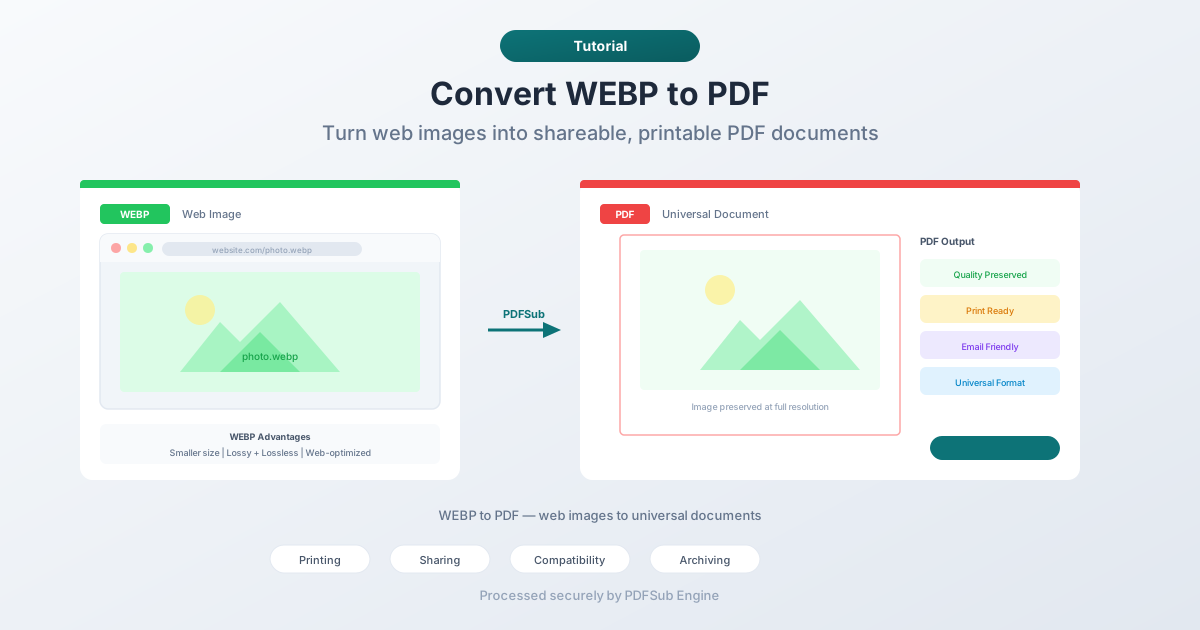 () - ## (##) - ### (###) - ## What Is WEBP? (## What Is WEBP?) - ## Why Convert WEBP to PDF? (## Why Convert WEBP to PDF?) - ### Printing (### Printing) - ### Sharing via Email (### Sharing via Email) - ### Document Inclusion (### Document Inclusion) - ### Archiving Web Content (### Archiving Web Content) - ### Compatibility with Older Systems (### Compatibility with Older Systems) - --- (---) - ## Method 1: Convert Online with PDFSub (Recommended) (## Method 1: Convert Online with PDFSub (Recommended)) - **Step by step:** (**Step by step:**) - 1. Go to [PDFSub's WEBP to PDF tool](/tools/webp-to-pdf) (1. ไปที่ [เครื่องมือ WEBP เป็น PDF ของ PDFSub](/tools/webp-to-pdf)) - 2. Upload your WEBP file — drag and drop or click to browse (2. อัปโหลดไฟล์ WEBP ของคุณ — ลากและวาง หรือคลิกเพื่อเลือก) - 3. The file is processed by PDFSub Engine in a secure, isolated environment (3. ไฟล์จะถูกประมวลผลโดย PDFSub Engine ในสภาพแวดล้อมที่ปลอดภัยและแยกออกมา) - 4. Download the converted PDF (4. ดาวน์โหลดไฟล์ PDF ที่แปลงแล้ว) - **What to expect:** (**What to expect:**) - - Image quality is preserved at the original resolution (- คุณภาพของรูปภาพจะคงเดิมตามความละเอียดต้นฉบับ) - - Transparency is maintained (rendered on a white background in PDF) (- ความโปร่งใสจะถูกรักษาไว้ (แสดงผลบนพื้นหลังสีขาวใน PDF)) - - Both lossy and lossless WEBP files are supported (- รองรับทั้งไฟล์ WEBP แบบ lossy และ lossless) - - Animated WEBP files convert the first frame (animation isn't supported in PDF) (- ไฟล์ WEBP แบบเคลื่อนไหวจะแปลงเป็นเฟรมแรก (PDF ไม่รองรับภาพเคลื่อนไหว)) - **Best for:** Quick, one-off conversions without installing anything. (**Best for:** การแปลงอย่างรวดเร็ว ไม่ต้องติดตั้งอะไรเลย) - --- (---) - ## Method 2: Convert in Your Browser (Print to PDF) (## Method 2: แปลงในเบราว์เซอร์ของคุณ (พิมพ์เป็น PDF)) - Any browser that displays WEBP can convert it to PDF using the print function. (เบราว์เซอร์ใดๆ ที่แสดงผล WEBP สามารถแปลงเป็น PDF ได้โดยใช้ฟังก์ชันการพิมพ์) - **Step by step:** (**Step by step:**) - 1. Open the WEBP file in your browser (drag it into a browser window) (1. เปิดไฟล์ WEBP ในเบราว์เซอร์ของคุณ (ลากไฟล์เข้าไปในหน้าต่างเบราว์เซอร์)) - 2. Press Ctrl+P (Windows/Linux) or Cmd+P (Mac) (2. กด Ctrl+P (Windows/Linux) หรือ Cmd+P (Mac)) - 3. Select "Save as PDF" as the printer (3. เลือก "บันทึกเป็น PDF" เป็นเครื่องพิมพ์) - 4. Adjust page settings (margins, orientation) as needed (4. ปรับการตั้งค่าหน้ากระดาษ (ระยะขอบ, การวางแนว) ตามต้องการ) - 5. Save the PDF (5. บันทึกไฟล์ PDF) - **Limitations:** (**Limitations:**) - - The image is placed on a page with browser-added margins and headers/footers (- รูปภาพจะถูกวางบนหน้ากระดาษพร้อมกับระยะขอบและส่วนหัว/ส่วนท้ายที่เบราว์เซอร์เพิ่มเข้ามา) - - You have limited control over how the image is positioned on the page (- คุณควบคุมการจัดวางรูปภาพบนหน้ากระดาษได้จำกัด) - - Not ideal for precise output — the image may be scaled to fit the print area (- ไม่เหมาะสำหรับผลลัพธ์ที่แม่นยำ — รูปภาพอาจถูกปรับขนาดให้พอดีกับพื้นที่พิมพ์) - **Best for:** When you need something quick and don't care about precise formatting. (**Best for:** เมื่อคุณต้องการอะไรที่รวดเร็วและไม่ใส่ใจเรื่องการจัดรูปแบบที่แม่นยำ) - --- (---) - ## Method 3: Convert via Screenshot or Image Editor (## Method 3: แปลงผ่านภาพหน้าจอ หรือโปรแกรมแก้ไขรูปภาพ) - If you have an image editor that supports WEBP (recent versions of Photoshop, GIMP, Paint.NET), you can open the file and export to PDF. (หากคุณมีโปรแกรมแก้ไขรูปภาพที่รองรับ WEBP (เช่น Photoshop, GIMP, Paint.NET เวอร์ชันล่าสุด) คุณสามารถเปิดไฟล์และส่งออกเป็น PDF ได้) - **Step by step:** (**Step by step:**) - 1. Open the WEBP file in your image editor (1. เปิดไฟล์ WEBP ในโปรแกรมแก้ไขรูปภาพของคุณ) - 2. Export or Save As PDF (2. ส่งออก หรือ บันทึกเป็น PDF) - 3. Adjust output settings as needed (3. ปรับการตั้งค่าผลลัพธ์ตามต้องการ) - **Limitations:** (**Limitations:**) - - Requires software that supports WEBP import (- ต้องใช้ซอฟต์แวร์ที่รองรับการนำเข้า WEBP) - - Overkill for simple format conversion (- เกินความจำเป็นสำหรับการแปลงรูปแบบง่ายๆ) - - Some editors don't export directly to PDF (- โปรแกรมแก้ไขบางตัวไม่สามารถส่งออกเป็น PDF ได้โดยตรง) - **Best for:** Users who already have a compatible image editor installed. (**Best for:** ผู้ใช้ที่มีโปรแกรมแก้ไขรูปภาพที่รองรับติดตั้งอยู่แล้ว) - --- (---) - ## WEBP vs. Other Image Formats (## WEBP เทียบกับ รูปแบบรูปภาพอื่นๆ) - Understanding where WEBP fits helps explain why conversion is sometimes necessary. (การทำความเข้าใจว่า WEBP อยู่ในกลุ่มไหน ช่วยอธิบายได้ว่าทำไมการแปลงจึงจำเป็นในบางครั้ง) - | Feature | WEBP | JPEG | PNG | PDF | (| Feature | WEBP | JPEG | PNG | PDF |) - |---|------|------|-----|-----| (|---|------|------|-----|-----|) - | Lossy compression | Yes | Yes | No | Yes | (| Lossy compression | Yes | Yes | No | Yes |) - | Lossless compression | Yes | No | Yes | Yes | (| Lossless compression | Yes | No | Yes | Yes |) - | Transparency | Yes | No | Yes | Yes | (| Transparency | Yes | No | Yes | Yes |) - | Animation | Yes | No | No | No | (| Animation | Yes | No | No | No |) - | Browser support | All modern | All | All | All | (| Browser support | All modern | All | All | All |) - | Print workflow support | Limited | Excellent | Excellent | Excellent | (| Print workflow support | Limited | Excellent | Excellent | Excellent |) - | Email compatibility | Variable | Excellent | Excellent | Excellent | (| Email compatibility | Variable | Excellent | Excellent | Excellent |) - | Archival standard | No | No | No | Yes (PDF/A) | (| Archival standard | No | No | No | Yes (PDF/A) |) - WEBP wins on web performance. PDF wins on everything else — printing, sharing, archiving, and universal compatibility. (WEBP ชนะในด้านประสิทธิภาพบนเว็บ ส่วน PDF ชนะในทุกๆ ด้าน — การพิมพ์ การแชร์ การจัดเก็บถาวร และความเข้ากันได้แบบสากล) - --- (---) - ## Handling Animated WEBP Files (## การจัดการไฟล์ WEBP แบบเคลื่อนไหว) - Animated WEBP files work like GIFs but with better compression and quality. When converting an animated WEBP to PDF, you get a static image because PDF doesn't support animation. (ไฟล์ WEBP แบบเคลื่อนไหวทำงานได้เหมือน GIF แต่มีการบีบอัดและคุณภาพที่ดีกว่า เมื่อแปลง WEBP แบบเคลื่อนไหวเป็น PDF คุณจะได้ภาพนิ่ง เนื่องจาก PDF ไม่รองรับภาพเคลื่อนไหว) - Most converters extract the first frame of the animation. If you need a specific frame, you'll need to use an image editor to select the frame you want before converting. (ตัวแปลงส่วนใหญ่จะดึงเฟรมแรกของภาพเคลื่อนไหวออกมา หากคุณต้องการเฟรมที่เฉพาะเจาะจง คุณจะต้องใช้โปรแกรมแก้ไขรูปภาพเพื่อเลือกเฟรมที่คุณต้องการก่อนทำการแปลง) - If the animation itself is what you need to share, consider converting to GIF or MP4 instead of PDF. (หากภาพเคลื่อนไหวคือสิ่งที่คุณต้องการแชร์ ให้พิจารณาแปลงเป็น GIF หรือ MP4 แทน PDF) - --- (---) - ## Tips for Best Results (## เคล็ดลับเพื่อให้ได้ผลลัพธ์ที่ดีที่สุด) - 1. **Check the image dimensions first.** WEBP files from the web are often small resolution (optimized for screen). If you plan to print the PDF, verify the image is large enough for your target print size. (1. **ตรวจสอบขนาดรูปภาพก่อน** ไฟล์ WEBP จากเว็บมักมีความละเอียดต่ำ (ปรับให้เหมาะกับหน้าจอ) หากคุณวางแผนจะพิมพ์ไฟล์ PDF ให้ตรวจสอบว่ารูปภาพมีขนาดใหญ่พอสำหรับขนาดการพิมพ์ที่คุณต้องการ) - 2. **Mind the transparency.** WEBP images with transparent backgrounds will render on a white background in PDF. If you need a different background color, open the image in an editor and add a background before converting. (2. **คำนึงถึงความโปร่งใส** รูปภาพ WEBP ที่มีพื้นหลังโปร่งใสจะแสดงผลบนพื้นหลังสีขาวใน PDF หากคุณต้องการสีพื้นหลังอื่น ให้เปิดรูปภาพในโปรแกรมแก้ไขและเพิ่มพื้นหลังก่อนทำการแปลง) - 3. **Batch conversion saves time.** If you have multiple WEBP files to convert, look for a tool that handles batch uploads rather than converting one at a time. (3. **การแปลงแบบกลุ่มช่วยประหยัดเวลา** หากคุณมีไฟล์ WEBP หลายไฟล์ที่ต้องแปลง ให้มองหาเครื่องมือที่รองรับการอัปโหลดแบบกลุ่ม แทนที่จะแปลงทีละไฟล์) - 4. **Keep the original.** WEBP files are small and efficient. Keep them as your web-ready copies and use the PDF for print and sharing. (4. **เก็บต้นฉบับไว้** ไฟล์ WEBP มีขนาดเล็กและมีประสิทธิภาพ ให้เก็บไฟล์เหล่านี้ไว้เป็นสำเนาพร้อมใช้บนเว็บ และใช้ PDF สำหรับการพิมพ์และการแชร์) - --- (---) - ## FAQ (## คำถามที่พบบ่อย) - ### Does WEBP to PDF conversion reduce image quality? (### การแปลง WEBP เป็น PDF ลดคุณภาพรูปภาพหรือไม่?) - No. The image is embedded in the PDF at its original quality. There's no re-compression during the conversion process. The PDF file will be larger than the WEBP file because PDF doesn't use WEBP's compression algorithm internally. (ไม่ รูปภาพจะถูกฝังใน PDF ด้วยคุณภาพดั้งเดิม ไม่มีการบีบอัดซ้ำในระหว่างกระบวนการแปลง ไฟล์ PDF จะมีขนาดใหญ่กว่าไฟล์ WEBP เนื่องจาก PDF ไม่ได้ใช้อัลกอริทึมการบีบอัดของ WEBP ภายใน) - ### Can I convert multiple WEBP images into one PDF? (### ฉันสามารถแปลงรูปภาพ WEBP หลายรูปเป็น PDF เดียวกันได้หรือไม่?) - Yes. Many tools let you upload several WEBP files and combine them into a single multi-page PDF, with each image on its own page. This is useful for creating image portfolios or photo collections. (ได้ เครื่องมือหลายอย่างอนุญาตให้คุณอัปโหลดไฟล์ WEBP หลายไฟล์และรวมเข้าเป็น PDF หลายหน้า โดยแต่ละรูปภาพจะอยู่บนหน้าของตัวเอง ซึ่งมีประโยชน์สำหรับการสร้างแฟ้มผลงานรูปภาพ หรือคอลเลกชันภาพถ่าย) - ### Why is my WEBP file so small but the PDF is much larger? (### ทำไมไฟล์ WEBP ของฉันถึงเล็ก แต่ไฟล์ PDF กลับใหญ่กว่ามาก?) - WEBP uses aggressive compression algorithms that produce very small files — often 25-35% smaller than equivalent JPEG. When the image is embedded in a PDF, it's stored using PDF-native compression, which is less aggressive. A 200 KB WEBP might become a 600 KB PDF. (WEBP ใช้อัลกอริทึมการบีบอัดที่เข้มข้น ซึ่งสร้างไฟล์ขนาดเล็กมาก — บ่อยครั้งเล็กกว่า JPEG ที่เทียบเท่ากันถึง 25-35% เมื่อรูปภาพถูกฝังใน PDF มันจะถูกจัดเก็บโดยใช้การบีบอัดแบบเนทีฟของ PDF ซึ่งมีความเข้มข้นน้อยกว่า WEBP ขนาด 200 KB อาจกลายเป็น PDF ขนาด 600 KB) - ### Can I convert WEBP to PDF on my phone? (### ฉันสามารถแปลง WEBP เป็น PDF บนโทรศัพท์ของฉันได้หรือไม่?) - Yes. Online tools like PDFSub work in mobile browsers. Open the site in your phone's browser, upload the WEBP file, and download the PDF. No app installation required. (ได้ เครื่องมือออนไลน์เช่น PDFSub ทำงานได้ในเบราว์เซอร์มือถือ เปิดเว็บไซต์ในเบราว์เซอร์ของโทรศัพท์ อัปโหลดไฟล์ WEBP และดาวน์โหลด PDF ไม่จำเป็นต้องติดตั้งแอป) - ### What's the maximum file size for WEBP to PDF conversion? (### ขนาดไฟล์สูงสุดสำหรับการแปลง WEBP เป็น PDF คือเท่าใด?) - This varies by tool. PDFSub handles WEBP files up to the platform's file size limit. Most WEBP files are small (under 5 MB) since they're designed for web use, so file size is rarely an issue. (นี่แตกต่างกันไปตามเครื่องมือ PDFSub รองรับไฟล์ WEBP จนถึงขีดจำกัดขนาดไฟล์ของแพลตฟอร์ม ไฟล์ WEBP ส่วนใหญ่มีขนาดเล็ก (ต่ำกว่า 5 MB) เนื่องจากออกแบบมาเพื่อใช้บนเว็บ ดังนั้นขนาดไฟล์จึงไม่ค่อยเป็นปัญหา) - --- (---) - ## Wrapping Up (## สรุป) - WEBP is a great format for the web, but it doesn't travel well outside of browsers. When you need to print, email, archive, or share a WEBP image with someone who might not have a compatible viewer, converting to PDF is the practical solution. (WEBP เป็นรูปแบบที่ยอดเยี่ยมสำหรับเว็บ แต่ไม่เหมาะกับการใช้งานนอกเบราว์เซอร์ เมื่อคุณต้องการพิมพ์ ส่งอีเมล จัดเก็บถาวร หรือแชร์รูปภาพ WEBP กับผู้ที่อาจไม่มีโปรแกรมดูที่รองรับ การแปลงเป็น PDF คือทางออกที่ใช้งานได้จริง) - Try [PDFSub's WEBP to PDF converter](/tools/webp-to-pdf) — upload your WEBP file and download a clean PDF in seconds. (ลองใช้ [เครื่องมือแปลง WEBP เป็น PDF ของ PDFSub](/tools/webp-to-pdf) — อัปโหลดไฟล์ WEBP ของคุณและดาวน์โหลด PDF ที่สมบูรณ์แบบในไม่กี่วินาที) - },
PDFSub Team